


Family Sharing offers a simple way to share digital content while keeping track of purchases. A key feature is the Ask to Buy feature. It allows children to navigate the system independently, while ensuring all spending remains transparent. This creates a safe and clearly regulated framework for App Store activity.
Modern devices are part of everyday life. To ensure children can use them safely, features are needed that allow for control without being overly intrusive. Purchase Inquiry fulfills precisely this purpose. Content can be reviewed, purchases can be controlled, and an overview can be maintained. This feature is part of Family Sharing and can be flexibly customized.
How a purchase request works in Family Sharing
Purchase Request requires active Family Sharing. Once enabled, children can initiate purchases that must be approved beforehand. This includes apps, in-app purchases, and re-downloads of previously purchased content. After a request, all relevant information appears on the family organizer's device. Approval or rejection then follows.
If permission is granted, the child's device will automatically download the item. A rejection will result in no installation and no purchase. Repeated downloads of the child's own content, updates, or the redemption of codes will not trigger a purchase request.
For children under 13, Ask to Buy is enabled by default. For individuals under 18, a prompt appears when adding them to the family group to enable this feature. If Ask to Buy is disabled after their 18th birthday, it cannot be re-enabled.
Activate purchase request
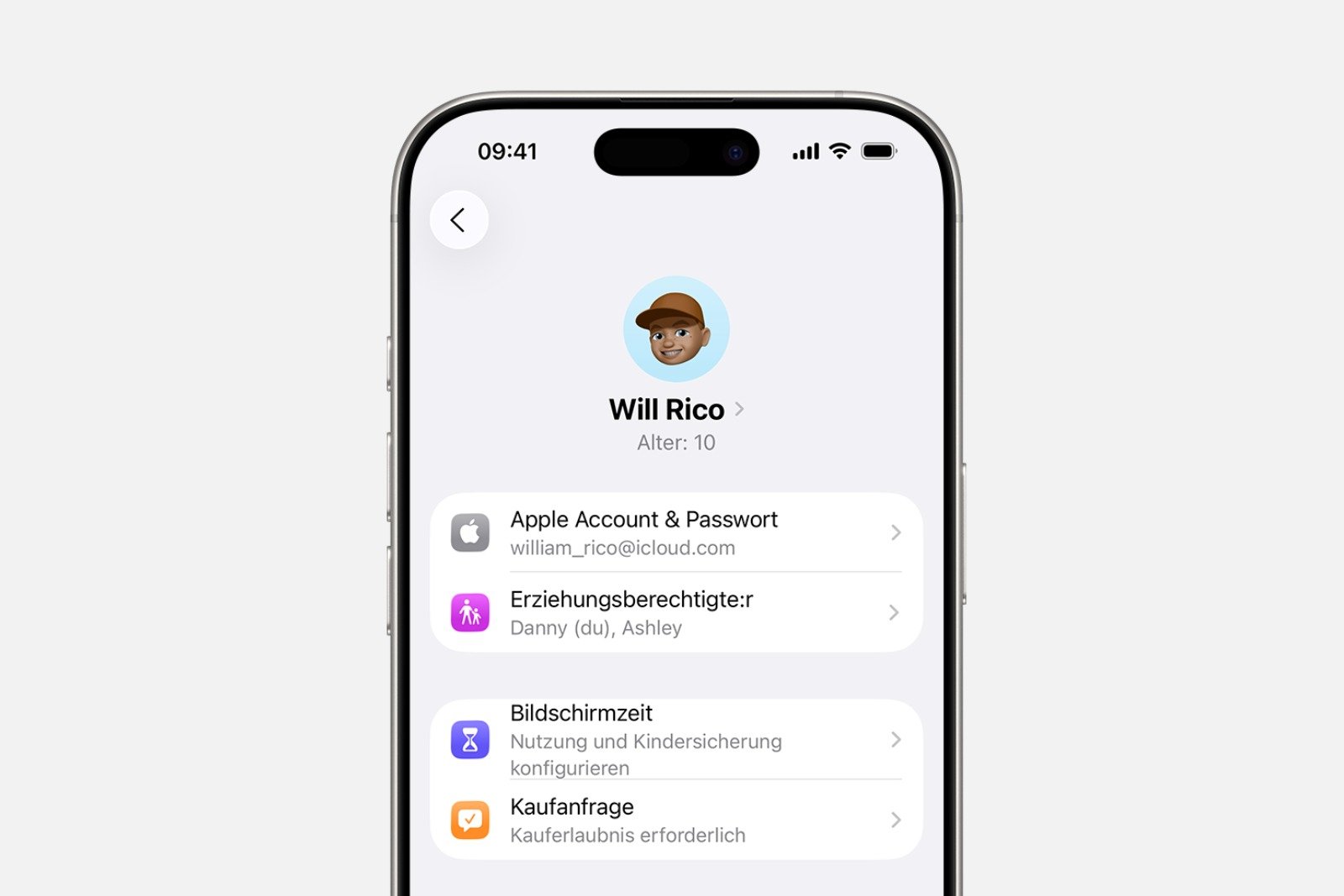
On iPhone or iPad
- Open settings and select the Family section.
- Choose the child's name
- Select purchase request
- Enable "Require approval for purchases"
On the Mac
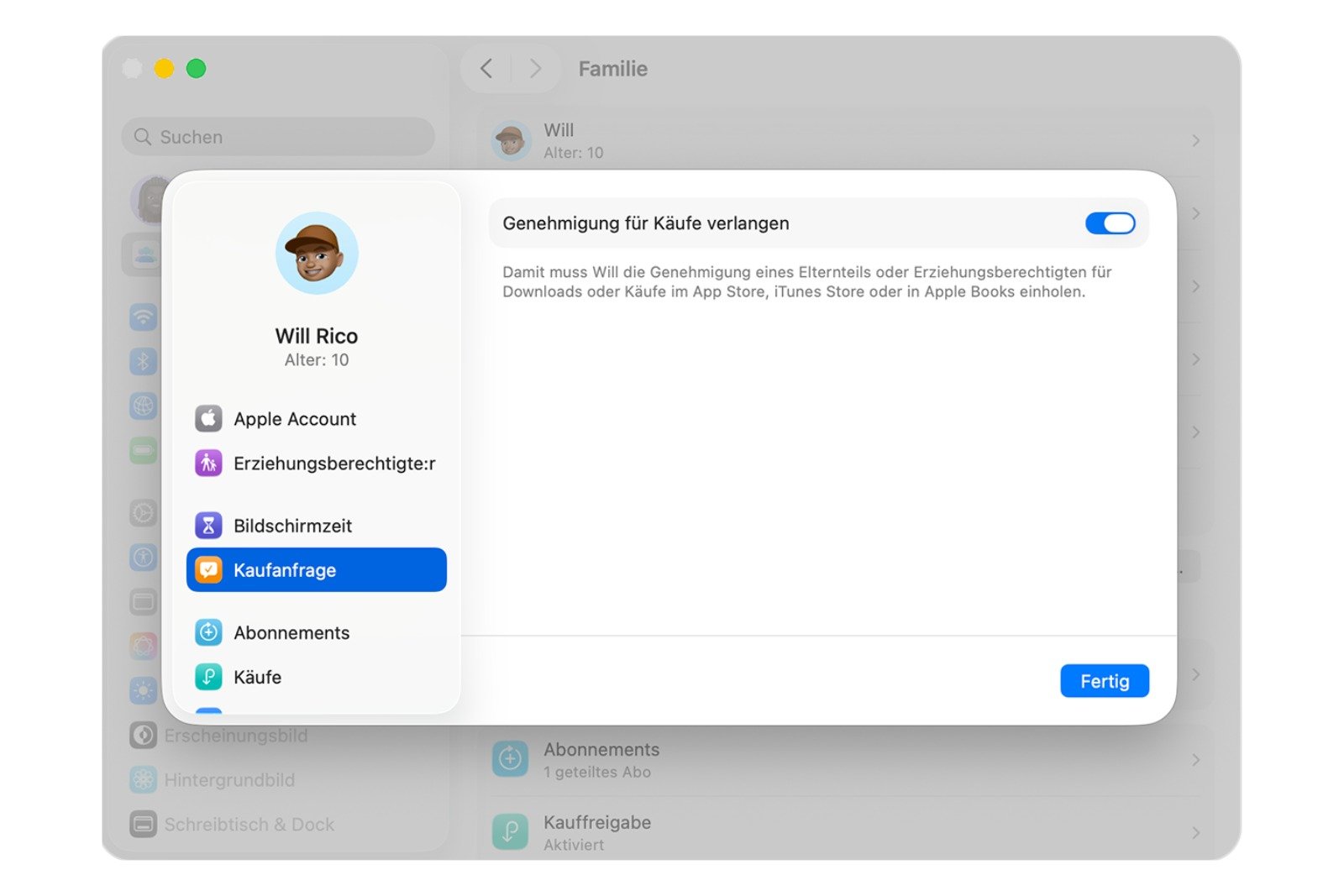
- Open the Apple menu and select System Preferences.
- Select family
- Choose the child's name
- Open purchase request in the sidebar
- Enable "Require approval for purchases"
Approve or reject purchase requests
Purchase requests can be processed via iPhone, iPad, Mac, or Apple Watch. The request appears as a message with all the information about the desired item. The user then decides whether to approve the purchase or not.
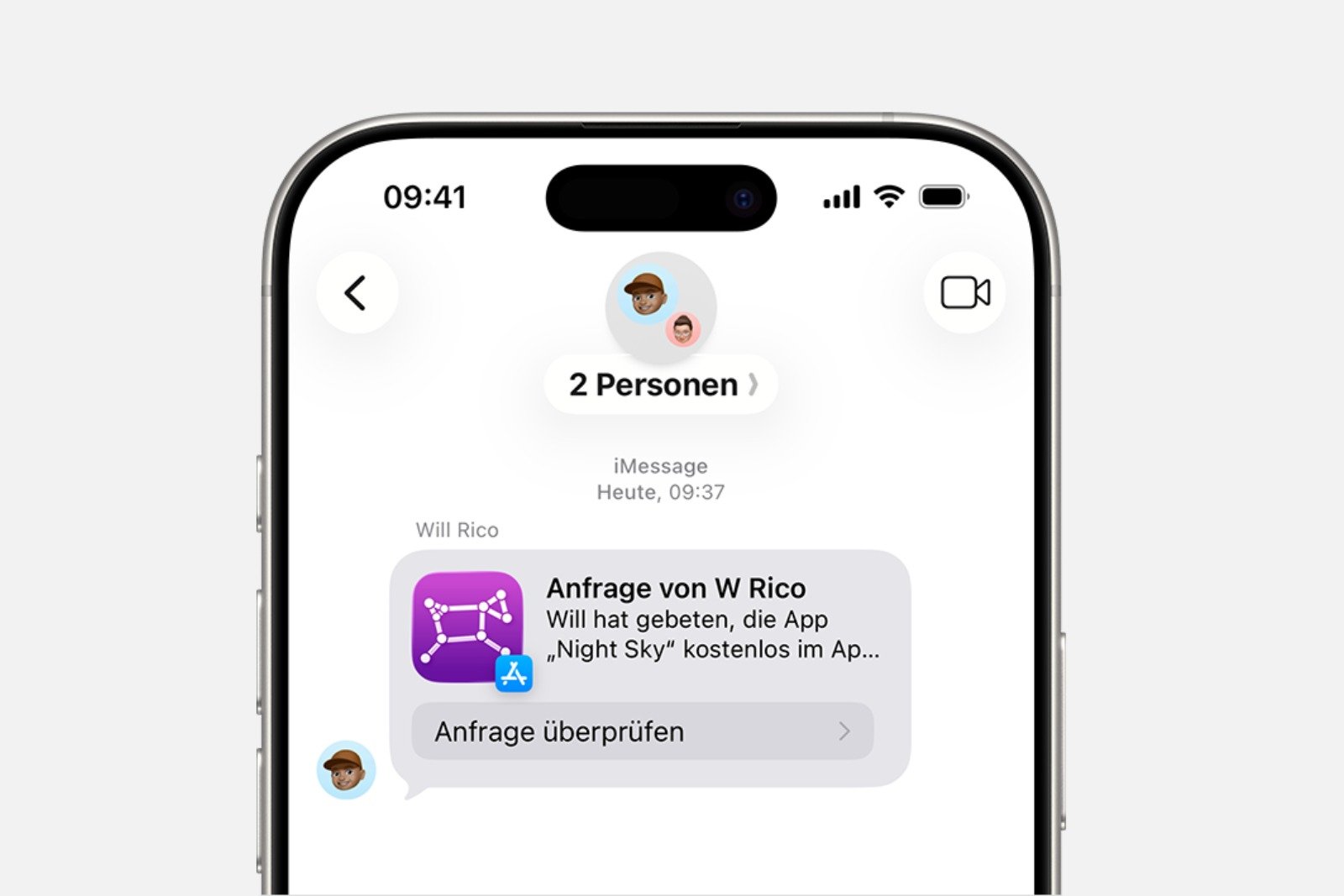
After approval, the organizer logs into their Apple account. Only then is the purchase completed. The item is then added to the child's account. If Family Sharing is enabled, the item is automatically available to all members.
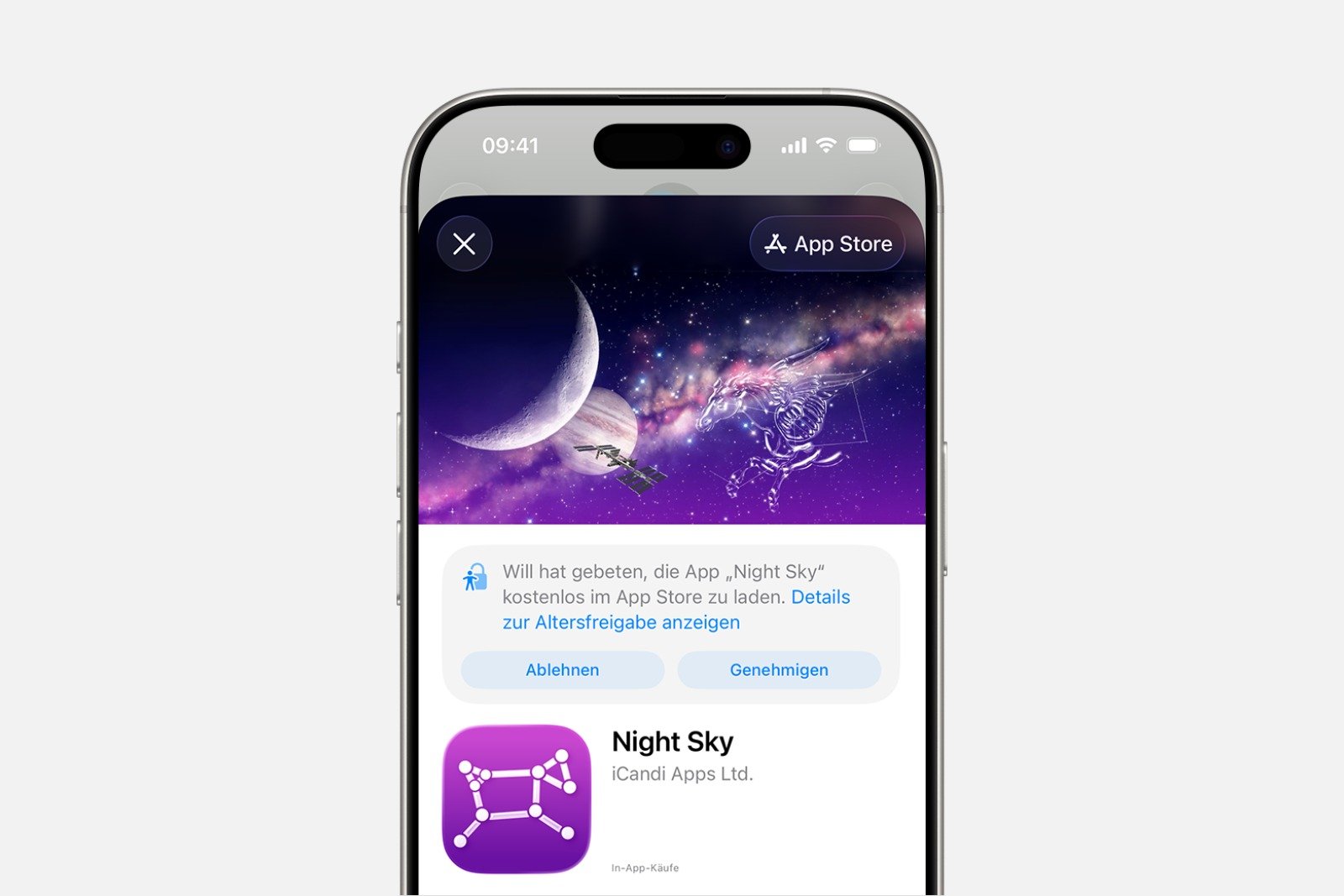
A rejection triggers a notification on the child's device. If the request is not approved, it must be resubmitted later. In system versions up to iOS 16.1 or iPadOS 16.1, rejected requests are automatically deleted after 24 hours.
Missed messages remain visible in the Messages app and can be reopened there.
Exemption requests for screen time rules
In addition to standard purchase requests, children can ask for an exception if an app violates existing screen time guidelines. This applies, for example, to apps that require a higher age rating or are intended for use outside of a time limit.
All approved exceptions can be viewed in Screen Time. They can be removed there at any time. In iOS 26 and iPadOS 26, these exceptions are managed directly through Settings.
Designate an additional approver
Purchase requests don't have to be handled solely by the family organizer. Another adult in the family group can be designated as an additional approver. One approver is sufficient to manage all requests. Approved purchases cannot be reversed.
On iPhone or iPad
- Open Settings
- Select family, then the relevant family member.
- Select parent or guardian
- Set as parent or guardian and activate
On the Mac
- Open the Apple menu and select System Preferences.
- Select family
- Choose a family member
- parent or guardian
- As a parent or guardian, designate and confirm
When a purchase request fails
If a child uses a student Apple account, the "Request to Buy" feature only applies to personal purchases. Content distributed through a school is not covered by this system.
Purchase request in Family Sharing: Safety and freedom in digital use
Family Sharing combined with Ask to Buy offers a clear and secure framework for managing digital content. This feature protects against unwanted spending, provides structure, and still allows sufficient freedom. All settings are easily customizable and remain intuitive. This makes digital management reliable and straightforward in everyday life. The best products for you: Our Amazon storefront offers a wide selection of accessories, including those for HomeKit. (Image: Shutterstock / DenPhotos)
- Use Family Sharing to share apps and purchases
- Adjust family sharing and expand access to subscriptions
- Use Apple's Family Sharing to share content together
- iPhone tip: How alternative app distribution channels work
- iPhone tip: Access flight information directly in the system
- Family Sharing explained: Easily share and manage iCloud+
- Quickly set up Family Sharing on iPhone, iPad, and Mac
- iOS 26.2 explained: How the new AirDrop codes work
- iOS 26.2 enhances the Reminders app with alarm functionality
- Here's how to properly create a backup for iPhone and iPad
- Setting up and using Apple Car Key: All functions explained
- New iOS 26.2 feature: Screen flashes for notifications
- Longer battery life with iOS 26 – Adaptive Power explained
- Live translation with AirPods: Here's how the feature works
- iOS 26: The new focus mode „Reduce interruptions“
- iOS 26.1: Reactivate the classic stop button on the alarm clock
- iOS 26.1 brings a new lock screen setting for the iPhone
- iOS 26.1: Liquid Glass effects can be toned down
- watchOS 26 brings hints about the Apple Watch dial
- macOS 26 Update: Hidden Tools and Improvements
- New call history in iOS 26: All conversations at a glance
- iOS 26: iMessage not working? Apple announces the solution
- iOS 26 Tricks: 26 small innovations with a big impact
- iOS 26 solves the Bluetooth problem with AirPods in the car
- iPhone: How the new call waiting feature works in iOS 26
FAQ about Family Sharing and Purchase Request
Purchase Request checks purchases from child accounts before they are made. For each request, the app information appears on the organizer's device, who can then approve or deny the purchase.
For children under 13, the "Ask to Buy" option is automatically enabled. For those under 18, enabling it is recommended when adding them to Family Sharing.
No. If it is deactivated after the 18th birthday, it cannot be switched on again.
Repeated downloads of your own purchases, updates, and the redemption of codes do not trigger an approval request. Only new or paid content requires approval.
It can be activated on iPhone, iPad, and Mac in the Family settings. The organizer selects the child profile and enables the approval requirement.
The family organizer can approve themselves or designate another adult as an approver in Family Sharing.
The child receives a notification that the request has been denied. Without approval, no purchase will be made, and the request must be resubmitted later.
No. If a child uses a student Apple account, purchase requests only apply to personal purchases. Content distributed through the school is excluded.
Approved exceptions for apps appear directly in the Screen Time overview and can be removed at any time in iOS 26 and iPadOS 26.
Missed requests remain visible in the Messages app and can be reopened and approved or rejected there.





