

This article may contain affiliate links. Learn more on our Partner Program page.
Family Sharing offers a central way to organize digital content and subscriptions within an Apple household. It creates clear structures, reduces costs, and ensures that media, apps, and services can be used efficiently. At the same time, personal data such as photos, files, and recommendations remain separate. This creates a system that facilitates access without compromising privacy.
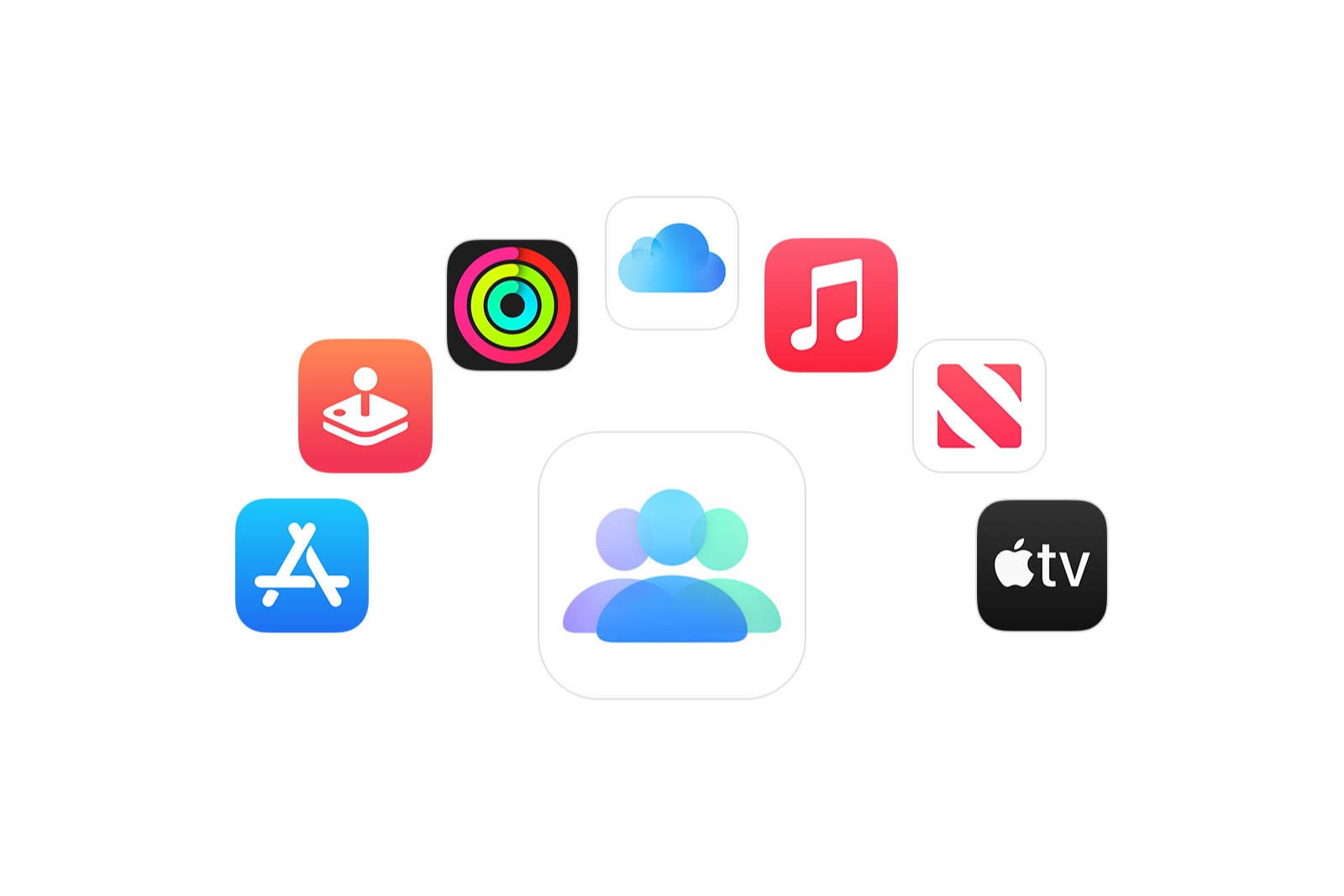
Apple's Family Sharing provides a solution that connects up to six people. Sharing subscriptions, purchases, and managing media content becomes significantly easier. The feature bundles Apple TV, iCloud+, Apple Music, Apple Arcade, Apple News+, Apple Fitness+, and other services into a single structure. Setup and management are handled directly through Settings and are designed to be quick and straightforward.
What Family Sharing includes
Family Sharing allows you to share a wide variety of digital content. This includes music from the iTunes Store, movies and TV shows from the Apple TV app, books from Apple Books, and apps from the App Store. App developers must actively offer Family Sharing support. This information can be found in the App Store under the support section for each app.
Various Apple subscriptions can also be shared. These include Apple One Family and Premium subscriptions, the Apple Music Family subscription, Apple Arcade, Apple Fitness+, Apple News+, Apple Podcasts subscriptions, Apple TV, Apple TV Channels, and iCloud+. When sharing an iCloud+ storage plan, folders and files remain private. Family members cannot access each other's content.
What cannot be shared
Individual subscriptions and student subscriptions, such as the Apple Music Student plan, are excluded from Family Sharing. Consumable in-app purchases like coins or gems, as well as subscriptions or in-app purchases from non-participating apps, are also excluded. Content that has been removed from the store or hidden by a family member is also unavailable. Media assigned through Apple School Manager cannot be shared.
Setting up Family Sharing
If Family Sharing hasn't been set up yet, you can activate it via the app settings. After selecting your name, the Family Sharing section leads to the "Set up family" option. Once you've completed the on-screen steps, you can invite family members. Eligible subscriptions will then be shared automatically.
Actively share subscriptions
If Family Sharing is already set up and a subscription is unavailable, you can check the settings. Go to Settings, then your name, and then Subscriptions. The Share with family option should be enabled there. You can then select the subscription in question. Individual or student subscriptions must be switched to a family plan to be shareable.
Subscriptions not from Apple may have their own rules. In this case, you need to check under Family Sharing to see if sharing can be enabled.
To share in-app purchases, the "Share my purchases" option must be enabled for both the paying and receiving accounts. Changes to sharing settings may take up to 30 minutes to take effect.
Purchase request and content for children
The "Purchase Request" feature allows you to control new purchases made by children. Approval is required before downloading or purchasing new content. However, this feature cannot block content already purchased by other members of the group.
Payment arrangements within Family Sharing
When shared purchase is enabled, the family organizer covers all subscription and purchase costs for family members. If shared purchase is disabled, each person pays their own way. Subscriptions remain shareable, but individual purchases such as apps, books, or non-consumable in-app purchases can no longer be shared.
How Family Sharing reduces costs and protects data
Family Sharing creates a unified system for digital purchases, subscriptions, and media within a group. It simplifies sharing, ensures clear cost structures, and protects personal data. Those who understand the various options and use the correct settings can enjoy flexible and secure management of digital content for up to six people. The best products for you: Our Amazon Storefront offers a wide selection of accessories, including those compatible with HomeKit. (Image: Apple)
- Use Apple's Family Sharing to share content together
- iPhone tip: How alternative app distribution channels work
- iPhone tip: Access flight information directly in the system
- Family Sharing explained: Easily share and manage iCloud+
- Quickly set up Family Sharing on iPhone, iPad, and Mac
- iOS 26.2 explained: How the new AirDrop codes work
- iOS 26.2 enhances the Reminders app with alarm functionality
- Here's how to properly create a backup for iPhone and iPad
- Setting up and using Apple Car Key: All functions explained
- New iOS 26.2 feature: Screen flashes for notifications
- Longer battery life with iOS 26 – Adaptive Power explained
- Live translation with AirPods: Here's how the feature works
- iOS 26: The new focus mode „Reduce interruptions“
- iOS 26.1: Reactivate the classic stop button on the alarm clock
- iOS 26.1 brings a new lock screen setting for the iPhone
- iOS 26.1: Liquid Glass effects can be toned down
- watchOS 26 brings hints about the Apple Watch dial
- macOS 26 Update: Hidden Tools and Improvements
- New call history in iOS 26: All conversations at a glance
- iOS 26: iMessage not working? Apple announces the solution
- iOS 26 Tricks: 26 small innovations with a big impact
- iOS 26 solves the Bluetooth problem with AirPods in the car
- iPhone: How the new call waiting feature works in iOS 26
- iPhone gets new feature against spam and advertising calls
- iOS 26: New option saves time and data when sending photos
Frequently asked questions about Family Sharing and subscriptions
Family Sharing is an Apple feature that allows you to share subscriptions, purchases, and digital content with up to six people. Everyone retains their own settings, recommendations, and private storage areas.
Apple One Family and Premium subscriptions, Apple Music Family subscription, Apple Arcade, Apple Fitness+, Apple News+, Apple Podcasts subscriptions, Apple TV, Apple TV Channels, and iCloud+ can be shared. Participating apps also support sharing in-app purchases.
Yes, an iCloud+ storage plan can be shared. Personal data such as photos or files remain private. No family member can see other people's content.
Individual subscriptions, student subscriptions, consumable in-app purchases such as coins or gems, subscriptions to non-participating apps, hidden purchases, and media that is no longer available in the store are not shareable. Content via Apple School Manager is also excluded.
Setup is done via Settings, your name, and the Family Sharing section. Members can be invited via Set up family. Qualifying subscriptions will then be shared automatically.
"Share with family" must be enabled in the settings. Individual or student subscriptions must be switched to a family subscription. It may also take up to 30 minutes for the changes to take effect.
With the purchase request feature, each new download or purchase by children is only released after approval. Content already purchased by others cannot be blocked by this function.
With active purchase sharing enabled, the family organizer pays for all subscriptions and purchases. If it is disabled, each person pays for themselves. Subscriptions remain shareable, but individual purchases cannot.
In this case, neither the app nor its subscriptions or in-app purchases can be shared. Whether support is available is indicated in the Support section of the App Store.
Only non-consumable in-app purchases from participating apps are shareable. Additionally, both accounts must have the "Share my purchases" option enabled.





