

This article may contain affiliate links. Learn more on our Partner Program page.
The iPhone has long been an integral part of everyday life. Whether for communication, work, or entertainment – nothing works without a battery. Therefore, charging speed is crucial. With iOS updates and the appropriate hardware, Apple has created various ways to make the charging process more transparent and efficient. Not only the charger and cable are crucial, but also factors such as accessories, temperature, and app usage.
If you've ever wondered why an iPhone sometimes charges faster and sometimes slower, you'll find the answers here. Apple has clear guidelines for which chargers provide the best performance and, with iOS 18 and iOS 26, introduced new features that directly display information about the charging process. This overview shows which settings, devices, and habits influence charging time and how to get your battery back to full capacity faster.
Charging time estimation with iOS 26
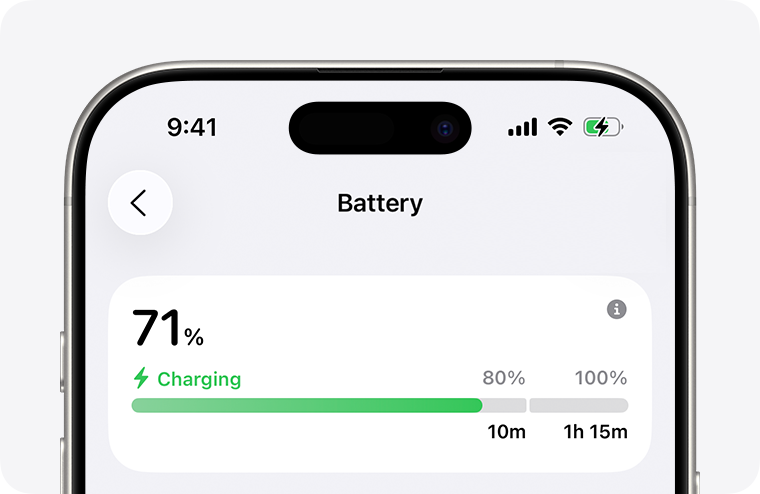
With iOS 26, it's possible to see an estimate of charging time directly in Settings. Under Settings > Battery, the iPhone displays how long it will take to charge to 80 percent or fully. Once the battery level is above 80 percent, the estimated time remaining until 100 percent or the set charge limit is displayed. This information also appears on the lock screen, so you can keep track of the charging time at all times.
Wired and wireless charging
The choice of charger significantly influences the speed. For wired charging, the following applies:
- iPhone 15 and newer achieve the best charging speeds with a USB-C charger with power delivery and a USB-C cable.
- iPhone 14 and earlier models use a USB-C to Lightning cable for fast charging.
For wireless charging, MagSafe chargers and Qi2-certified chargers offer the fastest results. Traditional Qi1-certified chargers or chargers with less than 10 watts deliver noticeably slower charging times. The power of the power adapter also plays a role. Chargers with 7.5 watts or less significantly increase the charging time. Charging adapters with multiple ports, such as the 35W Dual USB-C Port Power Adapter, distribute the power across multiple devices, which can also limit the iPhone's charging performance. The same applies to charging via computers, USB hubs, or car chargers.
Notes and messages in iOS
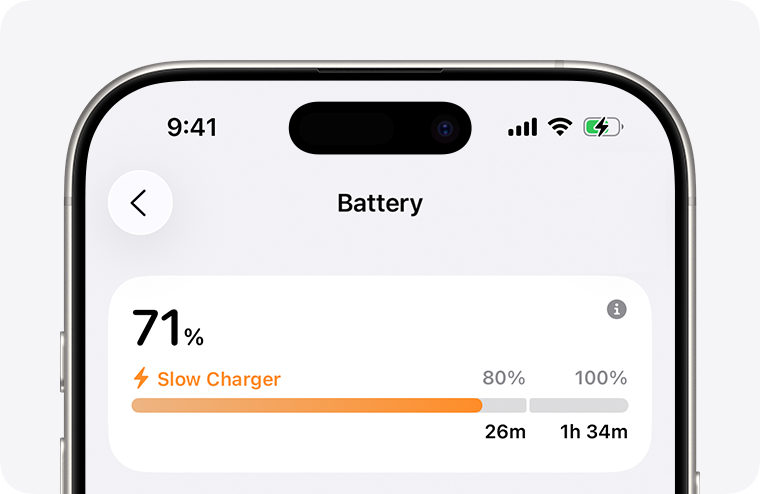
Since iOS 18, the "Slow Charger" message appears on the lock screen and in the battery settings when a more powerful power adapter could improve charging speed. This information doesn't indicate a defect in the iPhone or charger, but simply that more power is available. iOS 26 also includes the "Charger Incompatible" message. This appears when a charger is detected but doesn't charge the iPhone. This immediately indicates that the selected accessory is unsuitable.
Use accessories correctly
Connected accessories can affect charging performance. If wired accessories such as headphones are used while the iPhone is charging wirelessly, the system reduces the charging power to 7.5 watts. Adapters with pass-through power, such as a USB-C Digital AV Multiport Adapter, also reserve power for their own ports and therefore deliver less power to the iPhone. To speed up wireless charging, disconnect accessories whenever possible.
Use while charging
The use of certain apps or features also has an impact. Graphically intensive games, camera apps, or streaming high-resolution videos put a strain on the processor and slow down charging speed. Charging times are particularly long when the display is at full brightness. If you want to recharge your iPhone as quickly as possible, you should avoid using such apps while charging.
Pay attention to the temperature
The iPhone heats up while charging. If it's in a particularly warm environment, the system may temporarily pause charging to protect the battery. Charging will only resume when the temperature returns to normal operating range. A cooler location for the iPhone and charger ensures a more stable charging speed. You can check whether charging has been paused at any time in the battery settings.
Charge your iPhone faster with the right combination
The iPhone's charging speed depends on many factors. With iOS 26, Apple is providing a precise charging time estimate directly in the settings and on the lock screen for the first time. A powerful charger with USB-C or MagSafe makes the biggest difference, while weaker power adapters, USB hubs, or car chargers can significantly slow the charging process. Accessories, app usage, and temperature are other influencing factors that should not be underestimated. Taking these factors into account will charge the iPhone more efficiently and shorten the time until the battery is back to full capacity. The best products for you: Our Amazon Storefront offers a wide selection of accessories, including those for HomeKit. (Image: Shutterstock / charnsitr)
- iOS 26: Change the color of app icons to match the MagSafe case
- What options does the USB-C port offer in the iPhone 17?
- iOS 26: Apple Intelligence makes reminders even smarter
- Preview App: Everything about PDF and image functions on the iPhone
- iPhone 17: How iOS 26 colors your app icons
- iOS 26: Use polls directly in the Messages app
- New iOS 26 feature: Use live translation with AirPods
- Discover and manage games with the Apple Games app
- iPhone 17: Tips for using the Center Stage front camera
- iPhone 17 Dual Capture explained: Using the front and rear cameras
- iOS 26 Screenshot Disable full screen and enable old view
- iPhone 17: Disable or customize the camera control button
- iPhone Tip: Live Translation in Messages, Phone & FaceTime
- Setting up your iPhone correctly: Check, block, and filter calls
- Keep an eye on your blood pressure: How the iPhone Health app helps
- Apple explains Apple Watch high blood pressure warnings
- Setting up Apple Music transitions: AutoMix or Crossfade
- macOS 26: Automatically connect iPhone hotspot
- Find and adjust the camera flash in iOS 26 – here's how
Frequently asked questions about iPhone charging
An iPhone charges fastest with a high-performance USB-C power adapter and MagSafe or Qi2-certified chargers. Avoiding intensive app use and keeping the phone in a cool location also shortens charging times.
For iPhone 15 and newer, Apple recommends a USB-C charger with power delivery and a USB-C cable. Older models are best charged with a USB-C to Lightning cable.
This message appears since iOS 18 when a more powerful power adapter could charge the iPhone faster. It does not mean that the charger or iPhone is defective.
Since iOS 26, this message appears when a charger is detected but the iPhone doesn't charge. This indicates unsuitable accessories.
Yes. Especially with wireless charging, connected accessories reduce charging performance. For faster charging, disconnect accessories.
Yes. In very warm environments, the iPhone may overheat and pause charging briefly until the battery returns to a safe temperature range.