


Family Sharing is a core feature of the Apple ecosystem. It simplifies sharing purchases, subscriptions, and services within a group. At the same time, it establishes clear rules for when roles change or a person leaves the group. To ensure everything runs smoothly, clear procedures and accurate information are essential. Below, we explain how to leave Family Sharing, how to remove members, and the practical consequences of doing so.
The term Family Sharing stands for simplicity and shared management of digital content. For this approach to work, certain conditions must be met. Special requirements apply, particularly for members under 13 or for teenagers with active screen time, and these must be strictly observed.
How to rely on a family release
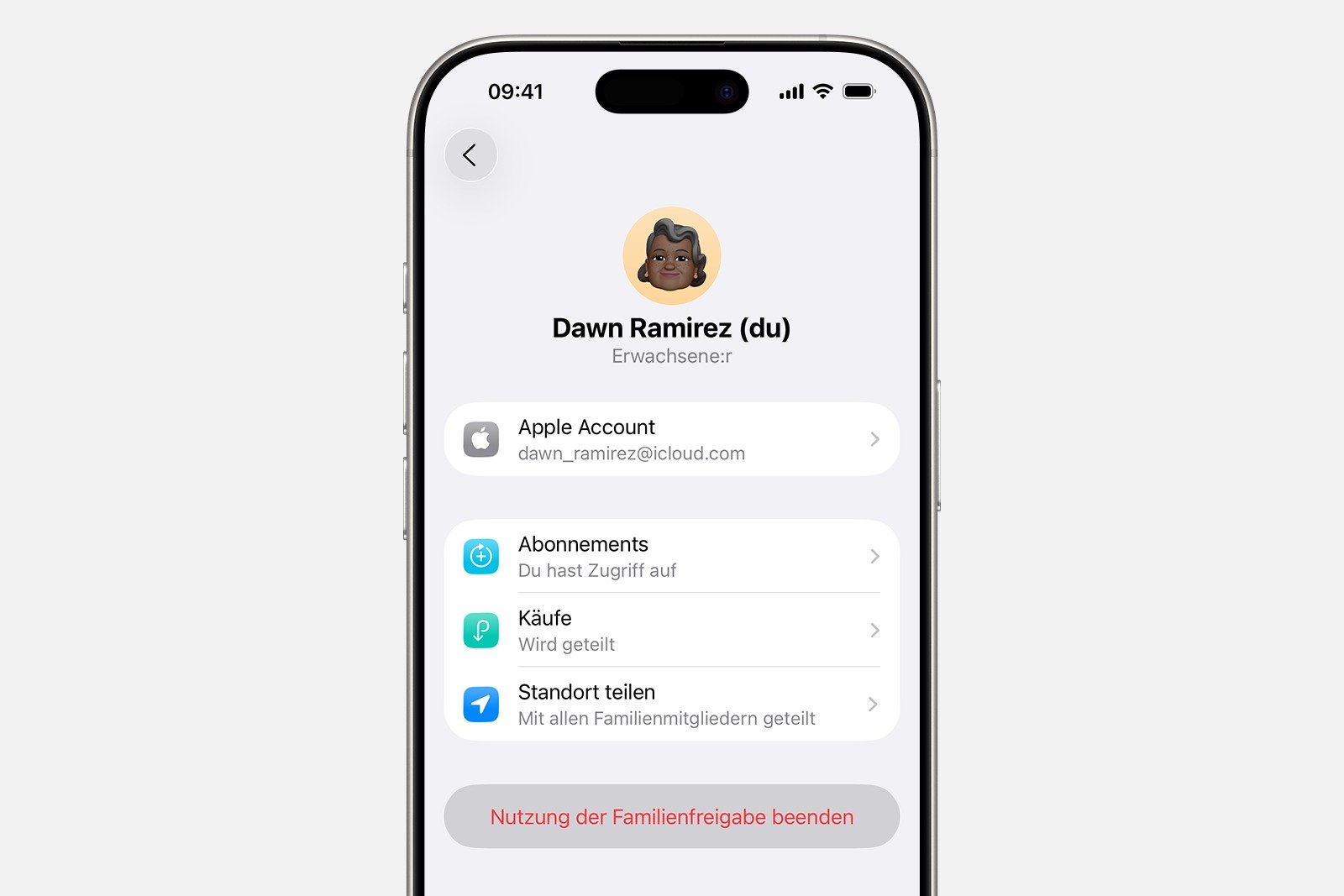
Any adult can leave a Family Sharing session at any time. The steps vary depending on the device.
On iPhone or iPad
- Open Settings and tap on Family. If this option is not visible, first tap on your own name.
- Choose your own name.
- Select "Stop using Family Sharing".
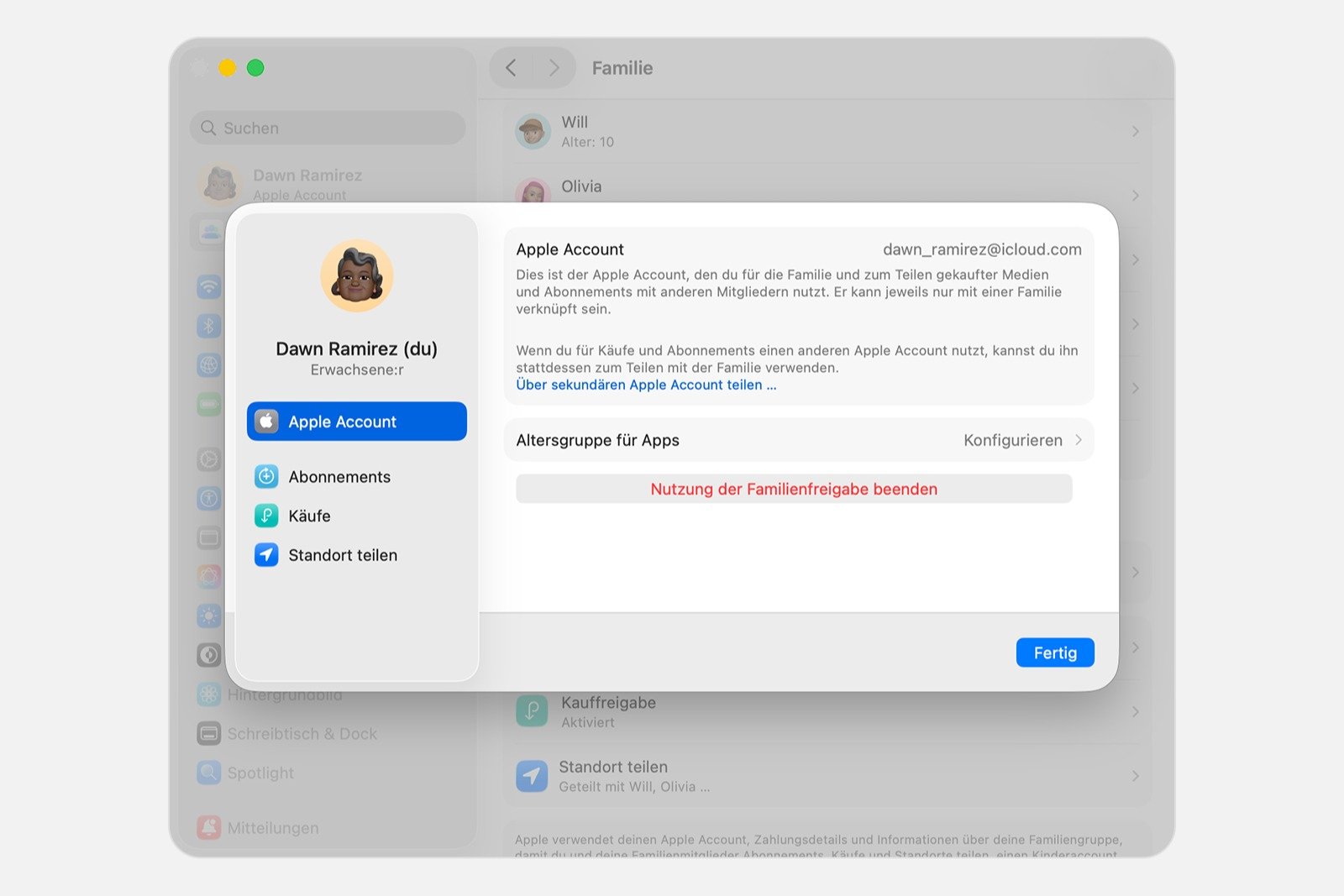
On the Mac
- Open the Apple menu and select System Preferences.
- Click on "Family" and select your own name.
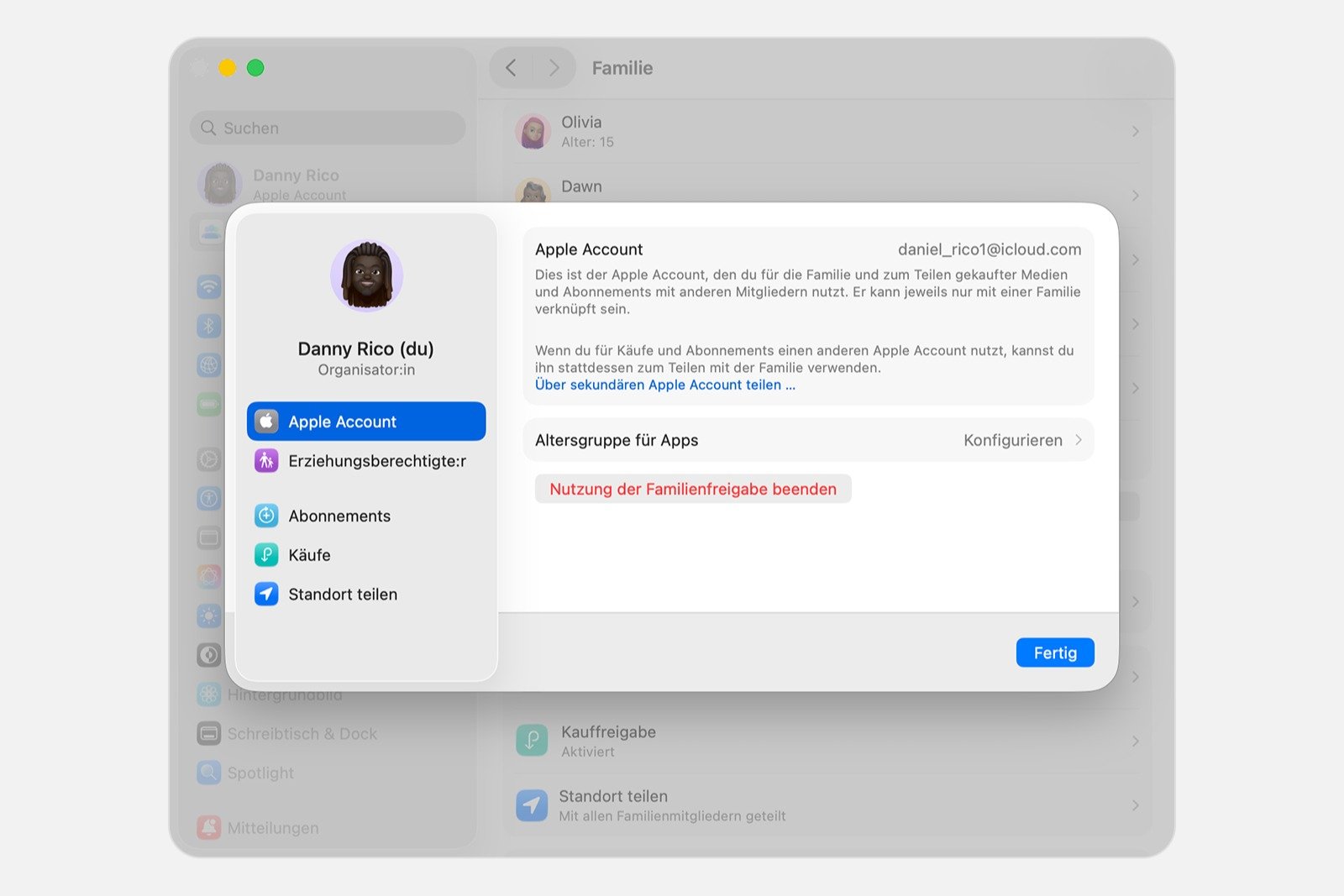
- Click to stop using Family Sharing.
Once you leave a Family Sharing group, you will no longer have access to all shared purchases and services within the group.
Remove Apple Account online from Family Sharing
If an Apple account continues to be used to share media purchases even though membership in the group is no longer desired, the account can also be disconnected online.
- Sign in to account.apple.com with your Apple Account and password.
- On iPhone, tap the down arrow at the top and select Family Sharing. On iPad or Mac, select Family Sharing in the left column.
- Select "Disconnect Account".
- Confirm disconnection.
After that, you can create your own family sharing group or join another group.
Remove members from Family Sharing
Only the family organizer can remove people from family sharing or move child accounts to other family groups.
Requirements
- Young people between 13 and 17 years old can only be removed once screen time has been deactivated on their device.
- Children under 13 years of age can only be removed once their Apple account has been deleted and the deletion is effective, or once the account has been transferred to another family group.
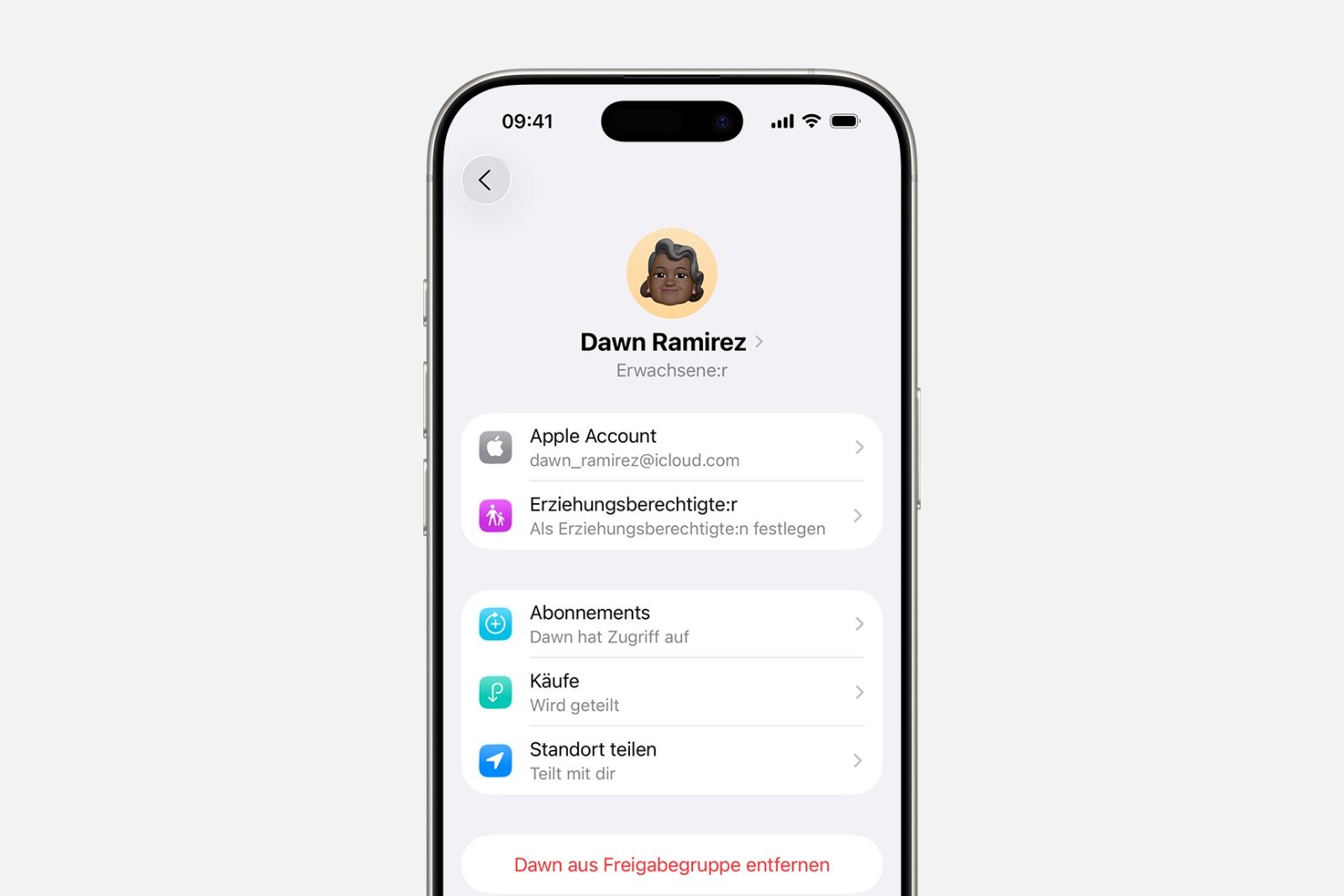
On iPhone or iPad
- Open settings and select Family.
- Tap the affected family member.
- Select "Remove [Name] from sharing group".
On the Mac
- Open the Apple menu, select System Preferences, and click on your own name.
- Select family.
- Click on the member and select Remove [Name] from sharing group.
- Confirm the distance.

Completely dissolve Family Sharing
The family organizer can dissolve Family Sharing once all members are at least 13 years old. This will remove all members from the group simultaneously.
If there are children under 13 in the group, their Apple account must first be deleted or moved to another family group. Only then can the group be dissolved.
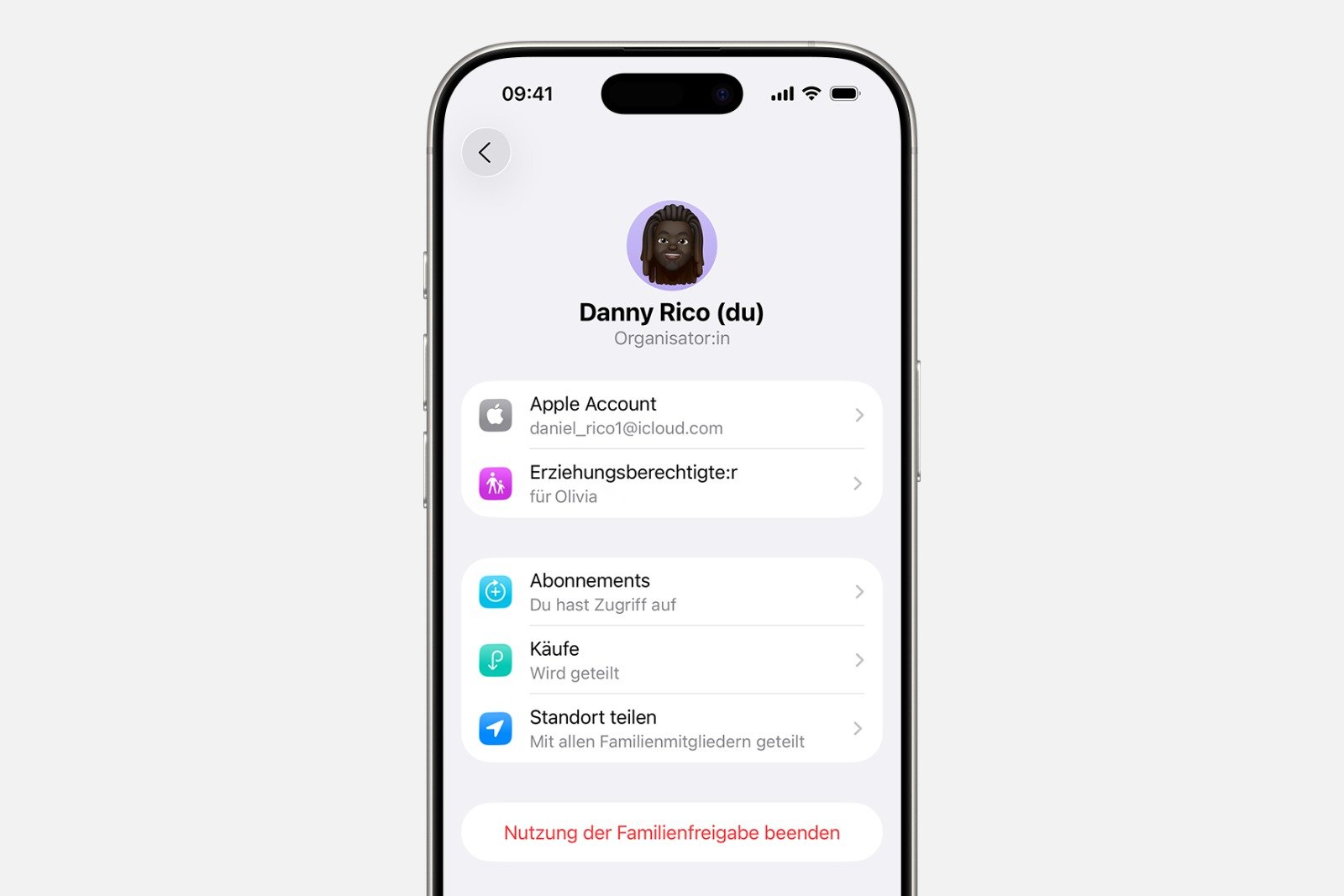
On iPhone or iPad
- Open settings and select Family.
- Type your own name.
- Select "Stop using Family Sharing".
On the Mac
- Open the Apple menu and select System Preferences.
- Select your own name and click on Family.
- Select "Stop using Family Sharing".
What happens after leaving Family Sharing?
Opting out of Family Sharing has direct consequences.
- The Apple account will lose access to shared services such as an Apple Music family subscription or a shared iCloud Plus plan.
- Location sharing will be stopped and devices will no longer appear in the family list in My Search.
- Shared purchases from the iTunes Store, Apple Books, and App Store are no longer available. Your own purchases will remain.
- Content previously downloaded by other family members will remain on the device but will no longer be updated. It can be removed or repurchased.
- In-app purchases made through another family member's purchase history must be purchased by the user themselves to maintain access to them.
- If an Apple Cash account was set up as part of Apple Cash Family, it will be closed and the balance transferred to the organizer.
- If the person is the organizer and dissolves the group, all Apple Cash Family accounts of the members will be closed and their balances transferred to their own account.
- Apple Watch devices that were managed through Apple Watch for Kids can no longer be managed.
- Shared calendars, photo albums, and reminders will no longer be shared. This content can be edited directly in the respective apps or via iCloud.
- Apple Card Family Sharing will remain active and must be managed separately. Removal from the Apple Card account will not happen automatically.
Requirements and rules for all changes to Family Sharing
Managing Family Sharing requires clear steps and careful attention to age restrictions and individual member settings. Whether it's simply leaving a group, removing individual members, or completely dissolving Family Sharing, every action follows specific guidelines. Knowing these guidelines helps avoid mistakes and ensures all functions remain clearly separated. The transition to a new Family Sharing setup, a separate group, or an independent account is as seamless as possible. The best products for you: Our Amazon storefront offers a wide selection of accessories, including those for HomeKit. (Image: Apple)
- Find my: Everything you need to know about finding lost Apple devices
- Change your date of birth in your Apple account securely and easily
- Family Sharing: Safely share your location with your family
- Share age group with apps and better filter content
- Activate parental controls and manage your iPhone securely
- Screen time explained: Overview, limits and time-outs
- Setting up an iPhone for children using Family Sharing and Quick Start
- Change your Apple account password via device and web
- Create an Apple account for children & use Family Sharing
- Family Sharing offers clear control over purchases made by children
- Use Family Sharing to share apps and purchases
- Adjust family sharing and expand access to subscriptions
- Use Apple's Family Sharing to share content together
- iPhone tip: How alternative app distribution channels work
- iPhone tip: Access flight information directly in the system
- Family Sharing explained: Easily share and manage iCloud+
- Quickly set up Family Sharing on iPhone, iPad, and Mac
- iOS 26.2 explained: How the new AirDrop codes work
- iOS 26.2 enhances the Reminders app with alarm functionality
- Here's how to properly create a backup for iPhone and iPad
- Setting up and using Apple Car Key: All functions explained
- New iOS 26.2 feature: Screen flashes for notifications
- Longer battery life with iOS 26 – Adaptive Power explained
- Live translation with AirPods: Here's how the feature works
- iOS 26: The new focus mode „Reduce interruptions“
- iOS 26.1: Reactivate the classic stop button on the alarm clock
FAQs about Family Sharing
Family Sharing can be ended on iPhone, iPad, or Mac via the settings. Once usage is stopped, access to all shared purchases and services also ends.
Only the family organizer can remove members. To do this, select the respective member in the settings and delete them from the sharing group. Additional rules apply for children.
Children under 13 cannot be removed directly. Their Apple account must be deleted or transferred to a different family group before removal is possible.
After leaving the service, shared subscriptions and purchases will no longer be available. Location sharing will end and shared content will no longer be updated. Your own purchases will remain.
Yes. The family organizer can dissolve the entire group, provided no children under 13 are involved. Otherwise, children's accounts must first be deleted or transferred.
Screen time is deactivated in the settings of the respective device. Only when it is off can a young person be removed from Family Sharing.
Yes. You can disconnect the account via the Family Sharing option at account.apple.com. Afterwards, you can create a new group or join an existing one.
Yes. All content purchased during your membership will remain accessible. Content shared by other members may need to be purchased again.
If a member is removed or leaves the group, their Apple Cash Family account is closed and the balance is transferred to the organizer. If the group is dissolved, this happens for all members.
Shared content remains on the device but is no longer updated. It can be removed or customized within the respective apps.





