

apple patient
  • Home
  • News
  • Rumors
  • Tips & Tricks
  • Reviews
  • Insights
No Result
View All Result
  • iPhone 18
  • iPhone 18 Pro
  • iPhone Duo
  • Apple Watch Series 12
  • Apple Watch Ultra 4
  • AirPods 5
  • iOS 27
  • iPadOS 27
  • macOS
  • MacBook Neo
  • iPhone 17e
  • AirTags
  • iOS 26
  • iPhone 17
  • MacBook Pro
  • iPadOS
  • iMac
  • Mac mini
  • HomePod
  • Apple TV
  • iPad Pro
  • iPhone Air
  • Apple Vision Pro
  • iPhone 16
  • AirPods 4
  • Apple Watch Ultra
  • HomePod Mini
  • MacBook Air
  • iPad
  • AirPods Max
  • AirPods Pro 3
  • Apple Watch Series 3
  • Mac Studio
  • Studio Display
  • iPad Air
  • iPad mini
  • watchOS 27
  • Apple CarPlay
  • Apple Pay
  • watchOS 26
  • Home
  • News
  • Rumors
  • Tips & Tricks
  • Reviews
  • Insights
No Result
View All Result
apple patient
No Result
View All Result
  • iPhone 18
  • iPhone 18 Pro
  • iPhone Duo
  • Apple Watch Series 12
  • Apple Watch Ultra 4
  • AirPods 5
  • iOS 27
  • iPadOS 27
  • macOS
  • MacBook Neo
  • iPhone 17e
  • AirTags
  • iOS 26
  • iPhone 17
  • MacBook Pro
  • iPadOS
  • iMac
  • Mac mini
  • HomePod
  • Apple TV
  • iPad Pro
  • iPhone Air
  • Apple Vision Pro
  • iPhone 16
  • AirPods 4
  • Apple Watch Ultra
  • HomePod Mini
  • MacBook Air
  • iPad
  • AirPods Max
  • AirPods Pro 3
  • Apple Watch Series 3
  • Mac Studio
  • Studio Display
  • iPad Air
  • iPad mini
  • watchOS 27
  • Apple CarPlay
  • Apple Pay
  • watchOS 26

Sharing audio across two pairs of AirPods: How it works

Milan Jovicic by Milan Jovicic
September 8, 2025 - 02:11 CEST
in Apple Tips & Tricks
0
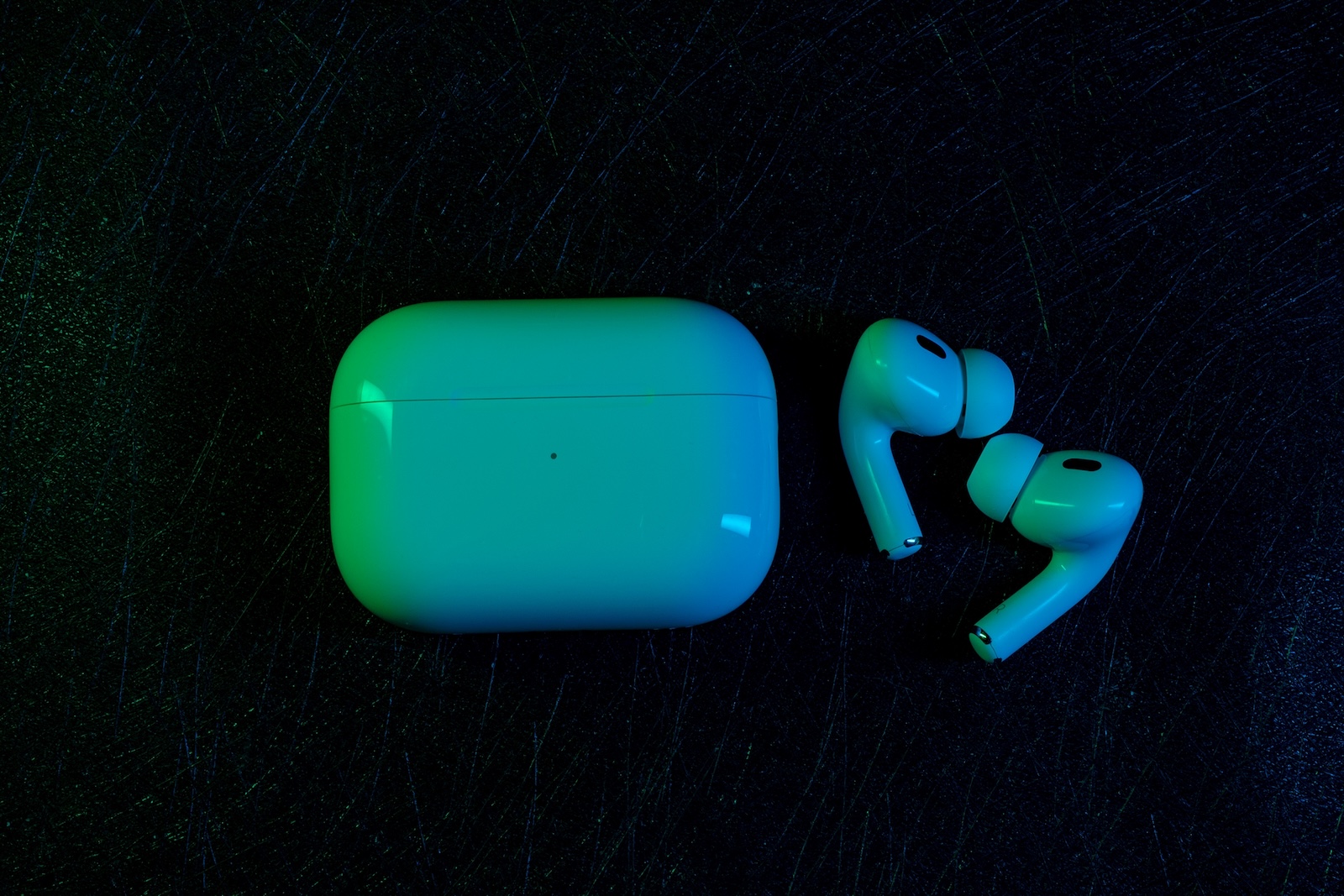
Share audio across two pairs of AirPods

Image: Shutterstock / BadPixma

WhatsAppFacebookEmail
Threads

Want to listen to music with someone without using speakers? Or watch a movie on the go without having to share headphones? With Audio Sharing on your iPhone or iPad, you can send audio to two pairs of AirPods simultaneously via Bluetooth. This also works with certain Beats headphones. Here's what you need and how to set it up correctly.

Audio Sharing is a feature in iOS that lets you send audio from your iPhone or iPad to two wireless headphones simultaneously. This is useful when two people want to listen to the same music or watch the same movie – whether on the go, on a plane, or simply at home. It's important that your device and headphones are compatible. The connection is completely wireless via Bluetooth, with no detours.

Devices that support audio sharing

Not every iPhone or iPad can use audio sharing. The following models are supported:

  • iPhone 8 or newer
  • iPhone SE (2nd generation or later)
  • iPad (5th generation or newer)
  • iPad mini (5th generation or later)
  • iPad Air (3rd generation or later)
  • iPad Pro 10.5 inch
  • iPad Pro 11 inch (all generations)
  • iPad Pro 12.9-inch (2nd generation or later)

Compatible headphones for audio sharing

Audio sharing works not only with AirPods, but also with a number of Beats models. The headphones must be wireless and supported by Apple.

Supported AirPods and Beats models:

  • AirPods (all models)
  • AirPods Pro (all models)
  • AirPods Max
  • Beats Fit Pro
  • Beats Flex
  • Beats Solo Pro
  • Beats Solo3 Wireless
  • Beats Studio3 Wireless
  • BeatsX
  • Powerbeats
  • Powerbeats Pro
  • Powerbeats3 Wireless

How to share audio with two pairs of AirPods

Setup varies slightly depending on the headphone model, but the basics are always the same. Here's the process if you're using two pairs of AirPods:

  • Put in your AirPods and connect them to your iPhone or iPad as usual.
  • Start an audio source – for example, music or a movie.
  • Open Control Center by swiping down from the top right corner.
  • In the audio control panel, tap the icon in the top right that shows your connected AirPods.
  • Select the “Share Audio…” option.
  • Open the charging case of the second AirPods and hold it near your device.
  • A connection prompt will appear on the screen. Tap "Share Audio."
  • If necessary, press and hold the button on the back of the AirPods case until the connection is established.
  • Now both AirPods hear the same sound.

Adjust volume

Once connected, you can control the volume of both AirPods using your iPhone or iPad. You can also adjust each earbud individually using the built-in sensors or buttons. This way, each person has control over their own volume.

Share audio with Apple TV

If you have an Apple TV 4K with tvOS 14 or later, you can also use Audio Sharing there. The steps are similar: Open Control Center on the Apple TV, select your headphones, and enable Audio Sharing for a second pair.

How to easily share audio with AirPods

Audio Sharing is an easy way to wirelessly share audio with someone. It requires a compatible iPhone, iPad, or Apple TV and supported headphones like AirPods. Setup is quick and intuitive. A particularly useful feature is that both users can control the volume independently. If you regularly share content with others, this is a feature you should know about. Looking for accessories? Our Amazon Storefront is your destination for high-quality products, including HomeKit-compatible ones! (Image: Shutterstock / BadPixma)

  • iOS 26: Use spatial scenes directly in the Photos app
  • Apple Intelligence: AI with a focus on data protection
  • iOS 26 Update: Markdown Import and Export in Notes Explained
  • iOS 26: Easily change backgrounds in iMessage
  • iOS 26: Trigger iPhone camera with AirPods – here's how
  • How to enable transparent iPhone app icons with iOS 26
  • Make the most of your iPhone Reminders app – 7 professional tips
  • iOS 26: Apple Music finally gets folders for playlists
  • Share only specific photos with apps like Facebook – here's how
  • iOS 26: Capture reminders faster and easier
  • Use AirTag efficiently – 7 practical tracking tips
  • Make the most of iPhone screen time – 7 effective tips
  • Optimize iPhone battery health: 7 tips to save battery life
  • Extend iPhone battery life: These 7 tips help immediately
  • Using iPhone Accessibility Features: 7 Features at a Glance
  • Apple Intelligence: From which iPhone is it available?
  • iPhone & Co.: How to deactivate the advanced visual search
  • Extend iPhone battery life: These 7 tips help immediately
  • Editing iPhone RAW photos – 8 simple pro tips
  • iPhone & Co.: How to deactivate the advanced visual search
  • Extend iPhone battery life: These 7 tips help immediately
  • Setting up iPhone widgets: These 6 tricks you need to know
  • Set up Apple Pay on your iPhone – quickly and securely
  • Why an iPhone? These advantages are convincing in the long term
  • Secure your iPhone properly: 5 important functions at a glance
  • Save iPhone battery: When is power saving mode worth it?

FAQ: AirPods – Sharing audio with two pairs

How can I share audio with two pairs of AirPods at the same time?

You can use the Audio Sharing feature on a compatible iPhone or iPad. Open Control Center, select your AirPods, and tap "Share Audio." Then, open the case of the second pair of AirPods near your device and follow the onscreen instructions.

Which devices support audio sharing with two pairs of AirPods?

iPhones from iPhone 8 and later and iPads from the 5th generation and later are supported. Apple TV 4K with tvOS 14 or later also supports the feature. It's important that your device is running iOS 18 or later.

Which AirPods models are compatible with audio sharing?

All AirPods models (AirPods, AirPods Pro, AirPods Max) are compatible. Many Beats headphones, such as Beats Fit Pro, Powerbeats Pro, and BeatsX, are also supported.

Can I adjust the volume on two pairs of AirPods separately?

Yes, both users can individually adjust the volume directly on their own pair of AirPods. Alternatively, the volume can be controlled centrally via the iPhone or iPad.

Does audio sharing work with AirPods and Beats mixed?

Yes, you can use one pair of AirPods and one compatible pair of Beats at the same time, as long as both devices are supported by Apple.

Do I need an app to connect two pairs of AirPods at the same time?

No, audio sharing is built into iOS. You don't need an additional app. Everything works directly through your device's Control Center.

Can I watch movies on my iPad with two pairs of AirPods?

Yes, audio sharing works with any audio source – including videos, films, or series on your iPad or iPhone.

How many pairs of AirPods can I connect at once?

Audio sharing currently works with a maximum of two couples at a time – that is, you and one other person.

Does audio sharing also work with Mac?

No, macOS currently doesn't support audio sharing with two pairs of AirPods. The feature is limited to iPhone, iPad, and Apple TV.

Do I need internet or Wi-Fi to use two pairs of AirPods?

No, the connection is entirely via Bluetooth. No internet or Wi-Fi is required.

Make Apfelpatient a preferred source One click – and you'll see us more often on Google
Was this article helpful?
YesNo
Tags: AirPodsBeats
SendShareSend
Share

Our Amazon Storefront

A handpicked selection of products for iPhone, Mac and more – sorted by topic and updated regularly.

Shop Now

This post contains affiliate links (including Amazon). We earn a small commission on qualifying purchases – at no extra cost to you. Learn more on our Partner Program page.

Previous Post

Apple will likely launch its AI response engine in March

Next Post

iPhone 17 Leak: Battery capacities and eSIM advantage revealed

Milan Jovicic

Milan Jovicic

Milan founded Apfelpatient in 2016 and has been responsible for all editorial content since 2018 — news, rumors, guides, and product reviews. Apple devices here are not test units on loan for two weeks but everyday tools: from the iPhone through MacBook Pro, MacBook Air, and iMac to the Apple Vision Pro, at least one device from nearly every product category is in daily use, many of them replaced annually. Every menu path in a guide is verified on the device before it is published.

Related posts

Create a Pass in iOS 27: How to Make Your Own Wallet Passes

by Milan Jovicic
September 26, 2026 - 11:39 CEST
Create a Pass in iOS 27: selection of the Custom, Membership and Event card templates in the Wallet app

Create a Pass in iOS 27 lets you add your own passes to Wallet. Here's how it works step by step - even without the camera scan.

Read moreDetails

Setting up iPhone Handoff: Here's how it works in iOS 27

by Milan Jovicic
September 24, 2026 - 5:50 p.m. CEST
iPhone showing the Set Up eSIM screen with the option to use the number on two iPhones selected, the first step to set up iPhone Handoff

Setting up iPhone Handoff under iOS 27: Requirements, costs at Telekom and why logging out only works via the provider.

Read moreDetails

How to Turn On Advanced Data Protection for iCloud

by Milan Jovicic
September 20, 2026 - 03:27 CEST
Advanced Data Protection for iCloud: iPhone showing the Advanced Data Protection settings page with the list of protected data and the Turn On option, next to a padlock

Advanced Data Protection for iCloud: 25 categories with end-to-end encryption. How to turn it on and secure your recovery options.

Read moreDetails

Selling Your iPhone Safely: How to Prepare Your Device the Right Way

by Milan Jovicic
September 19, 2026 - 9:04 p.m. CEST
Selling an iPhone safely: two iPhones lying face down on a grey surface, one orange and one black

Sell your iPhone safely: Backup, deregistration, activation lock and reset in the correct order – plus shipping step for the 18 Pro Max.

Read moreDetails

iPhone 18 Pro: Setting up Pro video storage for ProRes

by Milan Jovicic
September 19, 2026 - 7:56 p.m. CEST
Pro Video Storage on iPhone 18 Pro: iPhone showing the Configure Pro Video Storage dial at 150 GB and about 26 minutes of ProRes 4K 30 fps, next to a drive with a checkmark

No Pro Video storage, no ProRes: Here's how to reserve storage for video recordings on the iPhone 18 Pro and free it up again when needed.

Read moreDetails
Load More

Categories

  • Apple Insights
  • Apple Rumors
  • Apple News
  • Apple Tips & Tricks
  • iPhone news, rumors and tips
  • Mac and MacBook News
  • Reviews

About APFELPATIENT

APFELPATIENT brings you the latest Apple news, product updates, guides, reviews and tips across the entire Apple ecosystem — from the iPhone to the Mac to the Apple Vision Pro. From the first rumors to confirmed news: researched responsibly.

Follow Apfelpatient

Facebook Instagram YouTube Threads Threads

Company

  • About Apfelpatient
  • Contact
  • Author Profiles

Community

  • Netiquette
  • Push Notifications
  • RSS feed

Legal

  • Legal Notice
  • Privacy Policy
  • Terms of Use
  • Cookie Settings
  • Affiliate Program

Resources

  • Sitemap

© 2026 Apfelpatient. All rights reserved.

No Result
View All Result
  • Home
  • News
  • Rumors
  • Tips & Tricks
  • Reviews
  • Insights

© 2026 Apfelpatient. All rights reserved. Page Directory

Change language to Deutsch



