

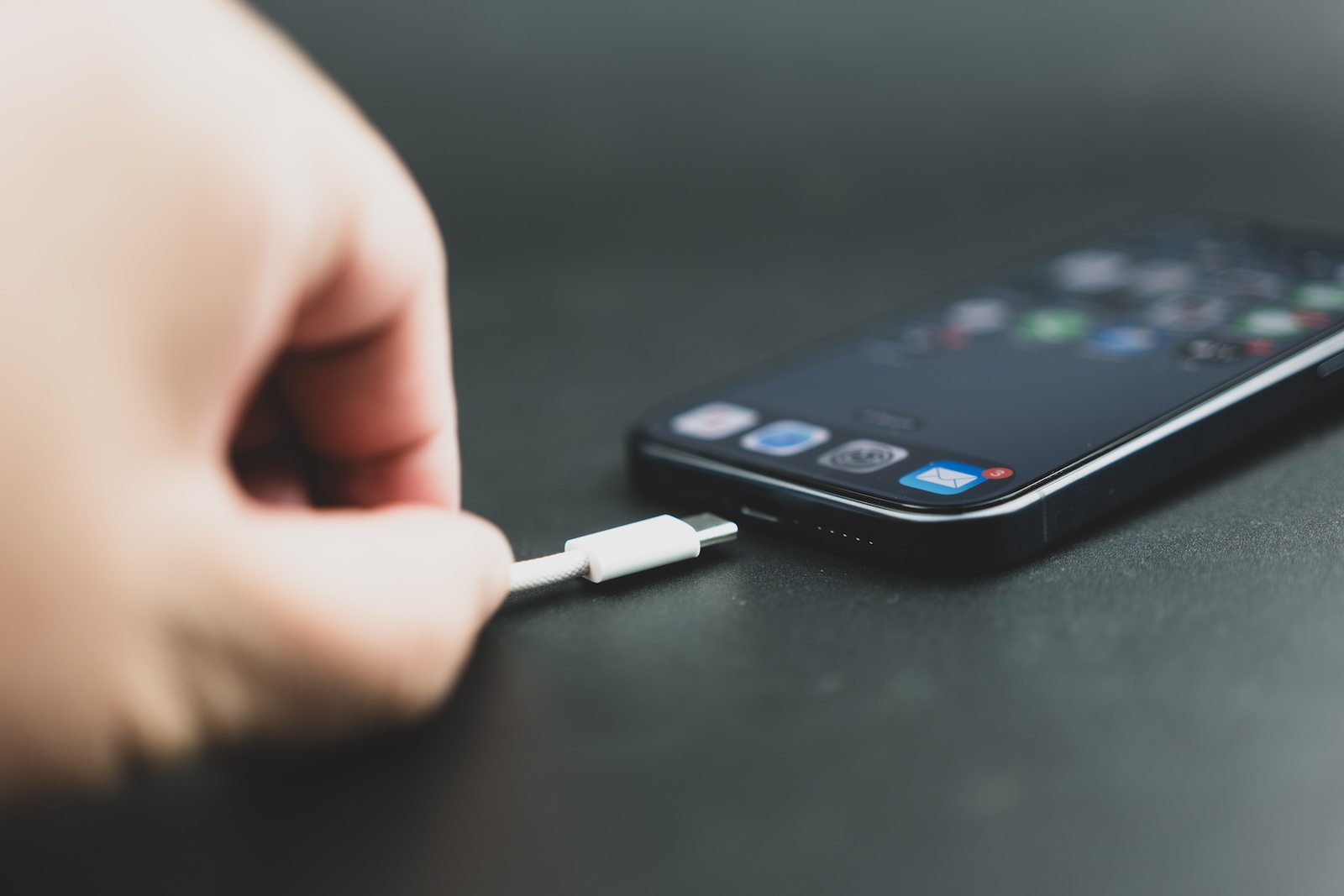
Your iPhone has been plugged in for an hour, but the battery is barely moving – a common problem with many possible causes. These range from an incorrect charger and a dirty port to software settings that intentionally limit charging. This article explores all the possible causes and shows you how to narrow down and fix the problem step by step.
An iPhone that charges slowly isn't necessarily defective. In most cases, the culprit is an underpowered charger, a dirty charging port, or a software setting. Since iOS 18, the iPhone even actively displays a "Slow Charging" message on the lock screen if a more powerful power adapter could improve the charging speed. iOS 26 adds a charging time estimate directly in the battery settings and a new "Charger Not Compatible" notification.
The first step when dealing with charging problems is always to narrow down the cause. Is it the cable, the power adapter, the iPhone itself, or a setting? The following sections go through each point individually – from the most common to the least common cause.
Check charger and cable
By far the most common cause of slow charging is a charger that is too weak or defective.
Too few watts
Older iPhones shipped with a 5-watt power adapter. This is far too weak for current models. Apple recommends a USB-C charger with at least 20 watts for fast wired charging. Those with an iPhone 15 or later also need a USB-C cable – a USB-A charger limits the charging power to a maximum of 7.5 watts. For wireless charging, MagSafe and Qi2-certified chargers deliver the best performance.
Charging ports in cars, USB hubs, and computer ports also charge significantly slower than a dedicated power adapter. Anyone who needs to charge their iPhone quickly should always use a wall charger.
Faulty cable
A cable that appears intact on the outside may be broken internally – especially if it is regularly bent in the same place. To test, use a different cable, ideally an original Apple cable or an MFi-certified cable from a third-party manufacturer. If the iPhone charges normally with the other cable, the original cable is defective.
Power supply with multiple connectors
Chargers with multiple USB ports – such as the Apple 35W Dual USB-C Power Adapter – distribute the power among all connected devices. If an iPad and an iPhone are charging simultaneously, each device will receive less power. For maximum charging speed, charge the iPhone on a single port.
Clean charging port
A dirty charging port is one of the most common and underestimated causes of charging problems. Lint, dust, and fine particles accumulate in the port over time and prevent the cable from fully locking into place.
Shine a flashlight into the charging port and check for any visible dirt or debris. If you find any, turn off your iPhone. Carefully use a wooden or plastic toothpick to remove any lint or other debris. Do not use metal objects, as these can damage the contacts. Apple also advises against blowing compressed air directly into the port.
After cleaning, plug the cable back in. If it clicks into place noticeably more firmly than before, the cause was dirt.
Check optimized charging and charging limit
iOS offers several features that intentionally slow down charging to protect battery life. These settings can give the impression that the iPhone isn't charging properly.
Optimized battery charging
Under Settings > Battery > Battery Health & Charging, you'll find the option "Optimized Battery Charging." When enabled, the iPhone learns your daily charging routine and keeps the battery at 80 percent until just before you need it. Overnight, it might appear as if the iPhone has stopped charging at 80 percent—even though it's still charging just before you wake up.
Charging limit
Since iOS 17, it's possible to set a fixed charging limit. Under Settings > Battery > Battery Health & Charging, a limit between 80 and 100 percent can be selected. If the limit is set to 80 percent, for example, the iPhone will stop charging at that level. This isn't a bug, but an intentional feature – it protects the battery in the long run.
Charging with clean energy
In iOS 26, the "Clean Energy Charging" feature can postpone charging until times when electricity is generated from renewable sources. In certain regions, this may result in the iPhone not charging immediately, even when plugged in. This setting can be disabled in Settings > Battery.
Temperature as a cause
The iPhone constantly monitors its temperature and throttles or stops charging if the device gets too hot. Apple specifies an operating temperature range of 0 to 35 degrees Celsius.
Typical scenarios where temperature slows down the charging process: The iPhone is charging in the sun or on a radiator. Resource-intensive apps or games are being used while charging. The iPhone is being charged wirelessly on an already warm surface.
If charging pauses due to overheating, iOS 26 displays a corresponding message under Settings > Battery. Solution: Move the iPhone to a cooler location and remove the case while charging, as it can impede heat dissipation.
Connected accessories slow down charging
Less well known: If wired accessories like headphones are connected to the iPhone while it's charging wirelessly, the system limits the wireless charging power to 7.5 watts. Adapters with pass-through power—such as the USB-C Digital AV Multiport Adapter—also reserve power for their own ports and reduce the charging power.
For maximum charging speed, no accessories should be connected to the iPhone during the charging process.
Liquid warning
If the iPhone detects moisture in the charging port, it completely blocks wired charging and displays a warning message. In this case, immediately disconnect the cable and allow the port to dry. Apple recommends leaving the iPhone in a dry, well-ventilated area – do not dry it with a hairdryer or other heat source. The drying process can take up to 24 hours.
During the waiting period, the iPhone can alternatively be charged wirelessly, provided the back is dry.
Understanding iOS messages during charging
Since iOS 18, the iPhone displays various messages about the charging process, which help with troubleshooting.
Slow charging – This message appears on the lock screen and in battery settings when a more powerful power adapter could improve charging speed. The iPhone and charger are working, but the performance is not optimal.
Charger not compatible (new in iOS 26) – The iPhone recognizes a connected charger but cannot charge with it. Use a different power adapter.
Charging time estimate (new in iOS 26) – Under Settings > Battery and on the lock screen, iOS displays an estimated time to 80 percent or to the charging limit. This estimate helps determine whether the charging speed is normal or not.
Check iPhone battery health
If your iPhone continues to charge slowly despite using the correct charger, having a clean connection, and disabling any restrictions, a worn-out battery may be the cause. iOS displays the maximum capacity as a percentage under Settings > Battery > Battery Health & Charging.
Apple provides the following guidelines: iPhone 14 and earlier models retain at least 80 percent battery capacity after 500 charge cycles. iPhone 15 and later models retain at least 80 percent capacity after 1,000 charge cycles. If the capacity falls significantly below 80 percent, a battery replacement is recommended. Apple charges between €79 and €135, depending on the model. With AppleCare+, the replacement is free once the capacity drops below 80 percent.
For more information on battery life and settings, see our article iPhone battery drains quickly: Tips and settings for iOS 26.
Restart and Software Update
In rare cases, a software error can affect the charging process. A simple restart often resolves temporary issues: Press and hold the side button and a volume button simultaneously, slide the power off slider, wait 30 seconds, and then turn the iPhone back on.
If that doesn't help, check if an iOS update is available. Apple regularly fixes loading errors in point updates. Check under Settings > General > Software Update. For update problems, our article iPhone Update Problems: All Solutions under iOS 26 may help.
iPhone is loading slowly: When should I contact Apple Support?
If you have followed all the steps described above and your iPhone is still charging unusually slowly, there may be a hardware defect – such as a damaged charging port or faulty charging circuitry. In this case, it is recommended to schedule an appointment at an Apple Store or an authorized Apple Service Provider.
Before the visit: Under Settings > Battery > Battery status & charging, note the maximum capacity and test the charging behavior with a known working cable and power supply in order to provide the technician with the most accurate information possible.
If you'd like to know which chargers and settings ensure maximum charging speed, you'll find a detailed overview in our article Charging your iPhone faster: Tips for shorter charging times. The best products for you: Our Amazon storefront offers a wide selection of accessories, including those compatible with HomeKit. (Image: Shutterstock / Dontree_M)
- iPhone Screen Recording: Instructions for iOS 26
- How to view your Wi-Fi Password on your iPhone: All Methods under iOS 26
- iPhone Update Problems: All Solutions for iOS 26
- Creating an iPhone Backup: All methods under iOS 26
- Transferring Data to a new iPhone: All Methods under iOS 26
- Clear History on iPhone: Safari, Chrome and more
- Disable Audio Zoom on iPhone
- iPhone Battery drains quickly: Here's how to extend Battery Life under iOS 26
- Resetting your iPhone: All reset methods under iOS 26
- iCloud Costs: All storage plans, prices, and which one is worth it
- Recording an iPhone call: What works in Germany – and what doesn't
- Clear iPad Cache: More Storage and better Performance
- Clear iPhone cache: How to make your iPhone fast again
- Search iCloud.com: Activate new search function in iOS 26.4
- Apple Watch Tips: Hidden features you didn't know about
- iPhone storage full? Here's how to instantly free up more space
- Apple Account Purchase History: Review purchases, subscriptions & costs
- Apple Music: How to successfully migrate from Spotify & Co.
- AirTag 2 Factory Reset: How to Perform a Reset
- Apple Games App: Central hub for modern gaming
- Lockdown Mode: Maximum security for iPhone, iPad and Mac
- Apple Music: How to activate translated song lyrics in iOS 26
- Apple Creator Studio: Apps, subscription, and clear AI limits
Frequently Asked Questions: iPhone charges slowly
The most common causes are a charger that is too weak (under 20 watts), a dirty charging port, a defective cable, or software settings such as “Optimized battery charging” or a charging limit that intentionally throttle the charging process.
Since iOS 18, the iPhone displays this message when a more powerful power adapter could improve charging speed. It doesn't mean that the iPhone or charger is defective – only that more power would be possible.
Either “Optimized battery charging” is active, which keeps the battery at 80 percent and only finishes charging shortly before the usual usage time, or a fixed charging limit has been set under Settings > Battery > Battery status & charging.
Yes. Lint and dust in the connector prevent the cable from fully locking into place. Check the connector with a flashlight and, if necessary, carefully clean it with a wooden toothpick. Do not use metal objects.
The iPhone monitors its temperature and pauses charging if it gets too warm. Apple specifies an operating temperature of 0 to 35 degrees Celsius. Move the iPhone to a cooler location and remove the case while charging.
If the maximum capacity under Settings > Battery > Battery Health & Charging is significantly below 80 percent, Apple charges between €79 and €135 depending on the model. With AppleCare+, the replacement is free.
A USB-C charger with at least 20 watts and a USB-C cable for iPhone 15 and newer. For wireless charging, a MagSafe or Qi2-certified charger. A detailed comparison can be found in the article “Charging iPhones Faster”.





