

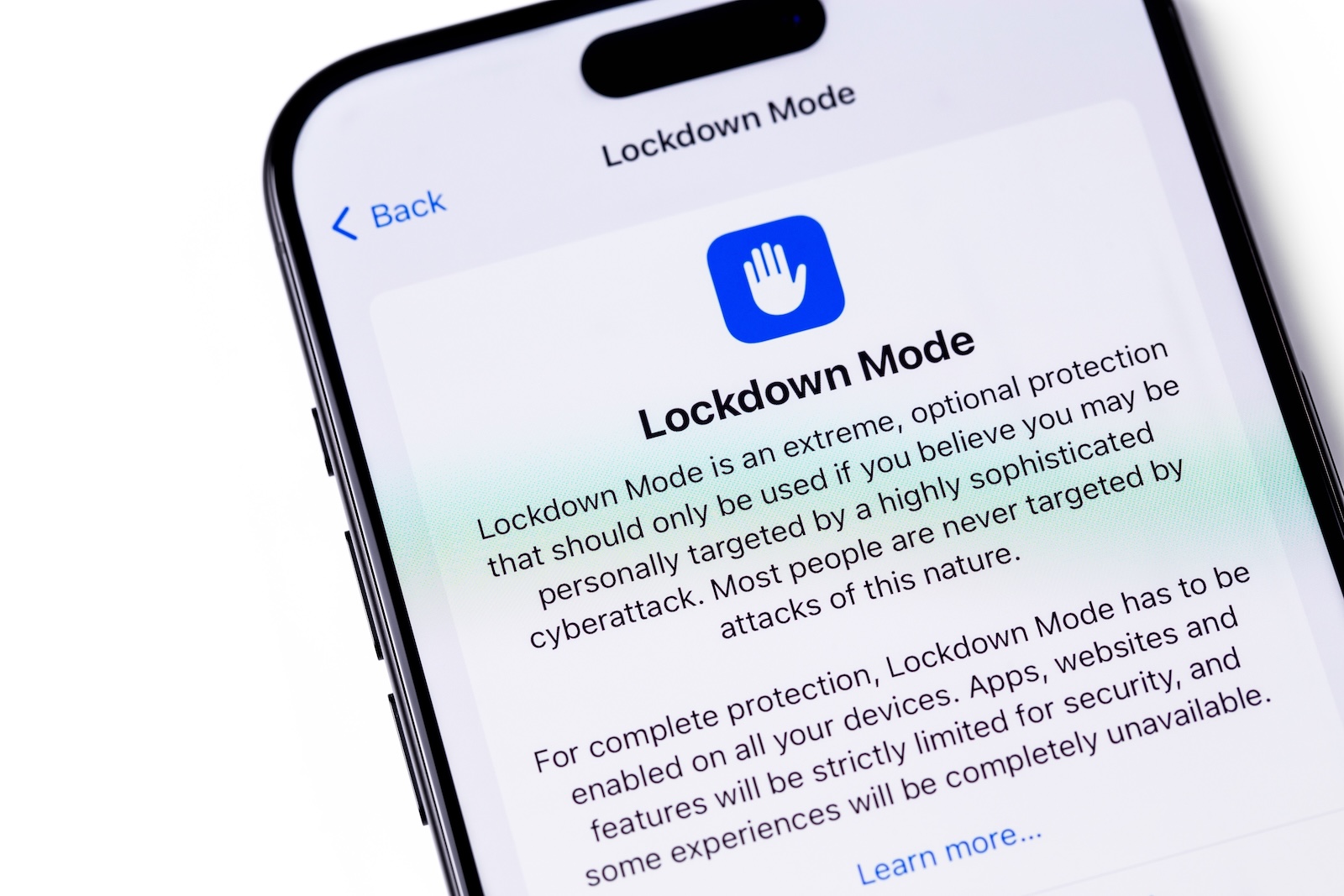
Lockdown Mode is an optional security feature from Apple designed to protect Apple devices against sophisticated digital attacks. When activated, this mode selectively reduces potential attack vectors by restricting or completely disabling certain functions. Lockdown Mode is available on iPhone, iPad, and Mac and can be manually turned on or off at any time.
The standard security mechanisms of iOS, iPadOS, and macOS are considered highly sophisticated and offer a high level of protection for most use cases. Lockdown Mode goes significantly further. It is designed for situations where there is an increased risk of targeted cyberattacks. This includes, for example, journalists, activists, or individuals who work professionally with sensitive information. However, the mode is not limited to these groups. Any user can activate it to achieve a level of security that Apple classifies as "extreme," but should expect some functional limitations.
What is Lockdown Mode?
Lockdown Mode is not a typical background security feature, but a clearly defined operating state. Once activated, the system's behavior changes noticeably. Apps, web services, interfaces, and network functions are restricted to minimize the effectiveness of known and unknown attack methods. The goal is to reduce the attack surface to a minimum, even if this reduces user-friendliness.
Protection functions of the Lockdown Mode
In active Lockdown Mode, several protective measures are in place simultaneously:
- The messaging app blocks almost all attachment types. Only images can be received. Features such as link previews or other enhanced views are no longer available.
- Incoming FaceTime calls from people with whom you haven't previously spoken will be blocked. This also applies to invitations to other Apple services from unknown contacts.
- Certain modern web technologies will be disabled. This includes Just-in-Time (JIT) JavaScript compilation. These restrictions apply to Safari as well as all other WebKit-based browsers on iPhone, iPad, and Mac.
- Shared albums will be removed from the Photos app. New invitations to shared albums cannot be accepted while shared mode is active.
- If the device is locked, wired connections to accessories or other devices will be blocked.
- Installing configuration profiles is not possible. Furthermore, the device cannot be integrated into a mobile device management (MDM) system while the Lockdown Mode is active.
- Certain network protocols and network services are restricted to prevent additional attack vectors.
Activate Lockdown Mode on iPhone and iPad
On iPhones and iPads, Lockdown Mode is disabled by default. It can be activated via the system settings.
- Open the settings.
- Select Privacy & Security.
- Scroll down and tap Lockdown Mode.
- Select "Activate Lockdown Mode".
- Read the information about the restrictions and confirm by clicking Activate & Restart.
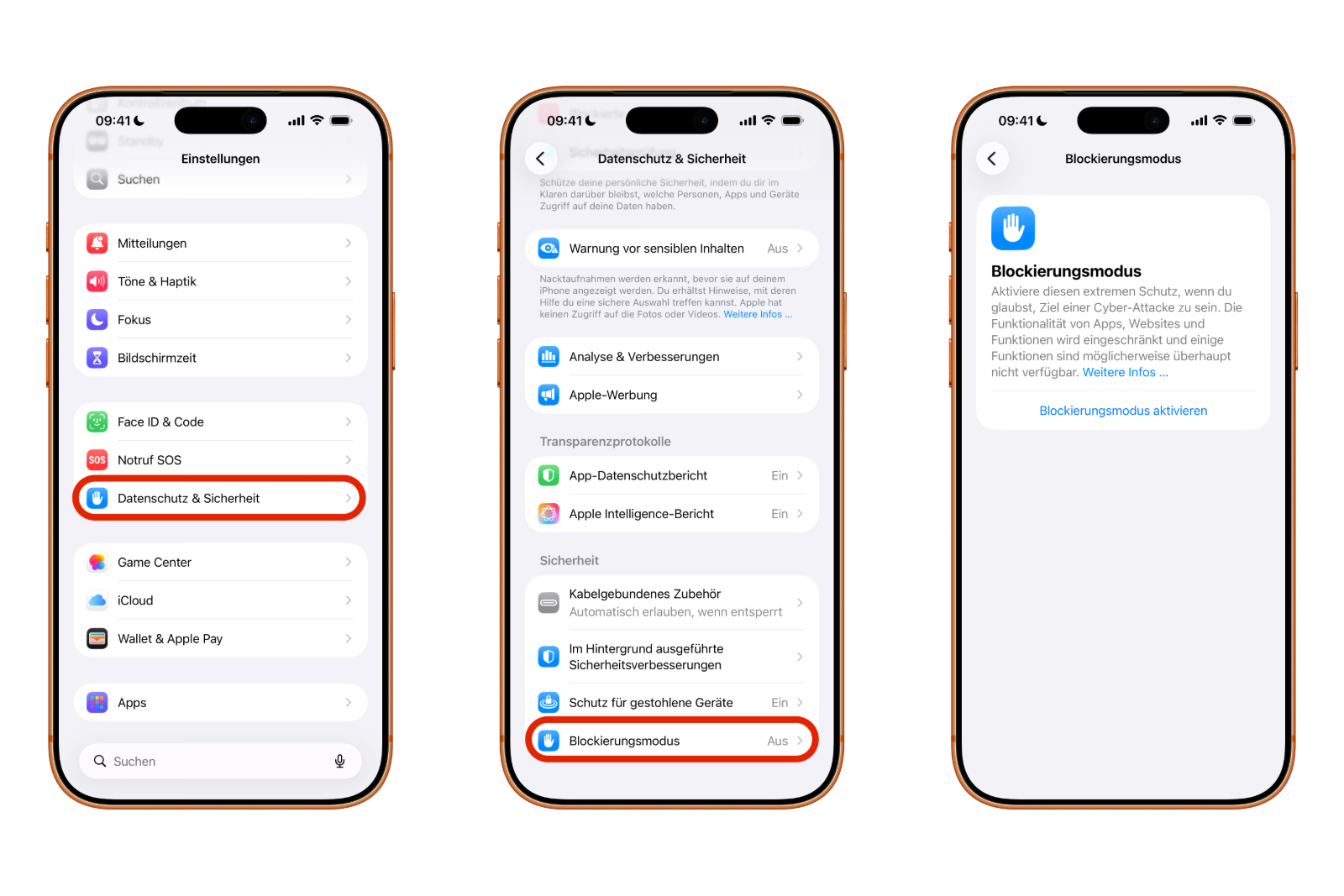
After restarting, Lockdown Mode is active. The current status can be checked at any time under Settings → Privacy & Security → Lockdown Mode. An activated switch indicates that the mode is enabled.
Activate Lockdown Mode on your Mac
On a Mac, Lockdown Mode is also activated via system settings:
- Open the system settings.
- Select Privacy & Security in the sidebar.
- In the lower section under Security, click on Lockdown Mode.
- Select "Activate Lockdown Mode".
- Check the security measures and confirm with Activate & Restart.
After restarting, the Mac is in Lockdown Mode.
Disable Lockdown Mode
The deactivation process is identical on iPhone, iPad, and Mac:
- Open Settings or System Settings and go to Privacy & Security → Lockdown Mode.
- Deactivate the switch for Lockdown Mode.
- Confirm the deactivation.
The device will then restart and exit Lockdown Mode.
Configure allowed websites and app exceptions
Despite the strict restrictions, Apple allows limited exceptions within Lockdown Mode. If a website is blocked in Safari, an option may appear to explicitly allow it. The page will then load normally, while Lockdown Mode remains active.
Additionally, under Settings → Privacy & Security → Lockdown Mode → Web browsing, certain third-party apps can be displayed. The Lockdown Mode can be partially deactivated for individual apps there, allowing them to function normally despite the web restrictions.
Lockdown Mode as a security option for increased risks
Lockdown Mode is a robust security measure for situations with an increased risk of targeted attacks. By comprehensively restricting messages, web access, network connections, and system functions, it offers a very high level of protection. At the same time, it requires a conscious decision to forgo certain convenience and functional features. For those who need maximum security on their iPhone, iPad, or Mac, Block Mode provides a clearly defined and effective option. The best products for you: Our Amazon storefront offers a wide selection of accessories, including those for HomeKit. (Image: Shutterstock / Primakov)
- Apple Music: How to activate translated song lyrics in iOS 26
- Apple Creator Studio: Apps, subscription, and clear AI limits
- Is Apple Music taking up too much storage space? This will help immediately
- AirTag 2: Setting up Precision Finding on the Apple Watch
- How to turn texts into reminders with Apple Intelligence
- Precision Finding on the Apple Watch requires AirTag 2
- AirTag 2: Which airlines support baggage tracking
- AirTag 1 or AirTag 2: How to tell the difference
- AirTag 2: These iPhones are compatible with improved tracking
- iPhone alarm silent: Why the alarm suddenly stops working
- Safari at 120 Hz: How to activate smoother scrolling
- iOS 26 improves group chats with five new features
- Here's how to create Apple Music playlists with ChatGPT
- iOS 26: Change default apps on your iPhone
- iOS 26 turns photos into impressive 3D spatial scenes
- AirPods: Media no longer continues playing during sleep thanks to iOS 26
- Use Apple's Family Sharing to share content together
- iPhone tip: How alternative app distribution channels work
- iPhone tip: Access flight information directly in the system
- iOS 26.2 explained: How the new AirDrop codes work
- iOS 26.2 enhances the Reminders app with alarm functionality
- Here's how to properly create a backup for iPhone and iPad
- Setting up and using Apple Car Key: All functions explained
Frequently Asked Questions about Lockdown Mode (FAQ)
Lockdown Mode is an optional security feature from Apple that specifically protects Apple devices against sophisticated digital attacks. It significantly alters system behavior by restricting functions, interfaces, and network services.
The Lockdown Mode is primarily aimed at individuals at increased risk of targeted cyberattacks, such as journalists, activists, or people who work with sensitive data. However, it can be used by anyone who requires maximum security.
No. On iPhone, iPad and Mac, Lockdown Mode is disabled by default and must be manually activated via the settings or system preferences.
In Lockdown Mode, among other things, message attachments are blocked, unknown FaceTime calls are rejected, web technologies are restricted, shared photo albums are removed, and wired connections are disabled when the device is locked. Configuration profiles and MDM connections are also unavailable.
Many websites will continue to function, albeit without certain modern web technologies such as just-in-time JavaScript compilation. Individual trusted websites can be manually exempted from Lockdown Mode.
Yes, apps can generally still be used. However, certain web-based functions may be restricted. Exceptions can be set for selected third-party apps in the area of web browsing.
Shared albums will be removed from the Photos app and new invitations will be blocked. Other iCloud features will generally remain usable, unless they fall under the restricted services.
Yes. The Lockdown Mode can be deactivated at any time via the settings. After confirmation, the device will restart and return to normal operating mode.
Yes. Lockdown Mode is activated per device. If it's turned on on an iPhone, it doesn't automatically apply to an iPad or a Mac.
Yes, partially. The Lockdown Mode deliberately reduces comfort and functionality in favor of safety. It's usually unnecessary for everyday use, but offers maximum protection in sensitive situations.
No. Lockdown Mode is a system-wide security measure and does not replace traditional security software. It complements Apple's existing security mechanisms with an especially high level of protection.





