


Searching on iCloud.com is disabled by default, and this is precisely where most users run into problems: Searching for a file in the browser simply yields no results. The feature needs to be enabled once on the device; then it searches iCloud Drive and iCloud Photos completely – without any search query being sent to Apple.
For years, the web version of iCloud was a workaround: Anyone wanting to access their files on a Windows PC or another computer had to click through folders and albums. The search function eliminates this detour – it accesses iCloud Drive and iCloud Photos and suggests filenames, folders, and document types as you type, and for photos, also dates, people, and locations. This page focuses exclusively on browser-based search; for an overview of iCloud's features, you'll find information on other services included with iCloud and the additional benefits of each paid tier.
Key Facts at a Glance
- Searching on iCloud.com is disabled by default and must be enabled in the settings.
- The search includes iCloud Drive and iCloud Photos, with suggestions based on people, places, and dates.
- The processing runs locally on a separate device; no search history is created at Apple.
- The device keeps a search report for the last 28 days, which can be viewed and deleted.
- Managed Apple accounts and accounts linked only to a phone number cannot use this feature.
What's new at iCloud.com?
Previously, the web version of iCloud was significantly limited compared to the native apps on iPhone, iPad, and Mac. A proper search function was completely lacking. Anyone wanting to access their iCloud data on a Windows PC, an Android device, or another computer had to tediously click through folders and albums.
With iOS 26.4, this changes: Apple has expanded iCloud.com to include a full search function for iCloud Drive and iCloud Photos. When you tap in the search field, suggestions appear immediately – in iCloud Drive for file names, folder names, and document types, and in iCloud Photos for dates, people, and places. If you're generally struggling with limited storage, you'll find further tips in the guide iPhone storage full? Here's how to free up more space immediately.
Here's how to activate iCloud Search
The new search function is disabled by default. To enable it, follow these steps:
- Open the settings on your iPhone.
- Tap your name at the top (more on Apple Account settings).
- Select iCloud .
- Scroll all the way down and tap on iCloud.com .
- The switch „Allow search” activate.
- In the pop-up that appears with „"Allow"” confirm.
Important: The "Allow Search" option only appears if data access to iCloud.com is already enabled. If not, the "Allow Access to Data" switch must first be turned on.
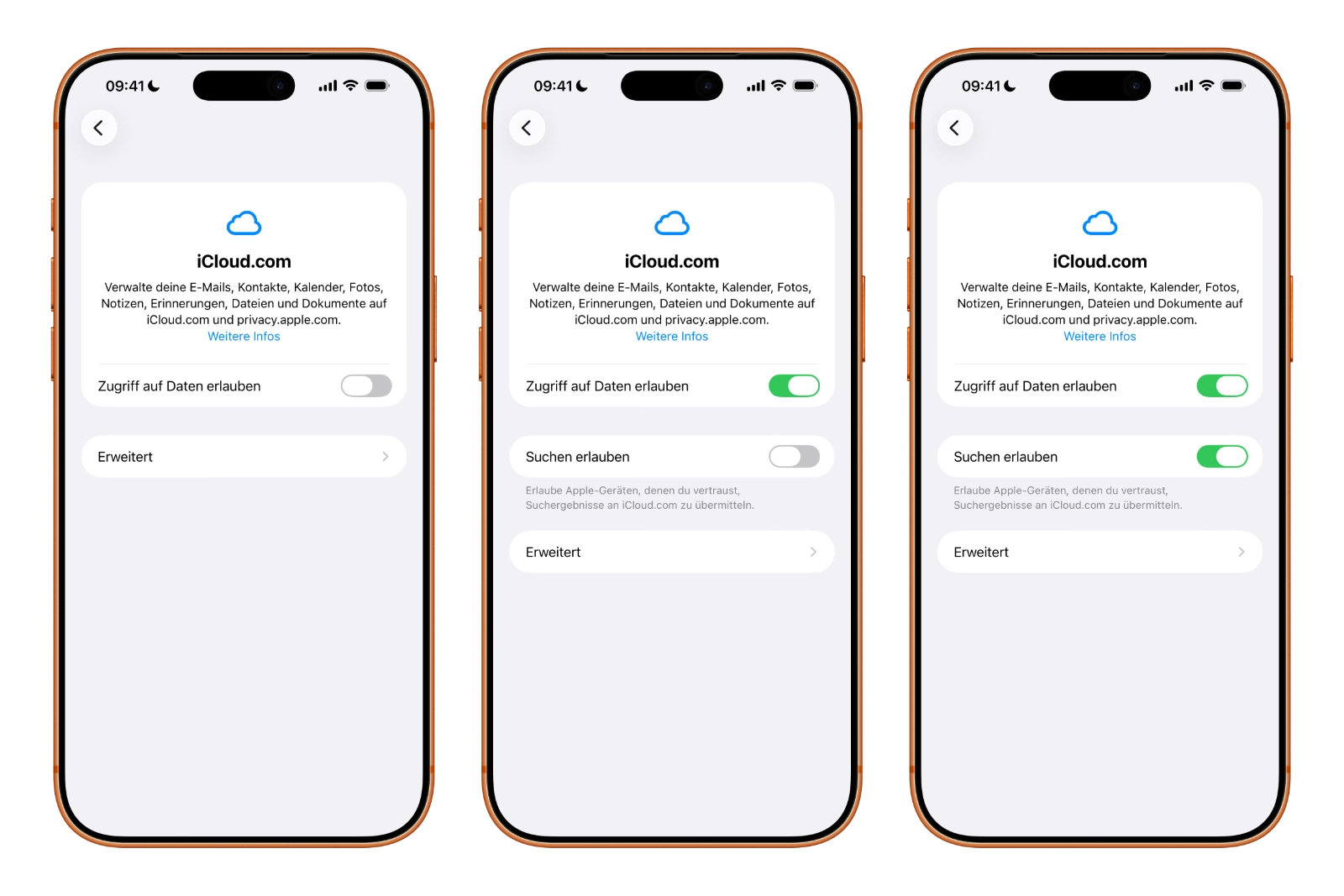
The setting must be activated separately on each device that is to serve as a source for search results. However, for those who sync the same files and photos across all their Apple devices, it is usually sufficient to activate the function only on their iPhone.
Incidentally, this feature is not limited to the iPhone: iPadOS 26.4 and macOS 26.4 also support the new iCloud search function.
Privacy: How Apple protects search queries
Apple has deliberately implemented the search function with privacy in mind. Search queries are transmitted encrypted, and all processing takes place locally on the user's own Apple device – not on Apple's servers. Therefore, no search history is stored by Apple. Anyone generally interested in Apple's privacy features in iCloud should also know..., Why “hiding email” doesn't always protect.
Here's how it works: When a search query is submitted via iCloud.com, the browser securely forwards the request to a trusted Apple device. This device searches the local index and returns the results. A search report covering the last 28 days is stored on the device and can be viewed or deleted at any time.
You'll also receive a notification (maximum once a day) when your device is currently providing search results for iCloud.com. If you receive an unexpected notification, you can disable web access or the search function at any time in your iCloud settings. For maximum security on Apple devices, it's also worth taking a look at the Lockdown mode for iPhone, iPad, and Mac.
Limitations: Those who cannot use the function
There are some cases where the new search function is unavailable. Users of managed Apple accounts—such as those in a business or educational institution—cannot activate "Allow Search." The same applies to Apple accounts linked only to a phone number.
Long overdue improvement for iCloud on the web
The new search function for iCloud.com is a long-overdue update that significantly enhances web access to iCloud. This feature is especially useful for anyone who regularly accesses their files and photos on a Windows PC or other non-Apple device. The privacy-friendly approach with on-device processing aligns well with Apple's philosophy.
Anyone wishing to use the search function must therefore activate it once – and this must be done on the device that should deliver the results. After that, it runs without further intervention, even if later access is from a different computer.
Do you often search for your files via the browser, or do you generally only access iCloud through the apps? Let us know in the comments how often you actually end up on iCloud.com.
Frequently Asked Questions: Search iCloud.com
Under Settings → your name → iCloud → iCloud.com, activate the “Allow Search” switch and confirm with “Allow”.
Files in iCloud Drive (by file name, folder name, document type) and photos in iCloud Photos (by date, people, places).
No. The search is transmitted encrypted and processed locally on your own device. No search history is stored on Apple servers.
The device stores a local search report for the last 28 days. This can be viewed or deleted at any time.
Yes. The feature requires at least iOS 26.4, iPadOS 26.4, or macOS 26.4 and also works on newer system versions. Sharing is done per device.
Yes. The setting applies per device. However, if you synchronize the same data across all devices, activating it on one device is sufficient.
Users with managed Apple accounts (e.g., in companies or educational institutions) as well as accounts that are only linked to a phone number.





