

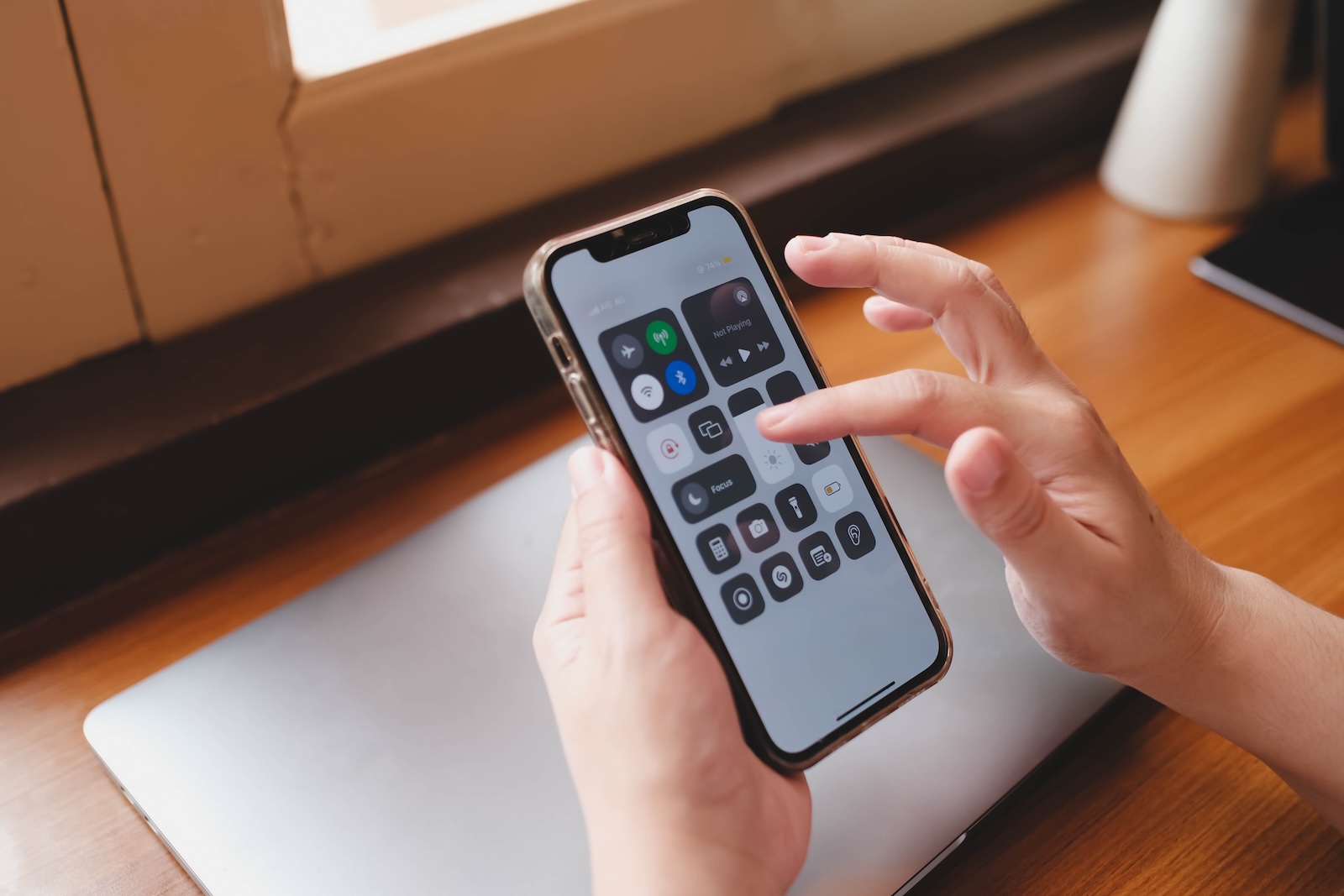
Forgetting your Wi-Fi password, but your iPhone still remembers it – we've all been there. Since iOS 16, you can view and copy saved Wi-Fi passwords directly on your iPhone. iOS 26 adds the Passwords app, QR code sharing, and automatic synchronization via iCloud Keychain. This article shows you all the ways to find a Wi-Fi password on your iPhone.
Before iOS 16, viewing saved Wi-Fi passwords on the iPhone was simply not possible. Anyone needing the password had to read it from the router, look it up in Keychain Access on a Mac, or jailbreak their device. Apple removed this limitation with iOS 16 and has steadily expanded the feature since then.
iOS 26 offers three full ways to view a Wi-Fi password on your iPhone: via the Wi-Fi settings, the Passwords app, and the edit mode for saved networks. Additionally, the password can be shared with other devices via QR code, AirDrop, or automatic prompt. If you're experiencing connection problems, you can find help in our article iPhone Update Problems: All Solutions for iOS 26, as Wi-Fi issues often occur after updates.
Method 1: Display the Wi-Fi Password via the Settings
The quickest way to find the password of the currently connected network is via the Wi-Fi settings.
Open Settings and tap “Wi-Fi”. Tap the information icon (ⓘ) next to the connected network. Tap the “Password” field. The password will initially be hidden by dots. Use Face ID, Touch ID, or your device passcode to authenticate. The password will then be displayed in plain text.
From here, you can copy the password directly by tapping and holding the displayed password and selecting "Copy". It can then be pasted on another device.
Method 2: Display the Password of a saved Network
The iPhone stores the passwords of all networks it has ever connected to. Even if the network is currently out of range, the password can be looked up.
Open Settings and tap “Wi-Fi”. Tap “Edit” in the upper right corner. Confirm with Face ID, Touch ID, or your device passcode. A list of all saved networks will appear. Tap the information icon (ⓘ) next to the desired network. Tap the “Password” field to view it.
This method works for any saved network – regardless of whether the iPhone is currently connected to it or not.
Method 3: Wi-Fi Passwords in the Passwords App
With iOS 18, Apple moved the iCloud Keychain into a standalone app: the Passwords app. It comes pre-installed on every iPhone with iOS 18 or later and manages website logins and passkeys, as well as all saved Wi-Fi passwords.
Open the Passwords app (from the app drawer or via search). Use Face ID, Touch ID, or your device passcode to authenticate. Tap "Wi-Fi." A list of all saved Wi-Fi networks will appear. Tap the desired network to view the password.
The password app also offers the option to generate a QR code for the network. To do this, tap "Show network QR code" in the selected network. Other people can scan this QR code with their camera app and automatically connect to the Wi-Fi – without having to manually enter the password.
Share your Wi-Fi Password with others
Besides the QR code, there are two other methods to share the Wi-Fi password from an iPhone.
Automatic sharing with Apple Devices
Since iOS 11, Apple has offered a seamless sharing feature between Apple devices. Requirements: Both devices have Wi-Fi and Bluetooth enabled, both users are signed in to iCloud with their Apple ID, and each user's email address is saved in their contacts.
When the other person selects the Wi-Fi network on their iPhone, the user's device automatically displays a prompt asking, "Do you want to share your Wi-Fi password?". After confirmation, the password is transmitted in encrypted form – the other person does not see the password in plain text.
QR code for non-Apple Devices
For guests with Android devices, the QR code from the passwords app is the easiest solution. In the passwords app, select the desired network under "Wi-Fi" and tap "Show network QR code". A screenshot of the QR code can be saved in the Photos app and shown again if needed.
Look up Wi-Fi Password on a Mac
Anyone who owns a Mac that is logged in with the same Apple ID and has iCloud Keychain enabled can also look up Wi-Fi passwords there.
On macOS Sequoia or later: Open System Preferences, click "Network" in the sidebar, and then click "Wi-Fi." Scroll down, click "Advanced," and select the desired network from the list of known networks. You can copy the password using the More button.
Alternatively, the Passwords app also works on the Mac (from macOS Sequoia onwards) and displays the same Wi-Fi passwords as on the iPhone.
Password not visible? Possible causes
In some cases, the password is not displayed despite following the correct steps. There are several possible reasons for this.
The network uses an enterprise profile (802.1X/WPA Enterprise). Such networks do not store traditional passwords, but instead use certificates.
The network was configured via an MDM (Mobile Device Management) profile, for example on a company device. In this case, the administrator may have blocked the display of the password.
iCloud Keychain is disabled. Without keychain synchronization, saved passwords are only available on the device where the connection was established.
The iPhone is using an iOS version prior to 16. In this case, displaying Wi-Fi passwords is not possible. An update to the latest iOS version will resolve this – instructions for troubleshooting update problems can be found in our article iPhone Update Problems.
Forgot Wi-Fi Network and reconnect
Sometimes deleting a saved network and reconnecting is the best solution – for example, in case of connection problems or after a password change on the router.
Settings > Wi-Fi. Tap the info icon (ⓘ) next to the network. Tap “Forget this network” and confirm.
The iPhone forgets the network and its password. The password must be entered again the next time it connects. To reset all network settings at once, you can find the option under Settings > General > Transfer/Reset iPhone > Reset > Reset Network Settings. This will delete all saved Wi-Fi passwords, VPN configurations, and Bluetooth pairings – a detailed explanation can be found in our article Resetting your iPhone.
The best products for you: Our Amazon storefront offers a wide selection of accessories, including those for HomeKit. (Image: Shutterstock / Thaspol Sangsee)
- iPhone Update Problems: All Solutions for iOS 26
- Creating an iPhone Backup: All methods under iOS 26
- Transferring Data to a new iPhone: All Methods under iOS 26
- Clear History on iPhone: Safari, Chrome and more
- Disable Audio Zoom on iPhone
- iPhone Battery drains quickly: Here's how to extend Battery Life under iOS 26
- Resetting your iPhone: All reset methods under iOS 26
- iCloud Costs: All storage plans, prices, and which one is worth it
- Recording an iPhone call: What works in Germany – and what doesn't
- Clear iPad Cache: More Storage and better Performance
- Clear iPhone cache: How to make your iPhone fast again
- Search iCloud.com: Activate new search function in iOS 26.4
- Apple Watch Tips: Hidden features you didn't know about
- iPhone storage full? Here's how to instantly free up more space
- Apple Account Purchase History: Review purchases, subscriptions & costs
- Apple Music: How to successfully migrate from Spotify & Co.
- AirTag 2 Factory Reset: How to Perform a Reset
- Apple Games App: Central hub for modern gaming
- Lockdown Mode: Maximum security for iPhone, iPad and Mac
- Apple Music: How to activate translated song lyrics in iOS 26
- Apple Creator Studio: Apps, subscription, and clear AI limits
- Is Apple Music taking up too much storage space? This will help immediately
- AirTag 2: Setting up Precision Finding on the Apple Watch
Frequently Asked Questions: How to Show Wi-Fi Password on iPhone
Yes, starting with iOS 16, the password can be displayed directly. Go to Settings > Wi-Fi, tap the information icon next to the network, and then tap "Password." Authentication is done via Face ID, Touch ID, or device passcode.
Yes. Go to Settings > Wi-Fi and tap “Edit”. After authentication, a list of all saved networks will appear, including those that are out of range. The password for each network can be viewed there individually.
Generate a QR code using the passwords app: Passwords app > Wi-Fi > Select network > “Show network QR code”. The Android device scans the QR code with the camera app and connects automatically.
Possible reasons: The network is using a corporate profile (802.1X), the iPhone is using an iOS version prior to 16, or iCloud Keychain is disabled. On company devices, the administrator may have blocked the display.
Yes, via iCloud Keychain. If this is enabled on all devices, saved Wi-Fi passwords are automatically available on iPhone, iPad, and Mac.
Go to Settings > Wi-Fi, tap the information icon next to the network, and select "Forget This Network." The iPhone will forget the network and its password.
Automatic sharing between Apple devices has worked since iOS 11. However, displaying the password in plain text and the QR code requires at least iOS 16 or iOS 18 for the Passwords app.





