

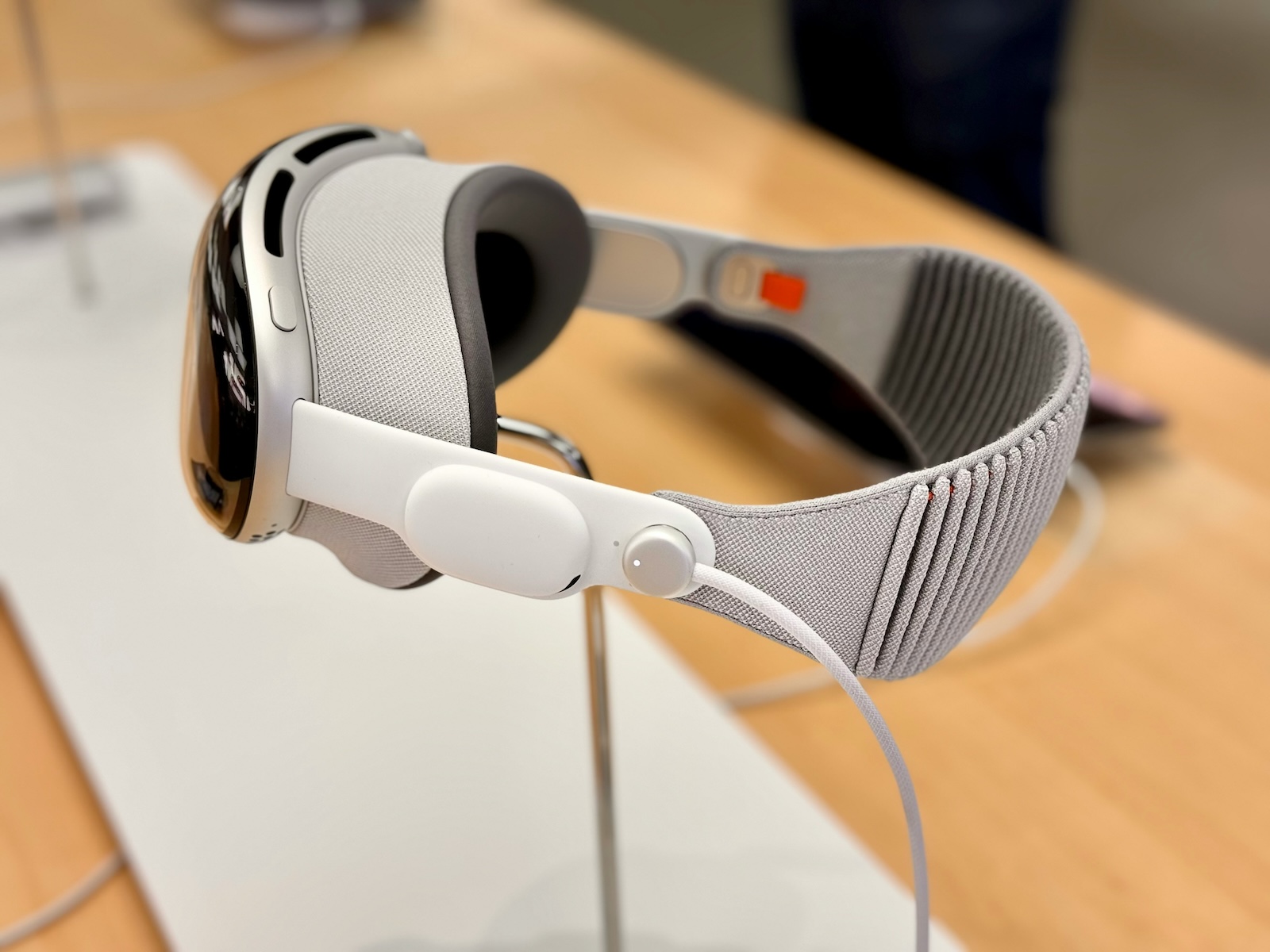
Resetting your Apple Vision Pro to factory settings can be necessary in many situations, whether it's to pass the device on to a new owner, troubleshoot an issue, or simply start over. This article will walk you through the process step by step, making sure no important details are missed.
Before we get into the actual guide, it's important to understand why and when a factory reset is useful. A factory reset will erase all user-related data and return the device to the state it was in when you first took it out of the box. Here are some of the most common reasons you might want to reset your Vision Pro:
- Passing on to a new owner: If you want to sell or give away your device, a factory reset is essential.
- Troubleshooting: Sometimes the only way to fix a problem is to perform a complete reset.
- Fresh start: If something went wrong with the configuration, a reset can help you start cleanly from the beginning.
Backing up your data
Before you reset the Vision Pro to factory settings, be sure to back up your data. This is especially important if you want to continue using the device and do not want to lose all of your data.
steps to backup data
- Open the settings: Go to the settings of your Vision Pro.
- To turn on iCloud Backup, select your profile ([Your Name]), then iCloud, then iCloud Backup.
- Back up now: You can start a manual backup by selecting “Back up now”.
- Manage backups: Here you can also view and delete existing backups.
Reset to factory settings
Once your data is backed up, you can proceed with the factory reset. Follow these steps to reset your Apple Vision Pro:
- Open Settings: Go to Settings and select “General”.
- Transfer or reset: Select “Transfer or reset Vision Pro”.
- Erase all content and settings: Tap Erase All Content and Settings.
- Confirmation: You may be asked to enter your device passcode or Apple ID.
- Perform a factory reset: Confirm that you want to perform a factory reset.
After resetting
After the reset is complete, it will take a few minutes for all data to be erased and the device to return to a new state. When you set up the device again, you will have the option to set it up manually or restore it from a backup.
Steps to restore from a backup
- Start the setup process: Follow the on-screen instructions to re-set up the Vision Pro.
- Restore from backup: Select the “Set up manually” option and then select “Restore from backup”.
- Select backup: Select the desired backup from the list and follow the instructions to complete the restore.
Easy and Fast: Apple Vision Pro Reset
Resetting your Vision Pro to factory settings is a straightforward process that can be completed in just a few steps. Whether you want to sell the device, give it away, or simply start over, this guide will help you complete all the necessary steps safely and efficiently. Don't forget to back up your data before resetting to avoid losing important information. This way, you can quickly and easily restore your Vision Pro to its factory default state. Looking for new accessories? Then check out our Amazon Storefront – there you'll find numerous products from leading providers, including those for HomeKit and more! (Photo by Unsplash / Mylo Kaye)
- Apple Vision Pro: Siri functions in detail
- Apple Vision Pro: EyeSight Features and Benefits
- Apple Vision Pro: Control your app permissions
- Care and Cleaning of your Apple Vision Pro: Tips & Tricks
- Apple Vision Pro: How to find the best 3D movies
- Cloud gaming and streaming with Apple Vision Pro
- Optimal use: Connect AirPods to Apple Vision Pro
- Apple Vision Pro: Easily customize the Control Center
- Connecting Apple Vision Pro to Mac: How it works
- Apple Vision Pro: Create immersive photos and videos
- Apple Vision Pro: Move and adjust app windows
- Apple Vision Pro not responding? Restart instructions
- Apple Vision Pro: Reorient the view - here's how
- Apple Vision Pro: How screen sharing works





