

apple patient
  • Home
  • News
  • Rumors
  • Tips & Tricks
  • Reviews
  • Insights
No Result
View All Result
  • iPhone 18
  • iPhone 18 Pro
  • iPhone Duo
  • Apple Watch Series 12
  • Apple Watch Ultra 4
  • AirPods 5
  • iOS 27
  • iPadOS 27
  • macOS
  • MacBook Neo
  • iPhone 17e
  • AirTags
  • iOS 26
  • iPhone 17
  • MacBook Pro
  • iPadOS
  • iMac
  • Mac mini
  • HomePod
  • Apple TV
  • iPad Pro
  • iPhone Air
  • Apple Vision Pro
  • iPhone 16
  • AirPods 4
  • Apple Watch Ultra
  • HomePod Mini
  • MacBook Air
  • iPad
  • AirPods Max
  • AirPods Pro 3
  • Apple Watch Series 3
  • Mac Studio
  • Studio Display
  • iPad Air
  • iPad mini
  • watchOS 27
  • Apple CarPlay
  • Apple Pay
  • watchOS 26
  • Home
  • News
  • Rumors
  • Tips & Tricks
  • Reviews
  • Insights
No Result
View All Result
apple patient
No Result
View All Result
  • iPhone 18
  • iPhone 18 Pro
  • iPhone Duo
  • Apple Watch Series 12
  • Apple Watch Ultra 4
  • AirPods 5
  • iOS 27
  • iPadOS 27
  • macOS
  • MacBook Neo
  • iPhone 17e
  • AirTags
  • iOS 26
  • iPhone 17
  • MacBook Pro
  • iPadOS
  • iMac
  • Mac mini
  • HomePod
  • Apple TV
  • iPad Pro
  • iPhone Air
  • Apple Vision Pro
  • iPhone 16
  • AirPods 4
  • Apple Watch Ultra
  • HomePod Mini
  • MacBook Air
  • iPad
  • AirPods Max
  • AirPods Pro 3
  • Apple Watch Series 3
  • Mac Studio
  • Studio Display
  • iPad Air
  • iPad mini
  • watchOS 27
  • Apple CarPlay
  • Apple Pay
  • watchOS 26

Apple Vision Pro: EyeSight Features and Benefits

Milan Jovicic by Milan Jovicic
July 11, 2024 - 2:02 PM CEST
in Apple Tips & Tricks
0
Apple Vision Pro EyeSight

Image: Apple

WhatsAppFacebookEmail
Threads

In the fast-moving world of technology, Apple is once again setting the standard with its groundbreaking product, the Apple Vision Pro. A unique feature of this innovative device is EyeSight. This feature changes the way you interact with your environment and how others perceive you while using Vision Pro. Below you will learn all about EyeSight, how it works and what benefits it offers you.

The introduction of augmented reality (AR) and virtual reality (VR) into everyday life opens up new possibilities and experiences. Vision Pro takes these technologies to a new level by not only providing immersive experiences, but also ensuring that you are perceived in your surroundings. EyeSight plays a crucial role in this. Let's take a closer look at what EyeSight can do and how it improves your user experience.

What does EyeSight show?

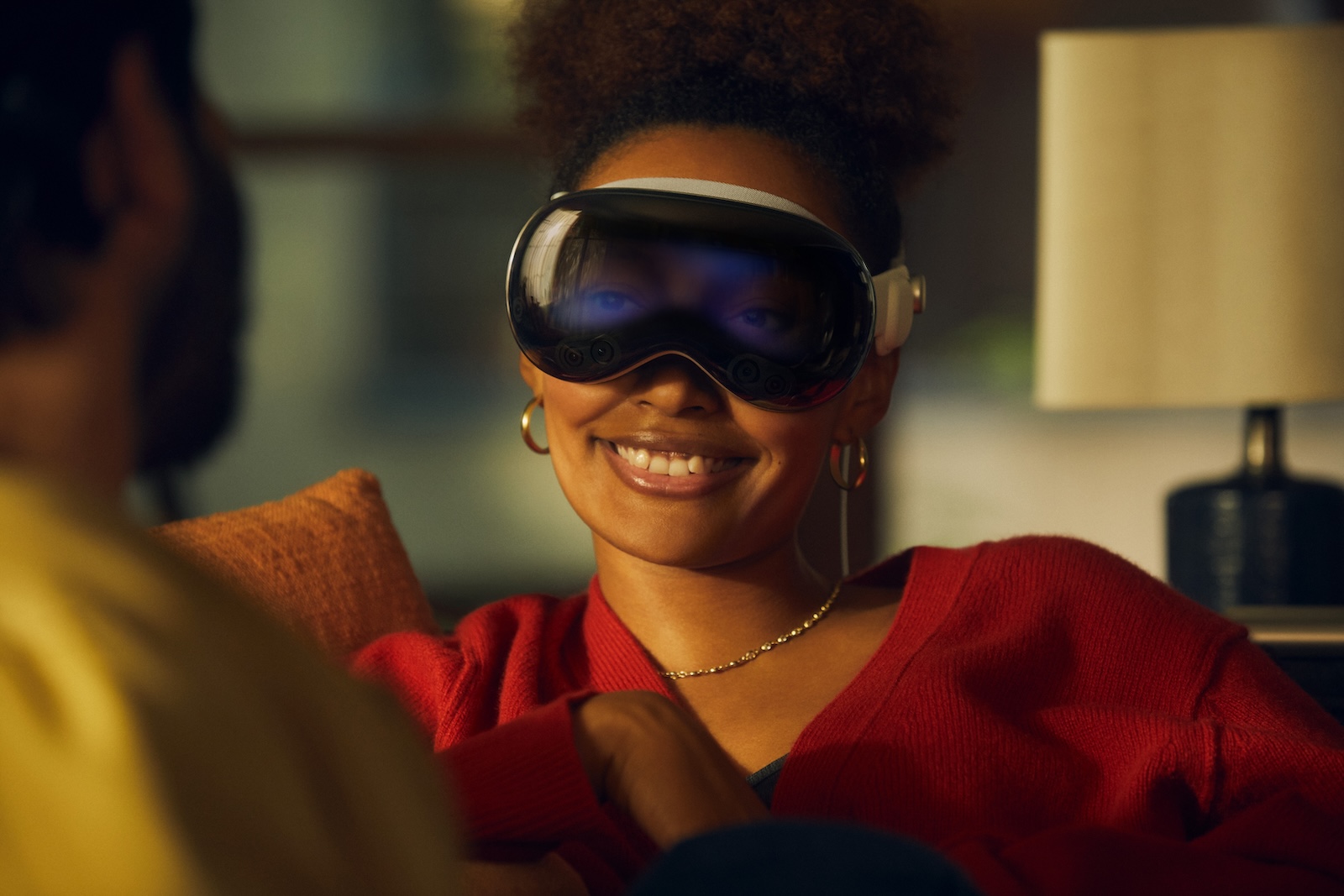
EyeSight displays your eyes on the front of your Vision Pro and lets people around you know whether you're using apps or immersed in an experience. Here are some of the ways EyeSight lets those around you know what you're doing:

  • Personalize your eyes: When you wear Vision Pro and have captured your persona , EyeSight is personalized with your own eyes. This gives others the feeling of having direct eye contact with you, even when you're immersed in a digital world.
  • Default appearance: If you haven't yet captured your persona, EyeSight will show a generic impression of your eyes without personalized features. This ensures that others still receive visual feedback.
  • App use and interactive experiences: When you use an app or participate in an interactive experience, EyeSight displays an animation to inform others that you may not be able to see or respond to them.
  • Capture and share your view: When you capture spatial photos and videos or capture and share your view, EyeSight signals this with a special animation so others know the camera is active.

EyeSight is only activated when you are wearing the device and other people are nearby. When you turn on Vision Pro, the Apple logo appears on the front display and a progress bar is shown during a visionOS update.
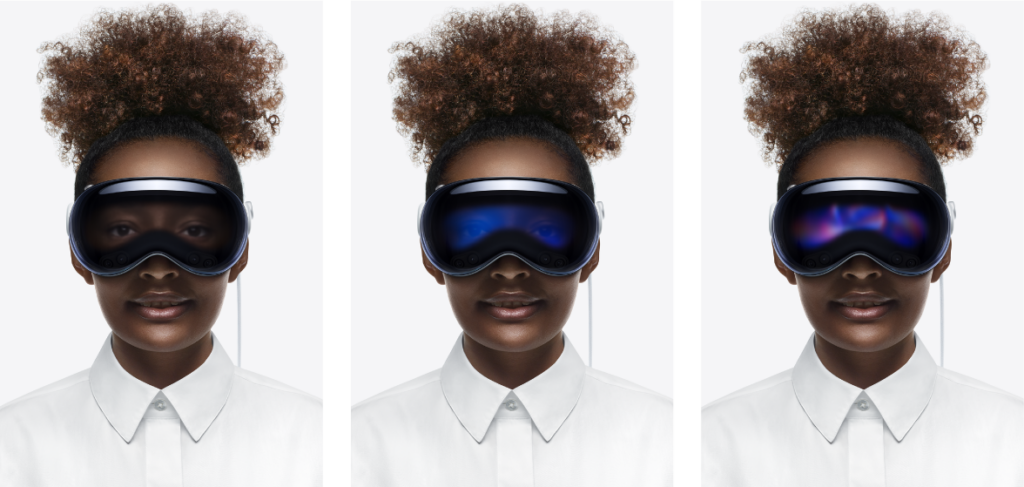
Image: Apple

Deleting your personalized EyeSight

There may be times when you want to delete your personalized EyeSight data. Don't worry, your Persona will remain unaffected. Here are step-by-step instructions on how to delete your personalized EyeSight:

  • Open Settings: Go to Settings on your Apple Vision Pro.
  • Select Person Perception: Navigate to “Person Perception”.
  • Delete EyeSight: Tap Delete EyeSight.

If you want to use your personalized EyeSight again later, you will need to re-enter your persona. This ensures that EyeSight is always up-to-date and accurate.

How EyeSight is transforming the use of Apple Vision Pro

Vision Pro and the EyeSight feature are revolutionizing the way we interact with AR and VR technologies. EyeSight not only provides an immersive experience, but also intuitive and safe interaction with your surroundings. By displaying your eyes and providing visual feedback, EyeSight ensures you stay connected to the real world, even when immersed in digital worlds. Experience the future of augmented reality with Vision Pro—personal, safe, and revolutionary. Looking for new accessories? Then check out our Amazon Storefront —there you'll find numerous products from leading providers, including products for HomeKit and others! (Image: Apple)

  • Apple Vision Pro: Control your app permissions
  • Care and Cleaning of your Apple Vision Pro: Tips & Tricks
  • Apple Vision Pro: How to find the best 3D movies
  • Cloud gaming and streaming with Apple Vision Pro
  • Optimal use: Connect AirPods to Apple Vision Pro
  • Apple Vision Pro: Easily customize the Control Center
  • Connecting Apple Vision Pro to Mac: How it works
  • Apple Vision Pro: Create immersive photos and videos
  • Apple Vision Pro: Important tips to combat dizziness
  • Apple Vision Pro: Move and adjust app windows
  • Apple Vision Pro not responding? Restart instructions
  • Apple Vision Pro: Reorient the view - here's how
  • Apple Vision Pro Reset: How to reset

Make Apfelpatient a preferred source One click – and you'll see us more often on Google
Was this article helpful?
YesNo
Tags: Apple Vision ProApple Vision Pro Tips and TricksApple VR/ARvisionOS
SendShareSend
Share

Our Amazon Storefront

A handpicked selection of products for iPhone, Mac and more – sorted by topic and updated regularly.

Shop Now

This post contains affiliate links (including Amazon). We earn a small commission on qualifying purchases – at no extra cost to you. Learn more on our Partner Program page.

Previous Post

Apple Vision Pro: Control your app permissions

Next Post

Apple Vision Pro: Siri functions in detail

Milan Jovicic

Milan Jovicic

Milan founded Apfelpatient in 2016 and has been responsible for all editorial content since 2018 — news, rumors, guides, and product reviews. Apple devices here are not test units on loan for two weeks but everyday tools: from the iPhone through MacBook Pro, MacBook Air, and iMac to the Apple Vision Pro, at least one device from nearly every product category is in daily use, many of them replaced annually. Every menu path in a guide is verified on the device before it is published.

Related posts

Setting up iPhone Handoff: Here's how it works in iOS 27

by Milan Jovicic
September 24, 2026 - 5:50 p.m. CEST
iPhone showing the Set Up eSIM screen with the option to use the number on two iPhones selected, the first step to set up iPhone Handoff

Setting up iPhone Handoff under iOS 27: Requirements, costs at Telekom and why logging out only works via the provider.

Read moreDetails

How to Turn On Advanced Data Protection for iCloud

by Milan Jovicic
September 20, 2026 - 03:27 CEST
Advanced Data Protection for iCloud: iPhone showing the Advanced Data Protection settings page with the list of protected data and the Turn On option, next to a padlock

Advanced Data Protection for iCloud: 25 categories with end-to-end encryption. How to turn it on and secure your recovery options.

Read moreDetails

Selling Your iPhone Safely: How to Prepare Your Device the Right Way

by Milan Jovicic
September 19, 2026 - 9:04 p.m. CEST
Selling an iPhone safely: two iPhones lying face down on a grey surface, one orange and one black

Sell your iPhone safely: Backup, deregistration, activation lock and reset in the correct order – plus shipping step for the 18 Pro Max.

Read moreDetails

iPhone 18 Pro: Setting up Pro video storage for ProRes

by Milan Jovicic
September 19, 2026 - 7:56 p.m. CEST
Pro Video Storage on iPhone 18 Pro: iPhone showing the Configure Pro Video Storage dial at 150 GB and about 26 minutes of ProRes 4K 30 fps, next to a drive with a checkmark

No Pro Video storage, no ProRes: Here's how to reserve storage for video recordings on the iPhone 18 Pro and free it up again when needed.

Read moreDetails

Preparing your iPhone 18 Pro Max for shipping: Here's how

by Milan Jovicic
September 19, 2026 - 03:15 CEST
Preparing iPhone 18 Pro Max for shipping: iPhone showing the shipping reason screen with Repair, Trade-in or Return and Other, next to a battery with a downward arrow

iPhone 18 Pro Max before shipping: Batteries larger than 20 Wh must be discharged using the "Prepare for Shipping" function. Here's how to do it for repairs and sales.

Read moreDetails
Load More

Categories

  • Apple Insights
  • Apple Rumors
  • Apple News
  • Apple Tips & Tricks
  • iPhone news, rumors and tips
  • Mac and MacBook News
  • Reviews

About APFELPATIENT

APFELPATIENT brings you the latest Apple news, product updates, guides, reviews and tips across the entire Apple ecosystem — from the iPhone to the Mac to the Apple Vision Pro. From the first rumors to confirmed news: researched responsibly.

Follow Apfelpatient

Facebook Instagram YouTube Threads Threads

Company

  • About Apfelpatient
  • Contact
  • Author Profiles

Community

  • Netiquette
  • Push Notifications
  • RSS feed

Legal

  • Legal Notice
  • Privacy Policy
  • Terms of Use
  • Cookie Settings
  • Affiliate Program

Resources

  • Sitemap

© 2026 Apfelpatient. All rights reserved.

No Result
View All Result
  • Home
  • News
  • Rumors
  • Tips & Tricks
  • Reviews
  • Insights

© 2026 Apfelpatient. All rights reserved. Page Directory

Change language to Deutsch



