

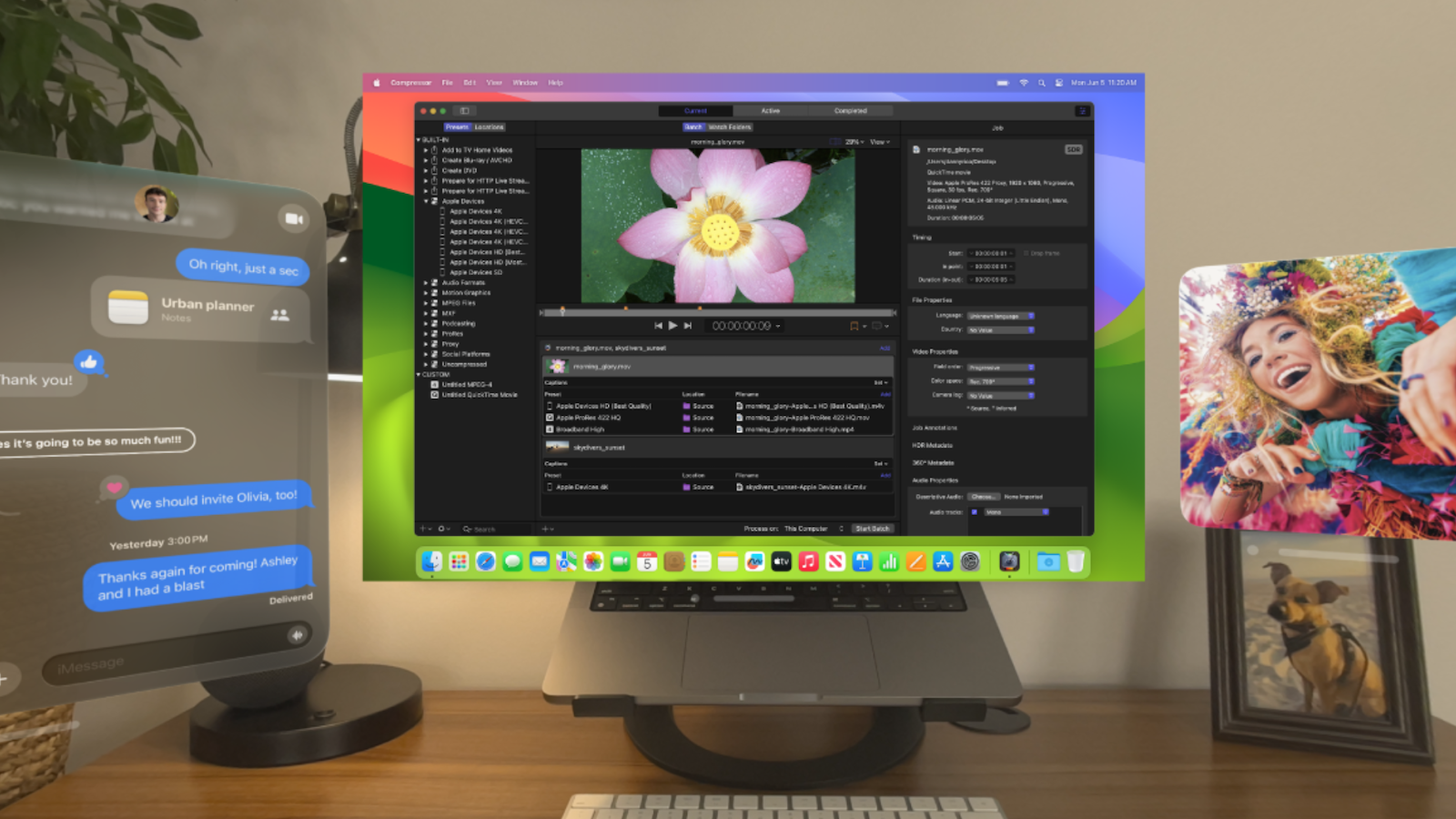
Technology is constantly advancing and allowing us to make work processes more efficient and enjoy entertainment on a new level. An outstanding example of this development is the Apple Vision Pro, which offers innovative augmented reality functions. In this article, you will learn how to display your Mac screen on Vision Pro, what requirements are necessary for this and how to make the most of the connection.
With the Vision Pro, Apple has created an impressive device that impresses not only with its technical sophistication but also with its versatility. The ability to use your Mac screen in a virtual environment opens up new horizons in terms of productivity and entertainment. However, before we dive deeper into the guide, it is important to know the necessary requirements and make sure that your system is ready for this advanced feature.
Connect to your Mac
To display your Mac screen on the Vision Pro, both devices must be signed in with the same Apple ID and your Mac must have macOS Sonoma or later installed.
- Open Control Center: Wear your Vision Pro and open Control Center.
- Choose Mac Virtual Display: Tap the Control Center button, then tap Mac Virtual Display, then select your Mac.
- Connect: If you're using a MacBook, you can simply look at your Mac (make sure the screen is on) and tap Connect.
You can adjust the size of your Mac's screen and move it closer or farther away as needed. These adjustments work just like you do with app windows in visionOS . While connected, you can use your trackpad as usual, seamlessly moving the pointer between your Mac and open visionOS apps. You can also continue to use gestures in visionOS apps. To disconnect, simply tap the Close button.
What you need to use the virtual Mac display
Before you can get started, you need to make sure that certain requirements are met:
- Apple ID and two-factor authentication: Both devices must be signed in with the same Apple ID and two-factor authentication must be enabled.
- Current software versions: Your Mac must have macOS Sonoma or later installed, and Vision Pro should use the latest version of visionOS.
- iCloud Keychain: Both devices must have iCloud Keychain enabled. On your Mac, go to System Preferences > [your name] > iCloud > Passwords & Keychain and enable "Sync this Mac." On the Vision Pro, go to Settings > [your name] > iCloud > Passwords & Keychain and enable "Sync this Apple Vision Pro."
- Bluetooth and Wi-Fi: Both devices must be within 10 meters (30 feet) of each other, with Bluetooth and Wi-Fi enabled. Neither device can share its Internet connection.
- Handoff: If you want to share the pointer between macOS and visionOS apps, Handoff must be enabled on both devices. On the Apple Vision Pro, go to Settings > General > Handoff, on your Mac, go to System Preferences > General > AirDrop & Handoff.
- Share mouse pointer and keyboard: On your Mac, you also need to enable “Share mouse pointer and keyboard between all nearby Macs or iPads.” You can find this under System Preferences > Displays > Advanced.
Experience new dimensions with Apple Vision Pro and your Mac
Integrating your Mac display with the Vision Pro opens up entirely new possibilities for both work and play. This feature lets you streamline your workflow and enjoy an immersive experience that combines technology and convenience in a stunning way. Make sure you meet all the requirements and follow the simple instructions to unlock the full potential of your devices. Have fun exploring this innovative feature! Looking for new accessories? Then check out our Amazon Storefront – there you'll find numerous products from leading providers, including those compatible with HomeKit and other devices! (Image: Apple)
- Apple Vision Pro: Create immersive photos and videos
- Apple Vision Pro: Important tips to combat dizziness
- Apple Vision Pro: Move and adjust app windows
- Apple Vision Pro not responding? Restart instructions
- Apple Vision Pro: Setting up and using guest users
- Apple Vision Pro: Adjust volume – here's how
- Apple Vision Pro: Reorient the view - here's how
- Apple Vision Pro: How screen sharing works
- Apple Vision Pro: How to create screenshots and videos
- Apple Vision Pro: Connecting Bluetooth accessories – here's how
- Apple Vision Pro: Charge the battery and check the status
- Apple Vision Pro: Set up and use Optic ID securely
- Apple Vision Pro: The most important gestures and controls





