

The Apple Vision Pro is a groundbreaking device in the world of augmented reality (AR) and virtual reality (VR). To get the most out of your device, it's important to properly charge the battery and monitor its status. Below you'll find detailed instructions on how to optimally charge your Apple Vision Pro's battery and check the battery level. This will ensure that your device is always ready for use and that you don't miss any important moments.
The Apple Vision Pro is not only a technological masterpiece but also a gateway to immersive experiences and innovative applications. To achieve the best results, proper care and maintenance of the battery is essential. This article will guide you through all the necessary steps to ensure that your Vision Pro always works optimally. Let's go through the most important points together to prepare your device in the best possible way.
Apple Vision Pro: How to charge the battery correctly
Preparation and Safety
Before you start charging your Vision Pro, make sure you have a suitable USB-C charging cable and an Apple 30W USB-C power adapter on hand. These ensure safe and efficient charging performance.
charging the battery
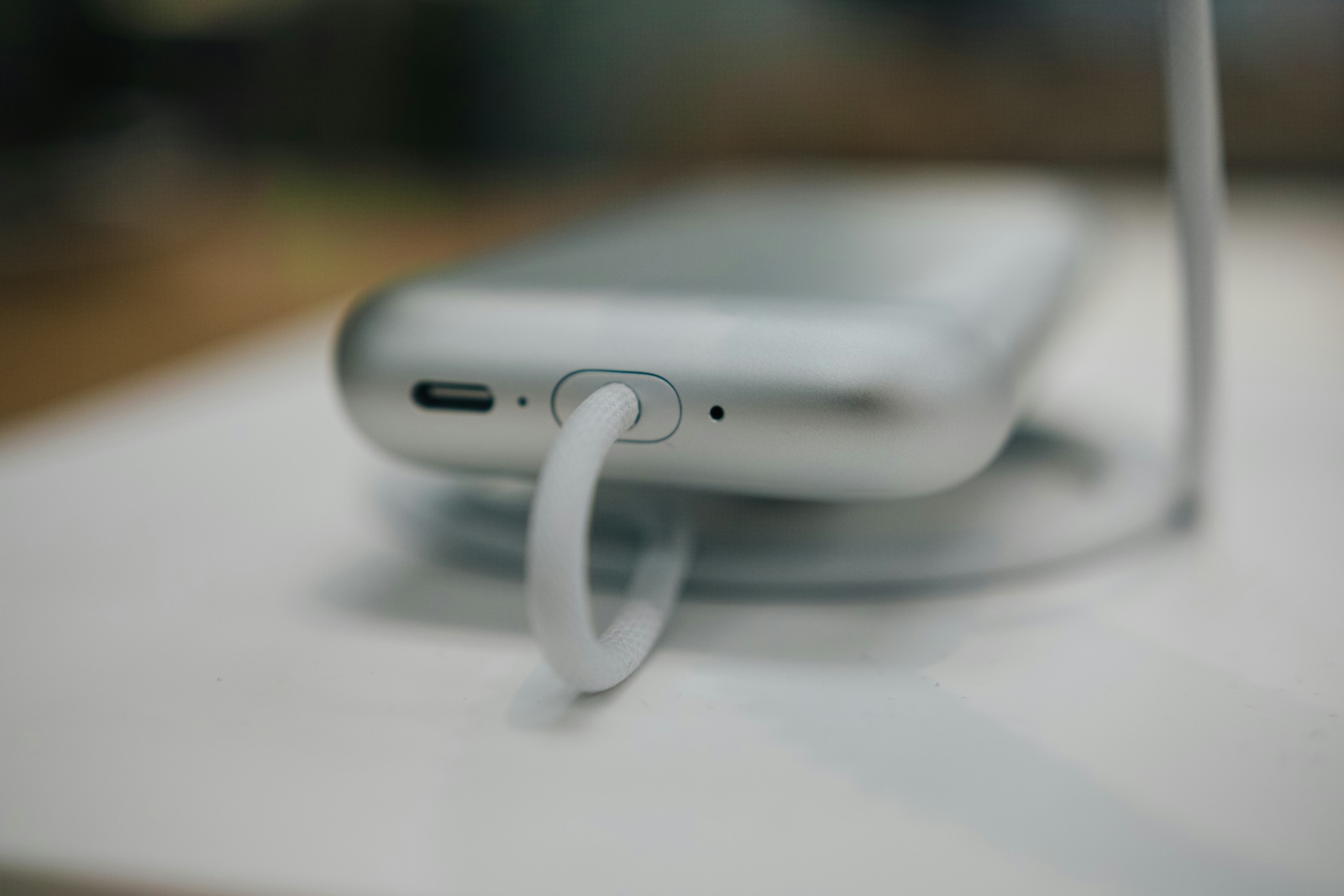
- Connect the battery: Plug the USB-C charging cable into the USB-C port on the battery and the power adapter into a power outlet.
- Check the charging indicator: The light next to the USB-C port shows the current charging status:
• Yellow: The battery needs to be charged.
• Green: The battery is fully charged.
• Flashing yellow: The battery is low and needs to be charged immediately.
Important instructions
- Use while charging: You can use the Vision Pro while the battery is charging. However, be careful not to trip over the charging cable.
- Synchronization: During synchronization with iCloud or during intensive use, the charging process may take longer.
- Charge the battery when not in use: When you are not using the Vision Pro, leave the battery plugged in to ensure that all your content stays synced and the battery is full the next time you use it.
- Avoid liquid damage: Do not plug the charging cable into the port if you suspect there is liquid in it.
Check the battery level
display battery level
- Open Control Center: Swipe down from the top right corner of your Vision Pro screen to open Control Center.
- Check battery level: The charge level or percentage is displayed in the upper right corner of the screen.
Turn battery percentage on or off
- Open Settings: Go to Settings on your Vision Pro.
- Select battery options: Select the menu item “Battery”.
- Show percentage: Turn the battery percentage on or off depending on your preference.
Optimal battery care for long-lasting AR and VR enjoyment
Proper care and monitoring of your Vision Pro's battery is crucial for a long-lasting and smooth user experience. By following the steps outlined here, you can ensure your device is always ready for use and allows you to fully enjoy the impressive AR and VR experiences. Follow these instructions carefully and discover the fascinating possibilities your Vision Pro offers. Have fun and success with your new device! Looking for new accessories? Then take a look at our Amazon Storefront – there you'll find numerous products from leading providers, including those for HomeKit and others! (Photo by Unsplash / Semeon Hrozian)
- Apple Vision Pro: Easily customize your virtual environment
- Apple Vision Pro: Setting up the perfect persona for FaceTime
- Apple Vision Pro: Find the best apps and games
- Opening apps on Apple Vision Pro: Step by step
- Apple Vision Pro: Setting up Siri and making the most of it
- Apple Vision Pro: Set up and use Optic ID securely
- Apple Vision Pro: The most important gestures and controls
- Setting up Apple Vision Pro: How to get started right
- Adjusting Apple Vision Pro correctly: step by step





