

apple patient
  • Home
  • News
  • Rumors
  • Tips & Tricks
  • Reviews
  • Insights
No Result
View All Result
  • iPhone 18
  • iOS 27
  • iPadOS 27
  • macOS
  • MacBook Neo
  • iPhone 17e
  • AirTags
  • iOS 26
  • iPhone 17
  • MacBook Pro
  • iPadOS
  • iMac
  • Mac mini
  • HomePod
  • Apple TV
  • iPad Pro
  • iPhone Air
  • Apple Vision Pro
  • iPhone 16
  • AirPods 4
  • Apple Watch Ultra
  • HomePod Mini
  • MacBook Air
  • iPad
  • AirPods Max
  • AirPods Pro 3
  • Apple Watch Series 3
  • Mac Studio
  • Studio Display
  • iPad Air
  • iPad mini
  • watchOS 27
  • Apple CarPlay
  • Apple Pay
  • watchOS 26
  • Home
  • News
  • Rumors
  • Tips & Tricks
  • Reviews
  • Insights
No Result
View All Result
apple patient
No Result
View All Result
  • iPhone 18
  • iOS 27
  • iPadOS 27
  • macOS
  • MacBook Neo
  • iPhone 17e
  • AirTags
  • iOS 26
  • iPhone 17
  • MacBook Pro
  • iPadOS
  • iMac
  • Mac mini
  • HomePod
  • Apple TV
  • iPad Pro
  • iPhone Air
  • Apple Vision Pro
  • iPhone 16
  • AirPods 4
  • Apple Watch Ultra
  • HomePod Mini
  • MacBook Air
  • iPad
  • AirPods Max
  • AirPods Pro 3
  • Apple Watch Series 3
  • Mac Studio
  • Studio Display
  • iPad Air
  • iPad mini
  • watchOS 27
  • Apple CarPlay
  • Apple Pay
  • watchOS 26

Apple Vision Pro: Easily customize your virtual environment

Milan Jovicic by Milan Jovicic
July 7, 2024 - 3:34 PM CEST
in Apple Tips & Tricks
0
Customize Apple Vision Pro Environment

Image: Apple

WhatsAppFacebookEmail
Threads

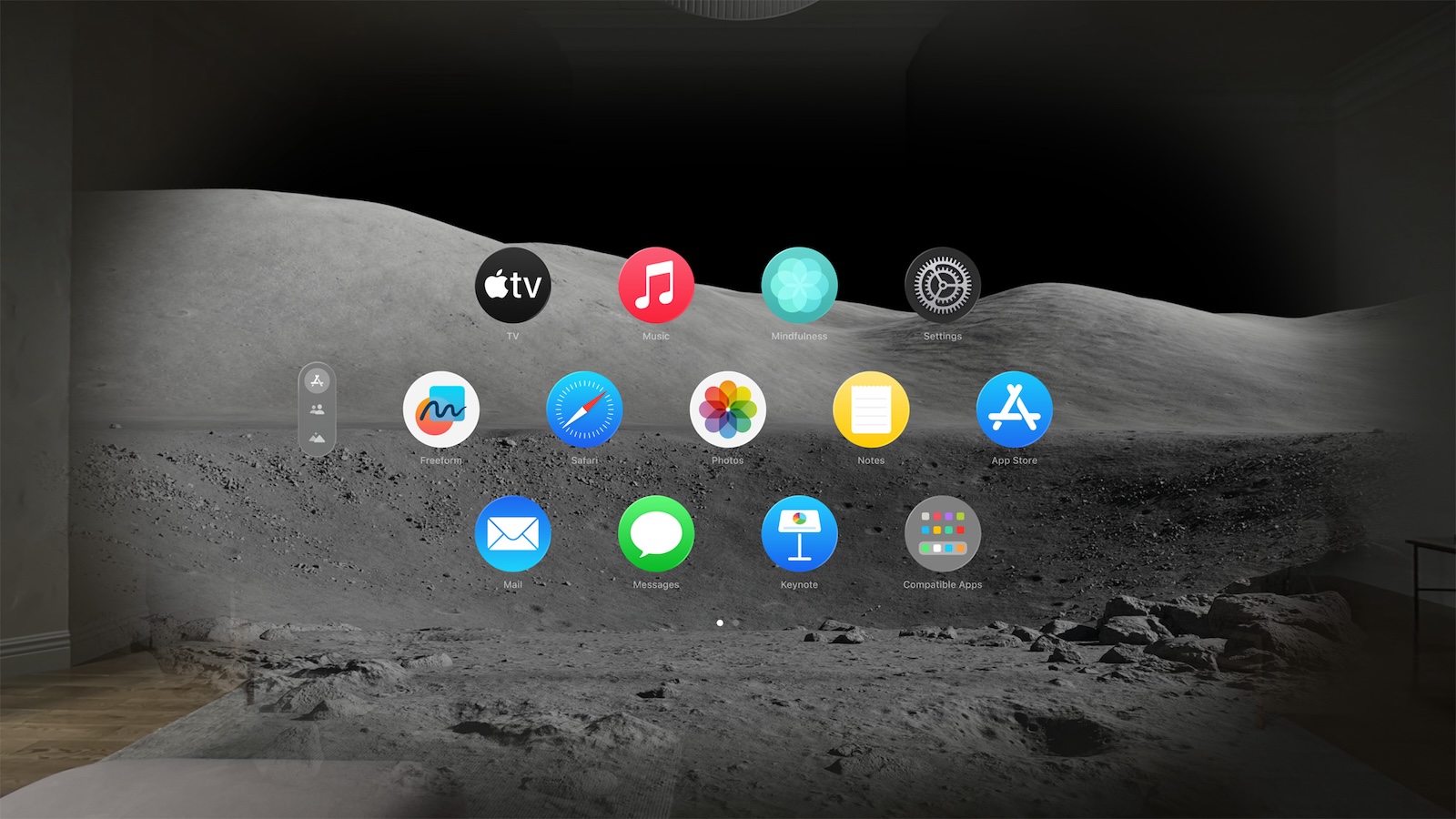
Apple Vision Pro offers a revolutionary way to transform your physical environment and transport yourself into immersive virtual worlds. The Environments feature lets you experience stunning locations like Yosemite, Mount Hood, or even the moon while using everyday apps like Mail or Safari. Below we'll show you how to make the most of the environments on your Vision Pro to get the most out of your virtual experience.

The Vision Pro opens up new horizons for immersive technology. It's not just a tool for work and communication, it's also a portal to amazing places and experiences. Whether you want to relax, be creative or work more productively, the Environments feature will help you get in the right mood. Learn about the different settings and options available to you and discover how to personalize your virtual environment.

Select an environment

To select an environment, proceed as follows:

  • Start Vision Pro and tap “Environments” in the tab bar.
  • Choose a setting like White Sands or Yosemite, or opt for subtle options like “Summer Light” or “Winter Light” to change the look of your space.
  • Enjoy the effects: Some environments display special effects, such as rain in Mount Hood. Note that some effects are only available when no apps are open.

Exclusive environments for specific apps

Some apps offer exclusive environments that can only be used within the app. One example is a conference room that is ideal for practicing Keynote presentations. These customized environments help you better focus on specific tasks and increase your productivity.

Use Siri with Environments

Siri can help you quickly switch between different environments. Just say, "Siri, take me to the moon," and you'll find yourself in a mesmerizing lunar landscape. These voice commands make it easy and intuitive to change your virtual environment without using your hands.

Change the look or volume of your environment

To adjust the immersion, turn the Digital Crown. You can choose between light, dark and automatic settings to change the appearance of your environment:

  • Change the appearance: Open Control Center, tap Environments, and choose between Light, Dark, or Automatic.
  • Adjust the ambient sound volume: Open Control Center, tap the Volume button, then drag the slider to adjust the volume.

For more specific settings, you can also open the app settings and make the desired adjustments under “Environments”.

Optimal adaptation: How to individualize your Apple Vision Pro environment

Apple Vision Pro and the Environments feature offer a unique way to customize your environment. Whether you want to relax, work, or simply immerse yourself in another world, this feature allows you to personalize and optimize your experience. Use the numerous customization options to perfectly tailor your virtual environment to your needs. Have fun exploring and trying out the different environments on your Vision Pro! Looking for new accessories? Then check out our Amazon Storefront – there you'll find numerous products from leading manufacturers, including products for HomeKit and others! (Image: Apple)

  • Apple Vision Pro: Setting up the perfect persona for FaceTime
  • Apple Vision Pro: Charge the battery and check the status
  • Apple Vision Pro: Find the best apps and games
  • Opening apps on Apple Vision Pro: Step by step
  • Apple Vision Pro: Setting up Siri and making the most of it
  • Apple Vision Pro: Set up and use Optic ID securely
  • Apple Vision Pro: The most important gestures and controls
  • Setting up Apple Vision Pro: How to get started right
  • Adjusting Apple Vision Pro correctly: step by step

Make Apfelpatient a preferred source One click – and you'll see us more often on Google
Was this article helpful?
YesNo
Tags: Apple Vision ProApple Vision Pro Tips and TricksApple VR/ARvisionOS
SendShareSend
Share

Our Amazon Storefront

A handpicked selection of products for iPhone, Mac and more – sorted by topic and updated regularly.

Shop Now

This post contains affiliate links (including Amazon). We earn a small commission on qualifying purchases – at no extra cost to you. Learn more on our Partner Program page.

Previous Post

Apple Vision Pro: Setting up the perfect persona for FaceTime

Next Post

Apple Watch Series 10: Problems with new health features?

Milan Jovicic

Milan Jovicic

Milan founded Apfelpatient in 2016 and has been responsible for all editorial content since 2018 — news, rumors, guides, and product reviews. Apple devices here are not test units on loan for two weeks but everyday tools: from the iPhone through MacBook Pro, MacBook Air, and iMac to the Apple Vision Pro, at least one device from nearly every product category is in daily use, many of them replaced annually. Every menu path in a guide is verified on the device before it is published.

Customers crowding an iPhone launch day at the Apple Store on Fifth Avenue in New York, where the iPhone Ultra market launch is said to begin first

iPhone Ultra: Report expects staggered market launch

August 13, 2026 - 3:43 PM CEST
Symbolic image for Siri AI news: illustrated speech bubble with newspaper lines on a golden gradient

Siri AI: Apple will pay publishers for breaking news

August 13, 2026 - 03:07 CEST
Customers crowding an Apple Store as the US smartphone market lost five percent in sales during the second quarter

US smartphone market shrinks, iPhone 18 expected to be more expensive

August 12, 2026 - 23:47 CEST

About APFELPATIENT

APFELPATIENT brings you the latest Apple news, product updates, guides, reviews and tips across the entire Apple ecosystem — from the iPhone to the Mac to the Apple Vision Pro. From the first rumors to confirmed news: researched responsibly.

Follow Apfelpatient

Facebook Instagram YouTube Threads Threads

Company

  • About Apfelpatient
  • Contact
  • Author Profiles

Community

  • Netiquette
  • Push Notifications
  • RSS feed

Legal

  • Legal Notice
  • Privacy Policy
  • Terms of Use
  • Cookie Settings
  • Affiliate Program

Resources

  • Sitemap

© 2026 Apfelpatient. All rights reserved.

No Result
View All Result
  • Home
  • News
  • Rumors
  • Tips & Tricks
  • Reviews
  • Insights

© 2026 Apfelpatient. All rights reserved. Page Directory

Change language to Deutsch



