

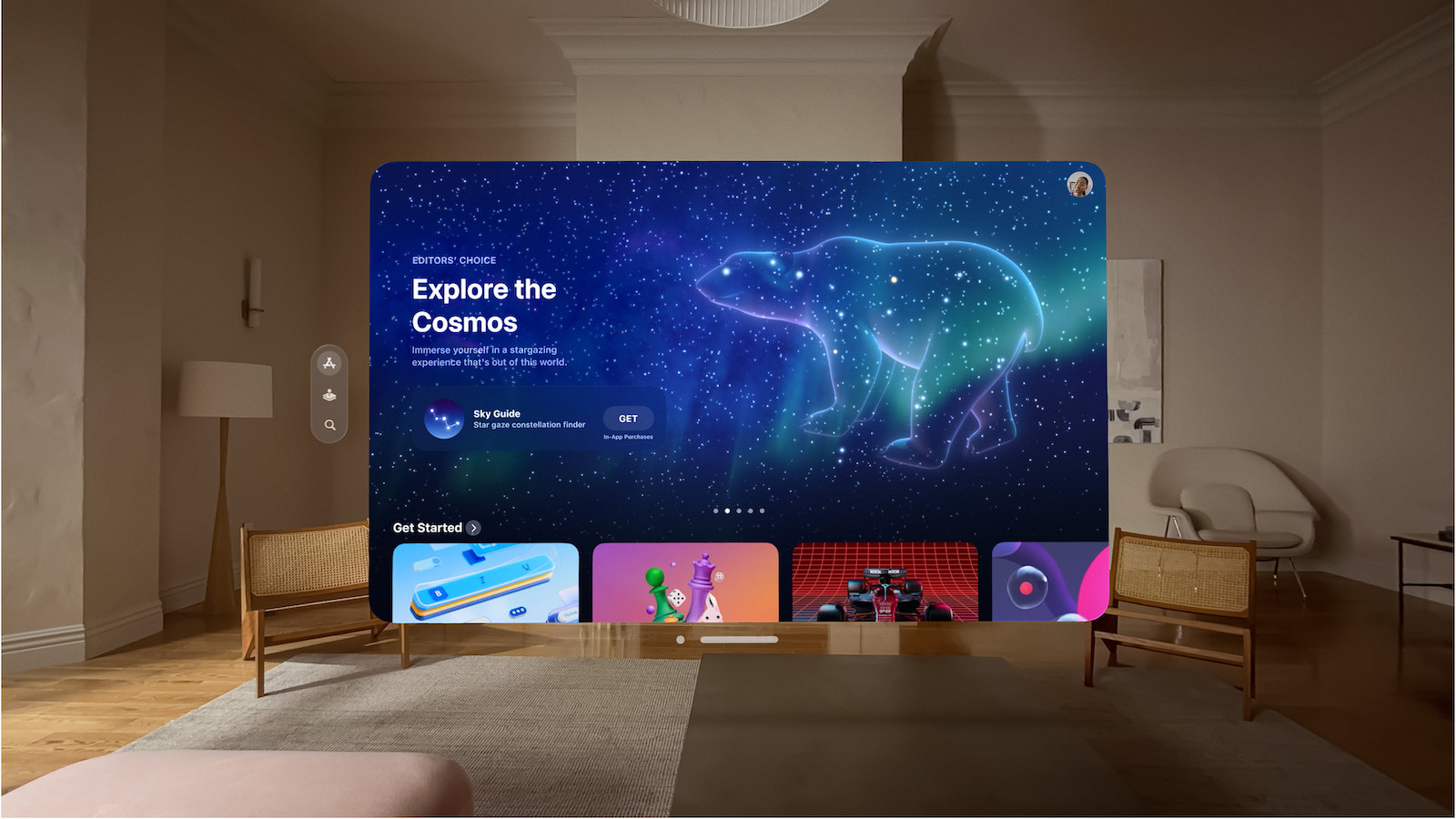
Apple Vision Pro takes augmented reality to a new level. To get the most out of your device, finding and using the right apps is key. Learn how to discover, download, and install visionOS apps, as well as compatible iPad and iPhone apps, from the App Store. Note that some services, such as Game Center, Apple Arcade, and Apple One, are not available in all countries or regions.
The App Store on the Apple Vision Pro offers a variety of applications that have been specifically developed for augmented reality. This guide will show you how to make the most of the App Store and find the best apps for your device.
Find apps in the App Store
Follow these steps to find apps in the App Store on your Apple Vision Pro:
- Open the App Store: Navigate to the App Store icon on your home screen.
Navigate through categories:
- Apps & Games: Discover curated new apps and games, accompanied by detailed reports from the editorial team.
- Arcade: Find premium games from Apple Arcade (subscription required) with no ads or in-app purchases.
- Search: Enter the name of the app you want and tap Search.
At the top of the App Store, you can switch between "Apple Vision Apps" and "iPhone & iPad Apps" to search specifically for compatible applications. Alternatively, you can use Siri by saying something like: "Siri, search the App Store for photo editing apps."
More information about an app
Once you've found an app you're interested in, tap on it to get detailed information. Here you'll see:
- Screenshots or previews: Get a visual impression of the app.
- Ratings and reviews: Read what other users say about the app.
- Supported languages: Find out if the app is available in your preferred language.
- Game Center and Family Sharing support: Find out if you can share the app with your family.
- Compatibility with other Apple devices: Check if the app works on your other Apple devices.
- File size and privacy information: Check how much storage space the app takes up and what data it collects.
Buy and download apps
Once you have chosen an app, follow these steps to purchase and download it:
- Check the price: Tap the price of the app. If it's free, tap Get.
- Authentication: Confirm your purchase with Optic ID or your passcode.
- Installation: The app will download and install automatically. Note that downloaded apps are automatically organized and cannot be moved. iPad or iPhone apps compatible with Apple Vision Pro will appear in the Compatible Apps folder.
share apps
To share an app with friends or family, follow these steps:
- View details: Tap the app to view its details.
- Share: Tap the Share button and select a sharing option.
Redeem gift vouchers or codes
How to redeem a gift voucher or code:
- My Account: Tap the My Account button or your picture in the top right corner.
- Redeem: Tap “Redeem coupon or code” and follow the instructions.
Successfully find and install apps and games on the Apple Vision Pro
With this guide, you'll be perfectly prepared to use the App Store on your Apple Vision Pro. Whether you want to discover new visionOS apps or download your favorite iPhone and iPad apps to your new device, you now know exactly how to do it. Keep your App Store regularly updated to discover the best new apps and games and get the most out of your Apple Vision Pro. Have fun exploring and trying things out! Looking for new accessories? Then check out our Amazon Storefront – there you'll find numerous products from leading providers, including those for HomeKit and others! (Image: Apple)
- Apple Vision Pro: Easily customize your virtual environment
- Apple Vision Pro: Setting up the perfect persona for FaceTime
- Apple Vision Pro: Charge the battery and check the status
- Opening apps on Apple Vision Pro: Step by step
- Apple Vision Pro: Setting up Siri and making the most of it
- Apple Vision Pro: Set up and use Optic ID securely
- Apple Vision Pro: The most important gestures and controls
- Setting up Apple Vision Pro: How to get started right
- Adjusting Apple Vision Pro correctly: step by step





