

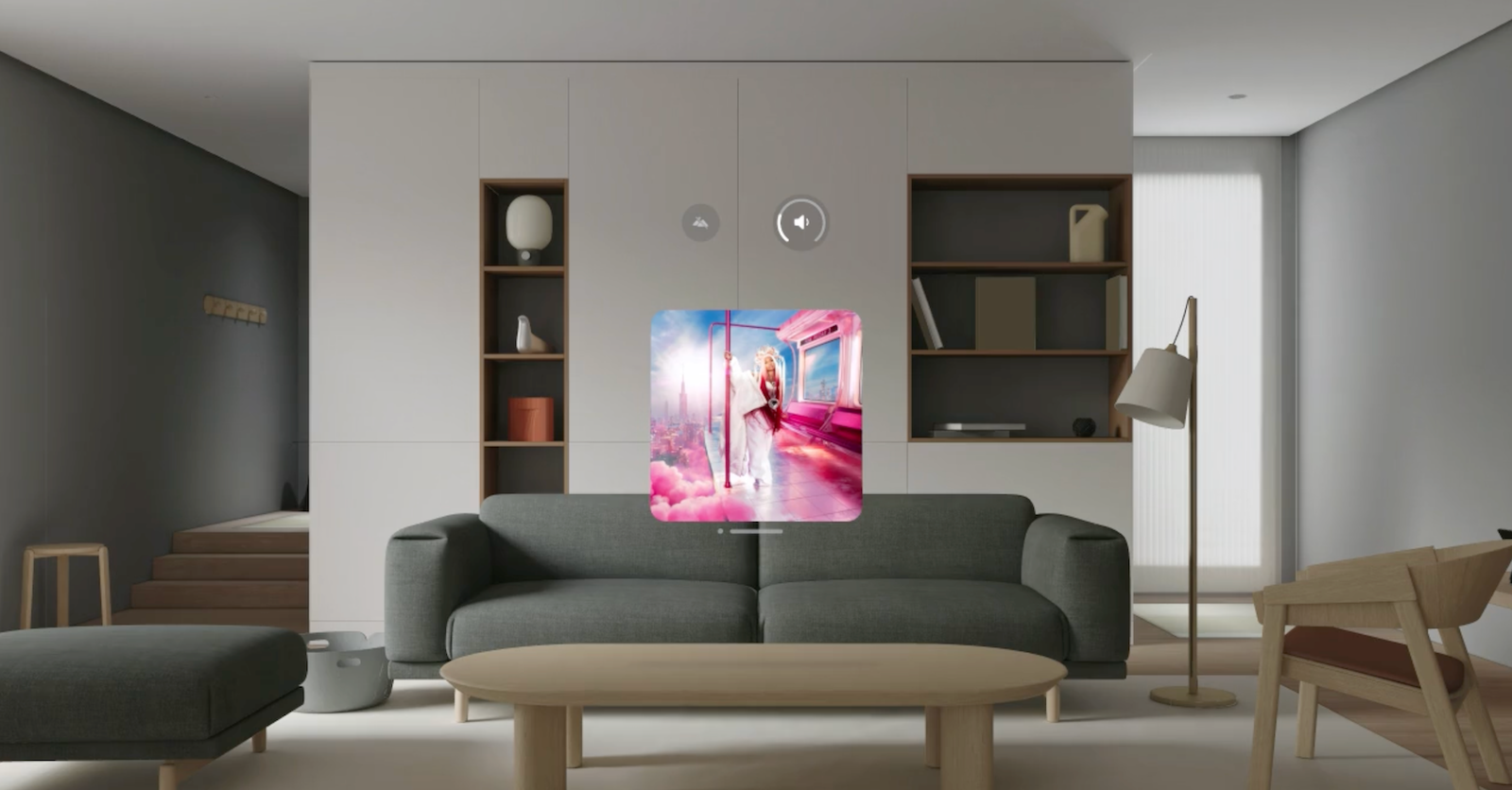
The Apple Vision Pro is an innovative device that offers a variety of features to optimize your user experience. One of the most important settings to master is the volume control. Whether you're listening to music, making a FaceTime call, or simply want to adjust the ambient noise, there are several ways to adjust the volume on the Apple Vision Pro. In this article, you'll learn how to adjust the volume efficiently and to your liking.
Volume control is an essential part of using any device. With the Vision Pro, you not only have control over the volume for different applications, but you can also specifically regulate the ambient noise. This makes the device particularly flexible and user-friendly. In the following sections, we will guide you step by step through the different methods for volume control.
Adjust volume with the digital crown
The easiest way to adjust the volume on the Apple Vision Pro is to use the Digital Crown. This is located on the side of the device and allows for quick and precise volume control.
- Look at the volume icon at the top of the view.
- Turn the digital crown to adjust the volume to your liking.
This method is especially useful if you are in an app and want to quickly change the volume without having to go into the settings.
Adjust volume via the control center
Another way to regulate the volume is through the Control Center. Here you can not only adjust the general volume but also the volume for specific applications and functions.
- Open the Control Center.
- Drag the main volume slider up or down to set the desired volume.
Specific volume settings for apps and FaceTime
- Tap the More options button next to the volume slider.
- Drag the individual volume sliders for apps and FaceTime to adjust the volume individually.
This method allows you to set different volume levels for different applications, which can be especially useful if you want to listen to music in the background during a FaceTime call, for example.
Adjust ambient noise
The Vision Pro also offers the ability to adjust the volume of sounds around you. This is especially useful if you are in a noisy environment and want to reduce external noise.
- Open the Control Center.
- Tap the environment icon.
- Drag the volume slider to adjust the ambient noise to your liking.
Use Siri to control the volume
The voice assistant function Siri can also help you adjust the volume of your device. This is especially useful if you don't have your hands free or don't want to operate the device directly.
- Example command 1: “Siri, set the volume to 100 %”
- Example command 2: “Siri, lower the volume”
Siri provides a convenient way to control the volume without having to physically operate the device.
Apple Vision Pro: User-friendly volume control at a glance
The Vision Pro's volume control is versatile and user-friendly. Whether you use the Digital Crown, Control Center, or Siri, there's always a way to adjust the volume to your needs. With these tips and tricks, you can ensure you get the optimal sound quality for every situation. Try out the different methods and find out which one works best for you. Looking for new accessories? Then check out our Amazon Storefront – there you'll find numerous products from leading manufacturers, including those compatible with HomeKit and other devices! (Image: Apple)
- Apple Vision Pro: Reorient the view - here's how
- Apple Vision Pro: How screen sharing works
- Apple Vision Pro: How to create screenshots and videos
- Apple Vision Pro: Connecting Bluetooth accessories – here's how
- Apple Vision Pro: Setting up the perfect persona for FaceTime
- Apple Vision Pro: Charge the battery and check the status
- Apple Vision Pro: Setting up Siri and making the most of it
- Apple Vision Pro: Set up and use Optic ID securely
- Apple Vision Pro: The most important gestures and controls
- Adjusting Apple Vision Pro correctly: step by step





