This article may contain affiliate links. Learn more on our Partner Program page.
Thousands of photos, messages from loved ones, important documents: When someone dies, all of this often remains locked away in their Apple account forever – protected by their password, Face ID, and Activation Lock. The Legacy Contact is Apple's answer to this. It grants a trusted person controlled access upon death, without a single photo being accessible while the user is alive.
Hardly anyone likes to deal with their digital legacy – yet half their life is usually stored on their iPhone and in iCloud. This data is typically protected from unauthorized access by passcodes, Face ID, and other security mechanisms, but this suddenly becomes a problem after a death: relatives are left with a sealed account, without a password and no legal way to access it. Just how much data is actually stored there becomes clear when you look at what a Complete iCloud backup includes everything. Since iOS 15.2, iPadOS 15.2, and macOS Monterey 12.1, this can be addressed in advance. Using the "Legacy Contact" feature, you can designate one or more people who are authorized to access the data stored in your Apple account after your death. It's important to clarify this distinction right from the start: Legacy Contact is not the same as Recovery Contact, which helps reset a forgotten password while you're alive – although both functions are located in the same settings area, they operate at completely different times.
Key Facts at a Glance
- The estate contact grants a trusted person access only after death – they see nothing while the person is alive.
- Without the access key, the backup won't work; Apple can neither restore nor replace it.
- Photos, messages, files and backup content are accessible – but not passwords, passkeys and purchased media.
- The person does not need an Apple account or an Apple device, but must be at least 13 years old to make the request.
- Access ends three years after initial approval; after that, Apple deletes the account and data.
What an estate contact is – and what it is not
A legacy contact is a person you grant access to in your Apple account in the event of your death. According to Apple, this is the simplest and safest way to pass on memories and documents to loved ones – instead of leaving passwords on a piece of paper or getting nowhere with Apple support in an emergency. Crucially, the designated person has no access while you are alive. Access is only granted after your death, and even then, only after Apple has verified a death certificate.
The difference from the Recovery Contact is more than a matter of terminology. The Recovery Contact helps the living person get back into their own account, for instance after a forgotten password. The Legacy Contact, by contrast, governs what happens to the account once its owner is no longer around. Both can be set up independently of each other, and for complete preparation it makes sense to put both in place.
The estate contact receives this data – and not this data
Access covers most of the personal content that resides in iCloud and the iCloud backup. Specifically, this includes iCloud Photos, Notes, Mail, Contacts, Calendars, Reminders, Messages stored in iCloud, Call History, files stored in iCloud Drive, Health data, Voice Memos, as well as Safari bookmarks and the Reading List. On top of that comes the entire contents of an iCloud backup – which can contain device settings, photos and videos stored on the device, and information about which apps were downloaded from the App Store. The purchased apps themselves are therefore not handed over.
Several areas are deliberately excluded. Content purchased through the Apple Account, such as movies, music, and books, is non-transferable, as are subscriptions and in-app purchases. Payment information for the Apple Account or Apple Pay is also excluded. Finally, everything stored in the iCloud Keychain is excluded: usernames and passwords, passkeys, credit card information for autofill, and Wi-Fi passwords. Anyone wishing to share specific login credentials will need a separate solution and should first familiarize themselves with how to create and manage secure passwords within the Apple ecosystem.
Requirements for Setting It Up
To create a legacy contact, you need an Apple device with iOS 15.2, iPadOS 15.2 or macOS Monterey 12.1 (or newer) on which you are logged in with your Apple account.
Apple places very few requirements on the designated person: they don't need an Apple account or an Apple device, and there's no age limit for the designation itself – even a child can be listed. The age limit only applies at the other end: to actually request access after death, the designated contact must be at least 13 years old, although this age may vary depending on the country and region. Therefore, anyone designating a younger child should also add a second, adult contact. On the user's end, two-factor authentication must also be enabled in the Apple account; this is already the case for most accounts.
Setting Up a Legacy Contact on iPhone and iPad
- Open Settings and tap your name at the top.
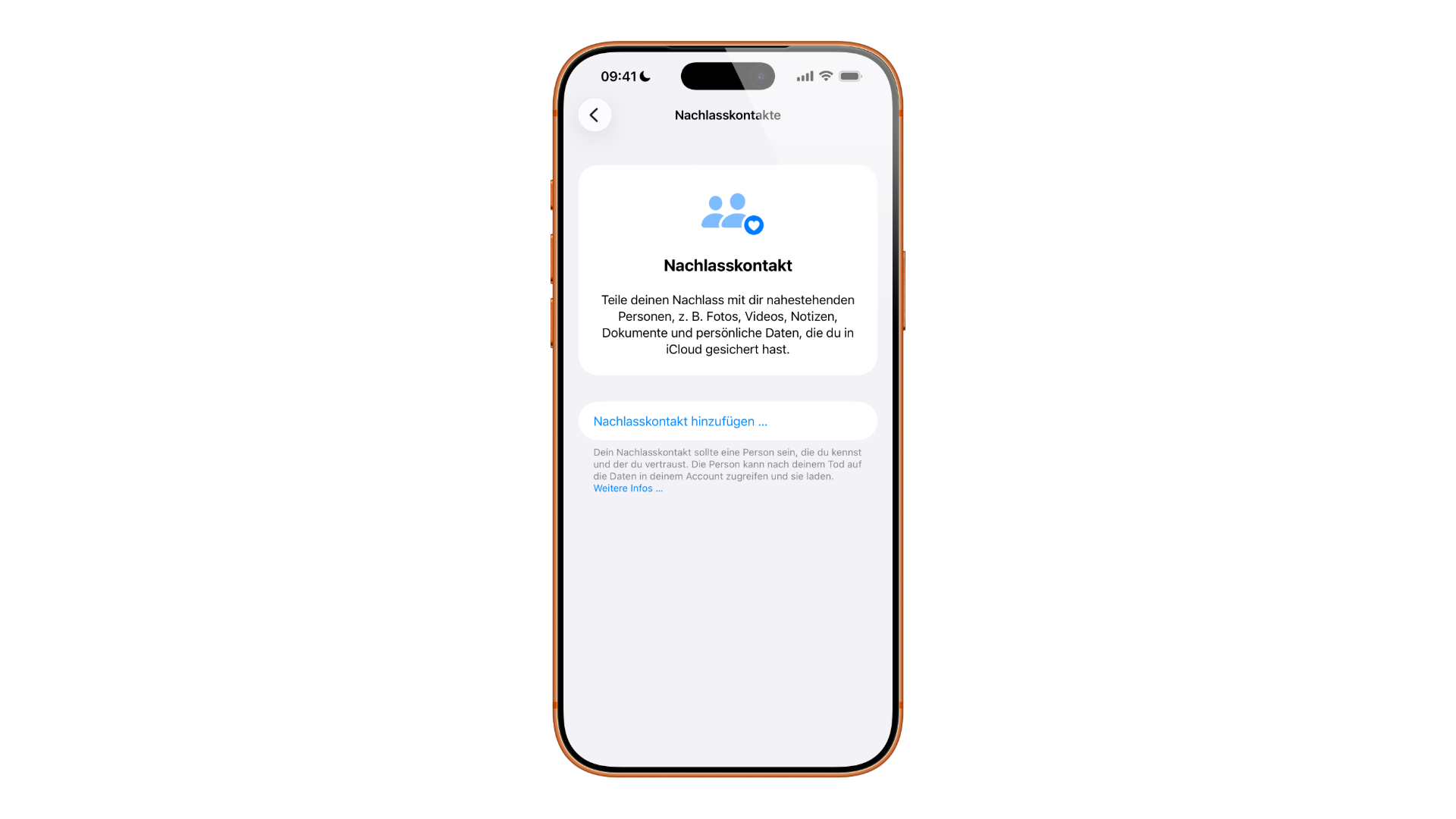
- Tap on „Login & Security” and then on „Legacy Contact”.
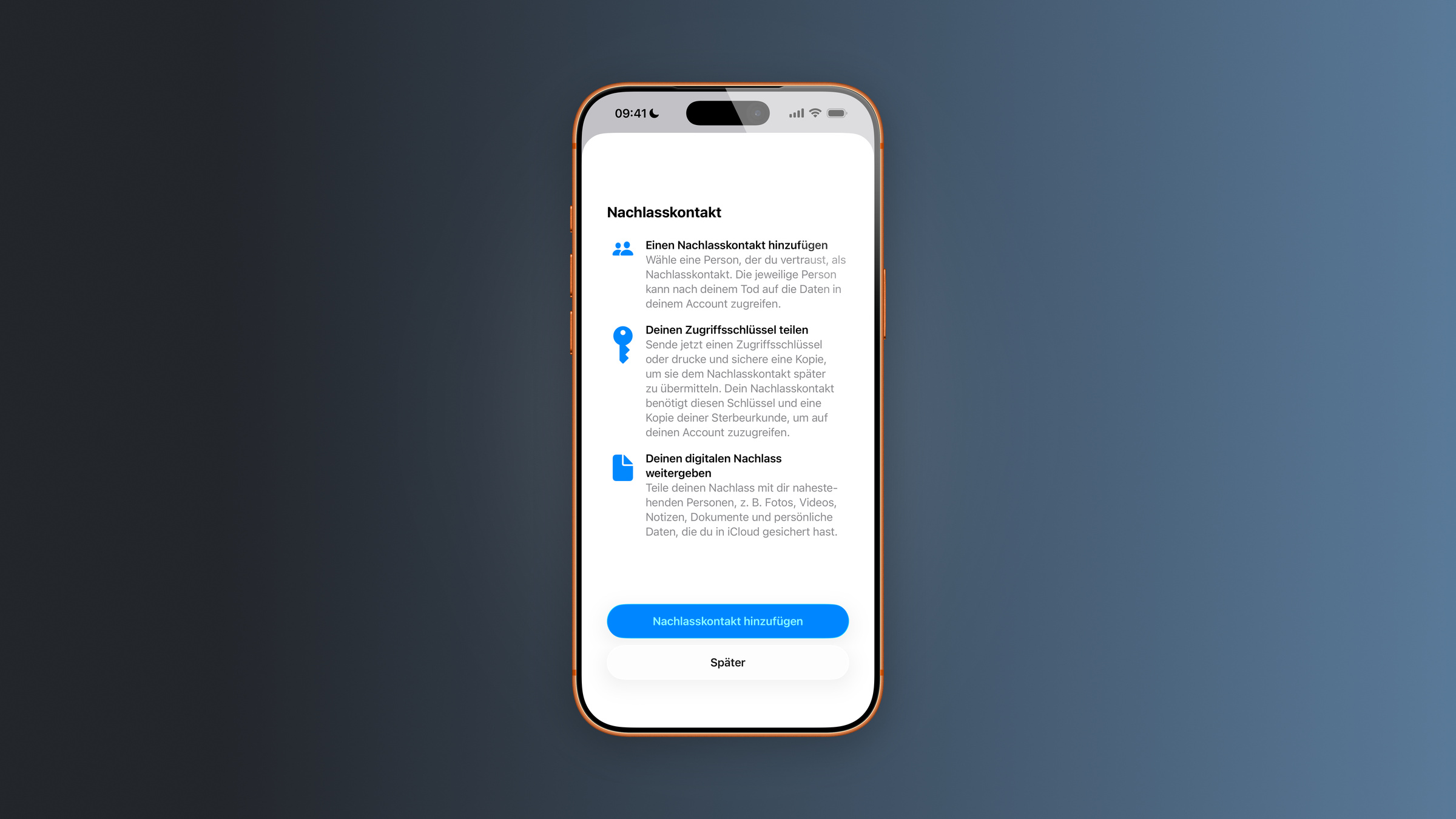
- Tap "Add legacy contact". You may need to authenticate with Face ID, Touch ID, or your device passcode.
- Select a member of your Family Sharing group – or tap „Select someone else” to add someone from your contacts via phone number or email address.
- Specify how the access key is delivered. With "Send via iMessage," the key is automatically saved to the recipient's Apple account settings once they agree. Alternatively, a copy can be printed or shared as a file.
Once a Legacy Contact has been added, Apple sends a confirmation by email.
Setting Up a Legacy Contact on Mac
- Open "System Preferences" via the Apple menu and click on your name.
- Click on „Registration & Security” and then on „Legacy Contact”.
- Click on „Add legacy contact” and authenticate with Touch ID or your Mac login password if required.
- Select a family member or add a contact via phone number or email address using "Select another person".
- Decide whether to send the access key via iMessage or share it as a printed or digital copy.
Sharing, Viewing, and Safely Storing the Access Key
The access key is the core of the entire process. Without it, the designated contact person cannot request access later – and for data protection reasons, Apple cannot recover or replace a lost key. Therefore, secure storage is crucial.
If you send the key via iMessage, it will be automatically added to the recipient's account settings upon approval. However, this option only appears if iMessage is enabled on both parties. If the legacy contact doesn't have a compatible Apple device, the key can be printed, saved as a PDF or screenshot, or shared via QR code. The QR code and print option can later be found under "Login & Security" → "Legacy Contact" by tapping the person's name and then "View Access Key.".
A practical tip: Keep a copy together with your other estate documents – in the same place where relatives would naturally look for documents in an emergency. Incidentally, you can designate multiple contacts for your estate. Each will then receive their own access key and can independently decide what happens to the data after your death – up to and including permanent deletion.
Removing or Managing a Legacy Contact
Once set up as a legacy contact, it's not set in stone. If the trusted person or your life circumstances change, you can delete the contact at any time – using the same method as for setting it up: Settings → Name → "Login & Security" → "Legacy Contact". Tapping on the person's name there will display the management options, allowing you to remove the contact.
One special case deserves attention: if a Legacy Contact you've just added unexpectedly disappears from the list again, it's usually down to outdated device software on their end. Only once the trusted person's device is updated can they accept the request and save the access key permanently. If the software can't be updated, the proven workaround remains: hand over a printed copy of the access key so that it's securely on file even without automatic saving.
Requesting Access After a Death: How It Works
In the event of an emergency, the legacy contact needs two things: the access key and legal proof of death. This is usually a death certificate; Apple explicitly points out that, depending on the country, a court order or other documents may also be required. The request can be made directly on an Apple device (Settings → Name → "Sign-in & Security" → "Legacy Contact" → Select Person → "Request Access") or via the Apple "Digital Legacy" website at digital-legacy.apple.com. Those without an Apple device can provide contact information, verify their identity, enter the access key, and upload the required documents.
Uploaded documents must be in PDF, PNG, TIF, JPEG, or GIF format, at least 300 dpi (3300 x 2550 pixels), and clearly legible with visible margins. Different countries require different proof of identity—for example, in Japan, a family certificate is required instead of a death certificate. Apple reviews each request manually and will contact you via email; you can track the status at digital-legacy.apple.com/manage.
If the request is approved, Apple sets up a special "Apple Account for Legacy Contacts." The deceased's original account will no longer function, and the activation lock will be removed on all associated devices. Before these devices can be used with a different account, they must be completely erased and set up again. The legacy contact can then access the shared data via iCloud.com, download it as needed from privacy.apple.com, or sign in on an additional Apple device.
For end-to-end encrypted content such as health data or voice memos, re-entering the access key may be necessary. Those who have also enabled enhanced privacy settings for iCloud encrypt far more categories end-to-end – the legacy contact remains unaffected because the access key is part of this process.
Access is time-limited: the legacy account remains usable for three years from the first approval, after which the account and data are permanently deleted. Anyone who wants to secure the content sooner and close the account can do so themselves at any time.
When the Access Key Is Missing
Without an access key, direct access is blocked – a replacement is not technically possible. Nevertheless, options are available to surviving relatives: Through a separate Apple process, access to or deletion of the account can be requested even without a key, provided the necessary legal documentation is available. If it is unclear whether a known email address or phone number was ever linked to an Apple account, a check at iforgot.apple.com can help. And those who don't need the data but simply want to permanently delete a deceased person's account can request exactly that via the "Digital Legacy" page.
What Apple's approach has to do with German inheritance law
The estate contact is a technical solution, not a matter of inheritance law. In Germany, the Federal Court of Justice ruled in 2018 that a user account passes to the heirs by way of universal succession, and that they have a right to access the account and its communication content – this can be read in the court's press release regarding case III ZR 183/17. Heirs are therefore not without rights if no estate contact has been registered.
The difference lies in the effort involved. The inheritance law route requires a certificate of inheritance or comparable proof, correspondence with the company, and potentially a long wait; in the case under consideration, six years passed between the death and the highest court's decision. Contacting the estate directly avoids this process because consent is given in advance and can be proven.
It's also worth noting that these two paths can diverge: An heir/legal representative doesn't have to be an heir, and an heir/legal representative isn't automatically an heir/legal representative. Those who wish to entrust both roles to the same person should ideally handle this at the same time as the other estate documents. Our assessment: For most households, the most effective precaution is to combine a designated heir/legal representative with a note in the relevant file, which can be completed in fifteen minutes – legal action remains a last resort, not the standard procedure.
Digital legacy at Apple – the most important points at a glance
Legacy contact is one of the few Apple features that, ideally, you should never activate yourself – and precisely for that reason, it's so easily postponed. Setting it up takes only a few minutes, fully protects your privacy while you're alive, and saves your loved ones a long and arduous battle for access to encrypted devices in the event of your death.
Two points are crucial: The access key must be stored securely and in a way that allows it to be easily found, because without it, the main advantage is lost – relatives would then have to resort to the more complicated standard procedure via Apple. And the designated legacy contact is not a substitute for a password manager – login credentials from the keychain and purchased media are not covered and must be handled separately. Those who take this into account will have their digital legacy with Apple neatly organized.
Have you already set up a legacy contact for your Apple account – or do you think that's something that can wait? Tell us in the comments how you feel about digital estate planning.
Frequently Asked Questions: Apple Legacy Contact
The recovery contact helps you regain access to your account while you're alive – for example, if you forget your password. The legacy contact, on the other hand, only activates after your death and grants a trusted person access to your stored data. Both are located under "Login & Security" and can be set up independently.
No. As long as you're alive, the designated person gets no insight whatsoever. Access is only unlocked after Apple has verified a death certificate and approved the request.
Accessible items include iCloud Photos, Messages, Notes, Mail, Contacts, Calendars, Reminders, files from iCloud Drive, Health data, Voice Memos, and the contents of an iCloud backup. Off-limits are purchased movies, music, books, subscriptions, and in-app purchases, payment data from the Apple Account or Apple Pay, as well as the entire iCloud Keychain with passwords, passkeys, and Wi-Fi passwords.
No. The person doesn't need an Apple account or an Apple device. There's no age limit for designating a legacy contact – only to request access after death must the legacy contact be at least 13 years old, although this age may vary depending on the country and region.
Follow the same steps as for initial setup: Settings → your name → "Sign-in & security" → "Legacy contact". Tap on the person's name to access the management options, including removal. If a recently added contact disappears on its own, their device software usually needs to be updated first – otherwise, a printed copy of the access key should help.
For security reasons, Apple can neither recover nor replace a lost key. Surviving relatives can then only request access or deletion of the account via Apple's more cumbersome standard procedure – and must provide the necessary legal documents to do so.
Three years from the first approval. After that, the special legacy account and all data are permanently deleted. During this period the content can be secured; the account can also be closed manually sooner.