

This article may contain affiliate links. Learn more on our Partner Program page.
For years, creating a custom ringtone on the iPhone was a test of patience: iTunes synchronization, GarageBand export, format conversion. Since iOS 26, all this workaround is gone. A suitable audio file is all you need; the rest happens directly on the device – in under a minute.
With iOS 26, Apple expanded iPhone personalization in many areas – from new features on the lock screen to ringtones. The latter, in particular, had long been a sore point: without third-party software or the paid purchase of pre-made tones, practically nothing was possible. This has fundamentally changed, and the process remains the same in iOS 27. Any local MP3 or M4A file can be set as the ringtone with just a few taps, entirely without GarageBand. The custom tone is then also available in the ringtone selection for the iPhone alarm.
Key Facts at a Glance
- Since iOS 26, any MP3 or M4A file can be used as a ringtone via the share menu; GarageBand is no longer necessary.
- A maximum of 30 seconds is allowed; the system rejects longer files.
- You can shorten your own recordings directly in voice memos, but songs must first be trimmed in another app or on a Mac.
- Tracks from Apple Music do not work due to copy protection.
- Custom ringtones can be assigned to individual contacts and deleted at any time.
Set up a ringtone directly via the Files app
The quickest way is via the Files app. This requires an audio file in MP3 or M4A format that is no longer than 30 seconds. The system rejects longer files.
Open the Files app and navigate to the desired audio file. Tap it to open the preview and select the Share button at the bottom. Alternatively, press and hold the file until the context menu appears, then tap Share. In the Share menu, scroll down, tap More if necessary, and then select Use as ringtone.
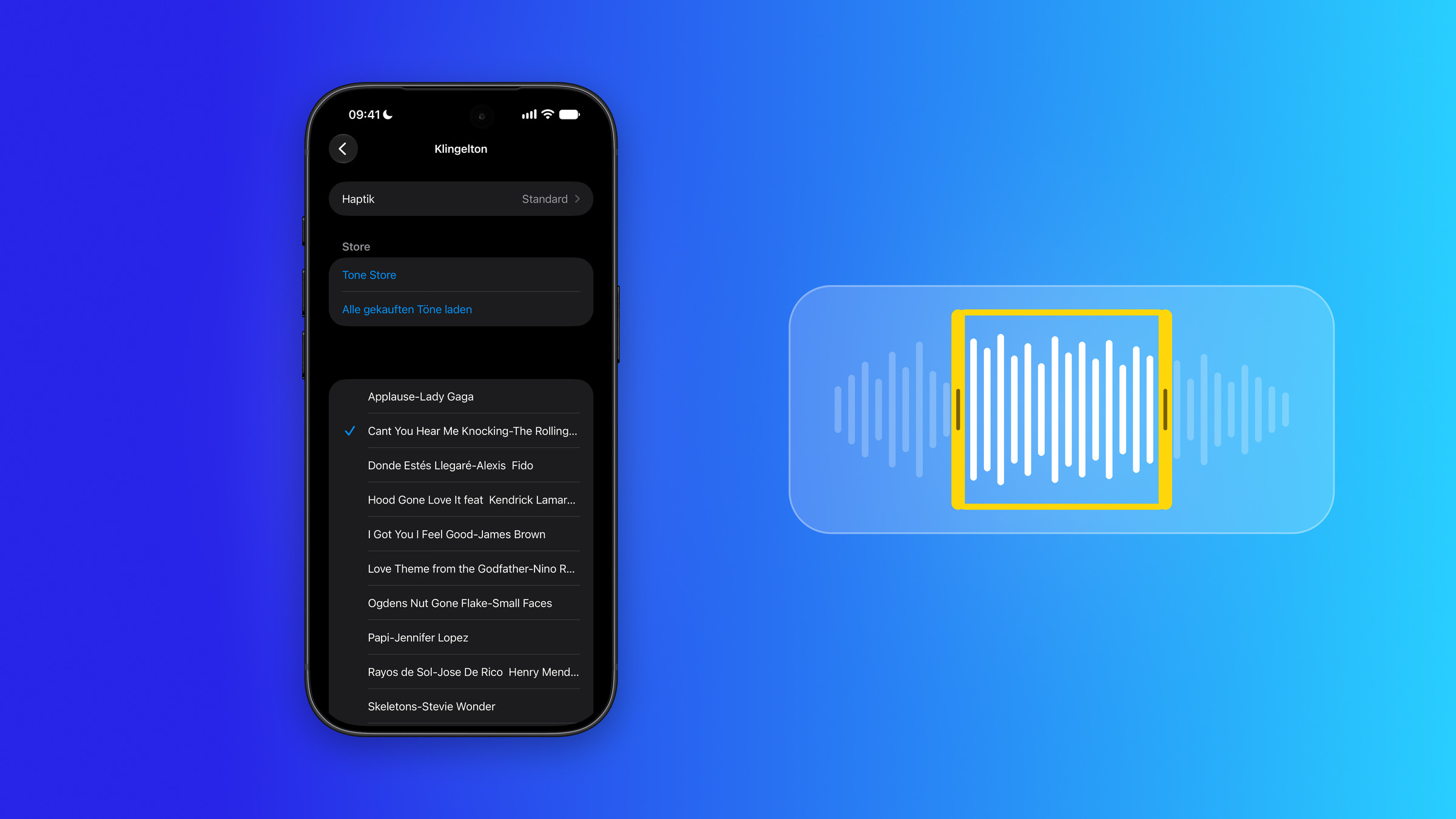
The system then automatically imports the file and opens the settings directly under "Sounds & Haptics" in the "Ringtone" section. The new tone is already at the top of the list and can be immediately activated as the default ringtone.
Voice memos and other apps also work
The "Use as ringtone" option appears not only in the Files app, but also in certain other applications – including Voice Memos. This allows you to directly convert your own recording into a ringtone. If the recording is too long, you can shorten it directly within the app: Tap the recording, tap "…", then tap "Edit recording", select the trim icon, and drag the yellow handles to the desired section. Tap "Trim", "Save", and "Done" to make the recording ready for the share menu.
Length and format: What the iPhone accepts
Two limitations are crucial. First, the format: MP3 and M4A files are supported. If the "Use as ringtone" option doesn't appear, it's usually due to an unsupported format or a corrupted file. Second, the length: a maximum of 30 seconds. The system strictly enforces this limit.
Important to know: When importing via the share menu, the iPhone doesn't offer a cropping option. For your own recordings, Voice Memos automatically trims them. However, if you want to use a three-minute song, you'll need to cut it down to 30 seconds beforehand using an editing app from the App Store or on a Mac.
Manage and delete your own ringtones
Once imported, ringtones remain permanently in the list – even if the original source file is later deleted from the Files app. The tone is saved independently from the moment of import.
To remove a ringtone, go to "Settings" > "Sounds & Haptics" > "Ringtone," swipe the entry to the left, and tap "Delete." The ringtone will then disappear from the selection, but the original file remains unaffected. This helps keep the list clean without accidentally losing your own audio files.
Assign individual tones to individual contacts
A custom ringtone doesn't have to apply to all calls. In the Contacts app, you can assign a unique ringtone to a single person: Open the contact, tap "Edit" in the top right corner, select the "Ringtone" field, and choose your desired sound. Confirm by tapping "Done" in the top right corner. This way, you can tell who's calling just by the sound – handy for close contacts, without having to look at the screen.
Why Apple Music isn't working
One limitation remains: Songs from Apple Music cannot be used as ringtones – even with an active subscription. This is due to the copy protection of this content, which the system cannot bypass. Therefore, only local files that are not subject to this restriction, such as your own recordings or self-created clips, are suitable as ringtones.
Purchased ringtones: still possible, but hardly necessary anymore
The option to purchase pre-made 30-second ringtones is still technically available on the iPhone. However, given the ability to create your own ringtones for free in seconds, this method seems outdated. For most users, the direct access via the Files app should completely replace the need to purchase ringtones.
If "Use as ringtone" does not appear
If the option doesn't appear in the share menu, a quick check of two things will help: Is the file actually in MP3 or M4A format? Other formats are not accepted and can be converted beforehand using a converter. And is the file no longer than 30 seconds? Files that are too long or corrupted will be rejected with a corresponding message. If both of these conditions are met, the option will reliably appear.
The last remaining hurdle
For personal recordings, the entire process now runs on the iPhone: record, shorten in voice memos, and set as a ringtone. However, a cutting tool is still missing for songs and other audio files. A longer track must first be cut into its 30-second segment using a separate app.
I believe this is precisely where Apple should improve. Selecting a section directly during import would eliminate the need for additional apps. GarageBand or iTunes would only be necessary when mixing a single sound from multiple tracks.
Do you prefer to use your own recording or a snippet of a song as your ringtone – and what do you use to cut it down to 30 seconds? Tell us your method in the comments.
Frequently Asked Questions: Creating an iPhone Ringtone
Tap an MP3 or M4A file shorter than 30 seconds in the Files app, open the share menu, and select "Use as ringtone." The sound will automatically appear under "Settings" > "Sounds & Haptics" > "Ringtone".
No. Since iOS 26, the Files app is a built-in method. GarageBand is only worthwhile if a song needs to be trimmed or mixed from multiple tracks.
MP3 and M4A files are supported. If "Use as ringtone" does not appear, it is usually due to a different, unsupported format or a corrupted file.
The system strictly enforces a maximum of 30 seconds. You can trim your own recordings to the appropriate length using the "Trim" function in voice memos. Songs and other files must first be shortened in an editing app or on a Mac.
No. Songs from Apple Music are copy-protected and cannot be set as ringtones, even with an active subscription. Only local files work.
In the Contacts app, open the contact, tap "Edit" in the top right corner, select the "Ringtone" field and confirm with "Done".
Under "Settings" > "Sounds & Haptics" > "Ringtone", swipe the entry to the left and tap "Delete". The original file will be retained.





