This article may contain affiliate links. Learn more on our Partner Program page.
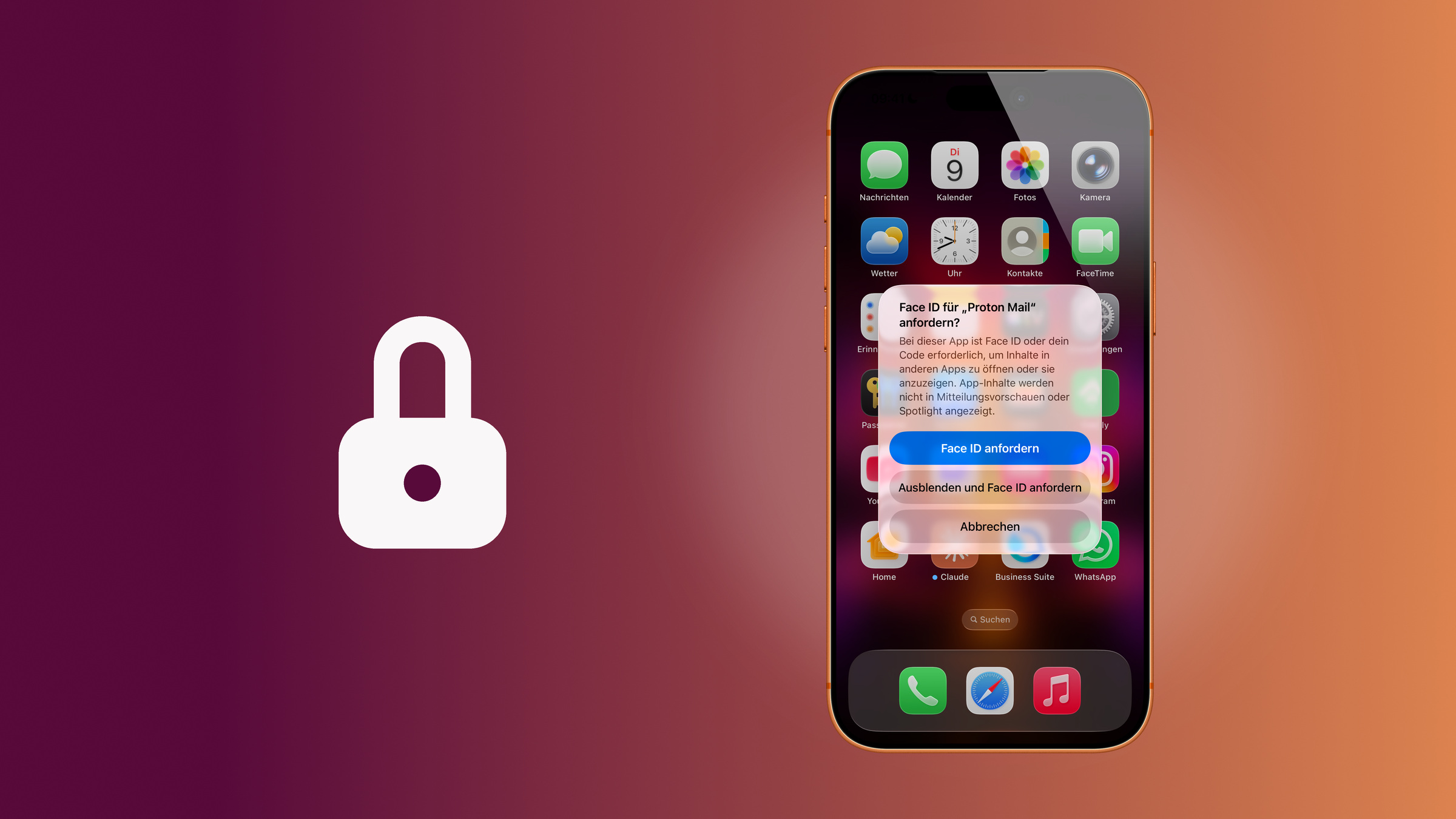
The iPhone constantly ends up in other people's hands – a child wants to play, someone wants to snap a quick photo, the repair shop is checking something. It gets tricky the moment someone starts poking around in your chats, emails or private photos. Since iOS 18, individual apps can therefore be locked behind Face ID, Touch ID or a passcode – or taken out of sight entirely.
With iOS 18, Apple introduced a layer of protection that was previously completely lacking: Until then, every installed app was freely accessible as soon as the iPhone was unlocked. Anyone who briefly handed over the device effectively granted access to everything – from WhatsApp and email inboxes to the entire photo library.
The feature is now an integral part of the system and can be set up in seconds. It joins Apple's privacy features, which also include protection for stolen devices that restricts sensitive account changes to trusted locations like home or work. The steps in Apple's manual have remained unchanged since its introduction. The crucial point: App Lock and Hide work locally on exactly one device and must be activated individually for each app.
Key Facts at a Glance
- Locking requires Face ID, Touch ID, or a passcode upon unlocking – the icon remains visible
- Hiding the app also removes it from the home screen and search results.
- Content from a blocked app will no longer appear in notifications, search, Siri suggestions, CarPlay, and call history.
- Eight system apps cannot be locked; only separately downloaded apps can be hidden.
- The status only applies to the device on which it was set – iCloud does not transfer it.
Block or hide: the difference
Apple offers two levels that differ considerably in how much effort they require from the other person.
| Lock out | Hide | |
|---|---|---|
| App icon on the home screen | remains visible | disappears |
| Findable via search | Yes | no |
| Authentication required to open | Yes | Yes |
| Works with system apps | Yes, with eight exceptions. | no |
| Storage location | stays in place | Hidden folder in the app library |
When locked, the app icon remains in place, but Face ID, Touch ID, or a passcode is required to unlock it. The protection extends beyond the app itself: According to Apple, data from a locked app no longer appears elsewhere – neither in notification previews nor in search results, Siri suggestions, CarPlay, or call history.
Hiding an app goes a step further, removing it completely from view. It disappears from the home screen and the regular view of the app library, ending up in a separate folder called "Hidden" at the very bottom of the library, and is no longer searchable.
This isn't entirely without consequences either: The name of a hidden app remains visible in some places – under Settings > Apps > Hidden apps, in Screen Time, in battery usage per app, and in the App Store purchase history.
Locking an App with Face ID, Touch ID or a Passcode
Locking is done in just a few steps and works both from the Home Screen and from within the App Library:
- Touch and hold the desired app icon until the quick actions menu opens.
- Tap on „Request Face ID” – on devices with Touch ID, the option is called „Request Touch ID”, without a biometric sensor it is called „Request Code”.
- Confirm the following prompt again by clicking "Request Face ID".
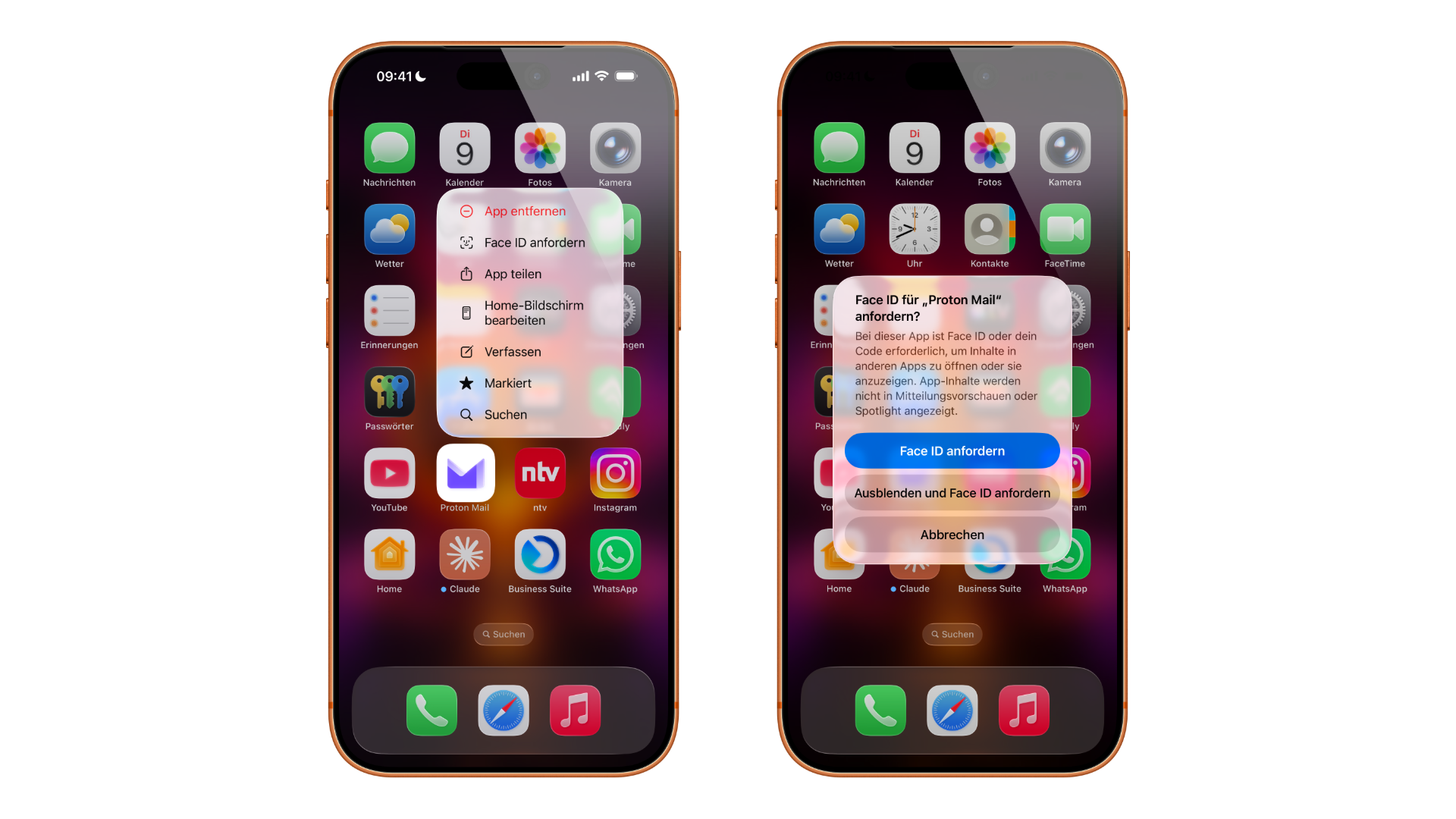
From now on, the app will require authentication upon opening. You don't need to unlock it permanently: simply tap the icon and confirm with Face ID, Touch ID, or your passcode – the app will automatically lock again after you close it.
Hiding an App Completely
If you want to not only protect an app but make it invisible, you can choose the "Hide" option. However, this only works with separately downloaded apps – the pre-installed system apps cannot be hidden.
- Touch and hold the app icon until the quick actions menu appears.
- Tap on „Request Face ID”.
- Then tap „Hide and Request Face ID”, authenticate, and confirm with „Hide App”.
The icon then immediately disappears from the Home Screen and the main App Library view. To find a hidden app later, swipe left on the Home Screen until the App Library appears. Scroll all the way down to the "Hidden" folder, tap it, and unlock it with Face ID, Touch ID, or your passcode.
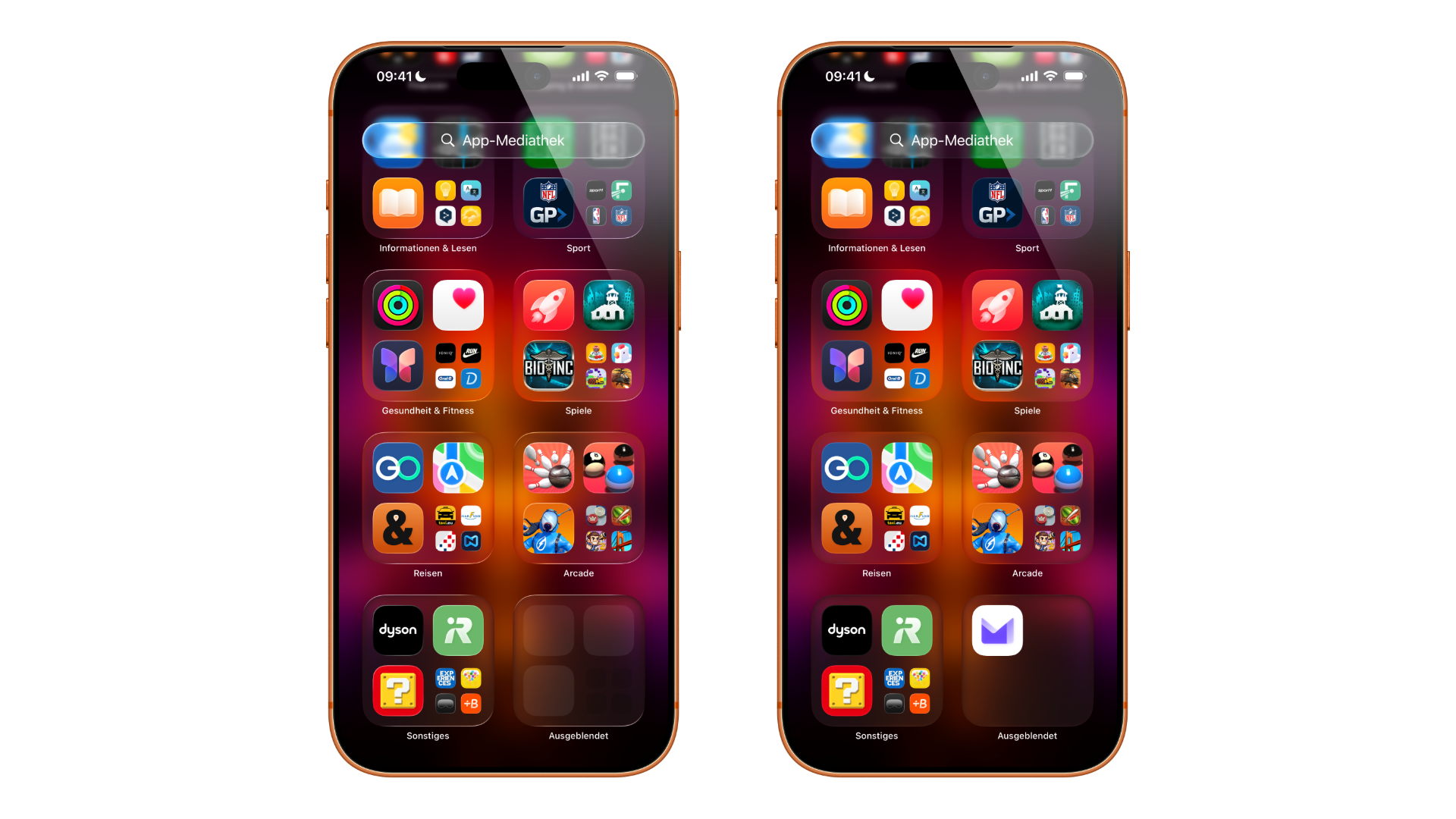
The gray placeholder icons on the folder icon don't indicate how many apps are actually inside. A complete list is available under Settings > Apps > Hidden apps, but only after authentication.
Undoing a Lock or Hide
Both actions can be reversed just as quickly. For a hidden app, first open the "Hidden" folder in the app library. There – or, for a locked app, directly on the home screen – place your finger on the app icon, tap "Don't ask for Face ID," and authenticate.
A previously hidden app will then reappear at the top of the app library. To return it to the home screen, it must be dragged from there by tapping it.
What Can't Be Locked
Not every app can be protected. Eight pre-installed system apps are exempt from the lock: Calculator, Camera, Clock, Contacts, Find My, Maps, Shortcuts, and Settings.
Hiding apps is more restrictive. Only apps downloaded separately from the App Store can be hidden; none of the pre-installed programs can be hidden. Furthermore, there's a limitation that's particularly relevant in German-speaking countries: apps set as the default browser cannot be hidden, nor can an app marketplace – the latter of which only exists in the EU, where alternative distribution channels for apps are permitted.
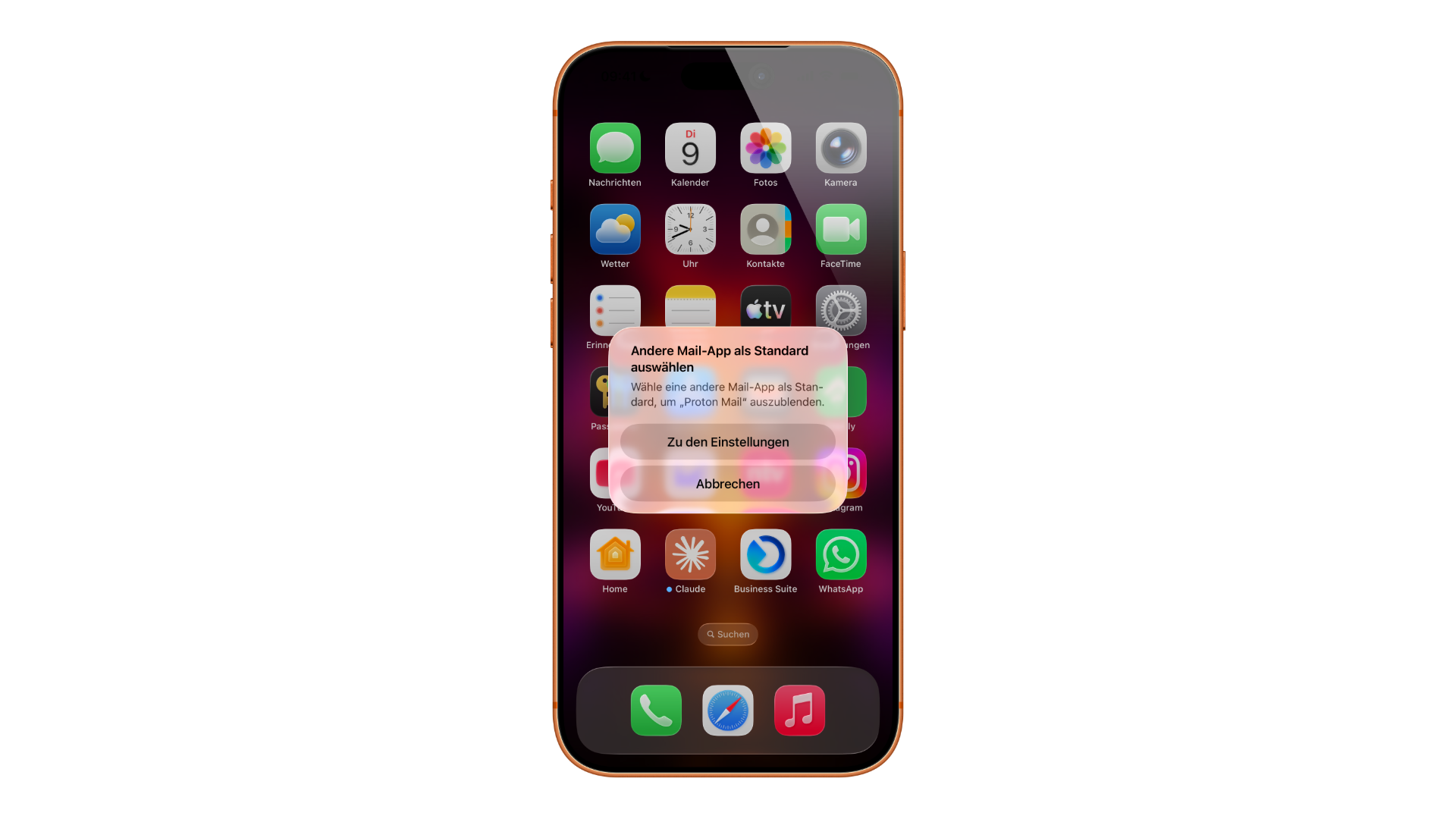
The same restriction applies to the default email app, something Apple doesn't mention in the manual. In our case, Proton Mail was set as the default, and trying to hide it resulted in a prompt to first set a different email app as the default. Only then could the app be hidden. So, if you want to block a specific email app, you should first change the default setting under Settings > Apps > Default Apps.
It's also important to note that the locked or hidden status is not synced via iCloud. This setting applies only to the device on which it was configured – it must be set up separately on any additional iPad used.
Special rules in Family Sharing
Family Sharing has its own rules: Children under 13 cannot block or hide apps. Those between 13 and 17 can do so, but a parent or guardian can still see via Screen Time that an app has been downloaded and how long it is used – and restrict access if necessary.
The exact age may vary depending on the country or region. In Germany, Austria, and Switzerland, the limit is 13 years.
When Locking and Hiding Are Worth It
The people who benefit most from the feature are all those who regularly hand their iPhone over to others. If you frequently pass your device to children, family or colleagues, locking notes, health, dating or messenger apps keeps private content private – without having to seal off the entire iPhone. Hiding is suited to apps whose mere existence is nobody else's business.
Even in the event of theft, the lock has an effect. If an unlocked iPhone is stolen, everything that isn't specifically protected is initially exposed – and unlocked devices are particularly valuable to thieves. Locked apps reduce the window that can be viewed in such a situation.
Where the app block ends
One important distinction to be aware of is that the app lock controls who can open an app – not what the app itself accesses. That's the domain of app permissions in iOS, which allow you to individually control access to the camera, location, or tracking. These two functions address different problems and are not interchangeable.
The screen lock is equally ineffective against someone reading over your shoulder while you type. For that, you need a privacy screen protector that narrows the viewing angle of the display – an addition that is often more effective on trains or in open-plan offices than any software setting.
Our recommendation for everyday use: Lock the two or three apps that contain truly confidential information, instead of locking countless icons. Experience shows that a lock that asks for facial recognition every other tap will be deactivated after a week – and then offers no protection at all.
App Locking as a Firm Part of iPhone Privacy
What Apple long left to the lock screen has now reached the level of individual apps. Locking and hiding closes precisely the gap that most frequently exists in everyday life: the brief, seemingly harmless moment when an unlocked iPhone falls into the wrong hands.
Two taps on an icon are all it takes to shield sensitive apps from prying eyes – a small action with a noticeable impact on one's privacy.
Which app on your iPhone would you most likely block if you had to hand the device over immediately – and is that block sufficient for you, or would you completely ignore it? Tell us in the comments how you handle it.
Frequently Asked Questions: How to lock and hide apps on the iPhone
Eight pre-installed system apps are excluded: Calculator, Camera, Clock, Contacts, Find My, Maps, Shortcuts, and Settings. Hiding apps is more restricted – only apps downloaded separately from the App Store can be hidden.
No. According to Apple, data from a blocked app is no longer displayed elsewhere either – neither in notification previews nor in search results, Siri suggestions, CarPlay, or call history. The protection therefore extends beyond simply opening the app.
Yes. When locking the device, the icon remains in place; only unlocking requires Face ID, Touch ID, or the passcode. Hiding the icon is the only way to remove it from the home screen and the regular app library.
The "Hidden" folder is located at the bottom of the app library and can only be opened after authentication. A complete list is also available under Settings > Apps > Hidden apps.
No. The locked or hidden status is not synced via iCloud and only applies to the device on which it was set up. On an iPad, the lock must be activated separately.
An app set as the default for browser or email cannot be hidden. The system requires you to first select a different default app. The same applies to an app marketplace, which exists only in the EU. All three can still be blocked.
Yes. On devices without Face ID, the menu item is called "Request Touch ID," and the process is identical. If a biometric sensor is missing, the device passcode takes its place – then the item is called "Request Passcode.".