

apple patient
  • Home
  • News
  • Rumors
  • Tips & Tricks
  • Reviews
  • Insights
No Result
View All Result
  • iPhone 18
  • iOS 27
  • iPadOS 27
  • macOS
  • MacBook Neo
  • iPhone 17e
  • AirTags
  • iOS 26
  • iPhone 17
  • MacBook Pro
  • iPadOS
  • iMac
  • Mac mini
  • HomePod
  • Apple TV
  • iPad Pro
  • iPhone Air
  • Apple Vision Pro
  • iPhone 16
  • AirPods 4
  • Apple Watch Ultra
  • HomePod Mini
  • MacBook Air
  • iPad
  • AirPods Max
  • AirPods Pro 3
  • Apple Watch Series 3
  • Mac Studio
  • Studio Display
  • iPad Air
  • iPad mini
  • watchOS 27
  • Apple CarPlay
  • Apple Pay
  • watchOS 26
  • Home
  • News
  • Rumors
  • Tips & Tricks
  • Reviews
  • Insights
No Result
View All Result
apple patient
No Result
View All Result

iPhone shows everything too big? Causes & quick fix

Milan Jovicic by Milan Jovicic
May 28, 2025 - 12:53 CEST
in Apple Tips & Tricks
0
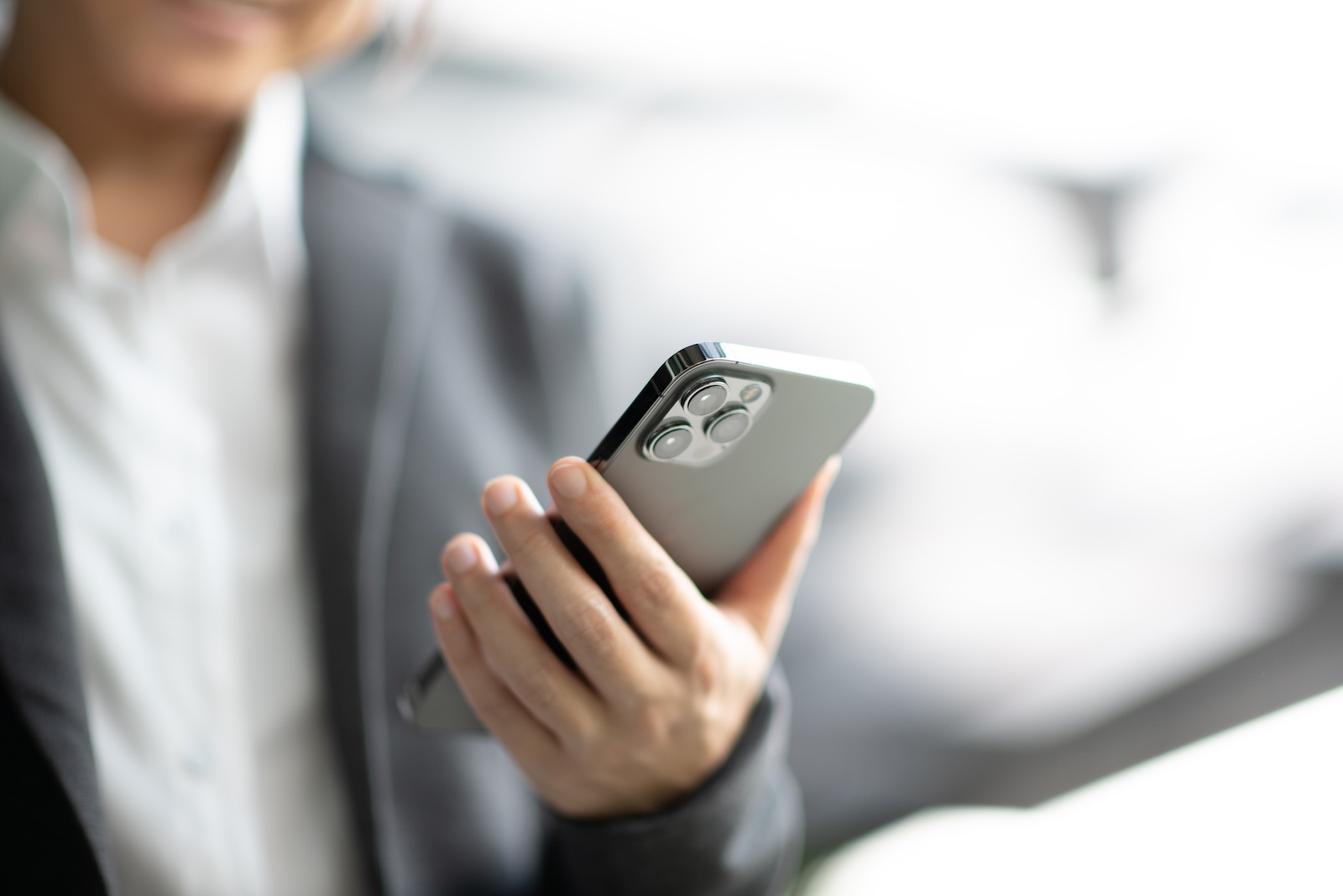
iPhone display too large

Image: Shutterstock / oatawa

WhatsAppFacebookEmail
Threads

Suddenly, everything on your Apple iPhone is huge: Icons, text, and apps appear too large, as if someone had zoomed in. Many users are surprised by this and wonder if it's a bug or a defect. In most cases, it's just a setting that can be quickly changed.

If the display on your Apple iPhone is too large, it could be due to various features or settings—including the zoom function, display settings, or accessibility features. Sometimes the display is changed accidentally, for example, by a gesture or during device setup. In this article, I'll show you the most common causes and how to restore the normal display size on your iPhone.

Possible causes for a display that is too large on the Apple iPhone

An oversized image on the iPhone display can be caused by the following factors, among others:

  • Zoom function accidentally activated
  • Display zoom set to "Standard" instead of "Custom"
  • Accessibility features such as “Larger Text” enabled
  • Display problems after an update or restart

Solutions: What to do if your iPhone looks “too big”

Deactivate zoom function

If the entire display is very magnified and you can barely navigate, the zoom function is probably enabled. Here's how to turn it off:

  • Tap the screen three times quickly with three fingers to reset the zoom.

Alternatively:

  • Go to Settings > Accessibility > Zoom.
  • Disable the zoom switch.

Check display zoom

You can use the display zoom to adjust the size of controls and text. To restore the normal view:

  • Open Settings > Display & Brightness
  • Tap "Display Zoom" or "Display"
  • Select “Default” and confirm the change

The iPhone will then restart and the display will be set to normal size.

Reset text size and display options

If only the text is too large, this is often due to the “Larger Text” setting:

  • Go to Settings > Accessibility > Display & Text Size
  • Tap “Larger Text”
  • Deactivate the switch or pull back the slider

Restart iPhone

A simple restart can help if the display size suddenly changes after an update or system error.

  • Press the side button and the volume up button at the same time until the power off slider appears
  • Turn iPhone off and on again

Reset all settings

If nothing helps, you can reset the system settings:

  • Go to Settings > General > Transfer/Reset iPhone
  • Select “Reset all settings”

Note: No personal data will be deleted – but Wi-Fi passwords, display settings, etc. will be reset to factory settings.

  • Which Apple iPhone is right for me? The big model comparison

Don’t panic if the display is large – the solution is simple

If the display on your Apple iPhone is too large, there's no need to worry. In almost all cases, it's due to activated zoom functions or display settings – and not a defect. With a few quick steps, you can restore the normal view and use your iPhone as usual. It's worth going through your accessibility features – many of these features can be activated accidentally, but just as easily deactivated. Time for some fresh accessories? Visit our Amazon Storefront and discover a wide selection of products from leading manufacturers, including HomeKit-compatible ones! (Image: Shutterstock / oatawa)

  • iPhone update search failed? How to solve the problem
  • Photos app: Easily stop endless video loops
  • Sharing Safari Tab Groups – How to Do It on Mac and iPhone
  • Secure your iPhone properly: 5 important functions at a glance
  • Save iPhone battery: When is power saving mode worth it?
  • Why an iPhone? These advantages are convincing in the long term
  • iPhone too close to your face? This feature intervenes

Make Apfelpatient a preferred source One click – and you'll see us more often on Google
Was this article helpful?
YesNo
Tags: iOSiPhone
SendShareSend
Share

Our Amazon Storefront

A handpicked selection of products for iPhone, Mac and more – sorted by topic and updated regularly.

Shop Now

This post contains affiliate links (including Amazon). We earn a small commission on qualifying purchases – at no extra cost to you. Learn more on our Partner Program page.

Previous Post

iOS 19 likely brings eSIM switching to Android devices

Next Post

Apple Vision Pro: Patent shows display in the headband

Milan Jovicic

Milan Jovicic

Milan founded Apfelpatient in 2016 and has been responsible for all editorial content since 2018 — news, rumors, guides, and product reviews. Apple devices here are not test units on loan for two weeks but everyday tools: from the iPhone through MacBook Pro, MacBook Air, and iMac to the Apple Vision Pro, at least one device from nearly every product category is in daily use, many of them replaced annually. Every menu path in a guide is verified on the device before it is published.

Drawn outline of the folded iPhone Ultra with square corners on the hinge side and rounded corners opposite, matching the leaked iPhone Ultra screen protectors

iPhone Ultra: Screen protectors reveal the camera position

August 12, 2026 - 3:58 PM CEST
Glass panel set into the aluminium frame on the back of an iPhone 17 Pro Max in Cosmic Orange, whereas the iPhone 20 glass design is said to wrap the glass around the edges

iPhone 20: Glass design is not supposed to be scrapped after all

August 12, 2026 - 2:50 PM CEST
Jennifer Bailey on stage at an Apple event in front of a projected Apple Card, the Apple Pay chief is leaving the company in October

Apple Pay: Jennifer Bailey is leaving Apple in October

August 12, 2026 - 2:31 PM CEST

About APFELPATIENT

APFELPATIENT brings you the latest Apple news, product updates, guides, reviews and tips across the entire Apple ecosystem — from the iPhone to the Mac to the Apple Vision Pro. From the first rumors to confirmed news: researched responsibly.

Follow Apfelpatient

Facebook Instagram YouTube Threads Threads

Company

  • About Apfelpatient
  • Contact
  • Author Profiles

Community

  • Netiquette
  • Push Notifications
  • RSS feed

Legal

  • Legal Notice
  • Privacy Policy
  • Terms of Use
  • Cookie Settings
  • Affiliate Program

Resources

  • Sitemap

© 2026 Apfelpatient. All rights reserved.

No Result
View All Result
  • Home
  • News
  • Rumors
  • Tips & Tricks
  • Reviews
  • Insights

© 2026 Apfelpatient. All rights reserved. Page Directory

Change language to Deutsch



