

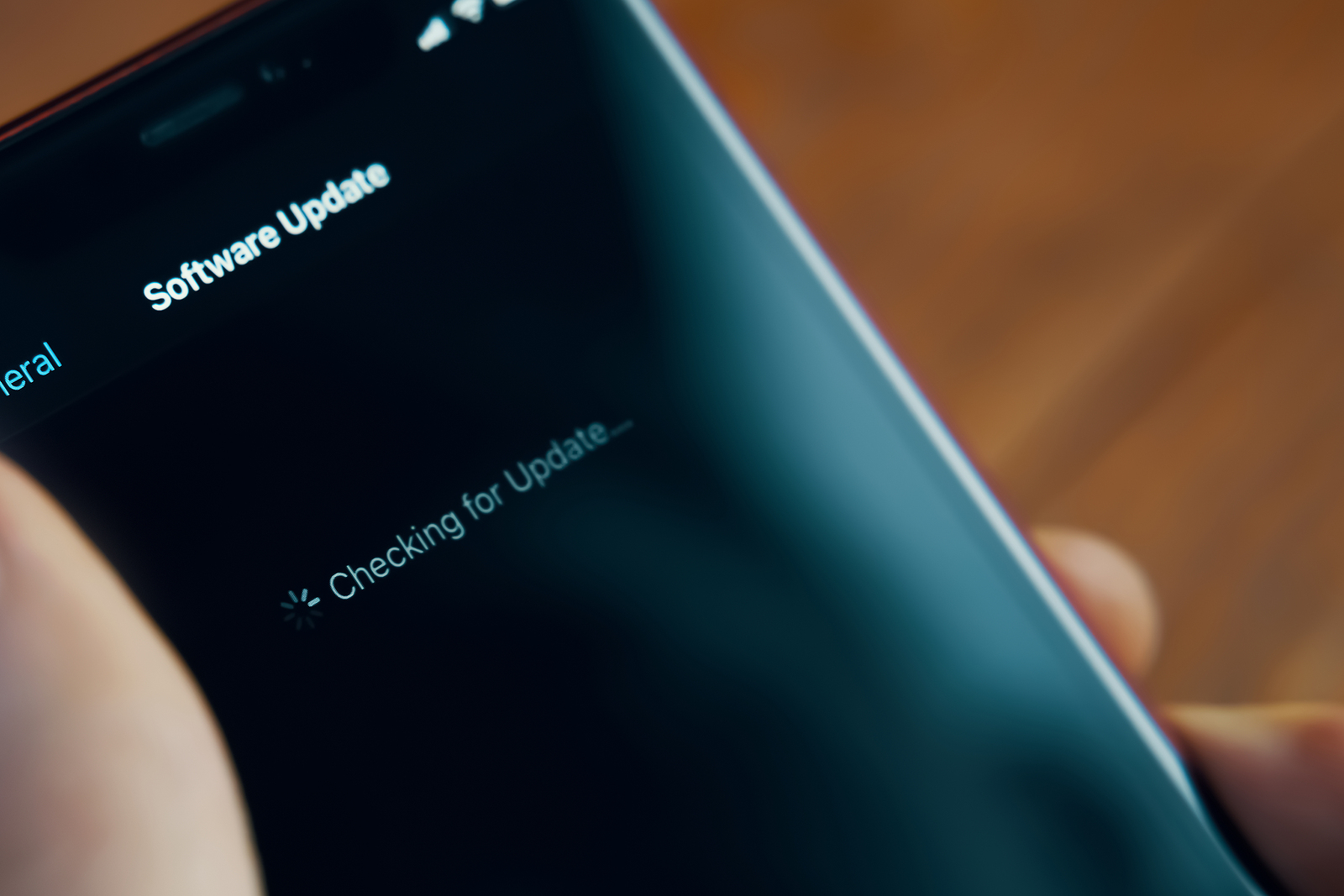
The iPhone is one of the most widely used smartphones in the world. Apple regularly releases software updates to provide new features, fix security issues, and improve system performance. But sometimes the search for an update fails and the device cannot find or install the latest iOS version. There can be a number of reasons for this, but most of the time there are simple solutions to fix the problem.
If the update search on the iPhone is not working, it can quickly become frustrating. After all, updates are important to keep the device up to date and secure. There are several reasons why your iPhone cannot find updates. These include an unstable internet connection, overloaded Apple servers or insufficient storage space on the device. Software problems or incorrect network settings can also play a role. Before you contact Apple Support, you can try a few steps yourself to solve the problem.
Possible reasons for the failed update search
Poor or no internet connection
The iPhone needs a stable internet connection to be able to search for updates. If the connection is too weak or unstable, the update search may fail. Solution:
- Check if you are connected to a Wi-Fi network or a mobile data connection.
- If you're using Wi-Fi, make sure it's working by opening a website in Safari.
- If you are connected via mobile data, check that updates over mobile networks are allowed (Settings > Mobile data).
- Try searching for the update in a different location with better reception.
Apple servers overloaded or unreachable
When Apple releases a new version of iOS, the servers may be under a lot of load. In such cases, the update search often fails because too many users are trying to download the update at the same time. Solution:
- Wait a few hours or try again the next day.
- Check the official Apple system status page for current outages.
Not enough storage space on the iPhone
Updates require a certain amount of free storage space. If your device is almost full, the update search may not work or the update may not be able to be downloaded. Solution:
- Go to Settings > General > iPhone Storage to see how much space is available.
- Delete unused apps, photos or large files to free up storage space.
- If you have a lot of videos or photos, you can transfer them to iCloud or a computer.
Software errors or corrupted system files
Sometimes a software problem or a corrupted file can prevent the iPhone from checking for updates. Solution:
- Restart your iPhone and then try again.
- If that doesn't help, you can connect your iPhone to a computer via iTunes or Finder and check for updates there.
Incorrect network settings
If your network settings are corrupted or contain incorrect configurations, this may affect the update check. Solution:
- Reset your network settings by going to Settings > General > Reset > Reset Network Settings. Note that this will delete any saved Wi-Fi passwords.
How to fix the problem step by step
If the update search still fails, you can take the following measures:
Check Internet connection
Check if your iPhone is connected to a stable network. If necessary, restart the router or switch to a different Wi-Fi network.
Restart iPhone
A restart can solve many problems.
- For iPhones with Face ID: Press and hold the side button + a volume button until you see "Power off," then move the slider.
- For iPhones with a Home button: Press and hold the side button until the slider appears.
free up storage space
If your storage is almost full, delete unnecessary files or move large data to iCloud or a PC.
Install update via iTunes or Finder
If the update doesn't work directly on the iPhone, you can try it on a computer:
- Connect the iPhone to a Mac or Windows PC.
- Open iTunes (Windows) or Finder (Mac).
- Select your device and click “Check for update”.
Reset network Settings
If updates are still not found, resetting your network settings may help. This can resolve Wi-Fi issues and connection errors.
iPhone can't find an update? These solutions help
If your iPhone fails to check for updates, there could be several reasons. It's usually due to a poor internet connection, overloaded Apple servers, or a lack of storage space. Restarting your iPhone, deleting unnecessary files, or resetting your network settings can often resolve the issue. If all else fails, you can install the update via iTunes or Finder. If the issue persists, Apple Support is your last resort. These steps can help ensure your iPhone stays up-to-date. Looking for the best accessories? Visit our Amazon Storefront and discover a wide range of products from top providers, including HomeKit-compatible ones! (Photo by Konstantin Savusia / Bigstockphoto)





