This article may contain affiliate links. Learn more on our Partner Program page.
On every other iPhone, StandBy needs a charging cable. iPhone Duo, by contrast, stands on its own – as a tent, as a book or fully unfolded on the Folio's kickstand. On top of that come its own views with widgets that can be arranged freely, and one limitation when charging.
StandBy has been around since iOS 17, but until now with one firm condition: the iPhone has to be connected to a charger and lying on its side. With iPhone Duo, the cable is no longer needed because the device stands on its own when half folded. Apple describes the Duo version in the user guide on the pages "Use StandBy on iPhone to view information at a distance" and "Pose iPhone Duo". Dedicated StandBy views for the Duo already showed up in the iOS 27.1 code before launch. I checked all settings and positions in this tip on my own iPhone Duo.
Key Facts at a Glance
- StandBy starts on iPhone Duo without a charger as soon as it's set down as a tent or a book while the Lock Screen is showing.
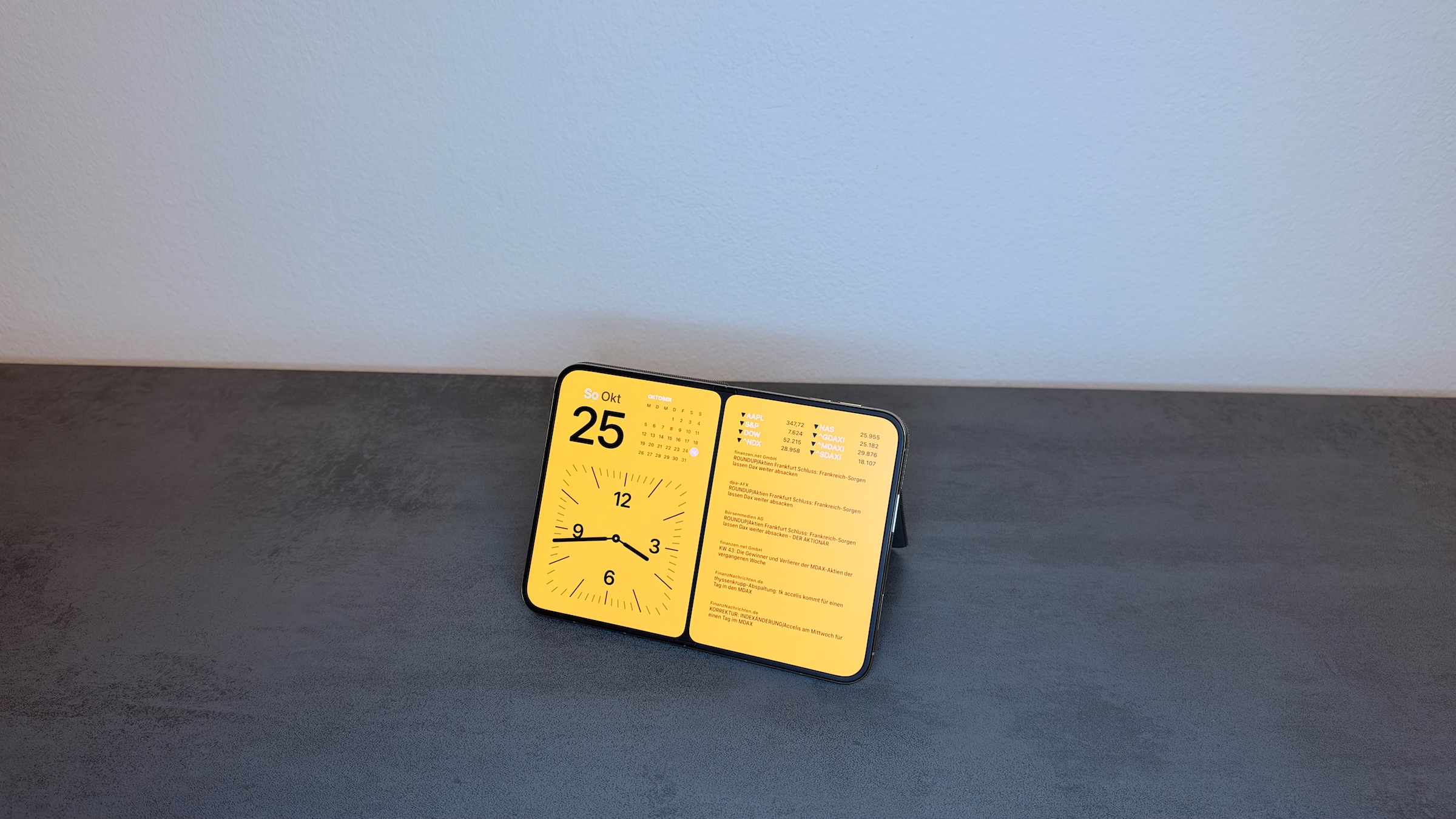
- Fully unfolded on the Folio's kickstand counts as a book – deselect the book and you lose this position as well.
- Charging by cable only works in the tent position; in the other positions the USB-C port is covered.
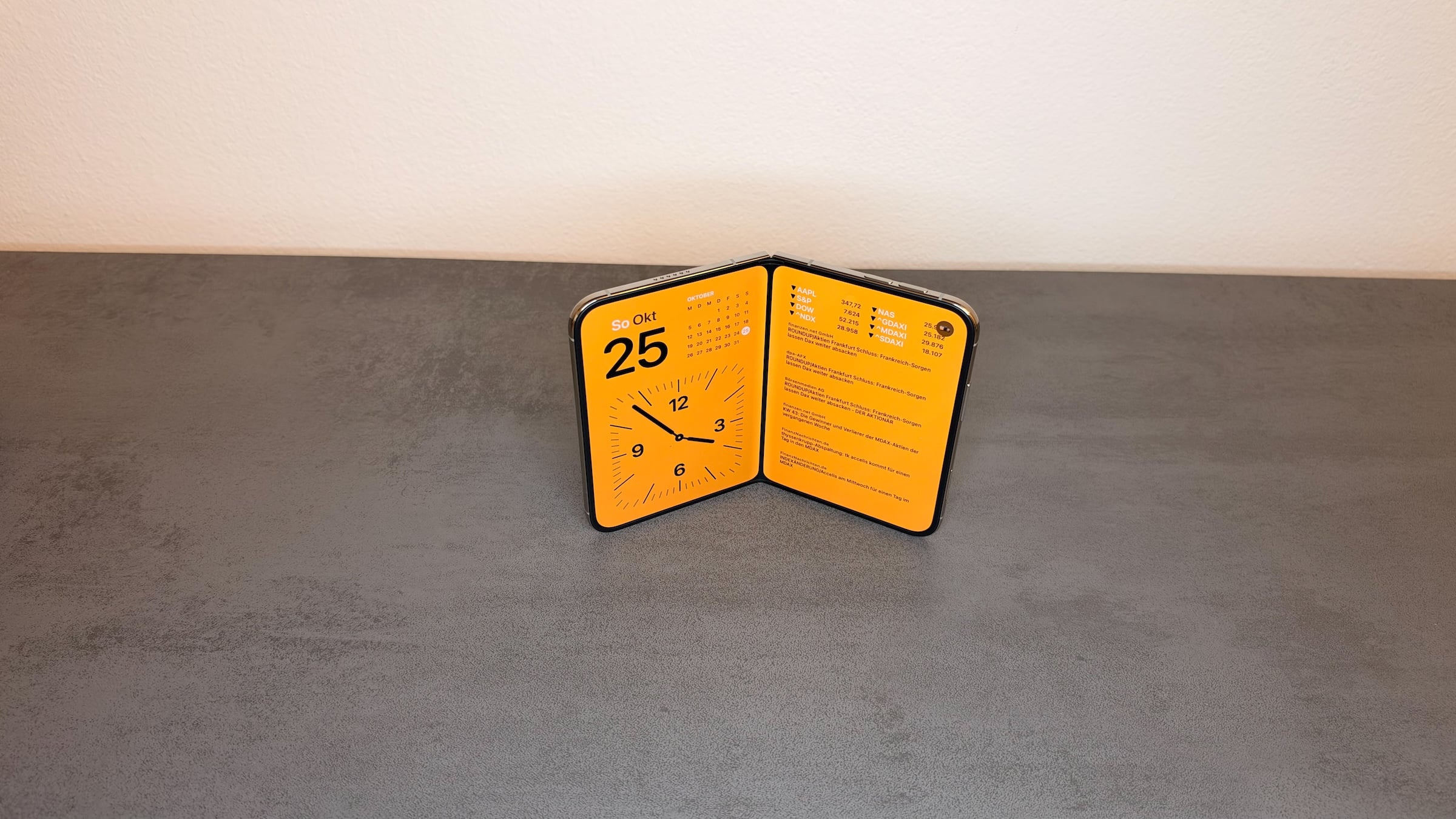
- In the tent position all views are available; in the book position StandBy shows the "Modular" widget view with four blocks for your own widgets.
Turn on StandBy on iPhone Duo
The setting is in the same place as on any other iPhone. Open the Settings app, tap StandBy and turn on the StandBy switch.
After that, all it takes is putting iPhone Duo into one of the StandBy positions while the Lock Screen is showing and setting it down. According to Apple, no charger is needed. StandBy doesn't start while you're holding it, only once the device is standing still. You can also turn StandBy on and off with Siri.
Tent, book and Folio: which position shows what
Apple names two StandBy positions. In practice, the Folio adds a third one, which the system treats as a book.
| Position | Display | Views | Charging by cable |
|---|---|---|---|
| Tent (half folded, set down) | outer display in landscape | all views | possible |
| Book (half folded, standing up) | inner display in landscape | "Modular" | not possible |
| Fully unfolded on the Folio kickstand | inner display in landscape | "Modular" | not possible |
The tent starts reliably for me. The free-standing book needs a firm, level surface, otherwise StandBy only starts sporadically. Alternatively, the inner view stands on the kickstand of the iPhone Duo Folio: fully unfolded, in landscape, propped up at an angle.
To choose the positions, iPhone Duo shows two graphics with checkmarks under Settings > StandBy: the tent on the left, the book on the right. If you remove the checkmark for the book, StandBy no longer starts on the Folio kickstand either – I tested this specifically.
Charging during StandBy: cable only in the tent position
Below the position graphics is the Only While Charging switch. When it's on, StandBy only starts while iPhone Duo is charging at the same time – just like on the other models. I have it turned off.
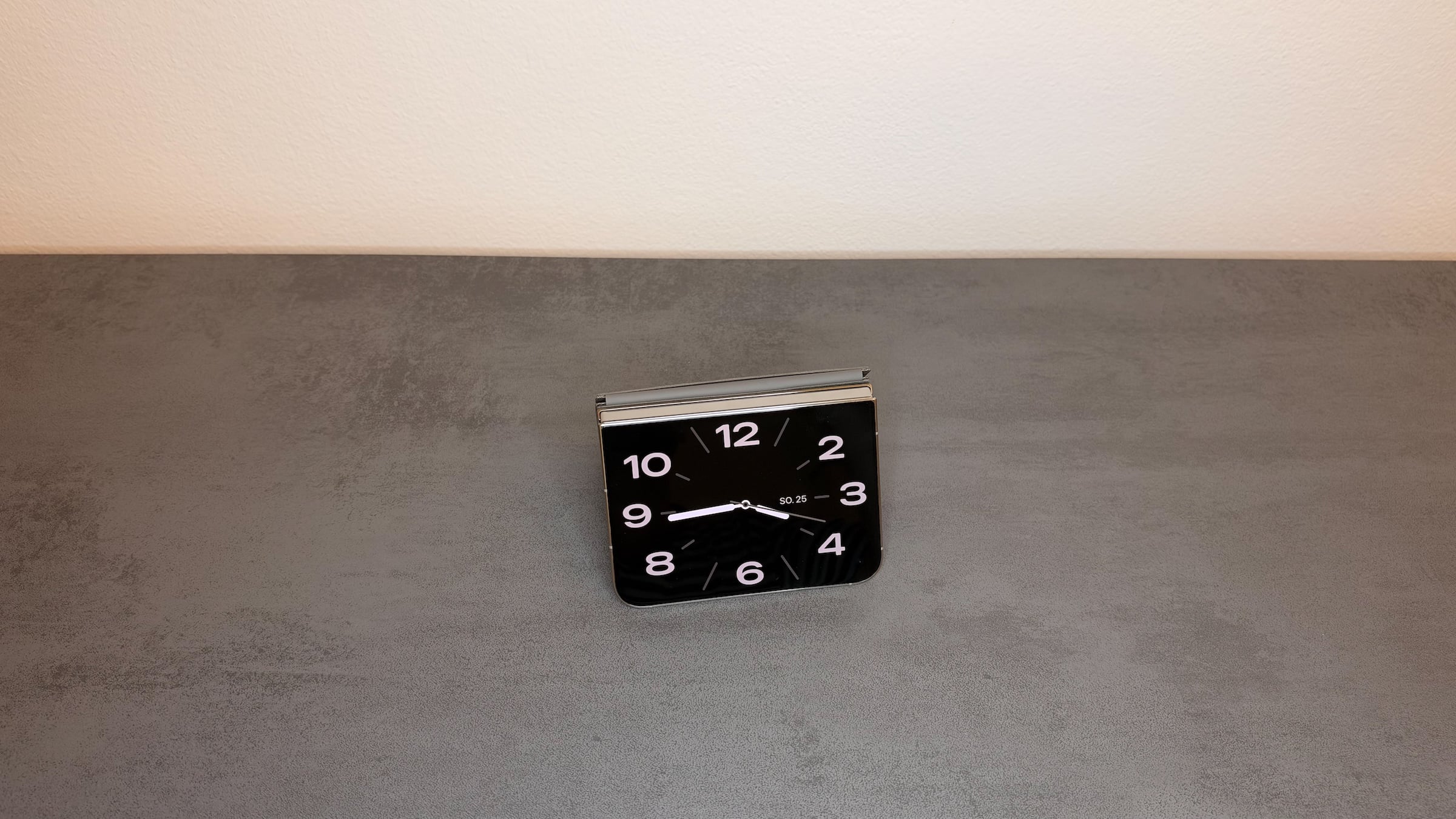
Charging by USB-C cable only works in the tent position. In the book position and fully unfolded on the kickstand, the position covers the port. If you want the inner view plugged in overnight or want to use Only While Charging, you'll therefore need a MagSafe charger for iPhone Duo. Suitable MagSafe chargers and the Folio with kickstand for iPhone Duo are collected on Amazon.
Display, Night Mode and motion
Behind Display there are three more settings:
- Turn Display Off: "Automatically", "After 20 Seconds" or "Never". With "Automatically", according to the footnote, the display turns off "when iPhone is not in use and the room is dark".
- Night Mode: StandBy gives the display a red tint in low ambient light.
- Motion to Wake: The display turns on at night as soon as motion is detected.
Notifications in StandBy
At the very bottom of the StandBy page is the Notifications section. Show Notifications displays incoming notifications in large type in StandBy. With Show Preview on Tap Only, the details stay hidden until you tap them.
Critical notifications still appear in StandBy even when Show Notifications is turned off.
StandBy views in the tent position: switch, add and delete
In the tent position, StandBy shows individual views on the outer display, such as a clock, photos or the weather. Some come preset and can be customized, others can be added from the gallery. To switch, tap the current view and swipe left or right.
To edit, iPhone Duo has to be unlocked. Then touch and hold a view in StandBy:
- New view: tap Add and choose a view from the gallery.
- Customize a view: swipe to the view, tap Customize and finish with Done.
- Delete a view: swipe to the view, swipe up and tap Delete.
Under "Featured", the gallery lists Weather, Photos, Memories, Analog, Digital and Calendar, among others. Below that are separate sections: "Photos" with several variants for people, pets, nature, shared albums or your own collection, "Memories" with the memories from the Photos app in random order, and "Modular" with several widget combinations.
Which options Customize offers depends on the view. The "Analog" clock has four tabs:
| Tab | Options |
|---|---|
| Style | two clock faces |
| Color | seven color swatches, appearance Light, Dark or Automatic |
| Numerals | Devanagari, Arabic Indic, Arabic |
| Widgets | two small slots, for example for the date, digital time, next alarm, air quality, UV index or wind |
In the book position: "Modular" across both halves of the display
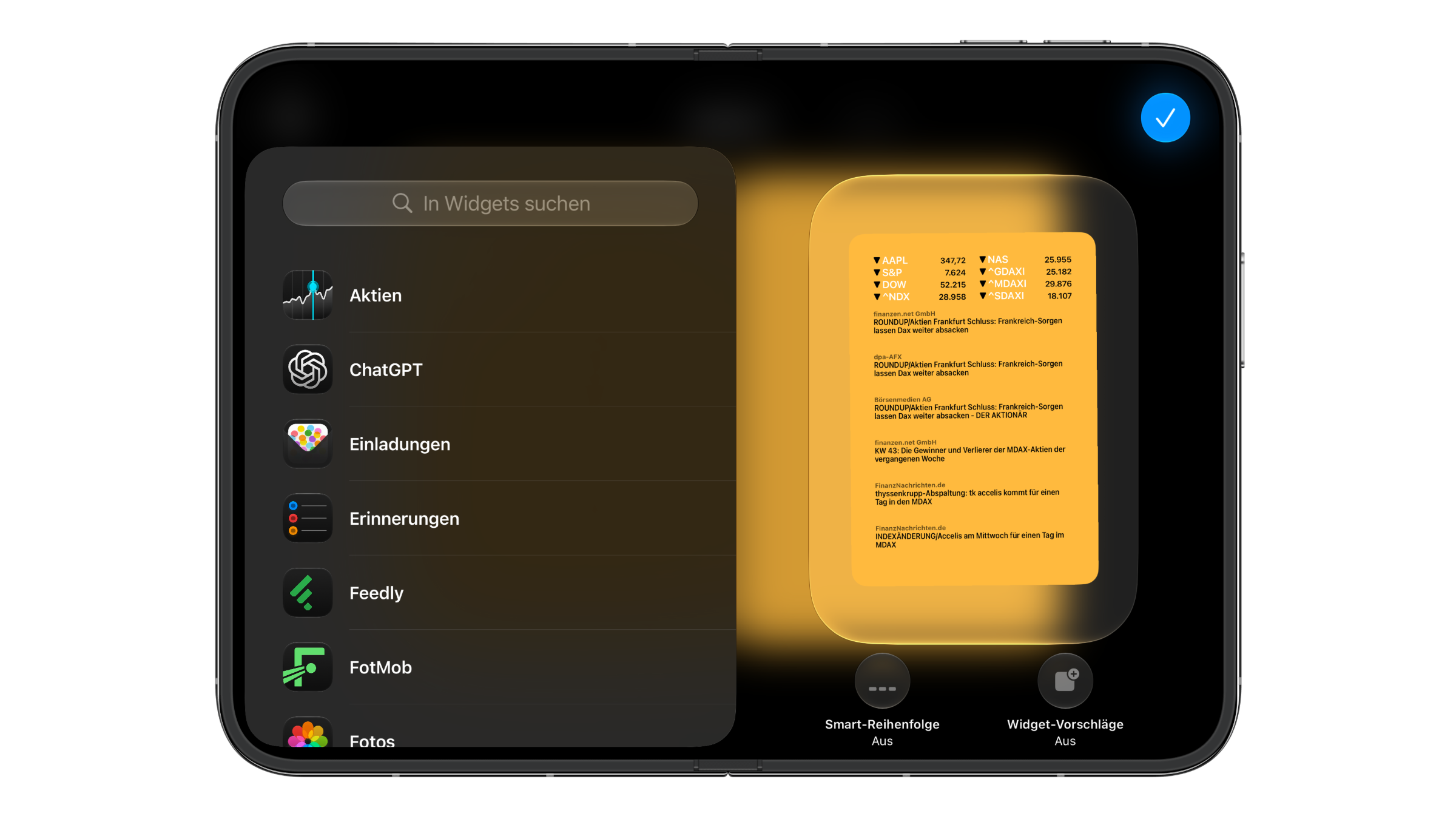
In the book position and on the Folio kickstand, StandBy shows the "Modular" widget view on the inner display. It consists of four blocks: two small ones on the left with a medium one below, and a large one on the right that spans the whole half of the display. On my device, that's the date, a monthly calendar and an analog clock on the left and the Stocks widget with prices and headlines on the right.
The editor has two tabs here. Under "Widgets", tapping a block opens the widget picker with a search field, which also includes third-party widgets. Several widgets can be stacked in each block and then scrolled through, similar to stacked widgets on the Home Screen. Below that are the Smart Rotate and Widget Suggestions switches; according to Apple's user guide, the system uses them to change the widgets throughout the day and suggest suitable ones based on how you use your device.
Under "Color" there are twelve color swatches and a color wheel. The selected color is laid as a background behind both halves.
The view also plays a part when you wake up: when the alarm goes off, two large buttons for Snooze and Stop appear, and the inner display casts a soft light onto the surface.
Why doing without the cable makes the difference
On the other iPhones, StandBy is a nightstand feature in everyday use because it's tied to the charger. On iPhone Duo, it becomes a display for any table. I see the biggest benefit during the day at my desk, fully unfolded on the Folio kickstand, where "Modular" fills both halves of the display with widgets.
The one limitation is charging. If you want to run StandBy overnight in the book position or on the kickstand, there's no way around a MagSafe charger, because the USB-C port can't be reached in these positions. This makes StandBy one of the features where iPhone Duo in everyday use differs most clearly from the other models.
iPhone Duo StandBy – the key points at a glance
StandBy runs on iPhone Duo without a charger as soon as it's standing as a tent or a book while the Lock Screen is showing. Fully unfolded on the Folio kickstand counts as a book. Charging by cable only works in the tent position, otherwise it's MagSafe. Which positions trigger StandBy, whether it only starts while charging, and how the display and notifications behave are all controlled in the StandBy settings.
Do you set up your iPhone Duo as a tent on your nightstand or unfolded on your desk – and which widgets end up in "Modular" for you? Tell us in the comments what your StandBy setup looks like.
Frequently asked questions: iPhone Duo StandBy
Yes. iPhone Duo starts StandBy as soon as it's set down as a tent or a book while the Lock Screen is showing; no charger is needed. If you still only want to use StandBy while charging, turn on the Only While Charging switch under Settings > StandBy.
Open the Settings app, tap StandBy and turn on the StandBy switch. Below that, you can use checkmarks to choose whether StandBy starts in the tent position, the book position or both.
StandBy only starts when the Lock Screen is showing and the device is standing still; nothing happens while you're holding it. The book position needs a firm, level surface. The position you're using also has to be checked in the StandBy settings, and if Only While Charging is on, iPhone Duo has to be connected to power.
Yes. Fully unfolded in landscape on the kickstand of the iPhone Duo Folio, StandBy starts on the inner display. The system treats this position as a book, so the checkmark for the book has to be set.
Only in the tent position. In the book position and fully unfolded on the Folio kickstand, the position covers the USB-C port. There, iPhone Duo can only charge with a MagSafe charger.
In the tent position, there are views such as Weather, Photos, Memories, Analog, Digital, Calendar and Modular. In the book position, StandBy shows the "Modular" view with four blocks where you can place and stack widgets from Apple and third-party developers. The Smart Rotate and Widget Suggestions switches add to the selection automatically.
That depends on the setting under StandBy > Display: "Automatically", "After 20 Seconds" or "Never". With "Automatically", the display turns off when iPhone is not in use and the room is dark. With Motion to Wake, it turns back on at night when motion is detected, and Night Mode gives the display a red tint.