This article may contain affiliate links. Learn more on our Partner Program page.
Held sideways, video playing, thumb on the button – and the sound gets quieter instead of louder. On the iPhone Duo this happens easily, because by default the buttons keep their function no matter how the device is positioned. A single setting changes that: volume up and down then follow the rotation.
The iPhone Duo is used unfolded, folded, upright and sideways, often switching within a few minutes. With every rotation, the position of the volume buttons relative to your fingers changes as well. Apple has built a dedicated option for this into iOS and describes it in its support document on the iPhone buttons, which in its version from October 22 includes a separate section on the iPhone Duo.
The setting is one of a handful of adjustments that make the device truly suited to everyday use – from the fingerprint that unlocks without an extra press to two apps side by side on the inner display. All of the device's technical specifications are in the iPhone Duo overview.
Key Facts at a Glance
- By default, the "Fixed Position Volume Controls" option is turned on: each button keeps its function no matter how the iPhone Duo is held.
- Turning the option off gives you dynamic buttons that adapt to the orientation.
- The setting is located under Settings → Sounds & Haptics.
- If Rotation Lock is on, the buttons follow the locked orientation rather than how the device is actually held.
Fixed or Dynamic Layout: The Difference
With a fixed layout, the volume button that turns the sound up in portrait mode remains the volume-up button in landscape mode as well. When you rotate the device, it suddenly sits on the other side of your thumb – and you press in the wrong direction.
With a dynamic layout, iOS swaps the functions when you rotate the device. According to Apple, the buttons adjust automatically as soon as the orientation of the iPhone Duo changes. Volume up is then wherever you would intuitively expect it, no matter how you hold the device.
| State | Behavior of the volume buttons |
|---|---|
| “Fixed Position Volume Controls” on (default setting) | Each button keeps its function in every orientation |
| “Fixed Position Volume Controls” off | Volume up and down swap with the rotation |
| Option off, Rotation Lock on | Layout follows the locked orientation |
Turn On Rotating Volume Buttons
- Open the Settings app.
- Tap Sounds & Haptics.
- Turn off Fixed Position Volume Controls.
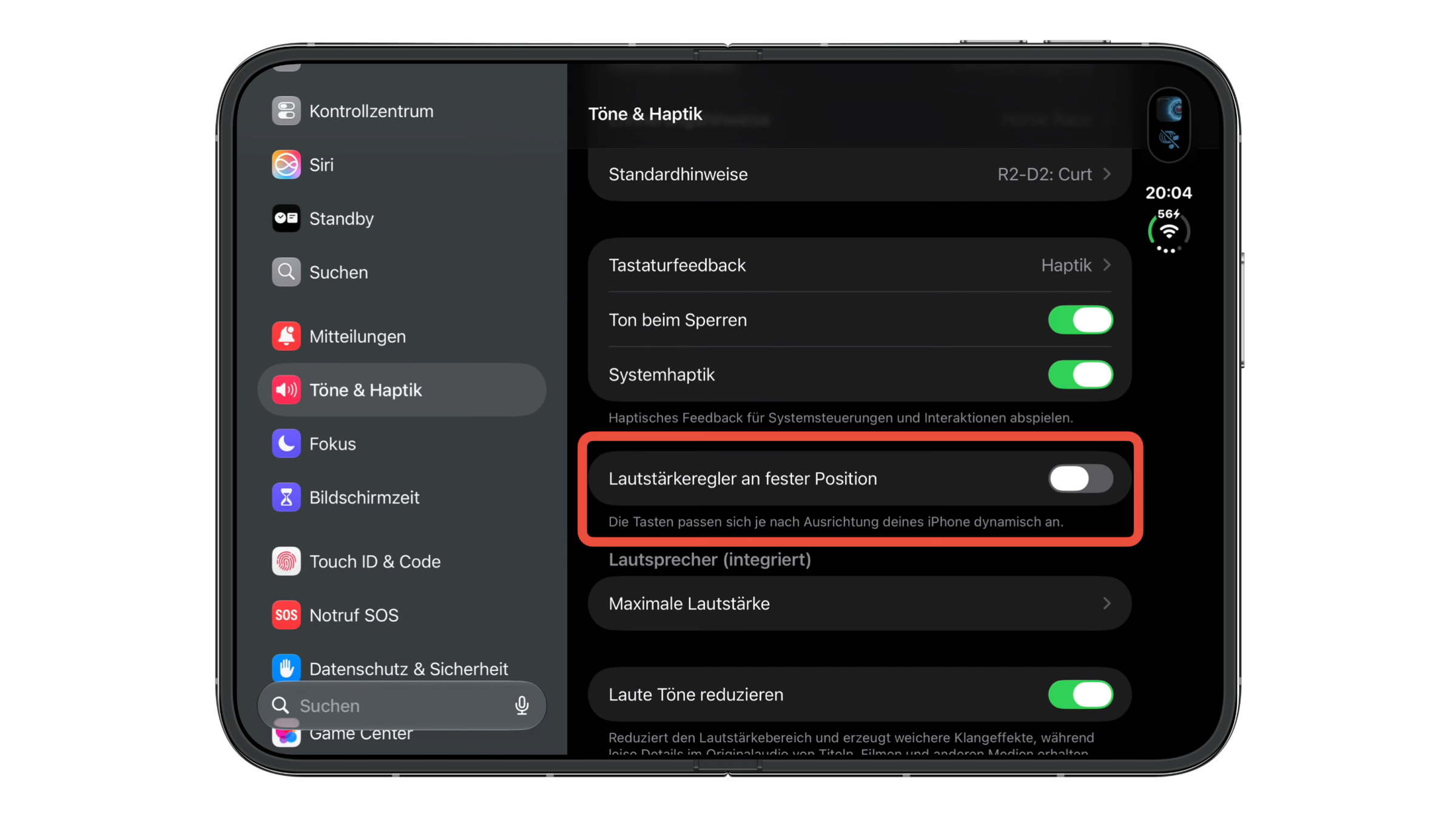
If you want to return to the previous layout, simply turn the option back on in the same place.
Rotation Lock Has a Say
There is one exception worth knowing: if Rotation Lock is turned on in Control Center, the button layout follows the locked orientation. So if you lock the iPhone Duo in portrait mode and hold it sideways, you will also have the portrait layout under your fingers.
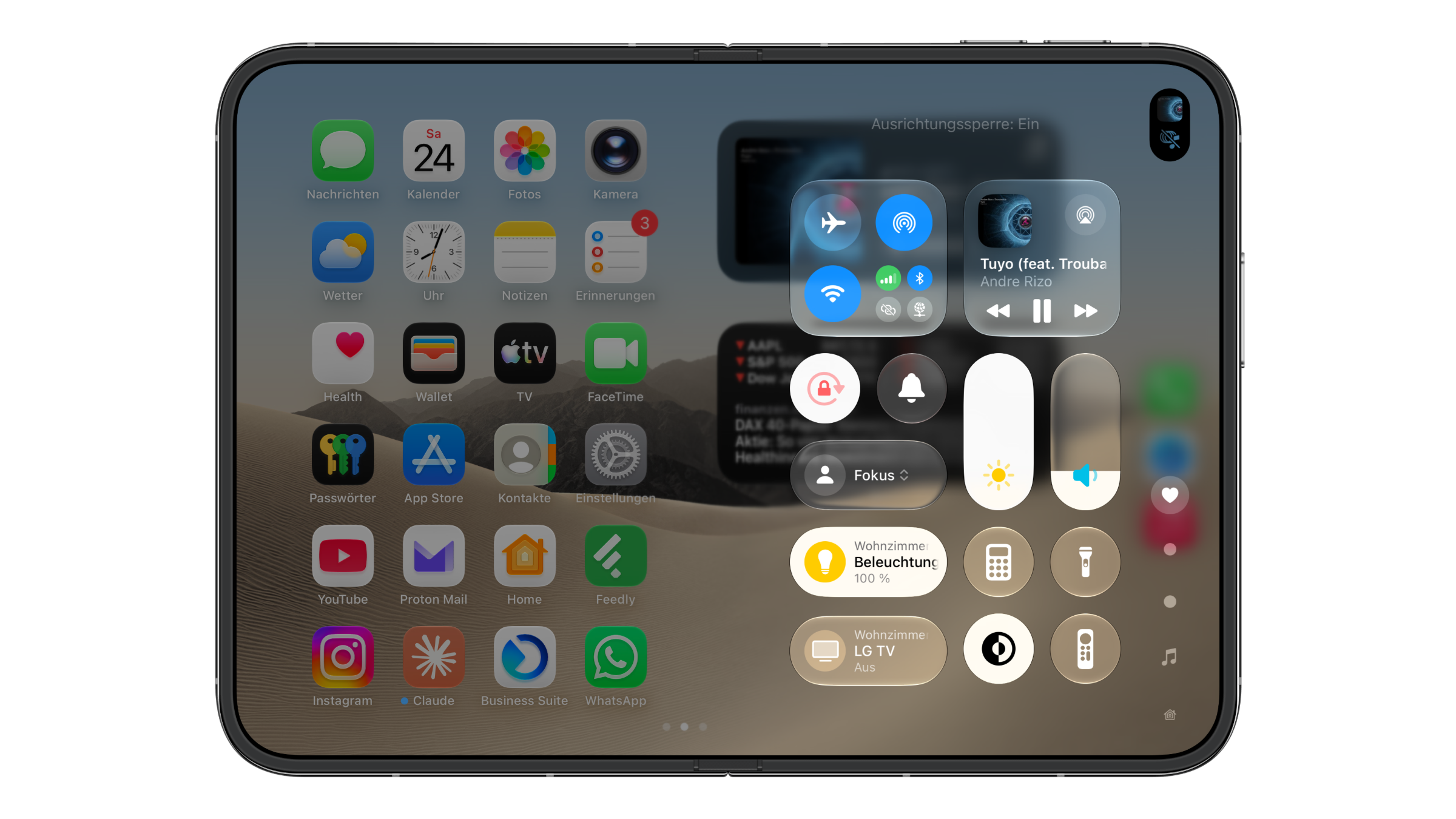
That is consistent, because in this case the screen content does not rotate either. If you often read lying down and use the lock while doing so, you won't notice any difference as long as it is active.
Why the Default Setting Isn't Ideal on the Foldable iPhone
On my iPhone Duo, "Fixed Position Volume Controls" was turned on by default. For a classic iPhone that is almost always held upright, that is the familiar solution. With the Duo, the way you hold it changes much more often, especially when unfolded for videos, games or two apps side by side.
That's why I think the dynamic layout is the better choice on this device. The only reason to keep the fixed layout is pure habit: if you operate the buttons blindly in a particular grip, you will need a moment to adjust after switching.
Apple users have known the option from the iPad for some time: a comparable setting has been available there since iPadOS 15.4.
iPhone Duo Volume Buttons – The Key Points at a Glance
The "Fixed Position Volume Controls" option under Settings → Sounds & Haptics determines whether the volume buttons on the iPhone Duo follow the rotation. It is turned on by default, so the layout stays fixed. When it is turned off, volume up and down swap with the orientation – unless Rotation Lock is on, in which case the locked orientation applies.
Will you stick with the fixed layout, or let the buttons on your iPhone Duo rotate along? Tell us in the comments which option you choose and which way of holding the device tips the balance for you.
Frequently Asked Questions: iPhone Duo Volume Buttons
By default, "Fixed Position Volume Controls" is turned on. Each button then keeps its function, no matter how the device is held.
Under Settings → Sounds & Haptics. Turn off the "Fixed Position Volume Controls" option there.
No. The fixed layout is active by default; you have to turn on the rotating buttons yourself.
Rotation Lock is most likely on. In that case, the layout follows the locked orientation, not the way you are holding the device.
Apple describes it specifically for the iPhone Duo in its support document on the buttons.
Yes, a comparable option has been available on the iPad since iPadOS 15.4.
Turn "Fixed Position Volume Controls" back on under Sounds & Haptics.