

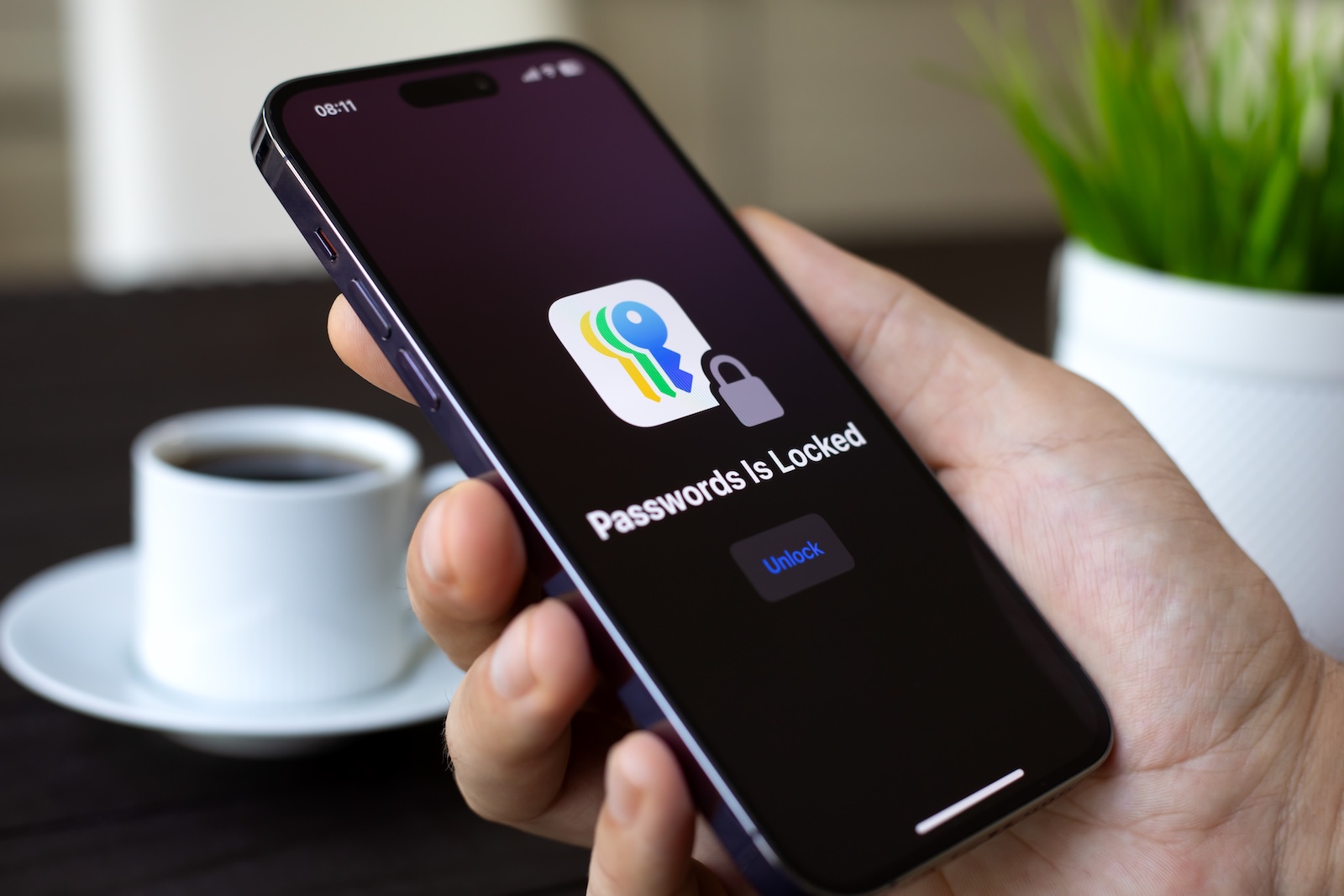
Behind every “This password was found in a data breach” message lies a concrete security incident – just not necessarily at Apple. iPhone owners already have the best early warning system for leaked login credentials built right into their device. The Passwords app constantly checks in the background whether your logins appear in known leak databases, provided a specific feature is enabled.
Data leaks are commonplace: Large companies, small online shops, forums, and gaming platforms regularly fall victim to cyberattacks – the stolen login credentials then end up in collections that circulate freely online or are traded on the dark web. Anyone who uses the same password across multiple services hands attackers the key to all linked accounts. Apple has integrated a direct solution to this problem into iOS with its standalone Passwords app and the "Detect Compromised Passwords" feature. It complements traditional security measures such as... Two-factor authentication for the Apple account and works without Apple ever seeing plaintext passwords.
What the Passwords App on iPhone Checks
The Passwords app, which has been a standalone application since iOS 18, does more than just store your credentials – it continuously monitors them for three risk factors. All passwords stored in the iCloud Keychain are checked – meaning everything you have saved when signing in via Safari, in apps or manually in the Passwords app.
Three Risk Categories
The first marker is reuse: if the same password is used across multiple services, the app flags the affected entries. The reason is an attack method called credential stuffing – attackers automatically try a password stolen from service A on hundreds of other services.
The second marker is weaknessApple recognizes patterns that reveal typical password habits – dictionary words, classic character substitutions like “p4ssw0rd” instead of “password”, keyboard patterns like “q12we34r”, or simple sequences of numbers and letters. Attackers can try out these patterns in seconds.
The third and most important marker for the data leak check is the CompromiseThe password appears in a known collection of leaked login credentials. This is precisely where the "Detect Compromised Passwords" function comes in, comparing this list with your passwords.
How the Data Leak Check Works Technically
The check does not work the way many fear: Apple never gets to see your passwords. The process is built around privacy and organized in two stages.
In the first stage, iOS regularly downloads a list of passwords that appear particularly frequently in data breaches directly to your device. This local list is checked against your stored passwords on your iPhone – the data never leaves the device.
In the second stage, a cryptographic procedure kicks in: for passwords that do not appear in the local list, the iPhone calculates a hash value and sends only a small portion of it to Apple. Apple checks whether a match with a leaked list could exist and sends back a corresponding response. The actual password stays on the device, and Apple learns neither which account is affected nor what the password is. For those who want to dive deeper into the background, Apple describes the procedure in detail in its official privacy documentation.
Enabling the Feature and Reviewing Security Recommendations
For the data leak check to work at all, "Detect Compromised Passwords" must be enabled. On most iPhones, this feature has been enabled by default since the iOS 18 update, but it's still worth checking.
Enable the Feature
You won't find the switch in the passwords app itself, but in the settings. To do this, open the Settings app and tap on "Apps," then on "Passwords." Here you can turn "Detect compromised passwords" on and off. When the function is active, the check runs automatically in the background.
Review Security Recommendations in the Passwords App
For the actual overview, switch to the "Passwords" app and unlock it using Face ID, Touch ID, or your passcode. At the bottom, tap "Security." Here, your iPhone will list all accounts with issues – sorted by priority, with brief descriptions of the risk.
What the List Specifically Shows
For each affected entry, the app provides three pieces of information: the account or website, the type of problem (weak, reused, found in a data breach), and a direct link to change the password. Tapping on an entry explains the specific problem—for example, “This password was found in a data breach” or “You are already using this password for [website].” The “Change Password” button opens the login page of the affected service directly on the iPhone. Users who cannot immediately edit a recommendation can temporarily hide it using the “Hide” button.
What to Do Immediately When You Get a Warning
A data leak warning does not mean that your iPhone has been hacked or that Apple itself is affected. It means: somewhere on the internet, a service you used this password for has been attacked – and the stolen credentials are now circulating. Anyone who confuses this warning with an actual device hack can get a clearer picture from our overview of the actual warning signs of a compromised iPhone – most of the hack indicators floating around online turn out to be false alarms. With a pure data leak alert, what matters is reacting in the right order.
Change the Password Immediately – But Do It Right
Start by changing the password of the specifically flagged account. Important: do not simply add a digit or swap a letter – set a completely new, strong password instead. On request, the Passwords app automatically suggests a long, random password and stores it for you. If you have used the same password for other services as well, change it there too – the security recommendations show you these connections directly.
Enable Two-Factor Authentication
Wherever the affected service offers two-factor authentication, it should be active. Even if an attacker had your password, they would fail without the second factor. The Passwords app can store these verification codes directly and fill them in automatically at login – a separate authenticator app is not strictly necessary. For critical accounts such as email, online banking or cloud storage, two-factor authentication is a must.
Use Passkeys Wherever Available
More and more services – including Google, Microsoft, Amazon and Facebook – now support passkeys. They replace passwords entirely with a cryptographic key pair that cannot appear in data leaks because it is never transmitted as plaintext. On Apple devices, passkeys are automatically saved to the Passwords app and sync via the iCloud Keychain. For the full picture, the background is covered in our guide to setting up passkeys on Apple devices.
When the Warning Persists Despite Changing the Password
Some users report persistent warnings that do not disappear even after changing a password. There are three typical causes: first, the app may process the update with a delay – restarting the iPhone speeds up the next check. Second, the newly chosen password itself may already appear in a leak if it was too predictable. Third, the account may be involved in multiple leaks at once, so after the first change the app reports the next hit. In all cases, the fix is the same: pick a clearly different, long, random password and briefly restart the iPhone.
The Data Leak Check as Part of a Larger Security Routine
The Passwords app is a strong first-aid station, but it does not replace basic hygiene. Anyone already using Apple devices should treat the data leak check as a fixed part of a routine that involves several building blocks.
This includes a thoughtful approach to passwords and Apple's own tools, as well as vigilance against phishing attempts that often use leaked data as bait. Anyone regularly on the move in public networks should additionally use public Wi-Fi safely – credentials are often intercepted there too, before they end up in leaks. For maximum protection of particularly sensitive iCloud data, you can also enable Advanced Data Protection for iCloud.
For many Apple users, the Passwords app is enough as an all-in-one solution. Anyone who switches between iPhone and Android or Linux across platforms, or who also wants to store ID documents, licenses and secure notes in encrypted form, will find the differences in features, price and platforms in our direct comparison of the Apple Passwords app with 1Password and Bitwarden.
Data Leaks Are Here to Stay – What Matters Is the Reaction
You cannot prevent a data leak yourself – you can only react to one. That is exactly what the Passwords app in iOS is built for: fast detection, a clear list, a direct link to make the change. Anyone who has set up the feature once and made it a habit to go through the security recommendations every few weeks already has one of the most effective protections against identity theft and account takeovers active – with no extra apps, no subscription, no effort.
Time for fresh accessories? Visit our Amazon storefront and discover a wide selection of products from leading manufacturers, including for HomeKit! (Image: Shutterstock / DenPhotos)
- Spotting a Hacked iPhone: Real Warning Signs, Common False Alarms and the Right Steps
- Advanced Data Protection for iCloud: How to Use Apple's Strongest Encryption Tier
- NameDrop on iPhone and Apple Watch: How to Use It Right
- Two-Factor Authentication for the Apple Account: Setup Guide, Options and Security Levels
- Using Passkeys on Apple Devices: How Passwordless Sign-In Works
- Activate and properly use Stolen Device Protection on iPhone
- Pegasus and Commercial Spyware on iPhone: What Users Really Need to Know
- Secure email usage on the iPhone
- AI makes your iPhone more secure – what that really means for you
- Apple Security Updates: How Apple protects your Devices
- Ransomware explained: Could my iPhone be affected?
- Identity theft: What to do if your Data has been stolen?
- Recognizing Social Engineering: How to Protect Yourself from Manipulation
- Detecting AI fraud: Deepfakes, fake voices and how to protect yourself
- Recognizing Quishing: How to protect yourself from QR code fraud
- Use public Wi-Fi safely: How to protect your iPhone
- iOS 26.4: Show Hotspot Data usage per Device
- Recognizing Smishing: How to protect yourself from SMS fraud
- Create and manage secure passwords: The Apple guide
- WhatsApp hacked: How to protect your Account
- Recognizing Phishing: How to protect yourself from fraud
- Creating, Changing, and Deleting an Apple ID: The complete Overview
- Activate iPhone Call forwarding: All Methods under iOS 26
Frequently Asked Questions: Data Leak Check on iPhone
The message does not mean that your iPhone has been hacked or that Apple itself has been affected. It means that a service where you use this password has appeared in a data leak – the credentials are circulating online and should be changed immediately.
Open the Settings app, tap "Apps," and then "Passwords." There you can enable "Detect Compromised Passwords." You'll then find the list of affected accounts in the Passwords app under the "Security" tab. This feature is usually enabled by default since iOS 18.
No. The check runs largely locally on the iPhone, and for the online portion, the device only sends cryptographically calculated information to Apple – never the plaintext password. Apple learns neither which account is affected nor what the password is.
Change the affected password immediately and choose a new, long, random password – ideally the one suggested by the Passwords app. Also enable two-factor authentication wherever the service offers it, and check whether you have used the same password for other accounts.
Three causes are typical: the app updates the list with a delay, the new password itself appears in a leak, or the account is involved in multiple leaks at once. In most cases, choosing a clearly different, long, random password and restarting the iPhone will fix it.
Passkeys are superior to passwords in terms of security because they are never transmitted as plaintext and cannot appear in data leaks. However, they are not yet available everywhere – until passkeys are supported across the board, the data leak check for classic passwords remains essential.
For pure Apple users, the Passwords app is fully sufficient in most cases: it warns about data leaks, stores passkeys and 2FA codes, and syncs via iCloud. A third-party provider is mainly worth it if you work across platforms between Apple, Android or Linux, or if you also want to securely store ID documents, software licenses and notes.





