

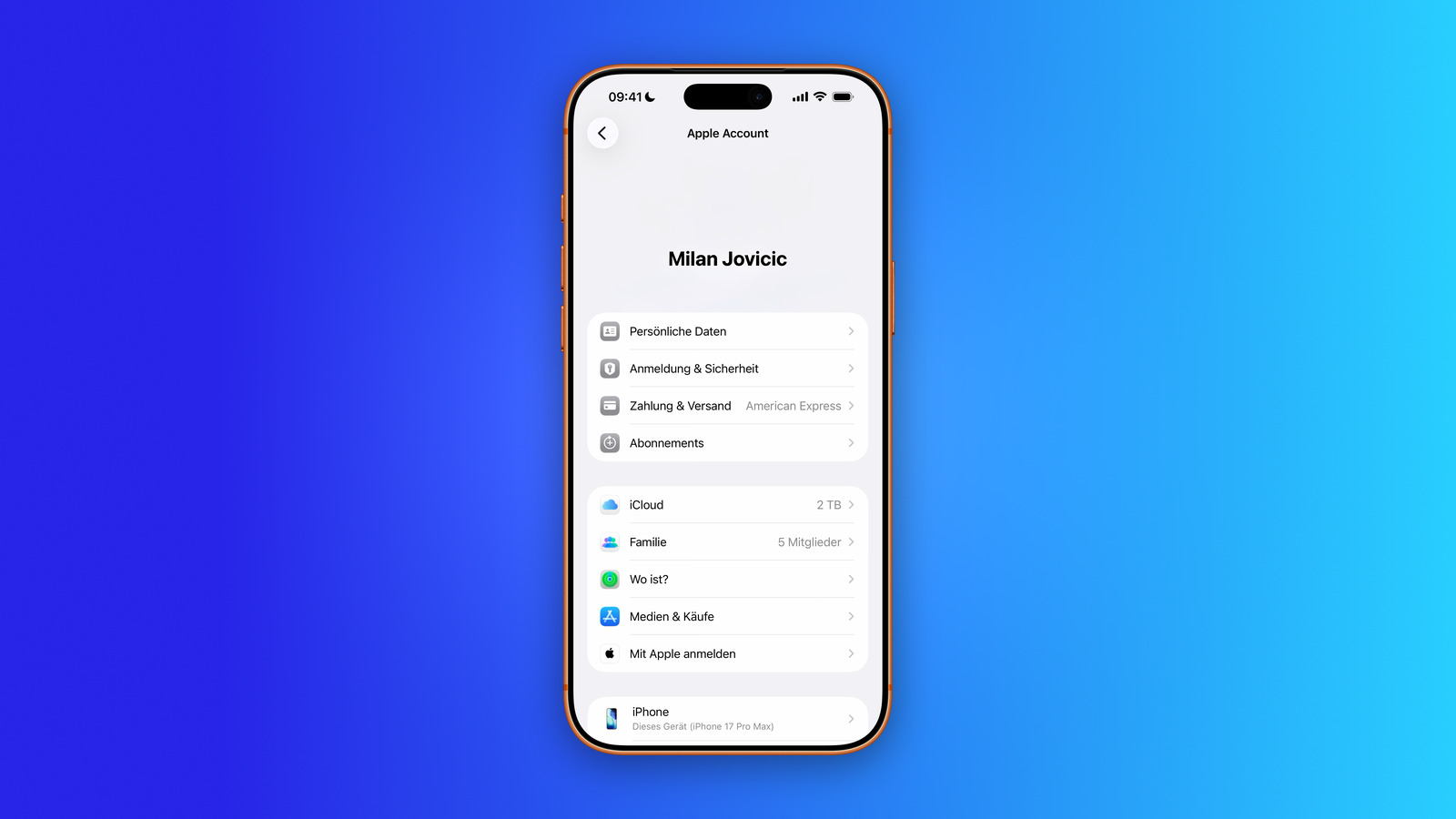
Without an Apple account, practically nothing works on an iPhone: iCloud, the App Store, iMessage, and FaceTime all depend on this single login. It can just as quickly become a problem – if the registered email address no longer exists or if a second account from the old iTunes days is still running. Getting in takes minutes. Getting out has irreversible consequences.
The Apple Account is the central key to all Apple services: iCloud, App Store, Apple Music, iMessage, FaceTime, and more. Until September 2024, it was called Apple ID. Apple announced the renaming at its developer conference in June 2024 and implemented it with the release of iOS 18, iPadOS 18, macOS Sequoia, and watchOS 11 on September 16, 2024.
Functionally, nothing has changed: same login, same purchases, same data. Anyone still encountering "Apple ID" in older instructions can simply replace the term with "Apple Account." The account consolidates payment information, subscriptions, and device backups in one place—all the more reason to use it with the Two-factor authentication to secure the account before making any changes to it.
Key Facts at a Glance
- The renaming of Apple ID to Apple Account took place in September 2024 with iOS 18 – purely linguistic, without any functional consequences.
- A new account can be created during initial setup, subsequently in the settings, or at account.apple.com even without an Apple device.
- You can change your primary email address without losing purchases, contacts, or iCloud data.
- Logging out, deactivating and deleting are three different processes – only one of them is permanent.
- After deletion, the email address used remains blocked for new Apple accounts for years.
An Apple account is typically created when setting up a new iPhone for the first time and then automatically syncs to all devices signed in with the same account. This includes iCloud data, app purchases, subscriptions, payment information, and security settings.
Create an Apple Account
An Apple account is usually created automatically when setting up a new iPhone – the setup assistant guides you through the process step by step. If you already own a device and need another account, you can also create one via the settings or in a web browser.
During initial setup
When setting up a new iPhone, the setup assistant automatically offers to create a new Apple account. You'll need an email address or a newly created iCloud address, a secure password, your date of birth, and your country. Two-factor authentication will then be set up.
Retrospectively on the iPhone
Anyone who needs an additional Apple account – for example, to separate private and professional purchases – should log out of their existing account on their iPhone and create a new one.
- Open Settings and tap „Apple Account” at the top.
- Tap on „Create a new Apple account”.
- Enter your email address, password, date of birth and country.
- Specify payment method or select "None".
- Confirm phone number for verification.
- Open the confirmation email from Apple and verify the address.
On the internet
You can create an Apple account at account.apple.com even without an Apple device, for example on a Windows PC or an Android smartphone. The process is identical: email address, password, date of birth, country, and setting up two-factor authentication.
Account for children
Children below a certain age cannot create their own account – in Germany it is 16 years, in Austria 14, and in Switzerland 13. Apple lists the limits for each country in an overview of region-specific rules.
Below this limit, the family organizer sets up the account via Family Sharing. Detailed instructions on how this works can be found in the guide for Apple Accounts for Children.
Change your Apple Account – primary email address
Two processes are frequently confused: changing the primary email address of the account, i.e., the login name, and changing the password. Both are done via the same section in the settings, but have different consequences.
Change email address
Your primary email address is the username you use to log in to Apple. You can change it later without losing purchases, contacts, or iCloud data. The easiest way to do this is directly on your iPhone.
- Open settings and tap your own name at the top.
- Tap on „Registration & Security”.
- Tap on your current email address.
- „Choose "Remove from account" or "Change email address" – which option appears depends on whether it is an iCloud address or the address of another provider.
- Enter and confirm your new email address.
With an iCloud address, iCloud Mail and all existing messages will remain; the new address simply replaces the old one as your login. An address that already belongs to another Apple account cannot be used. Alternatively, you can go to account.apple.com, also in the "Sign-in & Security" section.
Change Password
The password is changed separately; the steps for device and web are described in the Apple Account password guide. If you can no longer access your account at all, you can use the "forgotten password" recovery option. If you want to protect yourself against this scenario, you can set up a recovery contact.
Log out, deactivate or delete – the difference
Three processes are regularly equated, although only one of them is irreversible.
| Occurrence | What happens to the data | Undo it? | What is it intended for? |
|---|---|---|---|
| Log out | The data remains on Apple's servers; only the device loses access. | You can log in again at any time. | Equipment sale, equipment exchange |
| Deactivate | They will remain, access will be blocked. | Yes, the account can be reactivated. | Pause, uncertainty about the next steps |
| Delete | They will be permanently removed from the servers. | No | Final farewell to the account |
If you are selling or giving away your iPhone, the first step is perfectly sufficient.
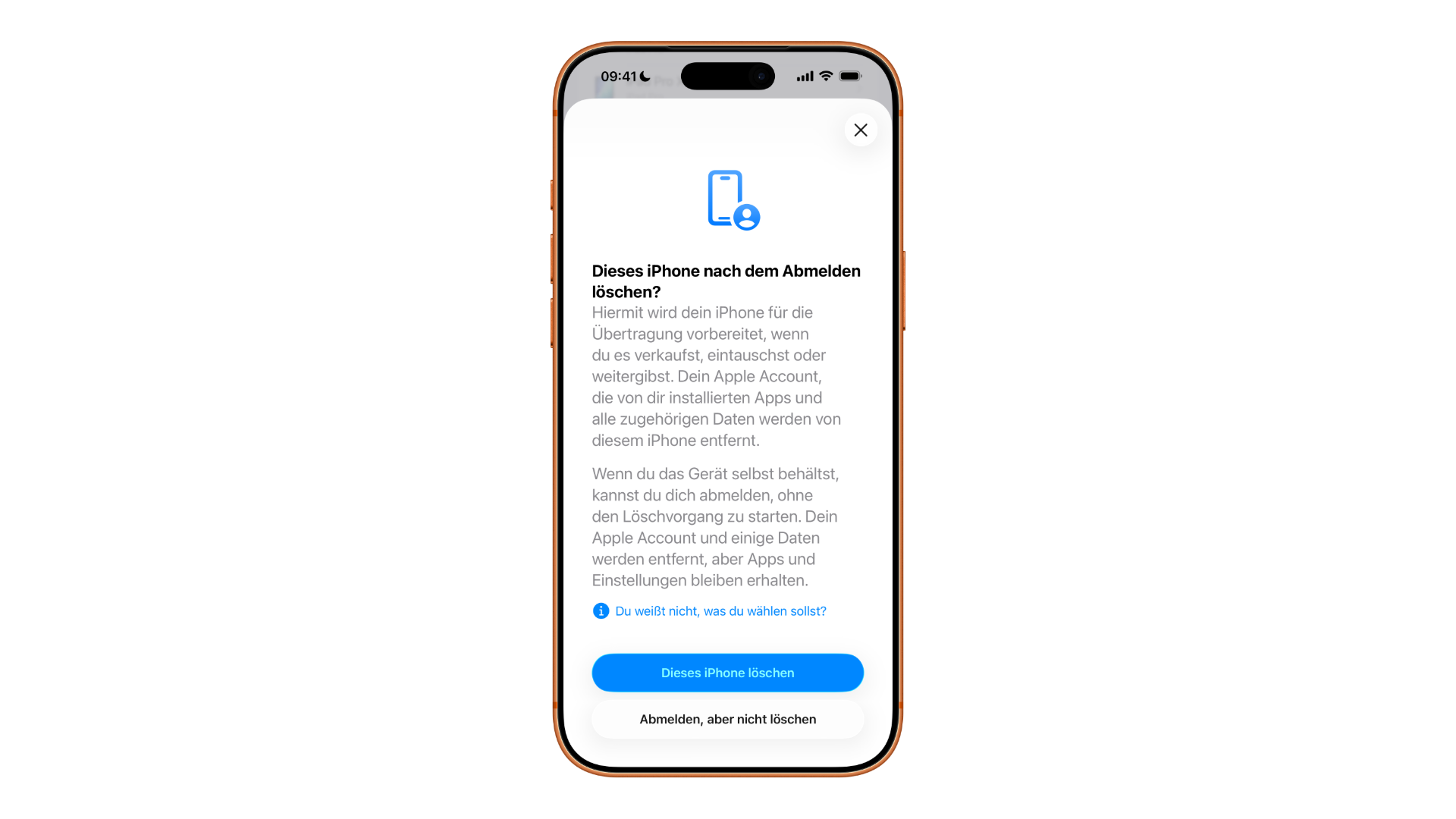
Remove Apple Account from iPhone
- Open settings and tap your own name at the top.
- Scroll down and tap "Log out".
- Enter and confirm your Apple account password.
- Choose whether to keep a copy of the iCloud data on the device.
- Tap "Log out" again.
After that, the device can be reset. The different methods for doing so are described in the overview on resetting an iPhone.
Delete Apple Account – permanently
Deleting an Apple account is irreversible. All associated data, purchases, subscriptions, and iCloud content are permanently removed, and Apple cannot reopen a deleted account or recover the data.
Check before deleting
Apple lists several things that should be done before submitting a deletion request. Some of these will completely block the deletion if the request is not fulfilled.
- Back up all iCloud data locally, in a location where this account is not needed.
- Download purchased apps, music, movies, TV shows, and books for which no copy exists.
- Canceling an active AppleCare One subscription – as long as it is active, the account cannot be deleted.
- Review active subscriptions: They continue to run after deletion until the end of the respective billing period.
- Spend any remaining balance or request a refund from Apple Support. Once deleted, it is neither redeemable nor refundable.
- Log out of all devices. After that, the activation lock cannot be removed, and the device may become unusable.
Anyone organizing Family Sharing should keep one additional point in mind: Deleting the account will dissolve the family group, and any child accounts within the group will also be deleted. If this is not desired, a child account can be transferred to another family beforehand. Apple provides a complete list in its support document on deleting an Apple account.
Delete account
Deletion is requested via Apple's privacy portal. Open privacy.apple.com in your browser, sign in with your Apple account, and select "Request to delete your account." Apple will then issue a unique alphanumeric access code.
This code should be kept in a safe place: While the request is being processed, the deletion can only be canceled by contacting Apple Support and providing the code. Apple does not specify a fixed processing time. First, it is verified that the request actually originates from the account holder; only then are account data and associated content removed from the servers. A request for anonymization is treated like a deletion request and goes through the same process.
What remains blocked after deletion
One point is regularly overlooked and affects everyone who wants to return later: A new Apple account cannot be created using the email address or phone number of the deleted account as long as Apple retains a one-way hash of it.
For addresses from third-party providers, this hash is deleted after six years; for other accounts, retention is governed by Apple's guidelines. If the primary address is on a custom domain, it can never be used again for an Apple account—even if the domain later belongs to someone else. It can only be used as a backup address for another account.
Deactivate Account instead of deleting it
If you're unsure, you can temporarily deactivate your account instead. This option can also be found at privacy.apple.com. Deactivating your account will retain your data; only access will be blocked, and you can reactivate it later.
Transfer purchases to another Apple account
Users who have historically used two accounts—one for iCloud and an older one solely for purchases—can transfer apps, music, and other content from the secondary to the primary account. When it was first introduced in early 2025, the feature was initially blocked in the EU; Apple's German-language support document now only lists India as an exception. However, a separate timeframe applies in the EU: purchases made with account balances can take up to 15 days to be fully processed.
Requirements include two-factor authentication on both accounts, the same country and region, a depleted balance on the secondary account, and a working payment method. Child accounts from Family Sharing are excluded. The process involves going to Settings, your own name, "Media & Purchases," "View Account," and then "Transfer Purchases.".
Two things are absolutely clear enough to know beforehand: The secondary account can no longer be used for "Media & Purchases" afterward, and according to Apple, anyone who subsequently deletes it will lose access to the transferred purchases. Revoking the transfer is possible, but it blocks another transfer for one year.
Common problems and solutions
“Account cannot be created”
This message appears if too many accounts have been created in a short period of time, the email address is already in use, or the device is not running the latest software. Updating to the latest iOS version and using a different email address usually resolves the issue. Alternatively, you can create an account at account.apple.com.
Forgot your password?
You can reset your password under Settings > Apple Account > Sign-in & Security. Alternatively, you can go to iforgot.apple.com. Two-factor authentication and a trusted device will significantly speed up the process.
Merge two Apple Accounts
Apple doesn't offer a true account merger. The practical solution is to transfer purchases to the primary account and then deactivate the second account. Deleting the second account is the worse option, as it would mean losing access to the transferred content. The purchase history of your Apple account shows which purchases and subscriptions are associated with which account.
Deletion is the decision with the longest-lasting effect
Creating and modifying accounts is harmless: A second account can be set up in minutes, a new primary address takes a few taps and doesn't jeopardize purchases or contacts. Deleting an account, however, changes everything.
A blocked email address, a dissolved family group, and expired credit cannot be recovered later with any support call. And the most common reason for deletion is precisely when it's the wrong tool: If you only want to get rid of an old secondary account, deactivation accomplishes the same thing without permanently locking the address away. Deletion is only worthwhile if you truly want all data removed from Apple's servers.
What's keeping you with your second account – old purchases, an address you don't want to give up, or simply the worry of losing something during the transfer? Tell us in the comments what the reason is for you.
Frequently Asked Questions: Creating, changing, and deleting an Apple account
There is no functional difference. Apple renamed the term "Apple ID" to "Apple Account" in September 2024 with iOS 18, iPadOS 18, macOS Sequoia, and watchOS 11. Login, data, and services remain the same.
During initial setup, the setup assistant guides you through the process. Enter your email address, password, and date of birth, specify a payment method or select "None," and verify the confirmation email. You can also create a new account later via Settings and "Create New Apple Account.".
Yes. Go to Settings > Your Name > Sign-in & Security, tap your current email address, and enter a new one. Your purchases, contacts, and iCloud data will be retained. You cannot use an address that already belongs to another Apple account.
The deletion is irreversible. iCloud data, purchases, subscriptions, and linked services will be permanently removed. For family organizers, the family group will also be dissolved, and any child accounts within the group will be deleted as well.
Apple doesn't specify a fixed duration. First, they verify that the request originates from the account holder; only then is the data removed. Until then, the request can be canceled by contacting Apple Support and providing the access code received.
No, not for years. Apple retains a one-way hash of the address; for addresses from third-party providers, this is for six years. An address under your own domain can never be used again for an Apple account.
Yes. The feature was initially blocked in the EU when it was launched in early 2025; according to Apple's current support document, only India remains exempt. Within the EU, purchases made with Apple credit require up to 15 days' notice, and child accounts are excluded.





