

apple patient
  • Home
  • News
  • Rumors
  • Tips & Tricks
  • Reviews
  • Insights
No Result
View All Result
  • iPhone 18
  • iOS 27
  • iPadOS 27
  • macOS
  • MacBook Neo
  • iPhone 17e
  • AirTags
  • iOS 26
  • iPhone 17
  • MacBook Pro
  • iPadOS
  • iMac
  • Mac mini
  • HomePod
  • Apple TV
  • iPad Pro
  • iPhone Air
  • Apple Vision Pro
  • iPhone 16
  • AirPods 4
  • Apple Watch Ultra
  • HomePod Mini
  • MacBook Air
  • iPad
  • AirPods Max
  • AirPods Pro 3
  • Apple Watch Series 3
  • Mac Studio
  • Studio Display
  • iPad Air
  • iPad mini
  • watchOS 27
  • Apple CarPlay
  • Apple Pay
  • watchOS 26
  • Home
  • News
  • Rumors
  • Tips & Tricks
  • Reviews
  • Insights
No Result
View All Result
apple patient
No Result
View All Result
  • iPhone 18
  • iOS 27
  • iPadOS 27
  • macOS
  • MacBook Neo
  • iPhone 17e
  • AirTags
  • iOS 26
  • iPhone 17
  • MacBook Pro
  • iPadOS
  • iMac
  • Mac mini
  • HomePod
  • Apple TV
  • iPad Pro
  • iPhone Air
  • Apple Vision Pro
  • iPhone 16
  • AirPods 4
  • Apple Watch Ultra
  • HomePod Mini
  • MacBook Air
  • iPad
  • AirPods Max
  • AirPods Pro 3
  • Apple Watch Series 3
  • Mac Studio
  • Studio Display
  • iPad Air
  • iPad mini
  • watchOS 27
  • Apple CarPlay
  • Apple Pay
  • watchOS 26

iOS 13 – How to connect a Playstation or Xbox controller to your iPhone, iPad, Mac or Apple TV

Milan Jovicic by Milan Jovicic
September 5, 2019 - 01:09 CEST
in Apple Tips & Tricks
1
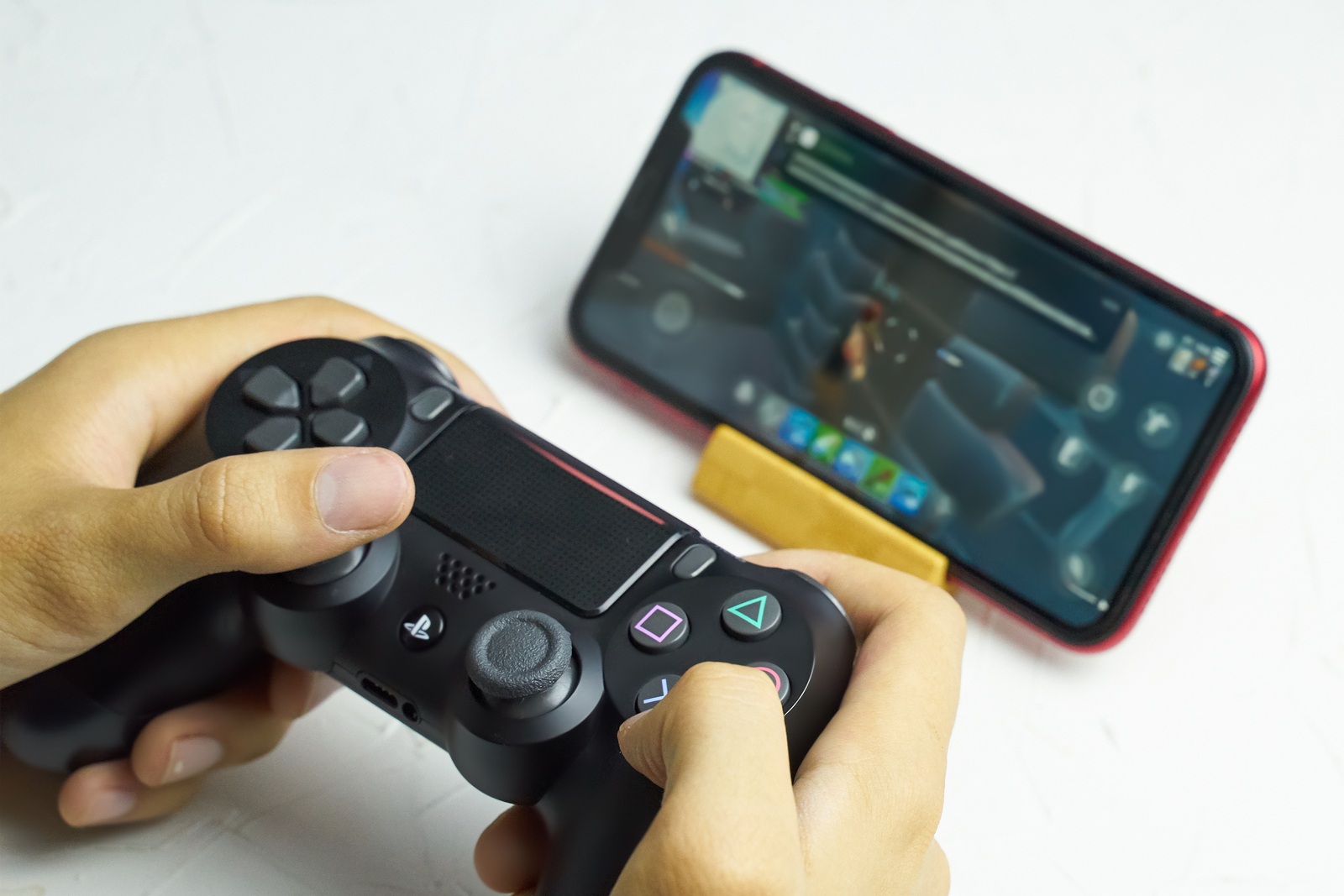
Bishkek, Kyrgyzstan - June 06, 2019: Man playing games on Apple arcade subscription system on iOS 13 with Sony Dualshock gamepad

Bishkek, Kyrgyzstan - June 06, 2019: Man playing games on Apple arcade subscription system on iOS 13 with Sony Dualshock gamepad

WhatsAppFacebookEmail
Threads

Gaming on iPhone and iPad is becoming more and more interesting. The App Store offers more and more choice every day, but the controls on the display sometimes limit the gaming experience. That is about to change – under iOS 13,  iPadOS, tvOS 13 and macOS Catalina allow users to connect their Playstation 4 or Xbox One S joystick to their iPhone or iPad and we'll show you how. 

Gaming on iPhone, iPad and Apple TV, but also on Mac, is becoming increasingly popular - but if someone wants to play with a joystick, they have to use a certified controller - there are various models for this, but these cannot be compared to a real Playstation 4 or Xbox One S joystick - Apple knows that too. The announcement at WWDC 2019 that the popular console joysticks for iPhone, iPad, Mac and Apple TV would be supported caused great cheers among many fans. One reason for this innovation is probably the introduction of Apple's new gaming service - Apple Arcade. But how are the two popular console joysticks connected to the iPhone, iPad, Mac and Apple TV? We'll show you.

How to connect your Playstation 4 or DualShock 4 controller to your iPhone, iPad or Apple TV

In order to connect a Playstation 4 controller to your iPhone or iPad, the device must have iOS 13 or iPadOS or later. Then open the settings on your iPhone or iPad and navigate to "Bluetooth". Now you have to hold down the PS button and Share button on your DualShock 4 controller at the same time - after about five seconds the LED status display should start flashing. The joystick with the name "DualShock 4 Wireless Controller" should now appear on your iPhone or iPad under Bluetooth - now you can connect it to your iOS device. From here you can open a game and control it with the connected controller. If you want to disconnect the connection between the two devices, you can do this by pressing the PS and Options buttons at the same time. Alternatively, you can deactivate Bluetooth on your iPhone or iPad. If you want to connect your DualShock 4 to an Apple TV, you need at least tvOS 13 or later. You can then open the "Remote Control" menu under Settings on the Apple TV and select "Devices". Now navigate to “Bluetooth” and follow the steps above for the joystick itself.

How to connect your Xbox One S controller to your iPhone, iPad or Apple TV

In order to pair your Xbox One S joystick with your iPhone or iPad, you will need at least iOS 13 or iPadOS or newer. Note: Older Xbox controllers are not compatible with Apple devices. Now open the settings on your iPhone or iPad and navigate to the Bluetooth section. Then hold down the button for wirelessly connecting your Xbox One S controller - after about five seconds the Xbox logo should flash. The joystick will now appear in the list of Bluetooth devices on your iPhone or iPad under the name "Xbox Wireless Controller". As soon as a connection has been established, you can start using the controller. To connect the Xbox joystick to an Apple TV, you have to follow the same steps as described above.

How to connect a Playstation 4 or Xbox One S controller to your Mac

Of course, you can connect both console joysticks to a Mac under macOS 10.15 Catalina. To do this, you need to open the system settings of your Mac device and call up the Bluetooth menu. Now carry out the steps described above for the respective controller.

Please note – not every game is compatible with a joystick. Some titles even allow you to assign the buttons yourself. You can find out whether a game is compatible with a joystick in the description of the respective app. Apple Arcade, for example, will contain a lot of games that can also be played with a joystick. In addition to the two popular console joysticks, there are also products from other providers. It is important to note that the accessories have a MIF seal (Made-for-iPhone). You don't have a console joystick yet and want to buy one? You can find the PlayStation 4 – DualShock 4 Wireless Controller and Microsoft Xbox Wireless Controller. (Photo by Konstantin Savusia / Bigstockphoto)

Make Apfelpatient a preferred source One click – and you'll see us more often on Google
Was this article helpful?
YesNo
Tags: Apple ArcadeApple ServicesApple TViOSiOS 13iPadiPadOSiPhoneMacmacOSmacOS 10.15 CatalinatvOStvOS 13
SendShare234Send
Share

Our Amazon Storefront

A handpicked selection of products for iPhone, Mac and more – sorted by topic and updated regularly.

Shop Now

This post contains affiliate links (including Amazon). We earn a small commission on qualifying purchases – at no extra cost to you. Learn more on our Partner Program page.

Previous Post

New data breach at Facebook – millions of phone numbers in circulation

Next Post

Galaxy Fold – Samsung announces market launch

Milan Jovicic

Milan Jovicic

Milan founded Apfelpatient in 2016 and has been responsible for all editorial content since 2018 — news, rumors, guides, and product reviews. Apple devices here are not test units on loan for two weeks but everyday tools: from the iPhone through MacBook Pro, MacBook Air, and iMac to the Apple Vision Pro, at least one device from nearly every product category is in daily use, many of them replaced annually. Every menu path in a guide is verified on the device before it is published.

Related posts

iPhone in an orange case connected to a USB-C cable, the starting point for juice jacking at unknown ports
Apple Tips & Tricks

Juice Jacking: How dangerous foreign USB ports really are

September 9, 2026 - 2:37 p.m. CEST
FileVault enabled with recovery key shown in the macOS System Settings
Apple Tips & Tricks

Activate FileVault: Encrypt and protect your Mac hard drive

September 7, 2026 - 4:27 p.m. CEST
Apple legacy contact: iPhone showing the setup dialog with three steps and the button to add a contact
Apple Tips & Tricks

Apple Legacy Contact: Set up access for family members

September 7, 2026 - 2:22 p.m. CEST

Comments 1

  1. Pingback: Razer Kishi Review: The Best iPhone Gaming Controller | Apfelpatient

Categories

  • Apple Insights
  • Apple Rumors
  • Apple News
  • Apple Tips & Tricks
  • iPhone news, rumors and tips
  • Mac and MacBook News
  • Reviews

About APFELPATIENT

APFELPATIENT brings you the latest Apple news, product updates, guides, reviews and tips across the entire Apple ecosystem — from the iPhone to the Mac to the Apple Vision Pro. From the first rumors to confirmed news: researched responsibly.

Follow Apfelpatient

Facebook Instagram YouTube Threads Threads

Company

  • About Apfelpatient
  • Contact
  • Author Profiles

Community

  • Netiquette
  • Push Notifications
  • RSS feed

Legal

  • Legal Notice
  • Privacy Policy
  • Terms of Use
  • Cookie Settings
  • Affiliate Program

Resources

  • Sitemap

© 2026 Apfelpatient. All rights reserved.

No Result
View All Result
  • Home
  • News
  • Rumors
  • Tips & Tricks
  • Reviews
  • Insights

© 2026 Apfelpatient. All rights reserved. Page Directory

Change language to Deutsch




