

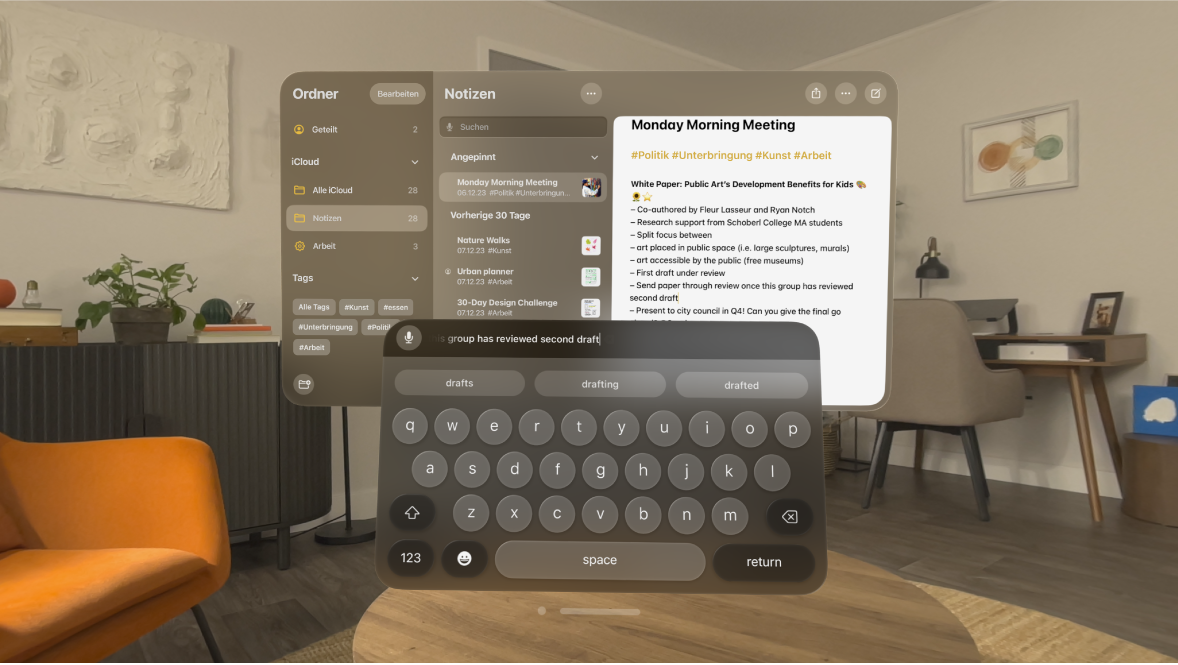
The Apple Vision Pro brings a revolutionary type of word processing to the world of virtual reality. With the virtual keyboard on the Apple Vision Pro, you can enter, edit and adapt texts easily and intuitively. Whether through gestures, dictation function or connecting to external devices such as the Magic Keyboard and trackpad - the possibilities are varied and flexible. In this article, you will learn how to make the most of the various functions of the virtual keyboard to make your text input more efficient and pleasant.
The new technology opens up many exciting ways for you to enter and edit text in virtual reality. Whether you are an experienced user or a newbie, this article will provide you with valuable tips and tricks to get the most out of your Apple Vision Pro. Let's explore the different features and possibilities together!
Enter text using the virtual keyboard
typing on the virtual keyboard
The Apple Vision Pro's virtual keyboard is a powerful tool that allows you to enter text in a variety of applications. To enter text, simply tap a text field, for example in the Notes app or the Freeform app. Once the text field is activated, you have several options for entering text:
- Look at each key and tap: Look at the key you want, then tap your fingers together to press the key. This method allows for precise typing without physical touch.
- Touch keys: You can touch the keys on the virtual keyboard directly with one or more fingers. This method provides a familiar typing experience, similar to a traditional keyboard.
- Special characters and accents: Tap and hold on a letter to display special characters and accented characters. Alternatively, you can place your finger directly on the key to display the special characters.
preview of your input
As you type, the text you type is previewed at the top of the keyboard. This feature helps you check your input in real time and spot mistakes immediately.
Show and customize the keyboard
If you don't see the virtual keyboard, you can recenter your view by pressing and holding the Digital Crown. In some cases, such as when you're using a Bluetooth keyboard, you'll see a minimized version of the virtual keyboard. To see the full keyboard, tap the Show Keyboard button in the corner.
- Move keyboard: Use the window bar to move the keyboard to another location on your screen.
- Resize the keyboard: Tap and drag your fingers on one of the bottom corners of the keyboard to resize the keyboard to suit your needs.
Enter text using the dictation function
The dictation feature is a convenient alternative to entering text manually. Whenever the Dictate button appears on the virtual keyboard, you can tap it and enter text using your voice. This feature is especially useful when you want to enter longer texts quickly and without typing.
dictation function in search fields
In search fields, like in Safari, you can simply look at the Dictate key and speak to enter text. This feature saves time and makes navigating and searching the web easier.
Settings for the dictation function
If you want to disable dictation, you can do so in the settings. Go to Settings > Eyes & Hands and turn off Look to Dictation. This will allow you to control dictation manually and use it only when needed.
insertion point and text selection
Move the insertion point
The insertion point is the blinking cursor that indicates the position where new text is entered. To move the insertion point, tap and hold your fingers on the insertion point, then drag it to the desired position in the text field. Be careful not to drag the insertion point to the preview at the top of the virtual keyboard, but to the actual text field or work area of the app.
Select text
To select text, double-tap a word in the text field. Once the word is selected, you can tap, hold, and drag your fingers together at one end of the selected text to expand or contract the selection area. This method allows for precise text selection, ideal for corrections or formatting.
Delete text
Remove individual characters
To delete individual characters, tap or lightly touch the delete key. This method is suitable for minor corrections and adjustments.
Remove multiple characters
To delete multiple characters at once, tap and hold or touch and hold multiple characters. This feature is useful for quickly removing large chunks of text.
Delete larger text sections
To delete larger chunks of text, select all the text you want to delete and tap the Delete key. This method is efficient if you want to make extensive changes.
Change accessibility options
The Apple Vision Pro offers several accessibility options to optimize typing and text editing. These settings apply to both the virtual and external keyboard.
Automatic correction and intelligent punctuation
You can turn on or off options for auto-correction and smart punctuation (for example, changing two hyphens to one dash). Go to Settings > General and tap Keyboard. Under All Keyboards, you'll find a list of available typing features that you can customize to your needs.
Further adjustments
In addition to auto-correction and smart punctuation, you can customize other options such as automatic capitalization and text replacement. These features help you type faster and more accurately.
Tips and tricks for using the Apple Vision Pro
The Apple Vision Pro offers you innovative and flexible ways to enter text in virtual reality. Whether through the virtual keyboard, gestures, or the dictation function – operation is designed to be intuitive and efficient. With these tips and tricks, you can unlock the full potential of your Apple Vision Pro and optimize your text input. Immerse yourself in the world of virtual reality and experience a new dimension of productivity! Need useful tips for your Apple Vision Pro? Here you'll discover everything you need to know about your new Apple device – enjoy reading! Looking for new accessories? Visit our Amazon Storefront – there you'll find a wide variety of products from leading manufacturers, including products for HomeKit and more! (Image: Apple)
- Apple Vision Pro and Optical Inserts: What you need to know
- Tim Cook and the Apple Vision Pro: A daily companion
- Apple Vision Pro: Siri functions in detail
- Apple Vision Pro: EyeSight Features and Benefits
- Care and Cleaning of your Apple Vision Pro: Tips & Tricks
- Apple Vision Pro: How to find the best 3D movies
- Cloud gaming and streaming with Apple Vision Pro





