

apple patient
  • Home
  • News
  • Rumors
  • Tips & Tricks
  • Reviews
  • Insights
No Result
View All Result
  • iPhone 18
  • iPhone 18 Pro
  • iPhone Duo
  • Apple Watch Series 12
  • Apple Watch Ultra 4
  • AirPods 5
  • iOS 27
  • iPadOS 27
  • macOS
  • MacBook Neo
  • iPhone 17e
  • AirTags
  • iOS 26
  • iPhone 17
  • MacBook Pro
  • iPadOS
  • iMac
  • Mac mini
  • HomePod
  • Apple TV
  • iPad Pro
  • iPhone Air
  • Apple Vision Pro
  • iPhone 16
  • AirPods 4
  • Apple Watch Ultra
  • HomePod Mini
  • MacBook Air
  • iPad
  • AirPods Max
  • AirPods Pro 3
  • Apple Watch Series 3
  • Mac Studio
  • Studio Display
  • iPad Air
  • iPad mini
  • watchOS 27
  • Apple CarPlay
  • Apple Pay
  • watchOS 26
  • Home
  • News
  • Rumors
  • Tips & Tricks
  • Reviews
  • Insights
No Result
View All Result
apple patient
No Result
View All Result
  • iPhone 18
  • iPhone 18 Pro
  • iPhone Duo
  • Apple Watch Series 12
  • Apple Watch Ultra 4
  • AirPods 5
  • iOS 27
  • iPadOS 27
  • macOS
  • MacBook Neo
  • iPhone 17e
  • AirTags
  • iOS 26
  • iPhone 17
  • MacBook Pro
  • iPadOS
  • iMac
  • Mac mini
  • HomePod
  • Apple TV
  • iPad Pro
  • iPhone Air
  • Apple Vision Pro
  • iPhone 16
  • AirPods 4
  • Apple Watch Ultra
  • HomePod Mini
  • MacBook Air
  • iPad
  • AirPods Max
  • AirPods Pro 3
  • Apple Watch Series 3
  • Mac Studio
  • Studio Display
  • iPad Air
  • iPad mini
  • watchOS 27
  • Apple CarPlay
  • Apple Pay
  • watchOS 26

SharePlay: How to share your screen on iOS 15.1

Milan Jovicic by Milan Jovicic
October 26, 2021 - 17:50 CEST
in Apple Tips & Tricks
0
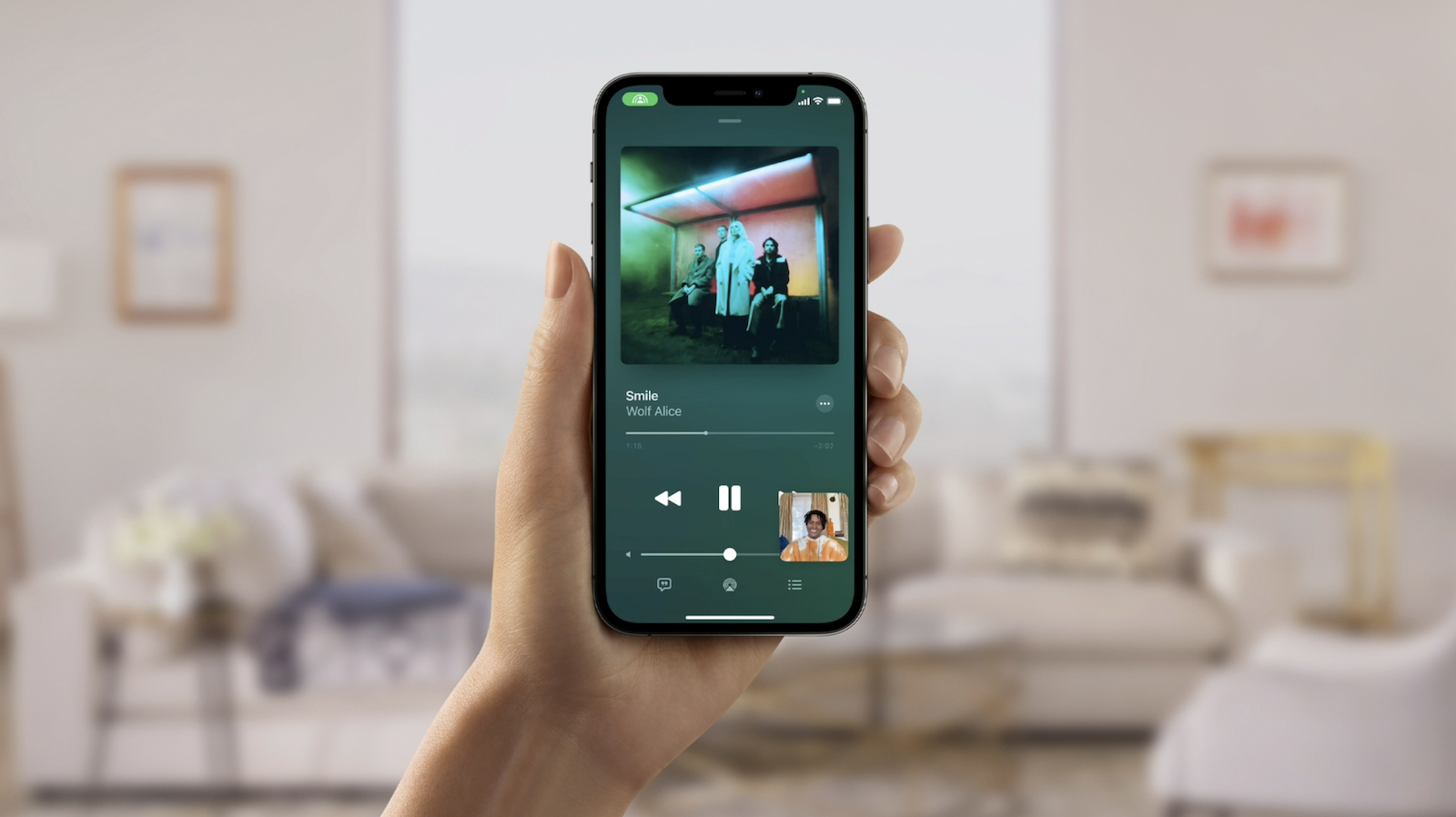
iOS 15.1 SharePlay: How to share your screen during a FaceTime call

Image: Apple - SharePlay

WhatsAppFacebookEmail
Threads

Some useful functions have been released in iOS 15, including some that users have been wanting for a long time. However, one feature was only added in iOS 15.1 - SharePlay. From now on, users can also share their screen during a FaceTime call. We'll show you how it all works below.

Apple has finally integrated SharePlay and screen sharing for FaceTime calls in iOS 15.1. This allows users to share their screen during a FaceTime call and show the callers their photo album, introduce an app, or similar.

Screen sharing: How to share your screen in FaceTime

Below we will guide you through the essentially simple process:

  • Start FaceTime on your iPhone or iPad.
  • Select the contact you want to call.
  • Once the conversation starts, you can tap the SharePlay button in the top right corner of the screen.
  • Now select "Share my screen" from the dropdown. After a three-second countdown, screen sharing should begin.

FaceTime SharePlay: Watch a movie together

Once FaceTime screen sharing has started, you can navigate to any app you want to share with the callers. A sharing icon will remain visible in the top left corner of the screen to indicate that FaceTime screen sharing is active. You can tap it at any time to open the FaceTime control panel. You can also swipe the window of your call partner to the side to create more space on the display. Users can also listen to music or watch films and series together via the SharePlay interface. If films or similar are streamed during the call, all call participants can watch equally. The playback is synchronized - have fun with the next FaceTime call. Are you looking for new accessories? Then take a look in our Amazon Storefront - there you will find numerous products from leading suppliers. (Image: Apple)


  • iOS 15 & iPadOS 15 Gameplay: Record the last 15 seconds
Make Apfelpatient a preferred source One click – and you'll see us more often on Google
Was this article helpful?
YesNo
Tags: Apple ServicesiOSiOS 15iOS 15.1iPadOSiPadOS 15iPadOS 15.1
SendShareSend
Share

Our Amazon Storefront

A handpicked selection of products for iPhone, Mac and more – sorted by topic and updated regularly.

Shop Now

This post contains affiliate links (including Amazon). We earn a small commission on qualifying purchases – at no extra cost to you. Learn more on our Partner Program page.

Previous Post

Launch of iLappen, Macbook Pro 2021 and AirPods 3

Next Post

Will Apple introduce the iPhone SE Plus next year?

Milan Jovicic

Milan Jovicic

Milan founded Apfelpatient in 2016 and has been responsible for all editorial content since 2018 — news, rumors, guides, and product reviews. Apple devices here are not test units on loan for two weeks but everyday tools: from the iPhone through MacBook Pro, MacBook Air, and iMac to the Apple Vision Pro, at least one device from nearly every product category is in daily use, many of them replaced annually. Every menu path in a guide is verified on the device before it is published.

Related posts

Setting up iPhone Handoff: Here's how it works in iOS 27

by Milan Jovicic
September 24, 2026 - 5:50 p.m. CEST
iPhone showing the Set Up eSIM screen with the option to use the number on two iPhones selected, the first step to set up iPhone Handoff

Setting up iPhone Handoff under iOS 27: Requirements, costs at Telekom and why logging out only works via the provider.

Read moreDetails

How to Turn On Advanced Data Protection for iCloud

by Milan Jovicic
September 20, 2026 - 03:27 CEST
Advanced Data Protection for iCloud: iPhone showing the Advanced Data Protection settings page with the list of protected data and the Turn On option, next to a padlock

Advanced Data Protection for iCloud: 25 categories with end-to-end encryption. How to turn it on and secure your recovery options.

Read moreDetails

Selling Your iPhone Safely: How to Prepare Your Device the Right Way

by Milan Jovicic
September 19, 2026 - 9:04 p.m. CEST
Selling an iPhone safely: two iPhones lying face down on a grey surface, one orange and one black

Sell your iPhone safely: Backup, deregistration, activation lock and reset in the correct order – plus shipping step for the 18 Pro Max.

Read moreDetails

iPhone 18 Pro: Setting up Pro video storage for ProRes

by Milan Jovicic
September 19, 2026 - 7:56 p.m. CEST
Pro Video Storage on iPhone 18 Pro: iPhone showing the Configure Pro Video Storage dial at 150 GB and about 26 minutes of ProRes 4K 30 fps, next to a drive with a checkmark

No Pro Video storage, no ProRes: Here's how to reserve storage for video recordings on the iPhone 18 Pro and free it up again when needed.

Read moreDetails

Preparing your iPhone 18 Pro Max for shipping: Here's how

by Milan Jovicic
September 19, 2026 - 03:15 CEST
Preparing iPhone 18 Pro Max for shipping: iPhone showing the shipping reason screen with Repair, Trade-in or Return and Other, next to a battery with a downward arrow

iPhone 18 Pro Max before shipping: Batteries larger than 20 Wh must be discharged using the "Prepare for Shipping" function. Here's how to do it for repairs and sales.

Read moreDetails
Load More

Categories

  • Apple Insights
  • Apple Rumors
  • Apple News
  • Apple Tips & Tricks
  • iPhone news, rumors and tips
  • Mac and MacBook News
  • Reviews

About APFELPATIENT

APFELPATIENT brings you the latest Apple news, product updates, guides, reviews and tips across the entire Apple ecosystem — from the iPhone to the Mac to the Apple Vision Pro. From the first rumors to confirmed news: researched responsibly.

Follow Apfelpatient

Facebook Instagram YouTube Threads Threads

Company

  • About Apfelpatient
  • Contact
  • Author Profiles

Community

  • Netiquette
  • Push Notifications
  • RSS feed

Legal

  • Legal Notice
  • Privacy Policy
  • Terms of Use
  • Cookie Settings
  • Affiliate Program

Resources

  • Sitemap

© 2026 Apfelpatient. All rights reserved.

No Result
View All Result
  • Home
  • News
  • Rumors
  • Tips & Tricks
  • Reviews
  • Insights

© 2026 Apfelpatient. All rights reserved. Page Directory

Change language to Deutsch


