This article may contain affiliate links. Learn more on our Partner Program page.
In addition to the variable aperture, the iPhone 18 Pro brings three more tools to the camera app that were previously unavailable: fixed white balance, manual shutter speed, and a live histogram. This guide explains how they work and when it's worth using them.
The iPhone 18 Pro's technical specifications list Apple's Pro controls for lens aperture, shutter speed, white balance, and histogram display. For video, Apple previously only offered manual shutter speed and adjustable white balance in the separate Final Cut Camera app; these features were missing from the Camera app itself. Aperture is a separate topic: how the iPhone 18 Pro's variable aperture works is described there. This section focuses on the other three tools.
All three are located in the camera app's control panel behind the six-dot icon and can be placed in the top bar of the camera app like any other element. They are available in both photo and video modes. All steps were taken using an iPhone 18 Pro Max with German as the system language.
Key Facts at a Glance
- The white balance offers the automatic "AWB" function and five presets from artificial light (3200 K) to shade.
- The shutter speed can be adjusted between 1 second and 1/16000 second using a dial.
- The histogram displays a brightness distribution by color channels directly in the viewfinder.
- Fixed values are indicated in yellow at the top bar with the set value.
- The Pro controls are only available on the iPhone 18 Pro and iPhone 18 Pro Max.
Set white balance
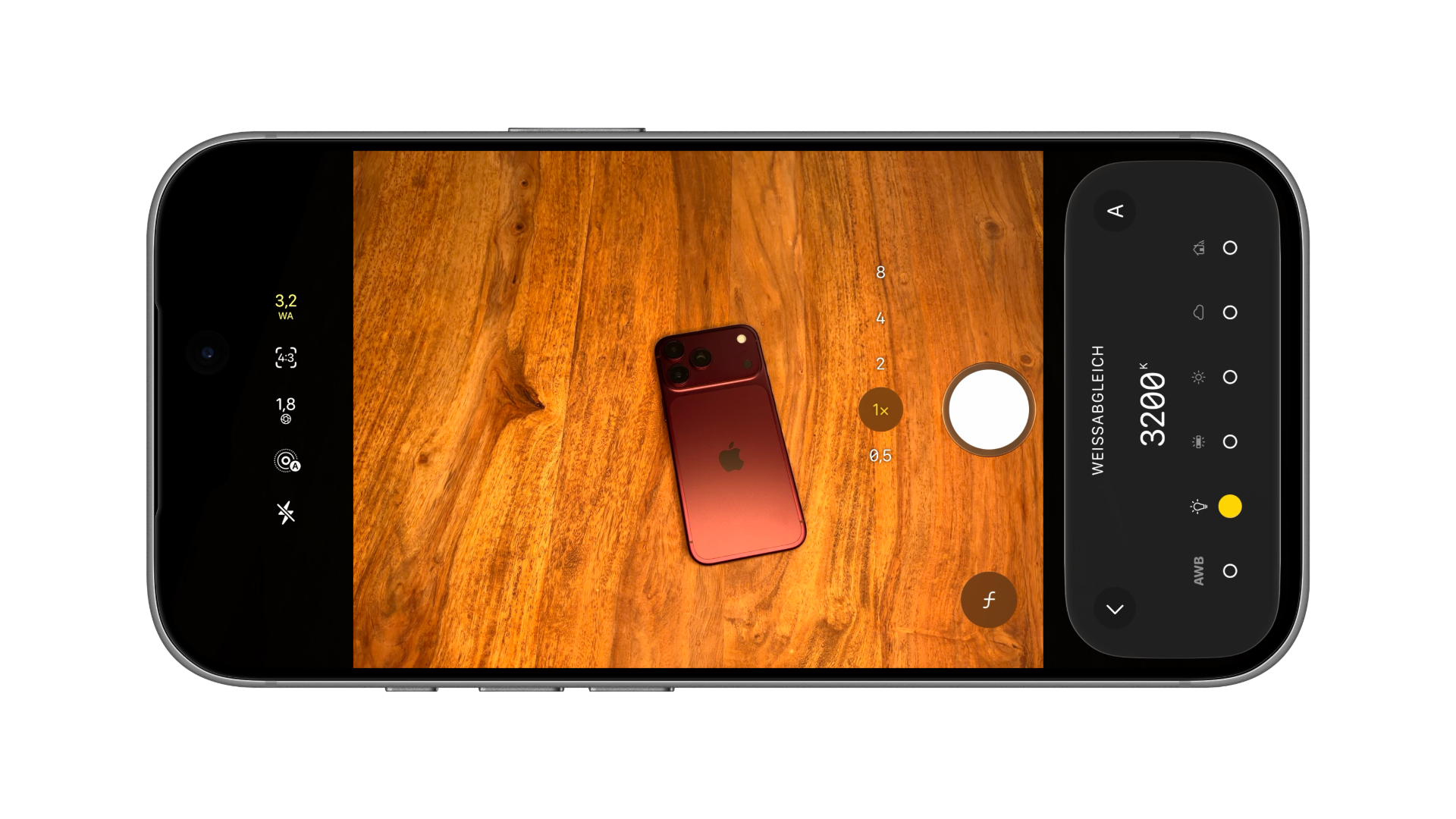
White balance determines how the camera compensates for the color of light. Incandescent bulbs bathe a subject in warm, yellowish light, while an overcast sky appears cooler. This is measured in Kelvin: the lower the value, the warmer the light source for which the white balance is set.
- Tap the icon with the six dots in the camera app.
- Tap on "White Balance".
- Select one of the six options. When you tap a preset, its name appears briefly, followed by the value.
| Option | Symbol | Value |
|---|---|---|
| AWB | Lettering | automatically |
| Artificial light | Lightbulb | 3200 K |
| Fluorescent light | Fluorescent tube | 4000 K |
| Daylight | Sun | 5500 K |
| Cloudy | Cloud | 6500 K |
| Shadow | House with shadows | 7500 K |
In automatic mode, the display shows the value currently determined by the iPhone in gray – in our test under artificial light, 3200 K. If a preset is active, a yellow "WA" appears in the top bar with the value in thousands of Kelvin, for example, "5.5" for daylight. There is no freely adjustable Kelvin slider.
Set shutter speed
The shutter speed determines how long light falls on the sensor. Short shutter speeds freeze motion, while long shutter speeds blur moving subjects. In the press release for the iPhone 18 Pro, Apple explicitly mentions artistic motion blur as a possible use case.
- Tap on "Shutter speed" in the control panel.
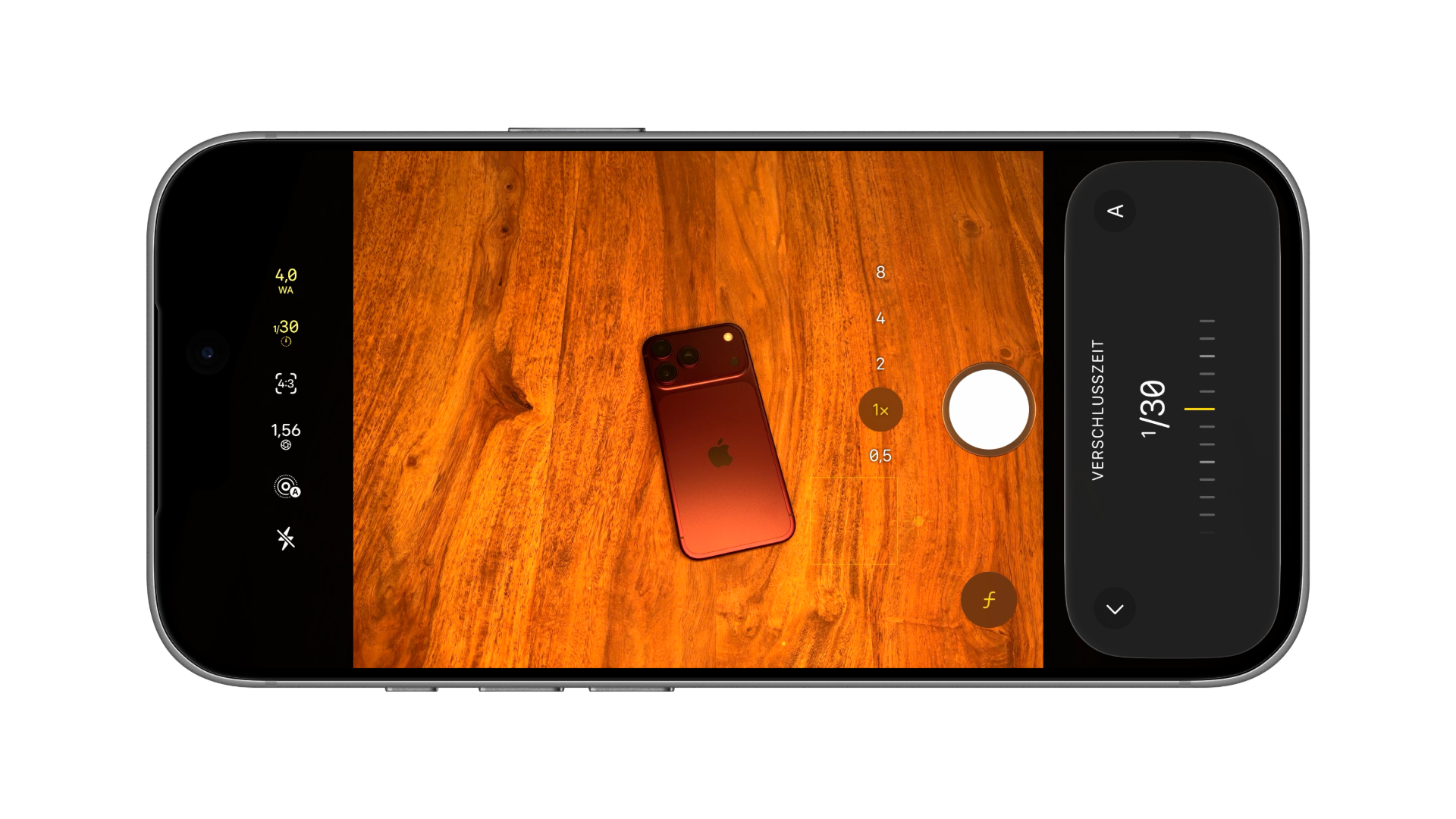
- Drag the slider below the display to the left or right. The set value is shown in large letters above it.
The dial ranges from "1 sec." to "1/16000". In our test, it was set to 1/30 when opened. The fixed time appears in yellow next to a clock symbol in the top bar, abbreviated as "1s" or "1/16k".
The preview reacts instantly. In our test under artificial light, the image was clearly overexposed at one second and almost black at 1/16000. Looking at the viewfinder therefore shows, even before pressing the shutter, whether the selected shutter speed is suitable for the lighting conditions.
Show histogram
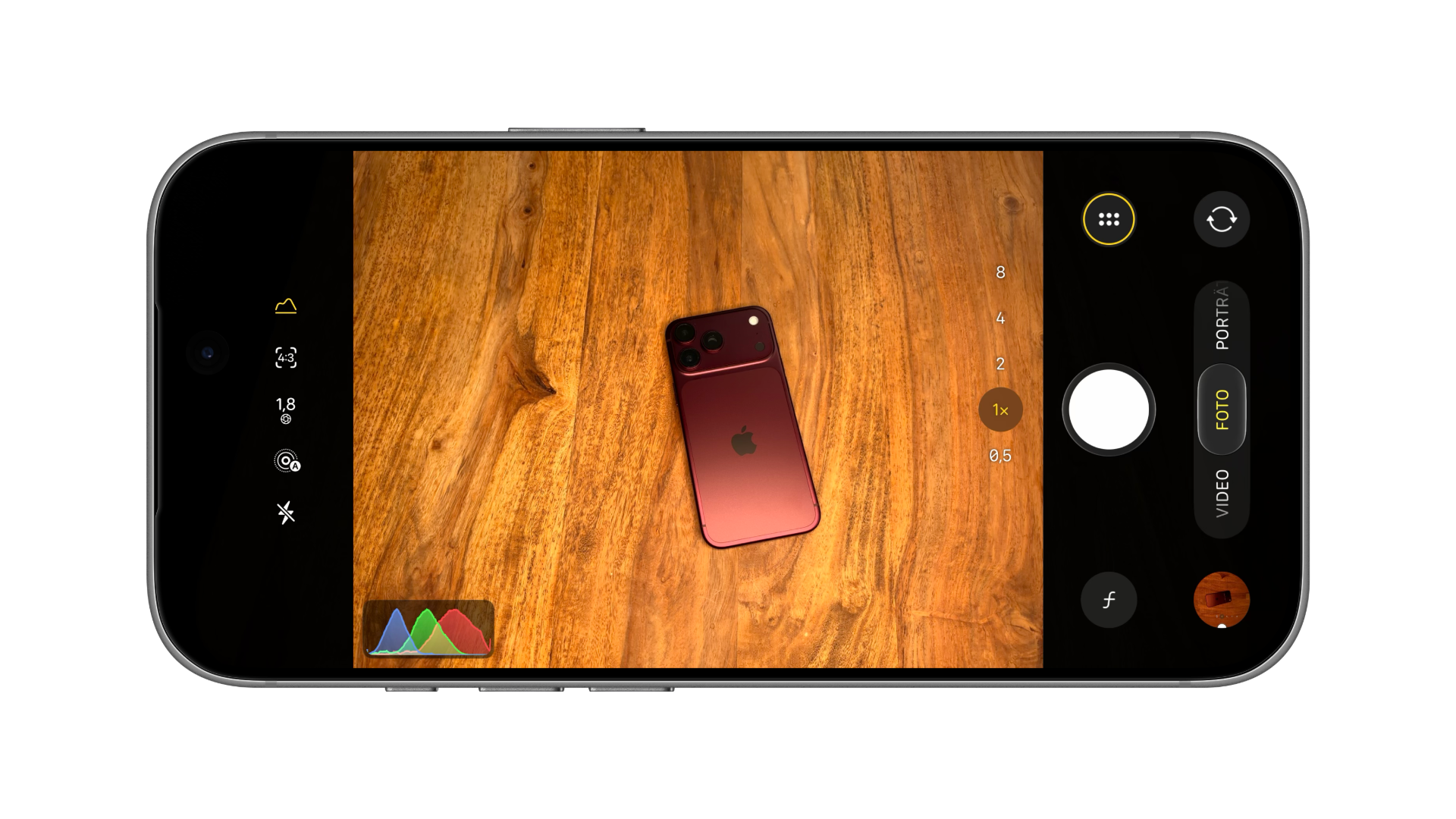
The histogram shows how the brightness is distributed in the image, separately for red, green, and blue. It appears as a small graphic at the edge of the viewfinder and updates live. Tapping "Histogram" in the control panel toggles it on or off; it is indicated by a yellow icon in the top bar when active.
A helpful rule of thumb when reading histograms is: when a curve reaches one of its two ends, details are lost there – in pure white or pure black. The histogram is therefore a more reliable indicator than the display, whose brightness can be misleading depending on the ambient light. It is particularly useful when used in conjunction with a fixed shutter speed.
Back to automatic
For white balance, "AWB" reverts to automatic mode. For shutter speed, the "A" button in the upper right corner of the control panel takes care of this. As long as a value is set, it remains highlighted in yellow in the top bar, making any forgotten settings noticeable.
When manual values are worthwhile
For everyday photos, the automatic setting is usually correct. Setting the white balance is particularly worthwhile when shooting a series of photos under the same lighting conditions, ensuring all images have the same color tone, or if the automatic setting neutralizes warm candle or lamp light too much. If you want to preserve the atmosphere of an evening, a preset with a higher Kelvin value is often the better choice.
Shutter speed is the more creative tool. Short shutter speeds are helpful for sports, animals, and children in motion. Long shutter speeds create light trails and soft water effects, but require a steady hand or a stable surface; otherwise, the entire image will be blurry.
White balance, shutter speed & histogram – the most important information at a glance
The white balance offers AWB and five presets from 3200 to 7500 Kelvin, the shutter speed a slider from one second to 1/16000, and the histogram a live control of brightness by color channel. All three are located in the control panel behind the six dots; fixed values are indicated in yellow by the top bar.
Which of the three tools do you use most often – or do you leave everything on automatic? Tell us in the comments which subjects you manually adjust.
Frequently Asked Questions: White balance, shutter speed and histogram on the iPhone 18 Pro
In the camera app, tap the icon with the six dots, then tap "White Balance". There you can choose from "AWB" for automatic white balance and five presets ranging from artificial light to shade.
Artificial light 3200 K, fluorescent light 4000 K, daylight 5500 K, cloudy 6500 K and shade 7500 K. There is no freely adjustable Kelvin value.
The control ranges from 1 second to 1/16000 of a second.
Short exposure times freeze fast movements. Long exposure times create motion blur, for example with light trails or flowing water.
In the control panel, tap "Histogram" behind the six dots. The graphic will then appear at the edge of the viewfinder.
Not in the camera app: Apple only lists white balance, shutter speed, histogram, and aperture as Pro controls for the iPhone 18 Pro and iPhone 18 Pro Max. However, Apple's free Final Cut Camera app offers manual shutter speed and adjustable white balance for videos, even on older iPhones.
Yes. Both, as well as the histogram, are also available in the video mode of the camera app.