This article may contain affiliate links. Learn more on our Partner Program page.
Blur and focus can now be applied to regular videos on the iPhone 18 Pro after the fact – without having to activate Cinema Mode beforehand. This also includes Cinema Mode recording at 60 frames per second and 4K time-lapse. This guide explains where the new video features are located and what you need to know.
In the technical specifications of the iPhone 18 Pro, Apple lists, among other things, Cinema Mode with up to 4K Dolby Vision and 60 fps, Cinema Mode effects from videos, and time-lapse videos with image stabilization up to 4K Dolby Vision. According to Apple's press release for the iPhone 18 Pro, Cinema Mode effects can be applied to videos at up to 60 fps after recording.
All steps were taken using an iPhone 18 Pro Max with German system language. The controls available in time-lapse mode are the same as those for aperture and the Pro controls for white balance and histogram.
Key Facts at a Glance
- Normal videos with up to 60 fps can be subsequently transformed into cinematic videos with adjustable blur in the Photos app.
- The cinema mode itself now records up to 4K at 60 fps, with one minute then taking up around 400 MB.
- Time-lapse recording is available in 4K, switchable directly in the camera app or permanently in the settings.
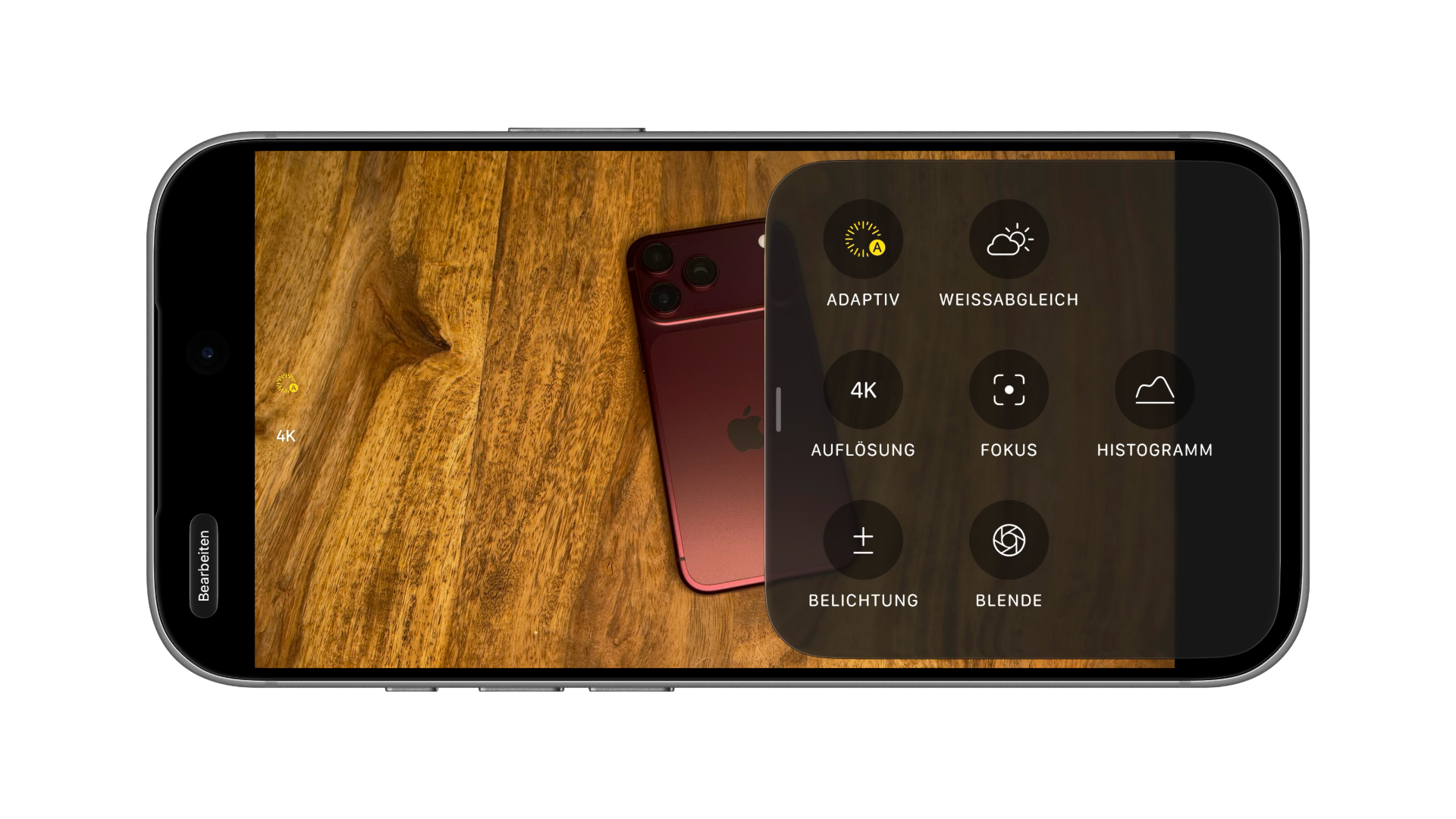
- New in time-lapse mode is the "Adaptive" option.
- Apple lists the features in the technical specifications of the iPhone 18 Pro and iPhone 18 Pro Max.
Add cinematic mode effects later
Previously, cinematic mode had to be selected before recording in order to adjust focus and blur later. On the iPhone 18 Pro, this also works with videos recorded in normal video mode.
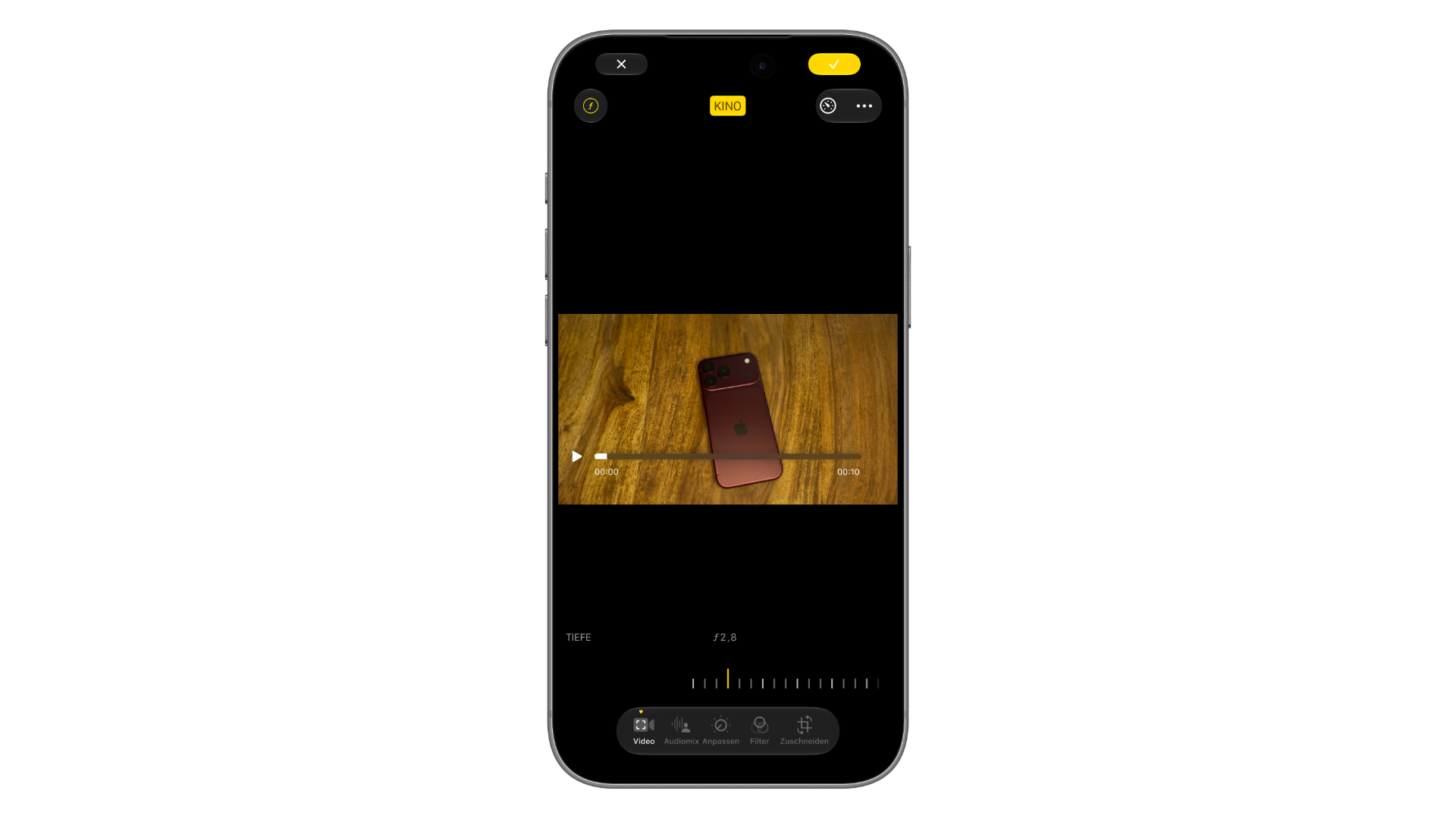
- Open the video in the Photos app and tap "Edit".
- Tap "Cinema" at the top center. The button will turn yellow, and an additional focus track will appear below the timeline.
- Tap the ƒ symbol in the top left corner. The "Depth" slider will open below, displaying the current ƒ value.
- Move the slider: Smaller values make the background blurrier, larger values make it sharper.
- Secure it by clicking the checkmark in the upper right corner.
In our test, the slider was initially set to ƒ2.8. The frame rate is crucial: the "Cinema" button was completely missing when recording a video at 120 fps. Therefore, anyone filming at a high frame rate, for example for 4K slow motion, will not be able to use this effect later.
Record in cinema mode in 4K at 60 fps
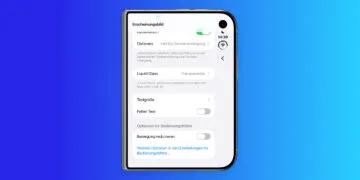
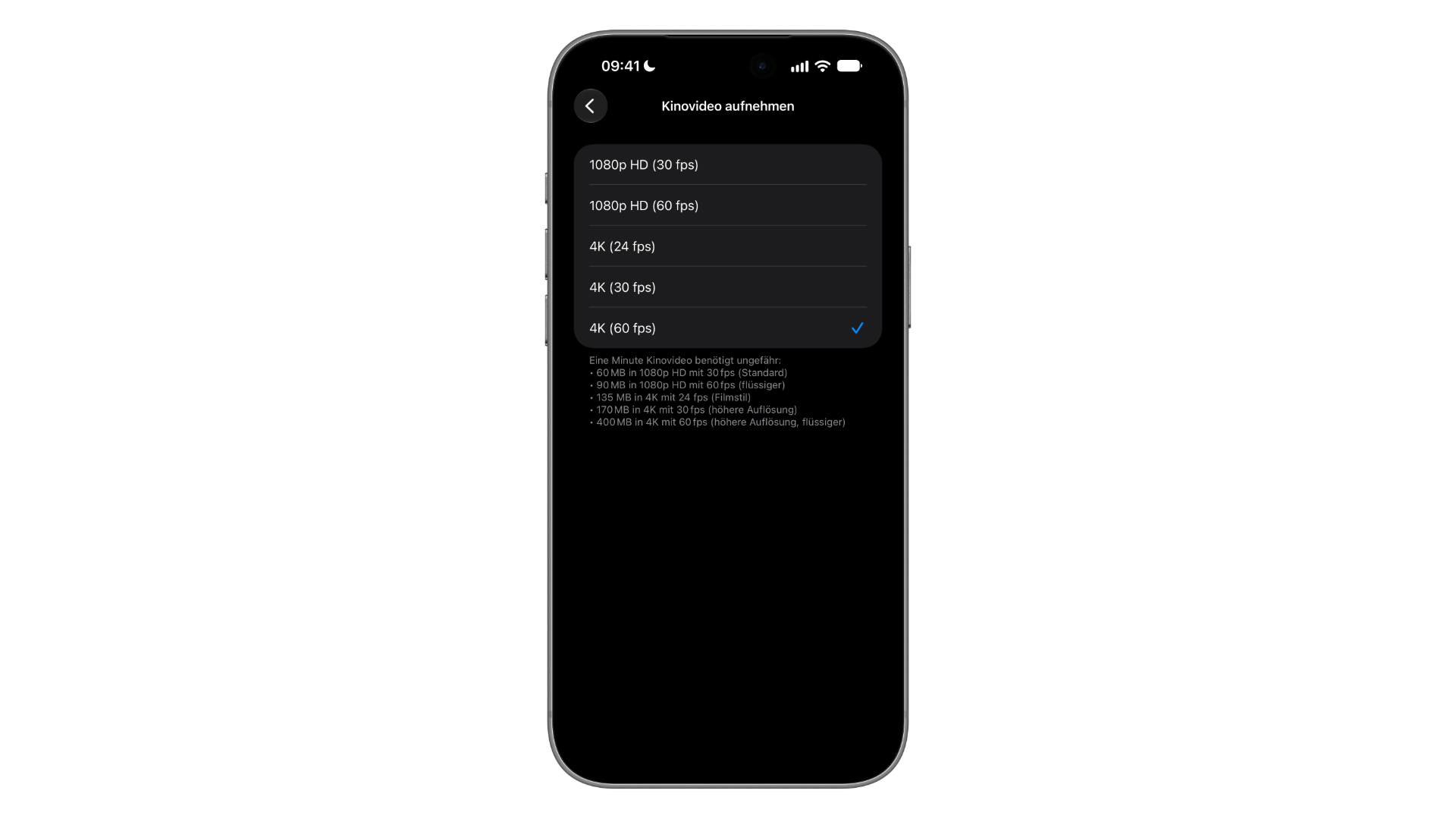
Users who film in Cinematic Mode from the outset can now select up to 4K resolution at 60 frames per second. This setting can be found under Settings > Camera > "Record Cinematic Video". According to Apple, the front camera remains at up to 30 fps.
Directly below the selection, the iPhone shows approximately how much storage a minute of movie video requires:
| Attitude | Memory per minute |
|---|---|
| 1080p HD (30 fps), Standard | 60 MB |
| 1080p HD (60 fps) | 90 MB |
| 4K (24 fps), film style | 135 MB |
| 4K (30 fps) | 170 MB |
| 4K (60 fps) | 400 MB |
The step from 4K at 30 fps to 60 fps therefore requires more than twice the amount of memory.
Time-lapse in 4K
The iPhone 18 Pro records time-lapse videos in 4K with Dolby Vision. Switching between HD and 4K is possible in two ways:
- Directly in the camera app: In "Time-lapse" mode, "4K" or "HD" is displayed at the top. Tapping on it opens the "Resolution" controls with both options.
- Permanent: Under Settings › Camera › "Start time-lapse recording", select between "1080p HD“ and "4K".
As always with time-lapse photography: the steadier the iPhone is, the better the result. A stable surface or a tripod is a better choice than holding it by hand for longer recordings.
Adaptive time-lapse
In the time-lapse mode control panel, behind the six dots, you'll find exposure, resolution, adaptive mode, aperture, focus, white balance, and histogram. Tapping "Adaptive" activates the function: the icon turns yellow, displays a small "A," and also appears at the top of the screen.
The term "Adaptive" doesn't appear in Apple's technical specifications or press release. Photographer Austin Mann writes in his iPhone 18 Pro camera review that the mode slows down time-lapse recording as soon as motion is detected – but admits he hasn't fully grasped how it works yet. It's particularly worth trying out with scenes that alternate between still and moving phases.
Audio mix: "Cinema" here refers to a sound profile
According to Apple, the audio mix on the iPhone 18 Pro uses new algorithms that better distinguish voices and can now also isolate music. In the Photos app, the profiles "Standard," "In Picture," "Studio," and "Cinema" remain available under "Audio Mix".
The "Cinema" profile affects only the audio and has nothing to do with cinema mode. The blur effects are located in the "Cinema" button at the top center, not in the "Audio Mix" tab.
Which function makes a difference in everyday life
The biggest advantage is the post-production cinematic effects. You no longer have to decide before recording whether a clip should have a blurred background – as long as you film at a maximum of 60 fps. Therefore, if you plan to use this effect regularly, it's better to record video in 4K at 30 or 60 fps instead of 120 fps.
When using 4K cinema mode at 60 fps, it's worth keeping an eye on the available storage space. 400 MB per minute adds up quickly, and 30 fps is sufficient for many shots. In contrast, 4K time-lapse is a pure bonus: it requires no additional effort and delivers footage that complements the other 4K videos.
iPhone 18 Pro video features – the most important features at a glance
Normal videos at up to 60 fps can be adjusted with focus and blur in the Photos app using the "Cinema" button. Cinema mode records up to 4K at 60 fps, and time-lapse is available in 4K with the new "Adaptive" option. However, "Cinema" in the audio mix is simply a sound profile.
Have you already tried out the post-production cinematic effects on one of your own clips – and will you stick with 60 fps instead of 120 fps in the future? Let us know in the comments which video function you use most often.
Frequently Asked Questions: Cinema Mode and Time-Lapse on the iPhone 18 Pro
Yes, on the iPhone 18 Pro and Pro Max. Open the video in the Photos app, tap "Edit," and then "Cinema" at the top. Use the ƒ icon to adjust the blur.
The post-processing effects only work with videos up to 60 fps. The option does not appear with videos at 120 fps.
Under Settings › Camera › "Record cinema video", select the option "4K (60 fps)“.
According to the settings, it uses around 400 MB per minute. In 4K at 30 fps, it's about 170 MB.
In time-lapse mode, tap "HD" at the top and select "4K". This can be set permanently under Settings › Camera › "Start time-lapse recording".
"Adaptive" is a new option in the control panel of the time-lapse mode. According to initial tests, it slows down the time-lapse as soon as motion is detected in the image. Apple does not describe the feature in its technical specifications or press release.
No. "Cinema" in the audio mix is a sound profile for audio. The blur effects of Cinema mode are located in the "Cinema" button at the top center of the editing window.