This article may contain affiliate links. Learn more on our Partner Program page.
Photographic styles determine how the iPhone adjusts the colors, skin tones, and mood of each photo—even before the shutter button is pressed. With the iPhone 18 Pro, two new settings are added: Texture and Grain. This guide shows you how to set up, adjust, and later change your style.
Photographic Styles work differently than traditional filters. According to Apple's guide to Photographic Styles, they adjust specific colors in individual parts of a photo, rather than uniformly coloring the entire image. The selected style is saved and applied to all subsequent photos. The current generation has been available since the iPhone 16.
According to the iPhone 18 Pro press release, Apple expanded the styles with the addition of texture and grain settings. In the technical specifications, Apple lists them as "Photographic Styles 3." All steps in this guide were taken using an iPhone 18 Pro Max with iOS 27 and German system language.
Key Facts at a Glance
- Photographic styles deliberately alter colors and skin tones and apply to all photos until the style is changed.
- The default style is set under Settings › Camera › Photographic Styles.
- In the camera app, the style can be changed and adjusted at any time via "Styles" in the control panel.
- New features on the iPhone 18 Pro include textures such as "Soft Skin", "Glow" and "Film", as well as a dedicated grain option.
- The texture is only applied after the recording, so it is not visible in the preview.
Set the default style in the settings
The first step is to establish a style that will apply to every photo from now on. It can be changed again at any time.
- Open the "Settings" app and tap on "Camera".
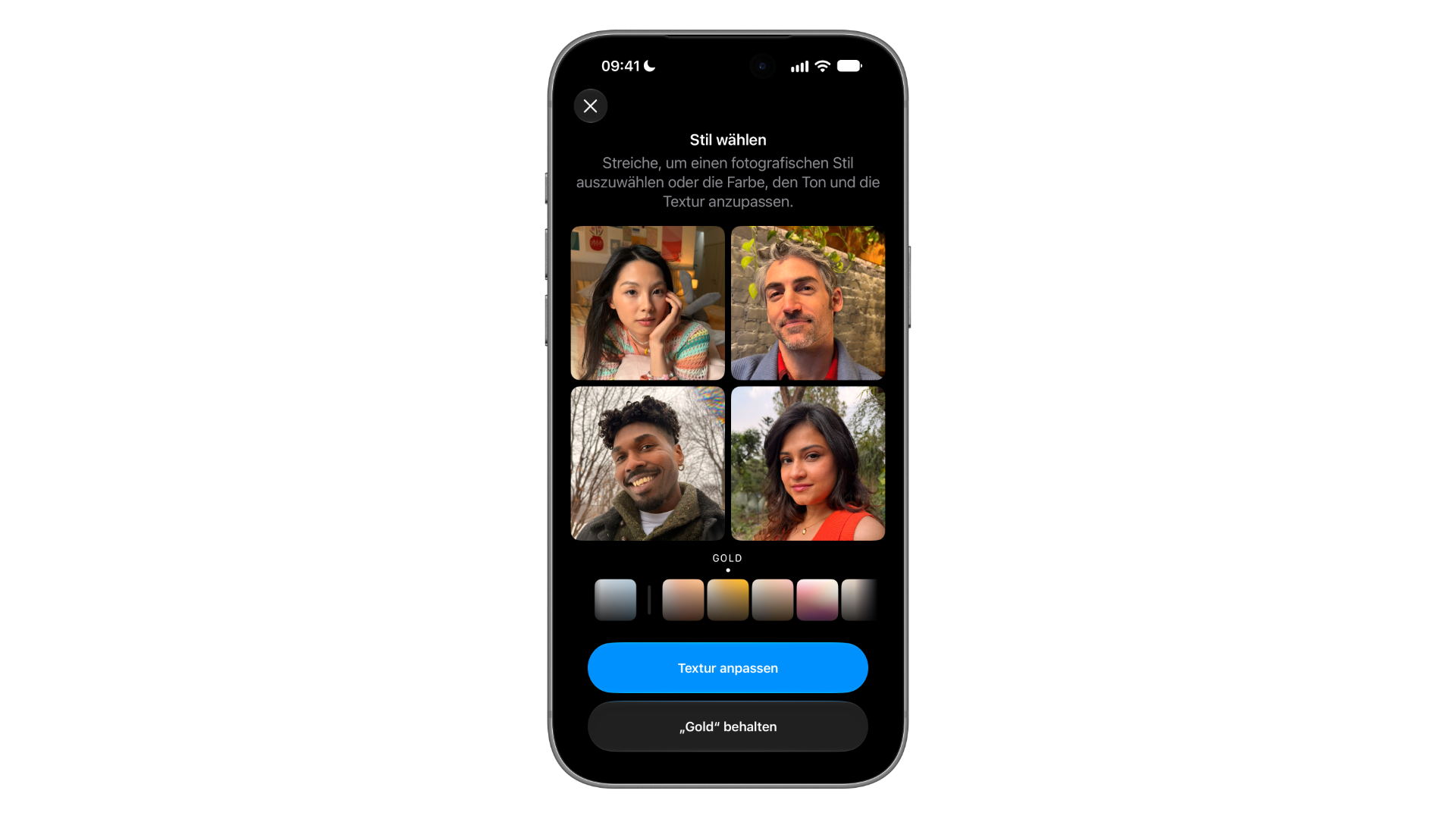
- "Select Photographic Styles". The "Choose Style" view will open with four sample portraits.
- Swipe left or right to cycle through the styles. The example images show the effect immediately.
- Adopt the style – the button will then be called something like "Keep Gold" – or refine it further via "Adjust Texture".
The available colors are Standard, Amber, Gold, Rose Gold, Light, Neutral, and Cool Pink. Some styles already include a matching texture; these are then named something like "Amber + Glow" or "Light + Soft Skin".
Refine palette and texture
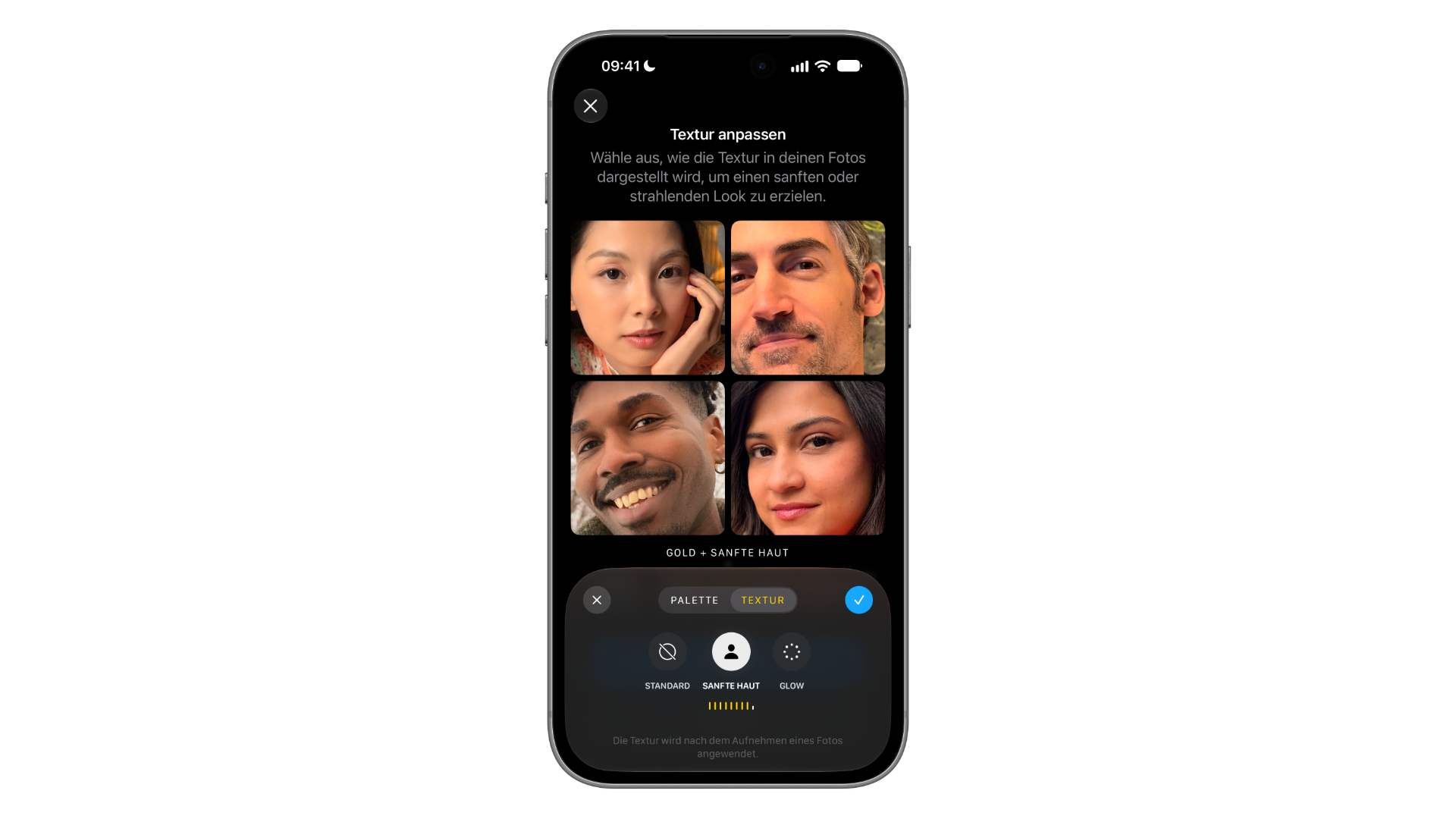
After tapping on "Adjust texture", an area appears with the two tabs "Palette" and "Texture".
Under Palette ("Set Palette"), a color swatch controls both tone and color simultaneously: Swipe your finger across the swatch until the look is right. The slider below determines the intensity of the style.
Under Texture ("Adjust Texture"), you can define how skin and surfaces should appear – according to the on-screen prompt, for a soft or radiant look. The settings offer "Standard," "Soft Skin," and "Glow," each with a slider for intensity. Clicking the blue checkmark saves your selection.
Change style directly in the camera app
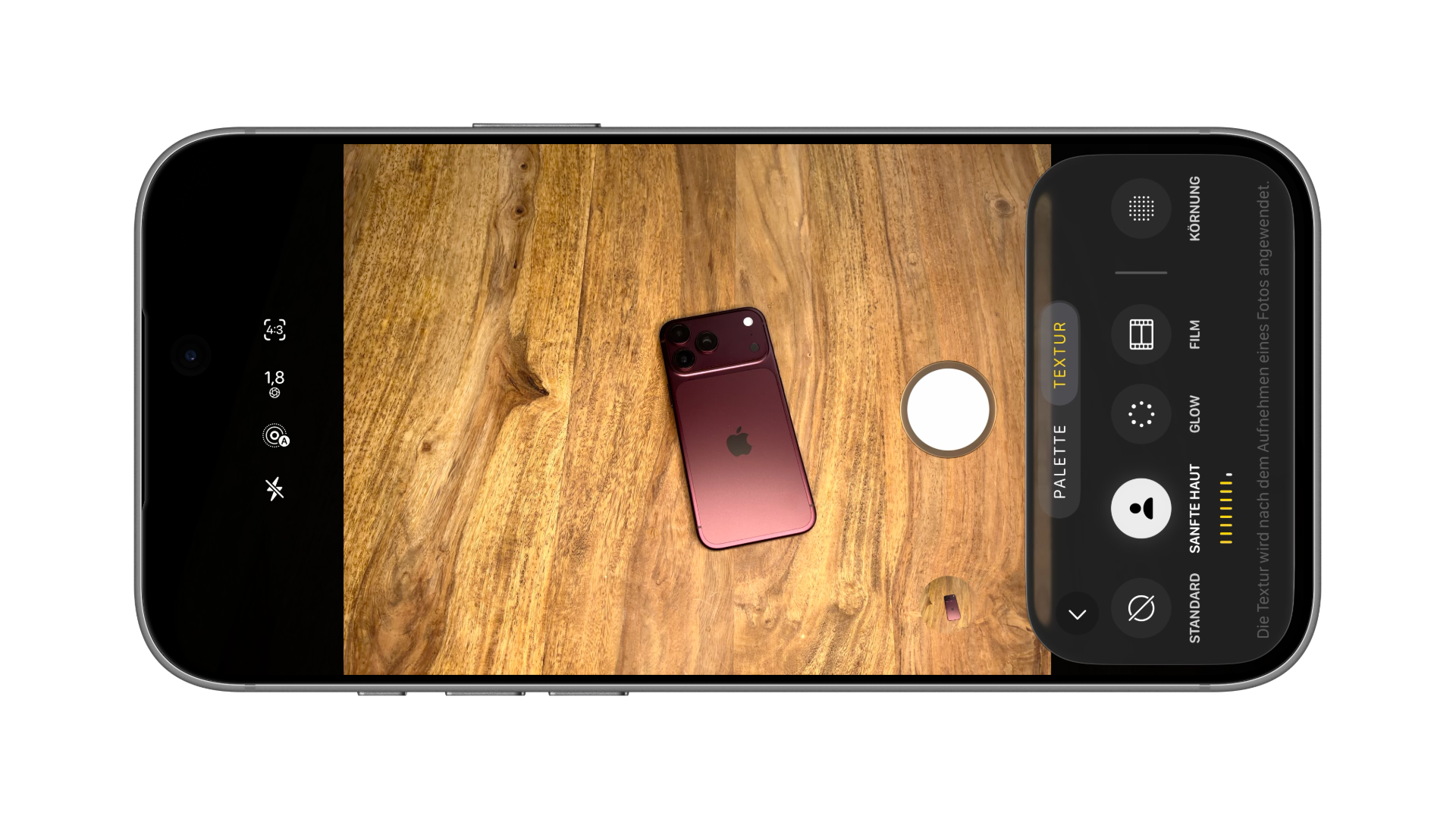
For individual shots, you don't need to go through the settings every time. In the camera app, the style is located in the control panel behind the icon with the six dots under "Styles." If you change it frequently, you can also add "Styles" to the top bar of the camera app.
- In the camera app, tap the six dots and select "Styles".
- Swipe left or right to preview a different style.
- Adjust tone, color and intensity in the "Palette" tab.
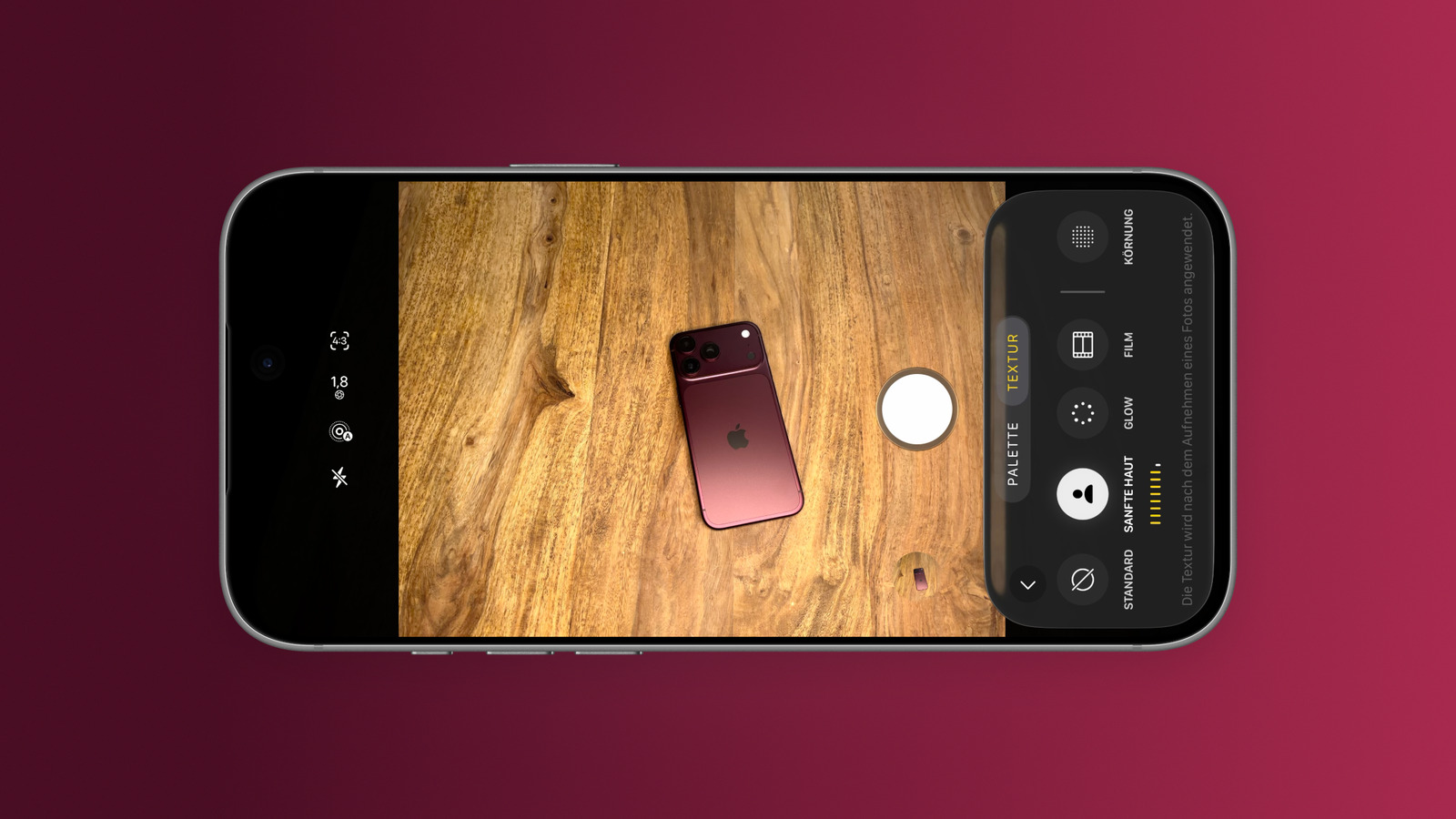
- In the "Texture" tab, select the desired texture and, if necessary, "Grain".
In addition to skin tone styles, Apple says the camera app offers other styles that can change the overall mood of a photo.
New on the iPhone 18 Pro: Texture and grain
The camera app offers a wider selection than the settings. Under "Texture," you'll find "Standard," "Soft Skin," "Glow," and "Film." To the right, separated by a line, is "Grain" as a separate option.
| Option | Where available | Effect as described |
|---|---|---|
| Standard | Settings and camera app | no additional texture |
| Soft skin | Settings and camera app | softer look |
| Glow | Settings and camera app | A more radiant look |
| Film | Camera app only | – |
| Grain size | Camera app only | – |
An important detail is located directly below the selection: The texture is applied after the photo is taken. It's therefore not yet visible in the viewfinder. To test the effect, take a test photo and view it in the Photos app.
Change styles later in the Photos app
Choosing a photographic style isn't a final decision. In the Photos app, you can later edit or replace a photo's style: Open the photo, tap the edit icon, and select "Styles".
There is one requirement for this. According to Apple, the camera app must record in "High Efficiency" format. This setting can be found under Settings > Camera > Formats.
Which style is suitable for everyday life
If you're unsure, the safest option is "Standard" without any additional texture – the look remains natural, and you can always switch to a different style using the Photos app. For portraits, "Soft Skin" is worth considering, as it softens skin tones. "Film" and "Grain," as their names suggest, aim for an analog look.
Since the texture only takes effect after the shutter is released, it is recommended to test new combinations on a few sample photos before making them the standard.
Photographic styles – the most important points at a glance
The default style is set under Settings > Camera > Photographic Styles; in the Camera app, it can be changed via "Styles" in the control panel. The iPhone 18 Pro adds textures such as "Soft Skin," "Glow," and "Film," as well as "Grain," which are applied after the photo is taken. The style can be changed later in the Photos app, provided the photo was taken in "High Efficiency" format.
Which style is set as your default – and have you already tried "Film" or "Grain" on your own image? Tell us in the comments which combination you use.
Frequently Asked Questions: Photographic Styles on the iPhone
Photographic styles determine how the iPhone adjusts colors and skin tones in photos. Unlike filters, they selectively adjust specific colors in individual areas of the image and apply to all subsequent photos.
Under Settings › Camera › Photographic Styles, select a style and confirm with the "[Keep Style]" button, for example "Keep Gold".
The settings offer a choice of Standard, Amber, Gold, Rose Gold, Light, Neutral, and Cool Pink. The camera app adds styles that change the overall mood of a photo.
The iPhone 18 Pro introduces textures like "Soft Skin," "Glow," and "Film," as well as a dedicated grain option. "Film" and "Grain" are only available in the Camera app, not in Settings.
The texture is only applied after a photo is taken. Therefore, the effect is only visible in the Photos app.
Yes. In the Photos app, you can edit the style of a photo or replace it with another. This requires that the camera is shooting in "High Efficiency" format, which can be set under Settings > Camera > Formats.
The current generation of photographic styles is available from the iPhone 16 onwards. Texture and grain are introduced by Apple with the iPhone 18 Pro and iPhone 18 Pro Max.