

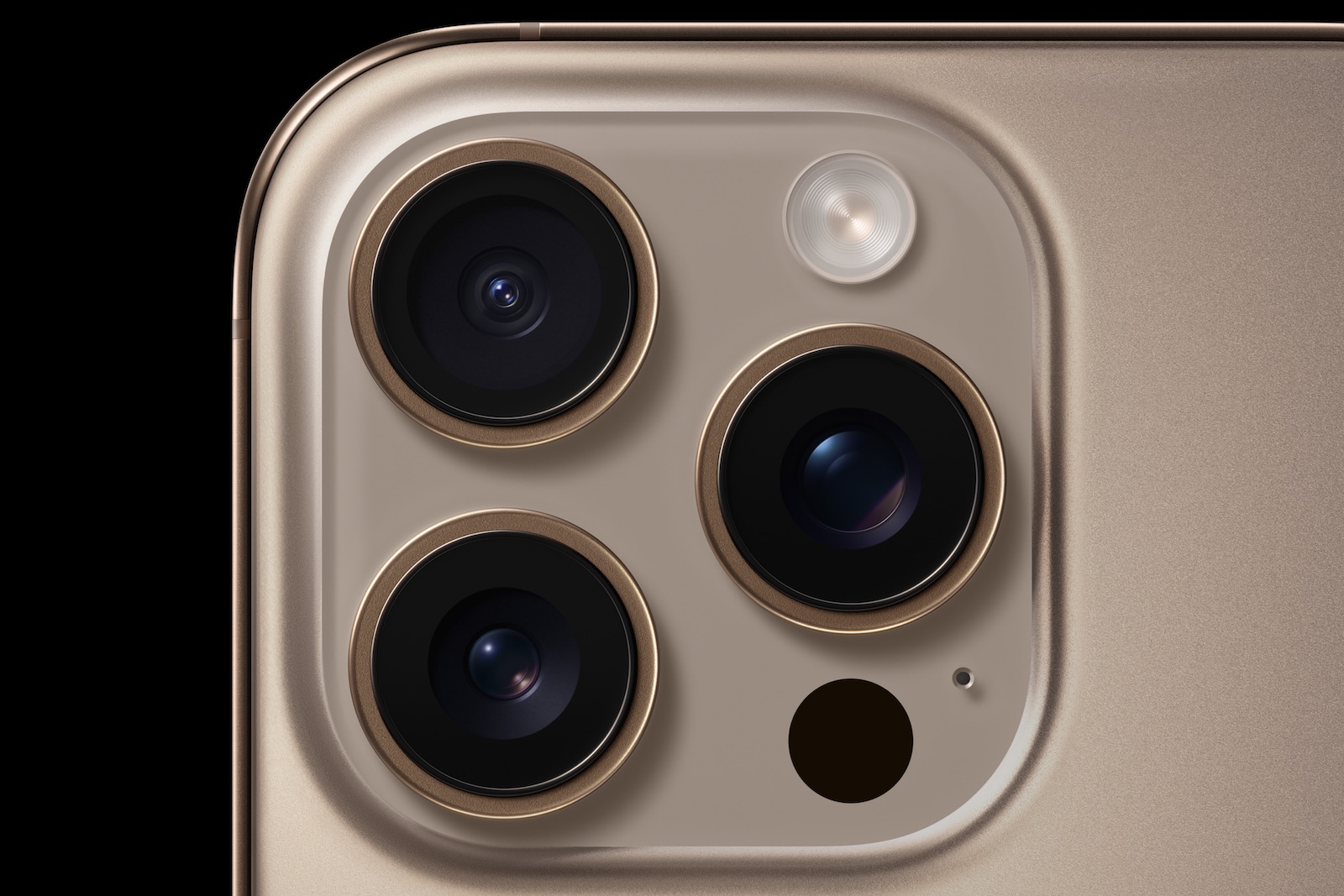
The iPhone 16 Pro sets new standards in the smartphone world and offers new features specifically aimed at the needs of photography and videography enthusiasts. One of the standout new features is the ability to record 4K videos at 120 frames per second (fps), giving you the power to create impressive slow motion footage of the highest quality. Below you will learn how to make the most of this feature to take your videos to the next level and what you should keep in mind when using these settings.
Apple has raised the bar for mobile videography with the introduction of the iPhone 16 Pro and iPhone 16 Pro Max. Compared to previous models, the iPhone 16 Pro not only offers improved video quality but also the ability to record extremely high-resolution slow-motion videos. This innovation opens up new creative possibilities, especially if you want to dramatically slow down scenes and highlight details that would otherwise escape the human eye.
4K videos at 120 fps - How it works
The ability to record 4K 120 fps video is a major improvement over previous iPhone models. While the iPhone 15 Pro was limited to 4K 60 fps in normal mode and 1080p HD 240 fps in slow motion mode, the iPhone 16 Pro now lets you record in much better quality and at a higher frame rate. This is especially useful if you want to record dynamic, fast-moving scenes - like flying objects or sports footage. The steps to enable 4K 120 fps on your iPhone 16 Pro are simple:
- Open your iPhone's settings.
- Select the item “Camera”.
- Tap Record Slo-Mo and select 4K at 120 fps.
If you want to record regular 4K videos at this frame rate, do the following:
- Go to Settings ➝ Camera ➝ Record Video.
- Select 4K at 120 fps.
Options after recording
One of the most useful features of the iPhone 16 Pro is the ability to change the playback speed of your videos after recording, right in the Photos app. You can choose between different speeds such as quarter or half speed to make your slow motion footage even more dramatic. Apple has also introduced a new option that allows you to play your video in 24 fps. This frame rate is used in the film industry to create a particularly cinematic experience, so if you want to give your recordings a professional touch, this is the perfect choice without the need for additional editing software.
ProRes and Log for professional workflows
For professional users, the iPhone 16 Pro offers even more: It supports recording 4K at 120 fps in ProRes and Log. These formats are especially important for post-production workflows as they enable higher image quality and more flexibility in post-production. To enable these options, follow these steps:
- Open Settings ➝ Camera ➝ Formats.
- Turn on Apple ProRes mode under Video Recording.
- Select either HDR or Log to specify the encoding you want.
With these settings, you can save your videos directly to external storage devices and integrate them into professional post-production environments.
Slow motion effects on a new level: The iPhone 16 Pro
The iPhone 16 Pro is a true game changer in the world of mobile videography. The ability to record 4K videos at 120 fps allows you to create impressive slow motion effects that were previously only available on professional cameras. Whether you are a hobbyist or a professional video maker, this feature offers you numerous creative possibilities. Don't forget to experiment with the different playback speeds and the cinematic 24 fps mode to give your recordings a unique look. In summary: The iPhone 16 Pro not only takes image quality to a new level but also offers a variety of tools that make your video recordings as professional as possible. Use these functions and let your creativity run wild! Are you looking for new accessories? Then take a look in our Amazon Storefront - there you will find numerous products from leading providers, also for HomeKit and Co.! (Image: Apple)
- iPhone 16 freezes? Force restart – here's how
- iPhone 16: New photographic styles for individual shots
- iPhone 16: How to disable the camera control button
- iPhone 16: Use the camera control button as a magnifying glass
- iPhone 16: Use camera control button as QR scanner
- iPhone 16: How to disable the "Preview" feature
- iPhone 16: Adjust pressure sensitivity of camera controls
- iPhone 16 Camera: How the new camera control button works
- iPhone 16 cases from Pitaka: Slim design, strong protection





