

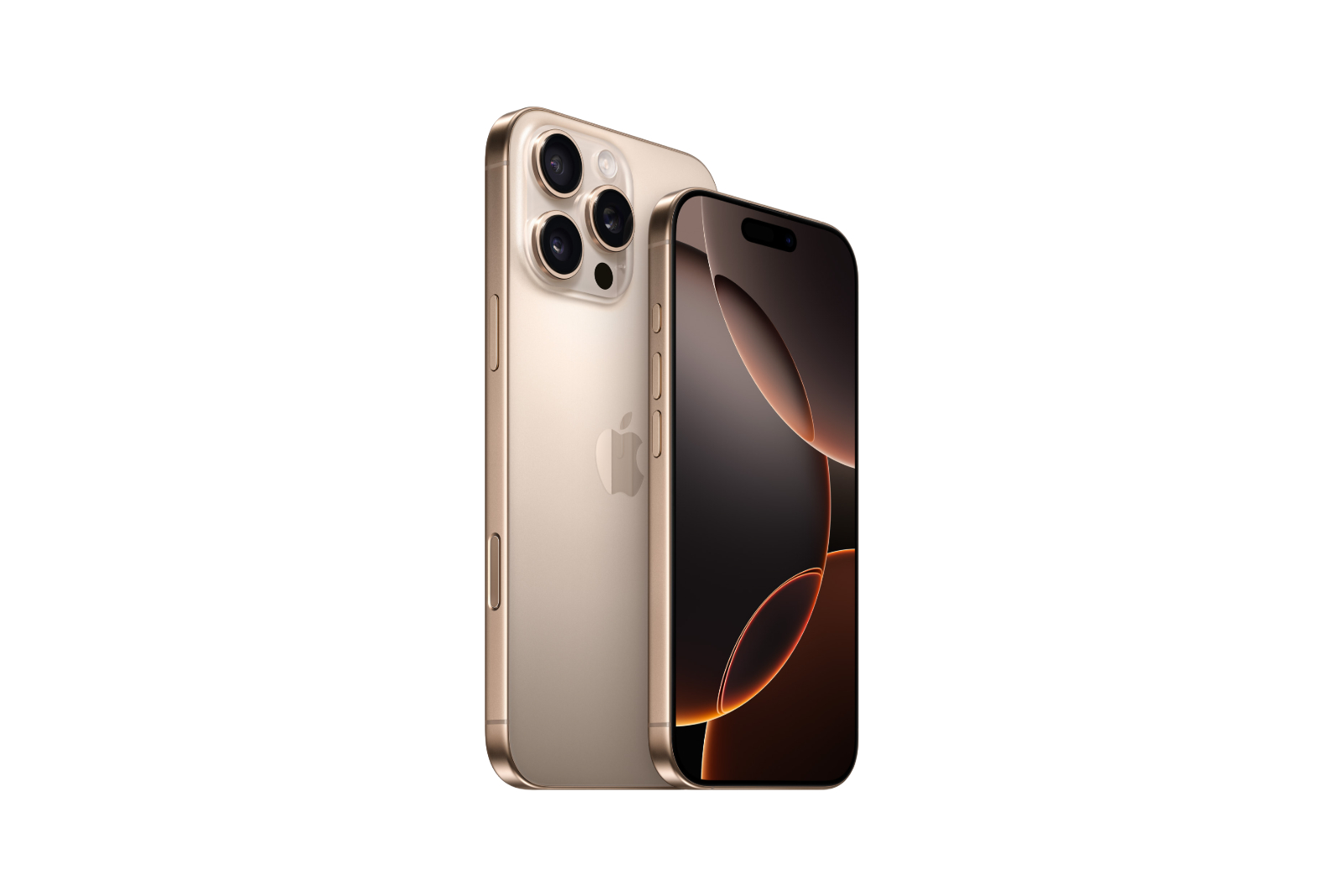
The launch of the iPhone 16 has brought with it many exciting new features. One of them is the camera control button, which was specially developed to make using the camera app even more convenient. But not every user needs or wants this function active. Below I will show you step by step how to deactivate the camera control button on your iPhone 16 and what you should keep in mind when doing so.
With the camera control button on the iPhone 16, Apple has developed a tool that can be a valuable aid for many photographers and hobbyists. This button, which is located on the bottom right side of the device in portrait mode, makes it easier to adjust camera settings without having to open the app manually. But what if you don't use this function or it bothers you? Don't worry - you can easily deactivate it. However, it is also important to know that more functions will be available via this button in the future, which could make its use even more convenient. But first, let's talk about deactivation.
What is the camera control button?
The camera control button on the iPhone 16 is a physical button that allows you to quickly open the camera app. With a light press, you can access advanced camera settings such as zoom and exposure. You can swipe through the settings and select different options by repeatedly pressing the button. Especially useful when taking photos without spending a lot of time on manual adjustments.
Why disable the camera control button?
Although the camera control button is useful for many users, there are a few reasons why you may want to disable it:
- Accidental activation: You might accidentally open the camera app by pressing the button.
- Unnecessary functionality: If you don't use the camera controls, the button might be unnecessary for you.
- Customization: Some users prefer to customize their device according to their own preferences and turn off certain functions.
How to disable the camera control button
If you decide to disable the camera control button, follow these simple steps:
- Open the Settings on your iPhone.
- Scroll down and tap Accessibility.
- Under the “Physical and Motor” section you will find the Camera Control option.
- Turn off the switch next to Camera Control.
After completing these steps, the camera control button will no longer perform any action, so you don't have to worry about accidentally launching the camera.
What happens after deactivation?
When the camera control button is disabled, you won't be able to use it to open the camera app or adjust special features like zoom and exposure. If you want to use it again later, you can easily turn it back on. Just go back to Settings under Accessibility and turn camera controls back on.
Future updates of the camera control button
It's worth keeping an eye on developments, as Apple plans to add additional functionality to the camera control button in a future update. One of these new features will be a two-stage shutter button that allows you to lock focus and exposure with a light press. This could be a handy tool for many users, especially photographers, to recompose the image without losing focus.
iPhone 16 camera control button: Should you turn it off?
The iPhone 16's camera control button is an innovative feature that improves camera handling - but it's not necessary for every user. Fortunately, the feature is easy to disable if you don't want to use it. However, keep in mind that Apple is constantly working on improvements and future updates could make this button even more useful. So if you're not comfortable with the camera control yet, it might be worth giving it a try before disabling it for good. Looking for accessories from top brands? In our Amazon Storefront you will find a large selection of products, perfect for HomeKit and much more! (Image: Apple)
- iPhone 16: Use the camera control button as a magnifying glass
- iPhone 16: Use camera control button as QR scanner
- iPhone 16: How to disable the "Preview" feature
- iPhone 16: Adjust pressure sensitivity of camera controls
- iPhone 16 Camera: How the new camera control button works
- iPhone 16 cases from Pitaka: Slim design, strong protection





