

apple patient
  • Home
  • News
  • Rumors
  • Tips & Tricks
  • Reviews
  • Insights
No Result
View All Result
  • iPhone 18
  • iPhone 18 Pro
  • iPhone Duo
  • Apple Watch Series 12
  • Apple Watch Ultra 4
  • AirPods 5
  • iOS 27
  • iPadOS 27
  • macOS
  • MacBook Neo
  • iPhone 17e
  • AirTags
  • iOS 26
  • iPhone 17
  • MacBook Pro
  • iPadOS
  • iMac
  • Mac mini
  • HomePod
  • Apple TV
  • iPad Pro
  • iPhone Air
  • Apple Vision Pro
  • iPhone 16
  • AirPods 4
  • Apple Watch Ultra
  • HomePod Mini
  • MacBook Air
  • iPad
  • AirPods Max
  • AirPods Pro 3
  • Apple Watch Series 3
  • Mac Studio
  • Studio Display
  • iPad Air
  • iPad mini
  • watchOS 27
  • Apple CarPlay
  • Apple Pay
  • watchOS 26
  • Home
  • News
  • Rumors
  • Tips & Tricks
  • Reviews
  • Insights
No Result
View All Result
apple patient
No Result
View All Result
  • iPhone 18
  • iPhone 18 Pro
  • iPhone Duo
  • Apple Watch Series 12
  • Apple Watch Ultra 4
  • AirPods 5
  • iOS 27
  • iPadOS 27
  • macOS
  • MacBook Neo
  • iPhone 17e
  • AirTags
  • iOS 26
  • iPhone 17
  • MacBook Pro
  • iPadOS
  • iMac
  • Mac mini
  • HomePod
  • Apple TV
  • iPad Pro
  • iPhone Air
  • Apple Vision Pro
  • iPhone 16
  • AirPods 4
  • Apple Watch Ultra
  • HomePod Mini
  • MacBook Air
  • iPad
  • AirPods Max
  • AirPods Pro 3
  • Apple Watch Series 3
  • Mac Studio
  • Studio Display
  • iPad Air
  • iPad mini
  • watchOS 27
  • Apple CarPlay
  • Apple Pay
  • watchOS 26

iPhone 16: Use the camera control button as a magnifying glass

Milan Jovicic by Milan Jovicic
September 20, 2024 - 10:22 p.m. CEST
in Apple Tips & Tricks
0
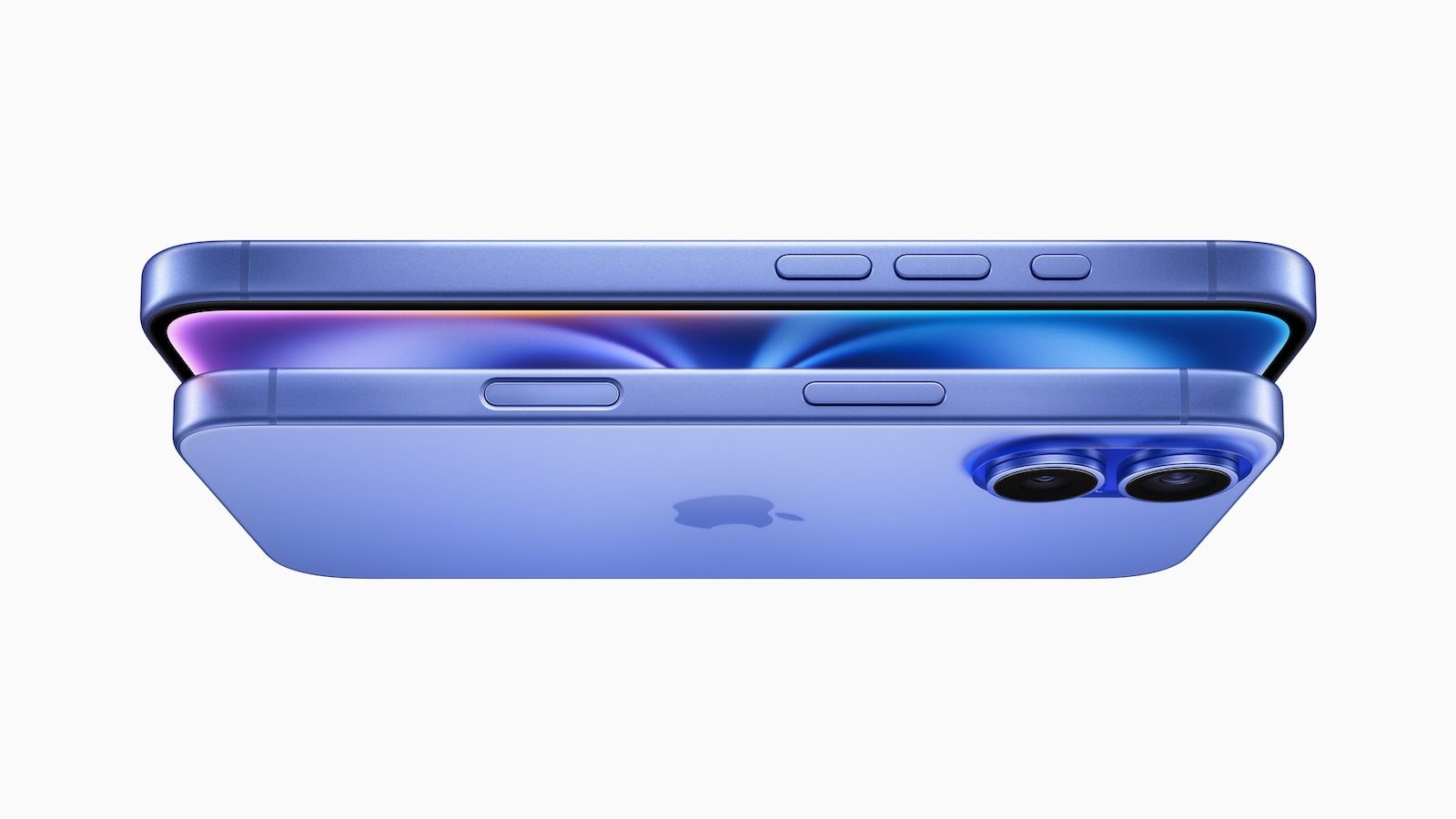
iPhone 16 camera controls

Image: Apple

WhatsAppFacebookEmail
Threads

With the iPhone 16, Apple has introduced a new feature that can make your daily life a lot easier: the camera control button. This button, which is located at the bottom right when you hold the iPhone in portrait mode, not only gives you more control over your camera but also allows you to easily use your iPhone's built-in magnifying glass. This feature is particularly useful for people with poor eyesight, as it allows you to quickly enlarge text and objects. Below we'll show you how to use this feature correctly.

Apple's continuous development has once again brought about a useful innovation with the iPhone 16, which is not only beneficial for technology enthusiasts but also enriches the everyday lives of many people. The integration of the camera control button as a magnifying glass is an example of how you can enjoy more convenience and accessibility with the simple push of a button. With this function, your iPhone 16 becomes an even more versatile tool that goes far beyond taking photos.

The Camera Control Button: More than just photography

The new camera control button on the iPhone 16 was originally designed to make it easier for you to take photos in portrait and landscape modes, but Apple has given this button even more functions. If you want, you can use it as a shortcut to the magnifying glass function - a handy application, especially when you want to quickly enlarge small text or details on product packaging, medication descriptions or menus.

How do I set up the magnifying glass using the camera controls?

To use the camera control button as a magnifying glass, you just need to follow a few simple steps. Here are the exact instructions:

  • Open Settings: Launch Settings on your iPhone.
  • Tap Camera: Scroll down until you find the menu item “Camera”.
  • Select “Camera Control”: In the camera settings you will find the option “Camera Control”.
  • Select the “Magnifying Glass” option: Here you can assign the magnifying glass function to the camera control button.

From this moment on, whenever you click the camera control button, the Magnifier app will launch automatically. This is especially useful if you want to quickly access the Magnifier without having to navigate through multiple apps or menus.

Advantages of the magnifying glass function with camera control

The magnifying glass function, which you can use via the camera control button, is not only a great help for the visually impaired. This function is also extremely practical in many everyday situations in which you need to see small text or details. For example:

  • Magnify product labels: You can easily read ingredient lists or prices on labels.
  • Reading small print: Contracts, operating instructions or receipts are often difficult to decipher but with a magnifying glass it is no problem.
  • Recognizing details: Whether it’s jewelry, electronics or works of art – the magnifying glass helps you recognize even the smallest details.

Additionally, the button retains its light press function. This means you can still zoom in and out. You can even control options like brightness, contrast, filters, and the flashlight from a menu. These additional features make the Magnifier app an even more powerful tool.

Further customization options

In addition to assigning the camera control button to the magnifying glass function, you can also use it for other purposes. Apple gives you the flexibility to customize the button to your liking. For example:

  • Code Scanner: You can also set the camera control to open the QR code scanner app when pressed.
  • Disabling camera controls: If you find that you don't need the button, you can disable it completely in the settings.

The iPhone 16 camera control button – your new access to the magnifying glass

With the new camera control button, the iPhone 16 not only brings an improved camera experience but also an innovative way to use your device as a practical magnifying glass. This function is particularly enriching for people with visual impairments, but also offers numerous advantages in everyday life. In just a few steps, you can customize the camera control button and use your iPhone even more efficiently. Try it out and experience how easy it is to enlarge details with one click! Looking for the best accessories? Visit our Amazon Storefront and discover a variety of products from top providers, including for HomeKit! (Image: Apple)

  • iPhone 16: Use camera control button as QR scanner
  • iPhone 16: How to disable the "Preview" feature
  • iPhone 16: Adjust pressure sensitivity of camera controls
  • iPhone 16 Camera: How the new camera control button works
  • iPhone 16 cases from Pitaka: Slim design, strong protection

Make Apfelpatient a preferred source One click – and you'll see us more often on Google
Was this article helpful?
YesNo
Tags: iPhoneiPhone 16
SendShareSend
Share

Our Amazon Storefront

A handpicked selection of products for iPhone, Mac and more – sorted by topic and updated regularly.

Shop Now

This post contains affiliate links (including Amazon). We earn a small commission on qualifying purchases – at no extra cost to you. Learn more on our Partner Program page.

Previous Post

iPhone 16: Use camera control button as QR scanner

Next Post

iPhone 16: How to disable the camera control button

Milan Jovicic

Milan Jovicic

Milan founded Apfelpatient in 2016 and has been responsible for all editorial content since 2018 — news, rumors, guides, and product reviews. Apple devices here are not test units on loan for two weeks but everyday tools: from the iPhone through MacBook Pro, MacBook Air, and iMac to the Apple Vision Pro, at least one device from nearly every product category is in daily use, many of them replaced annually. Every menu path in a guide is verified on the device before it is published.

Related posts

Setting up iPhone Handoff: Here's how it works in iOS 27

by Milan Jovicic
September 24, 2026 - 5:50 p.m. CEST
iPhone showing the Set Up eSIM screen with the option to use the number on two iPhones selected, the first step to set up iPhone Handoff

Setting up iPhone Handoff under iOS 27: Requirements, costs at Telekom and why logging out only works via the provider.

Read moreDetails

How to Turn On Advanced Data Protection for iCloud

by Milan Jovicic
September 20, 2026 - 03:27 CEST
Advanced Data Protection for iCloud: iPhone showing the Advanced Data Protection settings page with the list of protected data and the Turn On option, next to a padlock

Advanced Data Protection for iCloud: 25 categories with end-to-end encryption. How to turn it on and secure your recovery options.

Read moreDetails

Selling Your iPhone Safely: How to Prepare Your Device the Right Way

by Milan Jovicic
September 19, 2026 - 9:04 p.m. CEST
Selling an iPhone safely: two iPhones lying face down on a grey surface, one orange and one black

Sell your iPhone safely: Backup, deregistration, activation lock and reset in the correct order – plus shipping step for the 18 Pro Max.

Read moreDetails

iPhone 18 Pro: Setting up Pro video storage for ProRes

by Milan Jovicic
September 19, 2026 - 7:56 p.m. CEST
Pro Video Storage on iPhone 18 Pro: iPhone showing the Configure Pro Video Storage dial at 150 GB and about 26 minutes of ProRes 4K 30 fps, next to a drive with a checkmark

No Pro Video storage, no ProRes: Here's how to reserve storage for video recordings on the iPhone 18 Pro and free it up again when needed.

Read moreDetails

Preparing your iPhone 18 Pro Max for shipping: Here's how

by Milan Jovicic
September 19, 2026 - 03:15 CEST
Preparing iPhone 18 Pro Max for shipping: iPhone showing the shipping reason screen with Repair, Trade-in or Return and Other, next to a battery with a downward arrow

iPhone 18 Pro Max before shipping: Batteries larger than 20 Wh must be discharged using the "Prepare for Shipping" function. Here's how to do it for repairs and sales.

Read moreDetails
Load More

Categories

  • Apple Insights
  • Apple Rumors
  • Apple News
  • Apple Tips & Tricks
  • iPhone news, rumors and tips
  • Mac and MacBook News
  • Reviews

About APFELPATIENT

APFELPATIENT brings you the latest Apple news, product updates, guides, reviews and tips across the entire Apple ecosystem — from the iPhone to the Mac to the Apple Vision Pro. From the first rumors to confirmed news: researched responsibly.

Follow Apfelpatient

Facebook Instagram YouTube Threads Threads

Company

  • About Apfelpatient
  • Contact
  • Author Profiles

Community

  • Netiquette
  • Push Notifications
  • RSS feed

Legal

  • Legal Notice
  • Privacy Policy
  • Terms of Use
  • Cookie Settings
  • Affiliate Program

Resources

  • Sitemap

© 2026 Apfelpatient. All rights reserved.

No Result
View All Result
  • Home
  • News
  • Rumors
  • Tips & Tricks
  • Reviews
  • Insights

© 2026 Apfelpatient. All rights reserved. Page Directory

Change language to Deutsch



