
Apfelpatient
  • Home
  • News
  • Rumors
  • Tips & Tricks
  • Reviews
  • Insights
No result
View All Results
  • iPhone 18
  • iPhone 18 Pro
  • iPhone Duo
  • Apple Home
  • Siri AI
  • HomePod
  • HomePod mini
  • HomePod mini 2
  • MacBook Pro
  • Apple TV 4K
  • Apple Watch Series 12
  • Apple Watch Ultra 4
  • AirPods 5
  • iOS 27
  • iPadOS 27
  • macOS
  • MacBook Neo
  • iPhone 17e
  • AirTags
  • iOS 26
  • iPhone 17
  • iPadOS
  • iMac
  • Mac mini
  • Apple TV
  • iPad Pro
  • iPhone Air
  • Apple Vision Pro
  • iPhone 16
  • AirPods 4
  • Apple Watch Ultra
  • MacBook Air
  • iPad
  • AirPods Max
  • AirPods Pro 3
  • Mac Studio
  • Studio Display
  • iPad Air
  • iPad mini
  • watchOS 27
  • Apple CarPlay
  • Apple Pay
  • watchOS 26
  • Home
  • News
  • Rumors
  • Tips & Tricks
  • Reviews
  • Insights
No result
View All Results
Apfelpatient
No result
View All Results
  • iPhone 18
  • iPhone 18 Pro
  • iPhone Duo
  • Apple Home
  • Siri AI
  • HomePod
  • HomePod mini
  • HomePod mini 2
  • MacBook Pro
  • Apple TV 4K
  • Apple Watch Series 12
  • Apple Watch Ultra 4
  • AirPods 5
  • iOS 27
  • iPadOS 27
  • macOS
  • MacBook Neo
  • iPhone 17e
  • AirTags
  • iOS 26
  • iPhone 17
  • iPadOS
  • iMac
  • Mac mini
  • Apple TV
  • iPad Pro
  • iPhone Air
  • Apple Vision Pro
  • iPhone 16
  • AirPods 4
  • Apple Watch Ultra
  • MacBook Air
  • iPad
  • AirPods Max
  • AirPods Pro 3
  • Mac Studio
  • Studio Display
  • iPad Air
  • iPad mini
  • watchOS 27
  • Apple CarPlay
  • Apple Pay
  • watchOS 26

iOS 26 Screenshots: Change the preview and work faster

Milan Jovicic by Milan Jovicic
July 26, 2025 - 18:10 CEST
in Apple Tips & Tricks
0
iOS 26 Screenshots

Image: Shutterstock / Yalcin Sonat

WhatsAppFacebookEmail
Threads

This article may contain affiliate links. Learn more on our Partner Program page.

Make Apfelpatient a preferred source One click – and you'll see us more often on Google

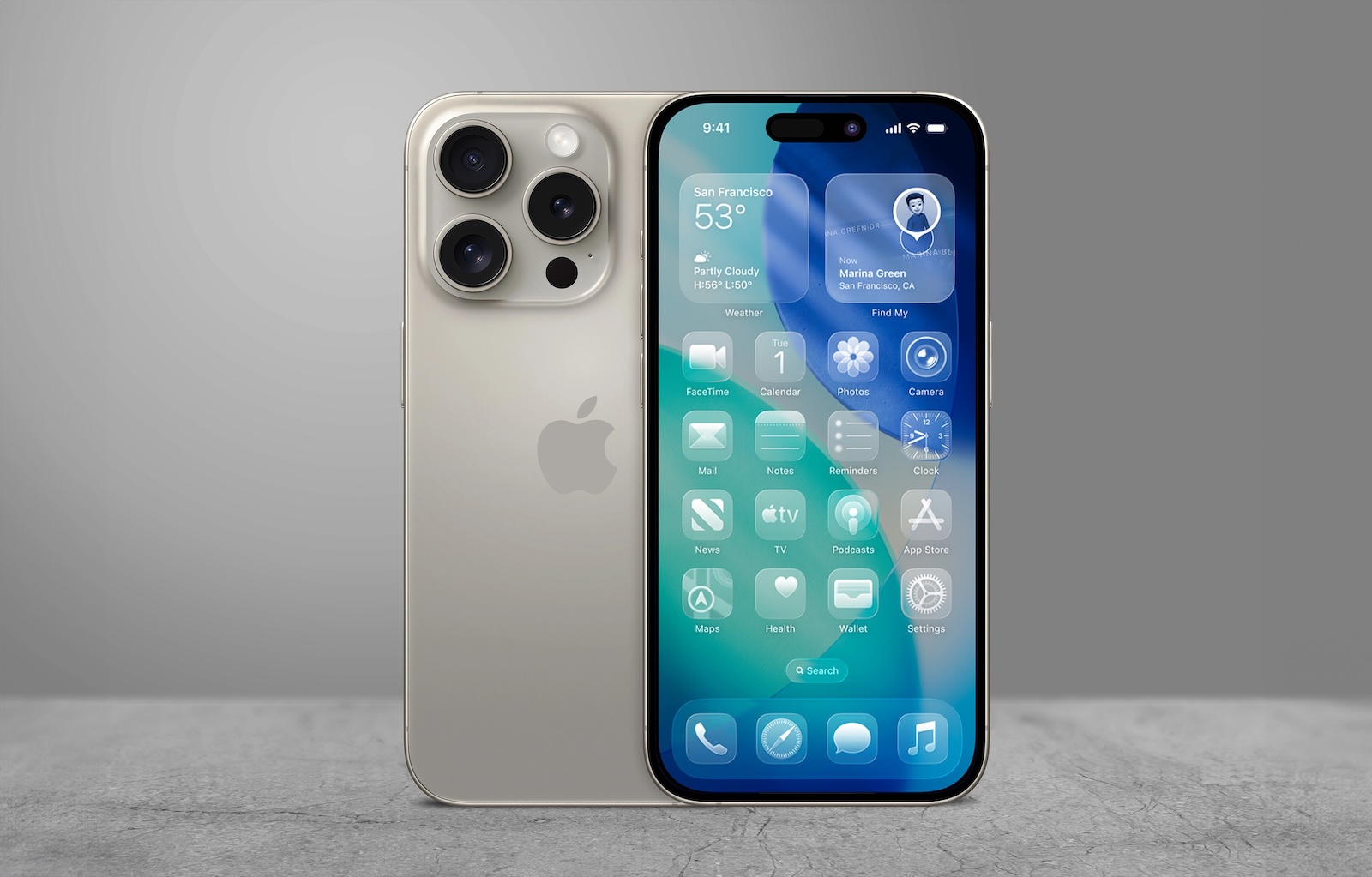
With iOS 26, Apple is once again changing the behavior of a commonplace feature—the screenshot. The feature itself remains the same, but the display and operation are different. New is a full-screen preview with direct AI features and editing tools. This can be useful, but also annoying if you're used to the old, faster process. Apple has built in an option to revert to the classic thumbnail view.

The screenshot feature in iOS is one of the most frequently used tools. Whether for saving content, sharing information, or for your own documentation – quick access has always been a huge advantage. With iOS 26, Apple is introducing a redesigned user interface for screenshots. The change appears more modern at first glance, but it also introduces a new way of interacting that not everyone will like.

What has changed with iOS 26 regarding screenshots

In iOS 26, the keyboard shortcut for taking screenshots remains the same: press the side button and volume up button simultaneously. What's new is the way the screenshot is displayed afterward. Instead of a small thumbnail in the lower left corner, the entire screen is now occupied by the screenshot by default. At the bottom are editing tools and new features called Visual Intelligence.

  • The idea behind it: You can instantly crop, mark up, or have the screenshot analyzed by AI. This display is visually adapted to the new design principle of iOS 26, which Apple calls "Liquid Glass" – an interface with more transparent, smoother surfaces and dynamic transitions.

Why not everyone likes the new mode

The new full-screen preview interrupts the previous workflow. In older versions like iOS 18, the screenshot was displayed as a thumbnail, which could be ignored or quickly edited with a tap. This left the screen clear, allowing you to continue working immediately. With iOS 26, the full-screen preview seems more powerful, but also more intrusive. This slows down the workflow, especially for those who take many screenshots in a short space of time or don't need to edit them directly. For these users, it's worth taking a look at the settings.

How to disable the full-screen preview

Apple offers an easy way to revert to the old view in iOS 26. After the first screenshot, a notification appears on the screen with the option "Switch to Thumbnail View." Those who skipped or declined this option the first time can change the setting manually:

  • Open Settings on iPhone
  • Select the menu item “General”
  • Tap on “Screen Recording”
  • Disable the switch for “Full screen preview”

After this change, screenshots will again be displayed as a small thumbnail in the lower left corner. The thumbnail will automatically disappear if ignored, but can still be tapped for editing. Sharing or opening them later in the Photos app will also work as usual.

More options for screenshots in iOS 26

The new “Screen Recording” menu contains additional settings:

  • HDR screenshots: Enabling this feature saves screenshots in HEIF format with extended dynamic range. This ensures better image quality on compatible devices and apps.
  • CarPlay Screenshots: This feature is only visible when the iPhone is connected to a CarPlay system. It allows you to save CarPlay screen content directly as a screenshot.
  • Visual Search: Available only on the iPhone 15 Pro and newer models, this option automatically detects content in the screenshot and offers contextual actions such as text extraction or product recognition.

Screenshots in iOS 26: Between efficiency and intelligence

iOS 26 significantly changes the screenshot experience. The new full-screen preview looks more modern and offers expanded features, but it's not suitable for everyone. Those who prefer to work efficiently without interruption can adjust the setting in just a few steps and return to the familiar thumbnail view. The additional options in the settings demonstrate that Apple sees screenshots as more than just a screen capture—but as an interface for smart features. The best products for you: Our Amazon Storefront offers a wide selection of accessories, including those for HomeKit. (Image: Shutterstock / Yalcin Sonat)

  • iOS 26 brings event detection directly to the Photos app
  • Haptic Touch on iPhone too slow? This solution helps
  • Protection against fraud: 9 simple tips for more security
  • iOS 26: Apple Intelligence brings these innovations
  • watchOS 26: These models support Apple Intelligence
  • Setting up iPhone widgets: These 6 tricks you need to know

iOS 26 Screenshots: Frequently Asked Questions about the New Preview

How to disable full-screen preview for screenshots in iOS 26?

Open Settings, go to "General" > "Screen Recording," and disable the "Full Screen Preview" option. Screenshots will then appear as thumbnails in the bottom left corner.

Why does iOS 26 display screenshots in full screen instead of thumbnails?

Apple redesigned the screenshot feature with iOS 26 to directly provide AI features like Visual Intelligence. Full-screen preview is enabled by default.

Can you go back to the old screenshot view in iOS 26?

Yes, you can reactivate the classic thumbnail view via the settings. This change can be undone at any time.

What is Visual Intelligence in iOS 26 Screenshots?

Visual Intelligence is an AI feature that recognizes content in the screenshot and offers context-based editing options directly in the full screen.

What additional screenshot settings does iOS 26 offer?

iOS 26 allows HDR screenshots in HEIF format, CarPlay screenshots when connected to a vehicle, and visual search on iPhone 15 Pro and newer.

Will the screenshot keyboard shortcut change in iOS 26?

No, screenshots are still taken by pressing the side button and volume up button at the same time.

Is the new screenshot preview in iOS 26 better than the old one?

It depends on your workflow. Those who want to edit immediately benefit from the full screen. Those who want to continue working quickly prefer the thumbnail view.
Was this article helpful?
YesNo
Tags: iOSiOS 26
SendShareSend
Share

Our Amazon Storefront

A handpicked selection of products for iPhone, Mac and more – sorted by topic and updated regularly.

Shop Now

This post contains affiliate links (including Amazon). We earn a small commission on qualifying purchases – at no extra cost to you. Learn more on our Partner Program page.

Previous Post

LG or Samsung Smart TV? How to disable tracking

Next Post

iOS 26: All the new features for Notes and Reminders

Milan Jovicic

Milan Jovicic

Milan founded Apfelpatient in 2016 and has been responsible for all editorial content since 2018 – news, rumors, how-to guides and product reviews. Here, Apple devices aren't review units kept for two weeks, they're everyday tools: from iPhone to MacBook Pro, MacBook Air and iMac all the way to Apple Vision Pro, at least one device from every product category is in daily use, many of them replaced every year. Every menu path in a guide is checked on the device before it goes live.

Related posts

Apple Creator Studio: Apps, subscription, and clear AI limits

by Milan Jovicic
November 18, 2026 - 8:06 PM CET
Apple Creator Studio app icons: Final Cut Pro, Logic Pro, Pixelmator Pro, Keynote, Pages, Numbers, Freeform, Motion, Compressor and MainStage

Apple Creator Studio: Which apps are included in the subscription, what the fall update brings, what's missing from the paid version, and where the AI limits lie.

Read moreDetails

WhatsApp hacked: How to protect your account

by Milan Jovicic
November 18, 2026 - 3:39 PM CET
WhatsApp hacked: App Store page of WhatsApp Messenger on the unfolded iPhone Duo

WhatsApp hacked? The latest scams, how to recover your account, and which settings permanently protect it with a password.

Read moreDetails

HomePod Surround: Set Up Four HomePods with Apple TV 4K

by Milan Jovicic
November 14, 2026 - 00:09 CET
HomePod surround: TV with Apple TV 4K, two HomePods at the front beside the screen and two HomePod mini as rear speakers

HomePod surround with Apple TV 4K: which HomePods work, how to position them, and how to set up the surround group and audio return channel.

Read moreDetails

iPhone Duo: How to pair and use Apple Pencil

by Milan Jovicic
November 12, 2026 - 1:51 PM CET
Folded iPhone Duo in a dark case on a grey stone surface with a white Apple Pencil on top – iPhone Duo with Apple Pencil

Apple Pencil on the iPhone Duo: Which stylus fits, how to pair it via cable, and what happens to the stylus after a restart.

Read moreDetails

Apple Watch Ultra: How to customize the action button

by Milan Jovicic
November 12, 2026 - 01:42 CET
Apple Watch Ultra Action button: watch with titanium case and light Ocean Band lying on a gray stone surface, the orange button on the side of the case in the foreground

Apple Watch Ultra: How to assign the action button to workout, flashlight, voice memo and more – including quick switching and siren.

Read moreDetails
Load More

Categories

  • Apple Insights
  • Apple Rumors
  • Apple News
  • Apple Tips & Tricks
  • iPhone news, rumors and tips
  • Mac and MacBook News
  • Reviews
Make Apfelpatient a preferred source One click – and you'll see us more often on Google

About APFELPATIENT

APFELPATIENT brings you the latest Apple news, product updates, guides, reviews and tips across the entire Apple ecosystem — from the iPhone to the Mac to the Apple Vision Pro. From the first rumors to confirmed news: researched responsibly.

Follow Apfelpatient

Facebook Instagram YouTube Threads Threads

Company

  • About Apfelpatient
  • Contact
  • Author Profiles

Community

  • Netiquette
  • Push notifications
  • RSS feed

Legal

  • Legal Notice
  • Privacy Policy
  • Terms of Use
  • Cookie settings
  • Affiliate Program

Resources

  • Sitemap

© 2026 Apfelpatient. All rights reserved.

No result
View All Results
  • Home
  • News
  • Rumors
  • Tips & Tricks
  • Reviews
  • Insights

© 2026 Apfelpatient. All rights reserved. Site map

Change language to Deutsch