

apple patient
  • Home
  • News
  • Rumors
  • Tips & Tricks
  • Reviews
  • Insights
No Result
View All Result
  • iPhone 18
  • iOS 27
  • iPadOS 27
  • macOS
  • MacBook Neo
  • iPhone 17e
  • AirTags
  • iOS 26
  • iPhone 17
  • MacBook Pro
  • iPadOS
  • iMac
  • Mac mini
  • HomePod
  • Apple TV
  • iPad Pro
  • iPhone Air
  • Apple Vision Pro
  • iPhone 16
  • AirPods 4
  • Apple Watch Ultra
  • HomePod Mini
  • MacBook Air
  • iPad
  • AirPods Max
  • AirPods Pro 3
  • Apple Watch Series 3
  • Mac Studio
  • Studio Display
  • iPad Air
  • iPad mini
  • watchOS 27
  • Apple CarPlay
  • Apple Pay
  • watchOS 26
  • Home
  • News
  • Rumors
  • Tips & Tricks
  • Reviews
  • Insights
No Result
View All Result
apple patient
No Result
View All Result

Haptic Touch on iPhone too slow? This solution helps

Milan Jovicic by Milan Jovicic
21. June 2025 - 11:02 CEST
in Apple Tips & Tricks
0
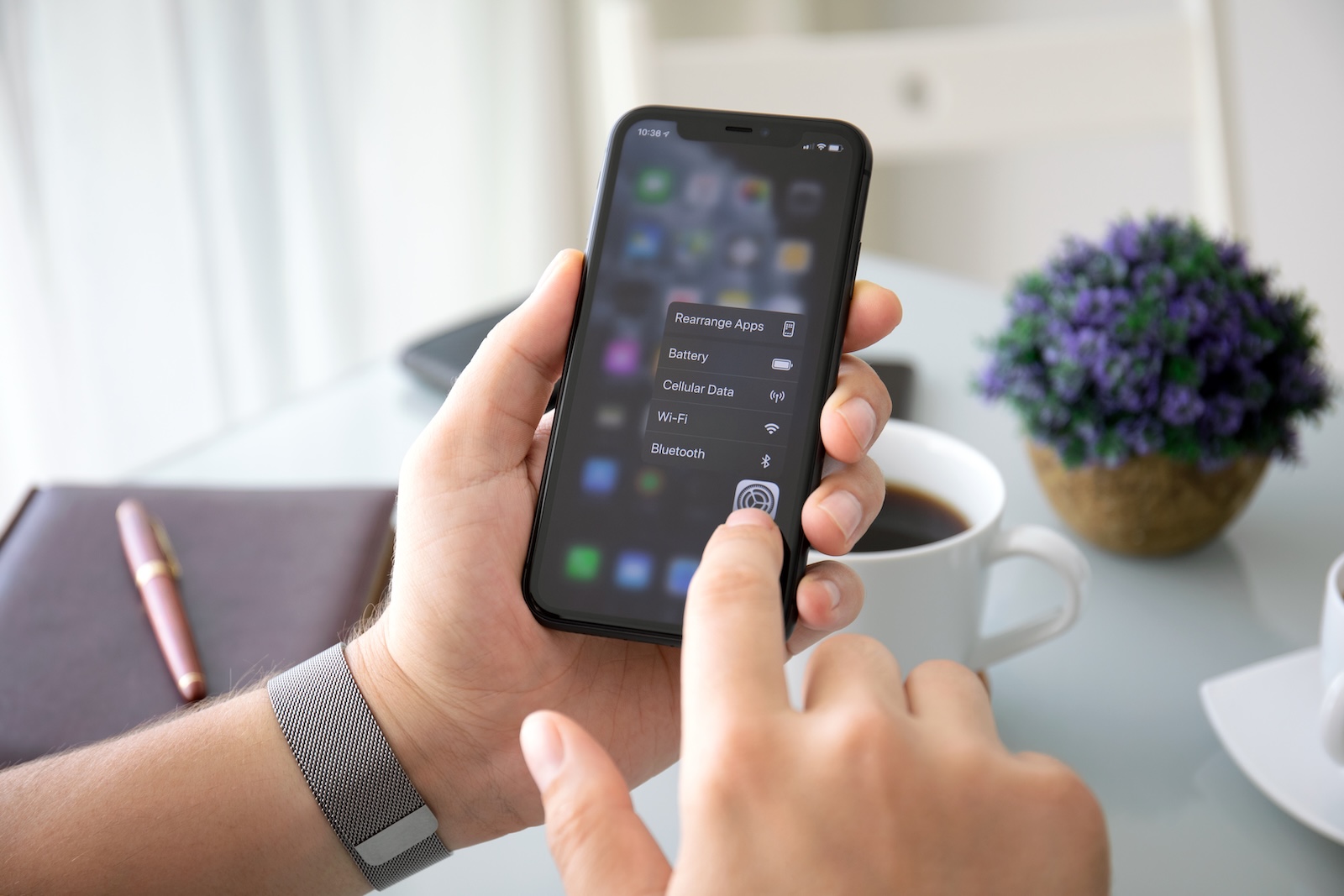
iPhone Haptic Touch

Image: Shutterstock / DenPhotos

WhatsAppFacebookEmail
Threads

Many iPhone users find the Haptic Touch feature too slow. If you've often wondered why long-pressing on your iPhone feels sluggish or why you miss the quick feedback you used to get, there's good news: With iOS 17, Apple has included a way to adjust the responsiveness of Haptic Touch. This allows you to significantly speed up the function – without additional apps or complicated settings.

When Apple introduced the iPhone 6s in 2015, 3D Touch was one of the big innovations. Depending on how hard you pressed the display, you could perform different actions. The function was direct, responsive, and for many people an integral part of using the iPhone. However, 3D Touch was discontinued in 2018. With the iPhone XR came Haptic Touch – a slimmed down version where the iPhone only reacts to the duration of the pressure, not the force. The feedback felt less direct, especially for users who were used to 3D Touch. Haptic Touch was slower from the start. The pressure point was not active immediately, but came with a delay. Especially compared to the fast first pressure level of 3D Touch, Haptic Touch seemed sluggish. Many found the change disappointing.

iOS 17 brings a solution

Since iOS 17, there's been a setting in Accessibility that lets you change the speed of Haptic Touch. The feature wasn't newly announced, but it's there—and it works. You can choose between three options: "Slow," "Standard," and "Fast." If you select "Fast," the iPhone responds significantly more quickly when you hold down an icon or element on the screen. This makes an immediately noticeable difference—especially for users who miss 3D Touch.

How to change the Haptic Touch speed

To adjust the speed, all you need to do is follow these steps:

  • Open the Settings app on your iPhone
  • Scroll to “Accessibility” and tap it
  • In the “Physical and Motor” section, go to “Typing”
  • Select “Haptic Touch”
  • Now you can choose between “Slow”, “Standard” and “Fast”

Once you've selected a speed, you can test it on the same screen. There's a small flower image for this purpose—press and hold it to test your reaction time instantly.

Why Apple removed 3D Touch – and what that means

Apple has never explained exactly why 3D Touch was discontinued. However, there are several plausible theories. One is that many users weren't even aware the feature existed—it was poorly integrated into the system. Another theory is that Apple wanted to reduce hardware diversity to standardize operation across all devices. This is especially true with iPadOS, which never had 3D Touch. Technically, by removing 3D Touch, Apple was able to do without an additional capacitive layer in the display. This saves space, reduces costs, and simplifies the design.

  • Protection against fraud: 9 simple tips for more security

Haptic Touch: Simply type faster with your iPhone

If Haptic Touch feedback has been too slow for you, you can now speed it up with just a few clicks. The setting available starting with iOS 17 makes just that possible – and brings Haptic Touch's behavior closer to the old 3D Touch. You don't need a new iPhone for it. The feature is available on all models with iOS 17 or later. Whether you have an iPhone XR, an iPhone 12, or a newer model – set Haptic Touch to "Fast" and your iPhone will immediately feel more responsive. A small adjustment in the settings, but with a noticeable effect. Looking for accessories? Our Amazon Storefront is your destination for high-quality products, including those for HomeKit! (Image: Shutterstock / DenPhotos)

  • iOS 26: Create your own ringtones – without GarageBand
  • Setting up a HomePod stereo pair: How to do it in 5 steps

Make Apfelpatient a preferred source One click – and you'll see us more often on Google
Was this article helpful?
YesNo
Tags: iOSiPhone
SendShareSend
Share

Our Amazon Storefront

A handpicked selection of products for iPhone, Mac and more – sorted by topic and updated regularly.

Shop Now

This post contains affiliate links (including Amazon). We earn a small commission on qualifying purchases – at no extra cost to you. Learn more on our Partner Program page.

Previous Post

Apple considers acquiring Perplexity AI

Next Post

iOS 26: Everything about Captive Assist & Wi-Fi Aware explained

Milan Jovicic

Milan Jovicic

Milan founded Apfelpatient in 2016 and has been responsible for all editorial content since 2018 — news, rumors, guides, and product reviews. Apple devices here are not test units on loan for two weeks but everyday tools: from the iPhone through MacBook Pro, MacBook Air, and iMac to the Apple Vision Pro, at least one device from nearly every product category is in daily use, many of them replaced annually. Every menu path in a guide is verified on the device before it is published.

Drawn outline of the folded iPhone Ultra with square corners on the hinge side and rounded corners opposite, matching the leaked iPhone Ultra screen protectors

iPhone Ultra: Screen protectors reveal the camera position

August 12, 2026 - 3:58 PM CEST
Glass panel set into the aluminium frame on the back of an iPhone 17 Pro Max in Cosmic Orange, whereas the iPhone 20 glass design is said to wrap the glass around the edges

iPhone 20: Glass design is not supposed to be scrapped after all

August 12, 2026 - 2:50 PM CEST
Jennifer Bailey on stage at an Apple event in front of a projected Apple Card, the Apple Pay chief is leaving the company in October

Apple Pay: Jennifer Bailey is leaving Apple in October

August 12, 2026 - 2:31 PM CEST

About APFELPATIENT

APFELPATIENT brings you the latest Apple news, product updates, guides, reviews and tips across the entire Apple ecosystem — from the iPhone to the Mac to the Apple Vision Pro. From the first rumors to confirmed news: researched responsibly.

Follow Apfelpatient

Facebook Instagram YouTube Threads Threads

Company

  • About Apfelpatient
  • Contact
  • Author Profiles

Community

  • Netiquette
  • Push Notifications
  • RSS feed

Legal

  • Legal Notice
  • Privacy Policy
  • Terms of Use
  • Cookie Settings
  • Affiliate Program

Resources

  • Sitemap

© 2026 Apfelpatient. All rights reserved.

No Result
View All Result
  • Home
  • News
  • Rumors
  • Tips & Tricks
  • Reviews
  • Insights

© 2026 Apfelpatient. All rights reserved. Page Directory

Change language to Deutsch



