

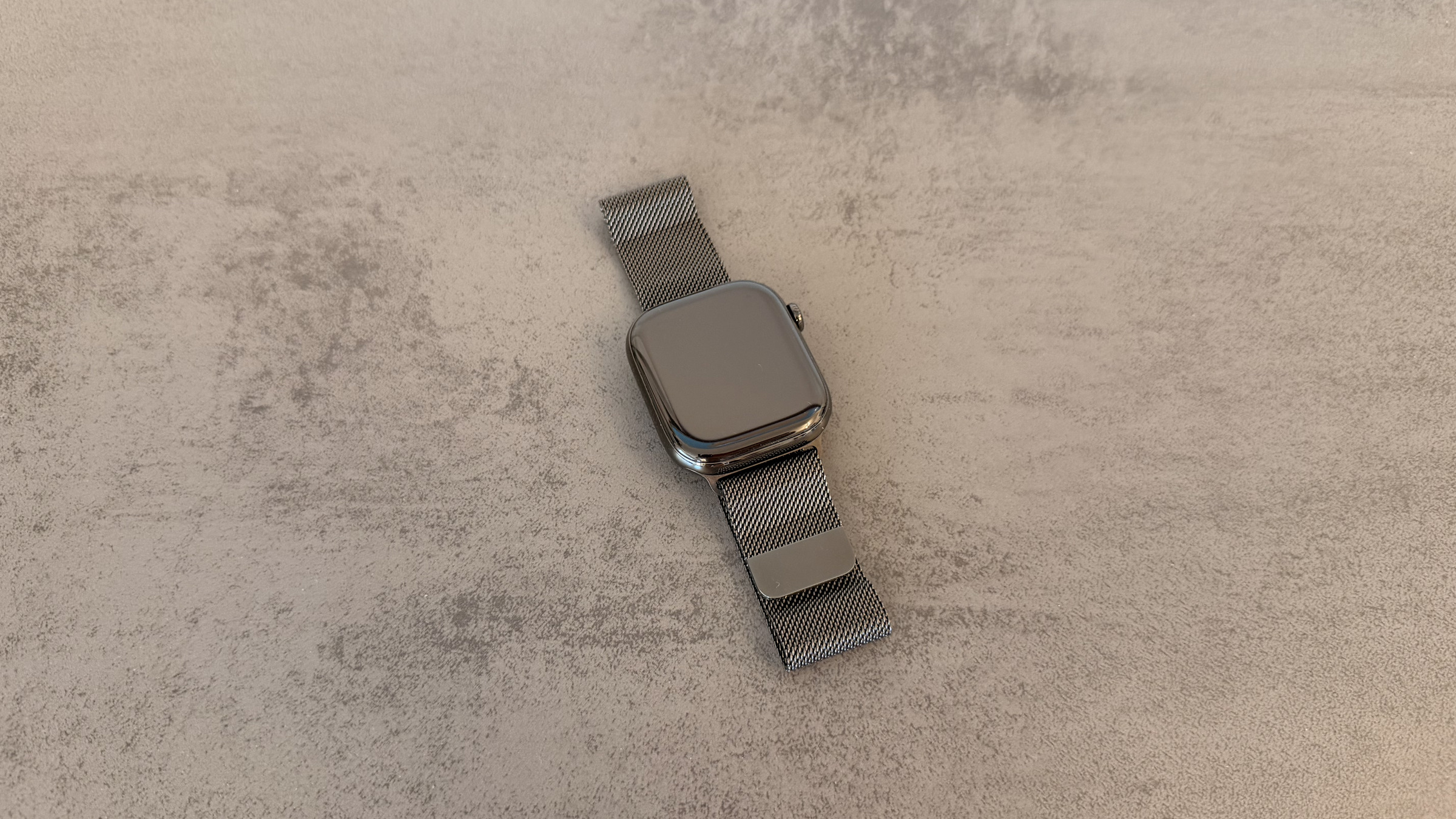
There are two ways to resolve a frozen watch issue, and they are not interchangeable. A normal restart shuts the watch down properly, while a forced restart interrupts it mid-operation. Using the latter too soon risks causing real damage at precisely one point.
The Apple Watch rarely freezes, but when it does, it usually happens at the worst possible moment: in the middle of a workout, during a message, or right after an update. The display becomes unresponsive, the Digital Crown is ineffective, and the "Restart watch" suggestion is of little help if the menu doesn't even open.
Apple distinguishes between two processes but never explicitly explains the difference. This guide separates the two, shows the sequence, and identifies the one case where a forced restart is not recommended.
Key Facts at a Glance
- The normal restart is done via the side button and the power button.
- A forced restart requires pressing the side button and Digital Crown simultaneously for at least ten seconds.
- A restart is never forced during an ongoing watchOS update.
- No data is lost in either case, but the code is required after startup.
- If the watch gets stuck at the Apple logo, the only solution is to unpair and re-pair it.
The normal restart
The regular method is the first attempt, as long as the clock still responds at all:
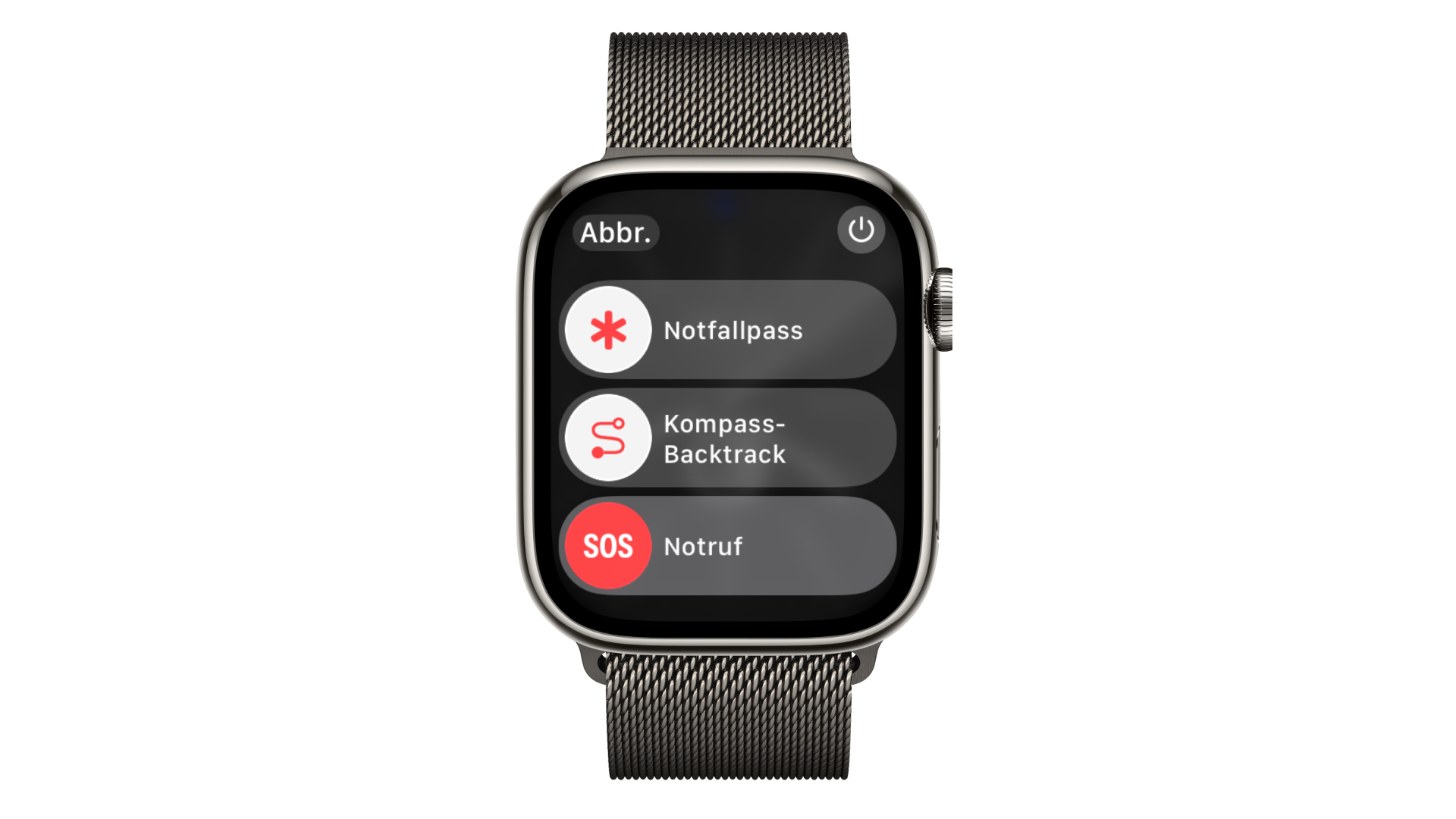
- Hold down the side button until the controls appear.
- Tap the power-off icon and drag the slider to the right.
- Wait until the display remains dark.
- Press and hold the side button again until the Apple logo appears.
This is the gentle approach: The system shuts down its services in an orderly manner. This is usually sufficient for sporadic glitches, delayed notifications, or an app behaving strangely.
Force a restart
Only if the watch can no longer be turned off or no longer responds to any input should the second method be used. Apple explicitly mentions this in its Apple Watch user guide as a step that should only be taken if the watch cannot be restarted normally.
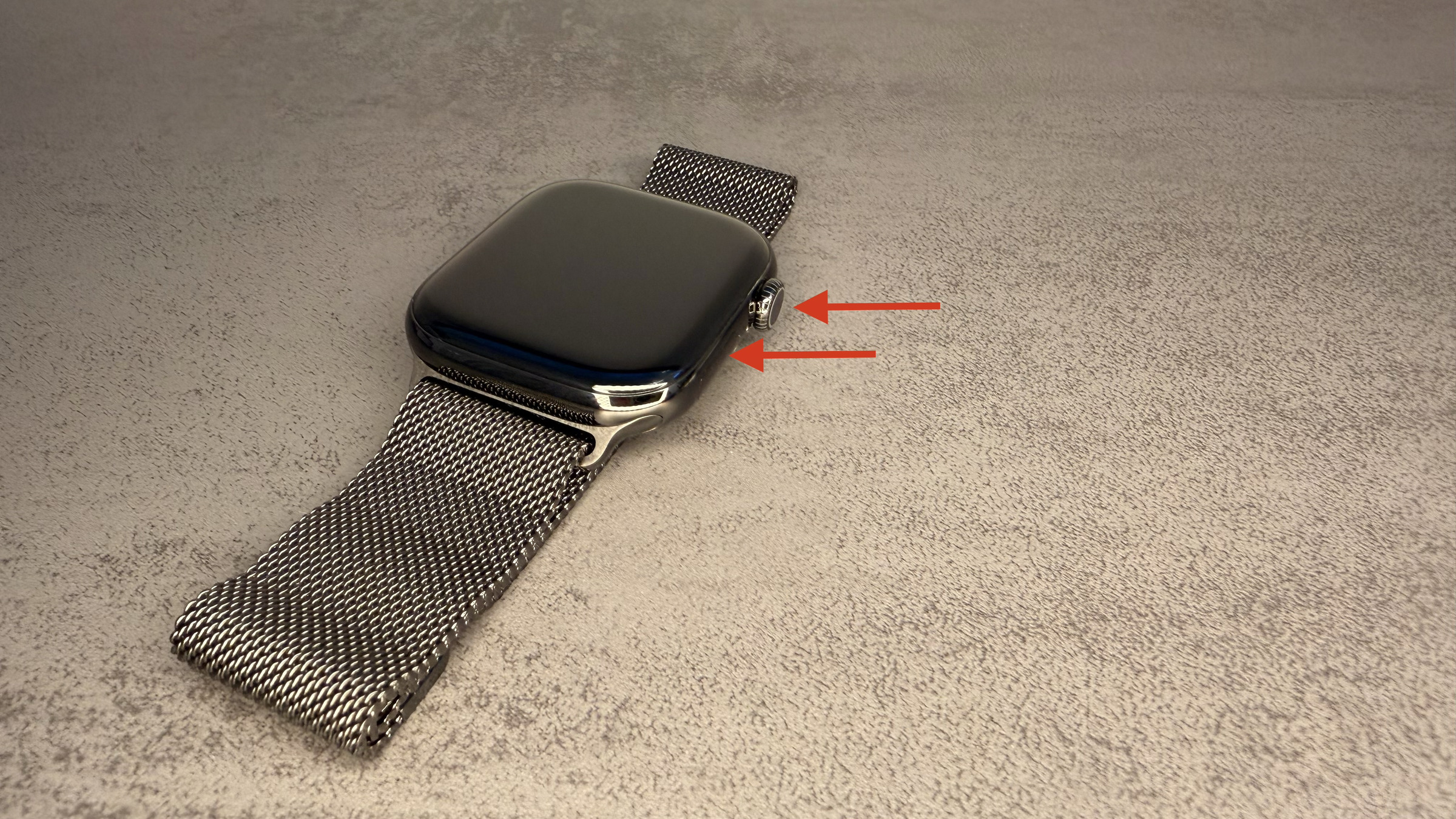
- Press and hold the side button and Digital Crown simultaneously.
- Hold for at least ten seconds, even if nothing happens in between.
- Release both buttons as soon as the Apple logo appears.
It often takes a minute or more before the watch can be used again. Then it asks for the passcode – Face ID or the paired iPhone won't help at this point. Anyone who doesn't have it handy will immediately encounter the issue of a forgotten Apple Watch passcode.
The one case in which you are not allowed to do it
While a watchOS update is being installed, the watch remains idle. An update can sometimes look like a crash: the display shows only a progress ring or nothing at all for several minutes, and the temptation to intervene is strong.
If the process is interrupted mid-write of the system files, the watch may become completely unusable afterward. Therefore, when updating, it's essential to wait, even for hours if necessary, and keep the watch on its charger.
If the watch gets stuck on the Apple logo
This is a unique issue that can't be resolved by restarting. If the logo appears, disappears, and then reappears, the Watch is stuck in a loop. Apple describes a specific solution for this: Place the watch and iPhone close together, unpair the watch in the Watch app on the iPhone, and then pair it again.
Two points where things get tricky: With a model that uses a mobile network, the unpairing process asks if the plan should remain active – be sure to agree here, otherwise the setup process will be more complicated. And when pairing again, the watch can be restored from the backup that is automatically created during unpairing.
The complete steps are described in the guide on unpairing and erasing the Apple Watch, while potential pitfalls when reconnecting are outlined in the help section for situations where the Apple Watch cannot be paired.
If nothing else happens
If the watch doesn't respond to any button combination and the display remains black, the battery is the most likely cause. It should then be placed on the charger for at least half an hour before trying again. The fact that the charging process itself sometimes takes an unusually long time has its own causes and is not a defect.
If that doesn't help either, the next step is to contact Apple Support. A factory reset should be performed first – but only after the watch is usable again, as that's a prerequisite.
Why the order is more important than the keyboard shortcut
Everyone knows the combination after two tries. What really makes a difference is when you use it. The forced restart isn't a cure-all, but rather an abort: it cuts off ongoing write operations. In 95 percent of cases, this has no consequences; in the remaining 5 percent, it happens precisely when something important was in progress.
In practical terms, this means you should first try the regular method, even if it seems more complicated. Only force a restart if the watch is truly unresponsive – and never while a progress ring is running at the top. If you frequently experience problems after restarting, you should look for the underlying cause rather than the faster key combination.
On what occasion did you last have to resort to the ten-second combo – after an update, during training, or simply out of the blue? Tell us in the comments whether things remained quiet afterward.
Frequently Asked Questions: Apple Watch Restart
Press and hold the side button until the sliders appear, tap the power off icon, and drag the slider to the right. To turn on, press and hold the side button until the Apple logo appears.
Press and hold the side button and Digital Crown simultaneously for at least ten seconds, and only release when the Apple logo appears. Nothing will happen in the meantime – that's normal.
A normal restart shuts down the system in an orderly manner. A forced restart interrupts it mid-operation and cuts off ongoing write operations. That's why it's the second step, not the first.
No, neither method deletes anything. After restarting, however, the watch will ask for the code – the paired iPhone won't help at this point.
No. An update can easily look like a crash because only a progress ring appears for several minutes. If it's interrupted, the watch might become completely unusable afterwards.
A restart won't fix this. Apple recommends unpairing and re-pairing via the Watch app on the iPhone. For cellular models, be sure to agree that the data plan will remain active.
The battery is usually empty by then. Leave it on the charger for at least half an hour before trying again.





