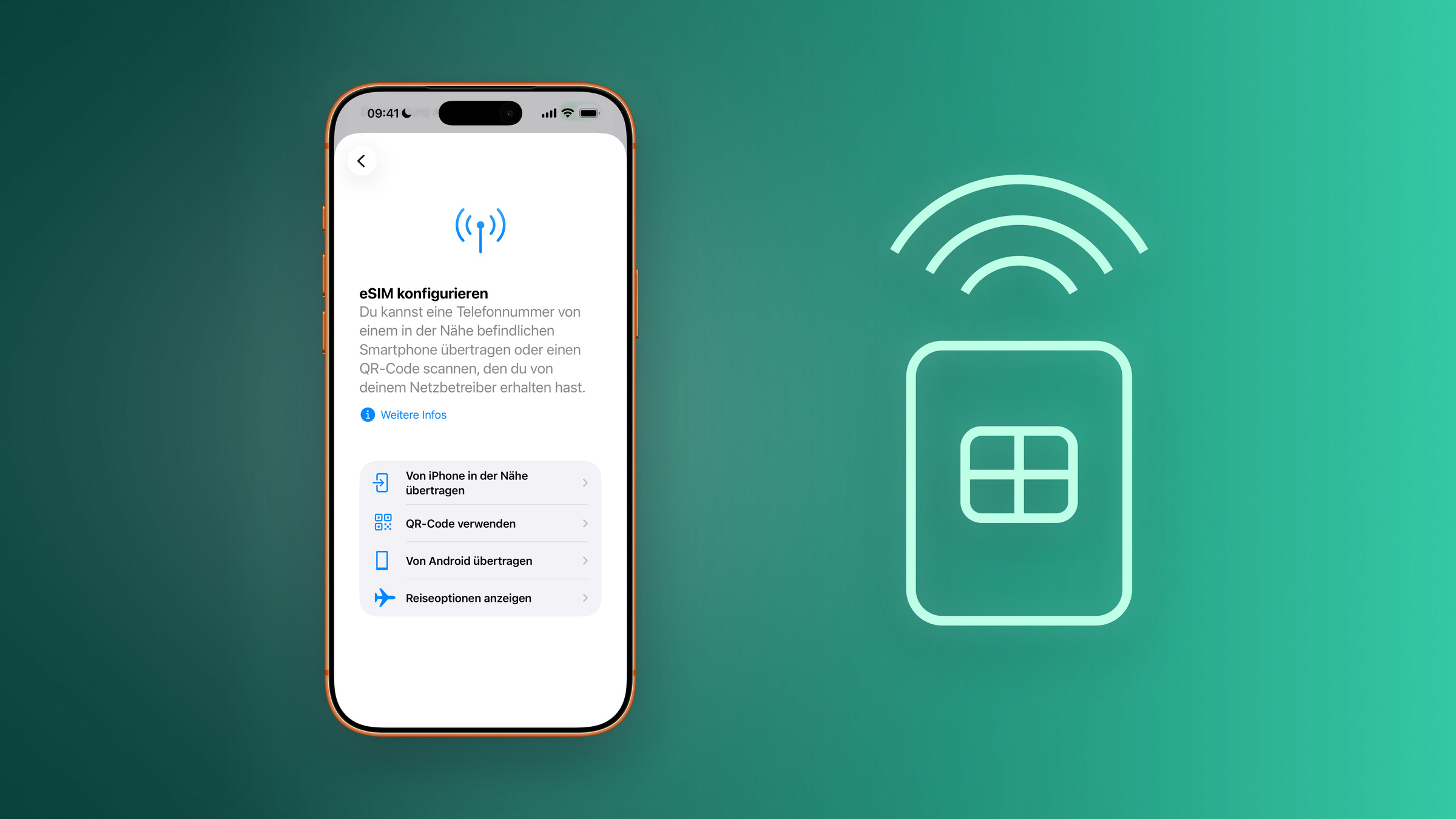
There are five ways to activate an eSIM, and which one is available is determined not by Apple, but by the mobile network operator. Trying the wrong method first will land you in a waiting loop, even though the switch could have been completed in two minutes. This guide explains the methods and shows what the problem might be.
The eSIM is no longer a special case. It's built into every iPhone from the iPhone XS onwards, it manages up to eight profiles simultaneously, and on current models, it's sometimes the only option. Nevertheless, almost every setup begins with the same uncertainty: Which method applies to my specific plan?
This is precisely the crucial point, as the method depends entirely on the provider. Some send a QR code, others activate remotely, and still others rely on their own app. When moving to a new device, the direct transfer from iPhone to iPhone also comes into play – the part that is part of the overall data migration process.
Key Facts at a Glance
- Five activation methods: Quick transfer, provider activation, QR code, provider link or app, manual entry.
- Which one works is determined solely by the mobile network operator.
- Quick transfer from iPhone to iPhone requires iOS 18.4 or later on both devices.
- With many providers, an existing physical SIM can be converted into an eSIM.
- Up to eight profiles can be saved, and two numbers can be used simultaneously.
Requirements
Apple's eSIM setup instructions list three requirements: an iPhone XS or later, a carrier that supports eSIM, and a Wi-Fi connection during activation. For models that exclusively use eSIM, the Wi-Fi requirement is waived in some countries.
For German-speaking countries, one point is more important than all the others: Unlike in the US, models with a SIM card slot are still available here. Of the iPhones currently sold, only the iPhone Air and the iPhone Duo work exclusively with eSIM; the Pro models still have a physical slot. Anyone who needs a physical SIM card when buying a device —for example, because of a second plan abroad—should check this beforehand.
Method 1: Quick transfer from iPhone to iPhone
The most convenient way to switch devices, because the provider is not involved. Requirements: both devices are logged in with the same Apple account, the old iPhone is unlocked, Bluetooth is enabled on both, and both are running iOS 18.4 or later.
During setup, the new iPhone will automatically prompt you to transfer the data. Afterward, go to Settings, Cellular, "Set Up Cellular" or "Add eSIM," and then select "Transfer from Nearby iPhone." Confirmation is required on the old device, sometimes via a verification code.
The old SIM card will be deactivated as soon as the plan is activated on the new iPhone. If a banner then appears saying "Complete your mobile plan configuration," it will take you to the provider's website – this step is normal and not an error.
Option 2: Provider activation
The provider assigns the eSIM directly, without any scanning or input required. This happens automatically during the initial setup of a newly purchased iPhone.
Later, the iPhone will display the message "Mobile plan can now be installed." Tap it, then "Next"—done. If the new plan replaces a physical SIM card, remove the card and restart the iPhone.
Method 3: QR code
The classic solution when the mobile plan isn't included with the device purchase. The camera app is all you need: scan the code, tap "Mobile plan detected," and follow the instructions.
A more practical method, which many are unaware of, is this: If the code arrives via email or from the provider's website, it can be directly tapped and held (from iOS 17.4 onwards) – "Add eSIM" will then appear in the menu. This eliminates the need for a second device or a printout.
Option 4: Link or provider app
Some providers send a link instead of a code. From iOS 17.4 onwards, simply tap the link; confirm the prompt "Activate new eSIM" with "Allow".
Others rely entirely on their own app. Activation takes place within the app, sometimes including number transfer from the old device.
Path 5: Manual input
This is a rare case where the provider sends the login details as text. To access them, go to Settings, Mobile Network, "Add mobile plan" and then "Enter details manually" at the bottom.
Convert physical SIM to eSIM
If you already have a contract, you can convert your SIM card on the same iPhone – provided your provider supports it. The "Convert to eSIM" option will then appear under Settings > Cellular. After confirmation, the plan will be transferred, the physical SIM card deactivated, and can be removed.
This conversion is not available with every provider or in every plan. If the option is missing, it's not a problem with your iPhone.
From Android device to iPhone
Until recently, this process required contacting the provider. With iOS 26 or later, some providers and select manufacturers support direct data transfer between Android and iPhone, in both directions. Where this isn't possible, the old procedure remains: contact your provider and have them reactivate your eSIM.
If activation fails
The most common causes lie before the actual process: no Wi-Fi, a provider that doesn't support the chosen method, or an outdated iOS version. Apple's help for failed eSIM setup suggests, as a first step, to toggle airplane mode on and off, and then check under Settings > Cellular to see if the number is even listed.
One point that is regularly overlooked: A locked iPhone – meaning one bound to a network – will not accept eSIM plans from other providers. This primarily affects devices from older bundled contracts.
Dual SIM: two numbers simultaneously
The practical core of the technology: An eSIM and a physical SIM card operate simultaneously; newer models can even use two eSIMs. Typical uses include separating private and business calls, and using a local tariff while traveling without deactivating the primary number.
The Apple Watch also plays a role here: A model with cellular connectivity needs its own tariff with the same provider, usually as an additional option to the existing number.
Why the method doesn't belong to you
The eSIM is often touted as a liberation from plastic, but control still rests with the provider. They decide whether the quick transfer works, whether a conversion is offered, and how long a reissue takes. For users, this means: the technology is rarely the problem; the terms and conditions are.
In practical terms, this means: Before switching devices or traveling, check which method your provider supports – a phone call saves more time than trial and error. And only deactivate the old SIM card once the new one has demonstrably been used for calls.
Which provider's eSIM setup worked smoothly for you – and where did you encounter problems with a hotline? Tell us in the comments how it went for you.
Frequently Asked Questions: Setting up an eSIM on an iPhone
All models from iPhone XS, iPhone XS Max and iPhone XR onwards. Currently sold devices, the iPhone Air and iPhone Duo work exclusively with eSIM; the Pro models still have a card slot in this country.
Up to eight or more profiles can be stored on an iPhone. Two numbers can be active simultaneously – as an eSIM plus a physical card or, on newer models, as two eSIMs.
Via eSIM quick transfer, without contacting the provider. Both devices need iOS 18.4 or later, the same logged-in Apple account, active Bluetooth, and proximity.
Yes, with many providers. The "Convert to eSIM" option will then appear under Settings, Cellular. If it's missing, the provider or the plan doesn't support the process – it's not the iPhone's fault.
If the code arrives via email or from the provider's website, it can be pressed and held directly from iOS 17.4 onwards; "Add eSIM" will then appear in the menu. Alternatively, the provider will send the data for manual entry.
The most common problems are a lack of Wi-Fi, an outdated iOS version on the iPhone, or a provider that doesn't support the chosen method. Furthermore, a network-tied iPhone cannot use plans from other providers.
With iOS 26, some providers and selected manufacturers support direct bidirectional data transfer. Otherwise, the provider will re-provision the eSIM via provider activation or QR code.