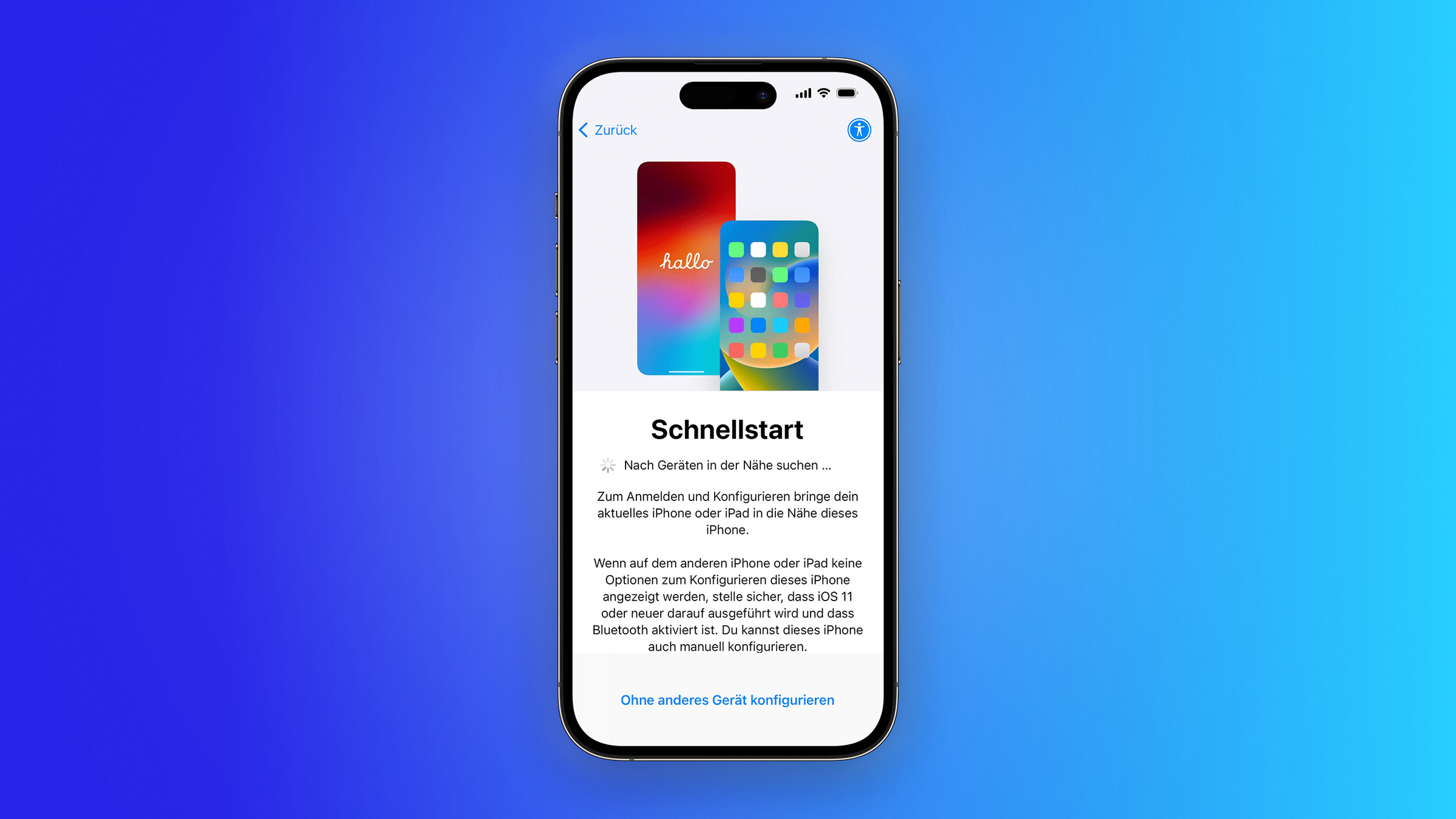
Two iPhones side by side, scan an animation, done – that's the idea behind Quick Start. In practice, it falters in three places: the prompt doesn't appear, the new device is already set up, or the transfer stalls. There's a solution for all three.
Quick Start is the fastest way to get a new iPhone, but it has a peculiarity that surprises many: it's not a feature that can be accessed later, but rather an integral part of the initial setup. Once the new device has been fully configured, returning to this point is only possible via a longer process.
This page deals exclusively with this one method. Alternative methods and when each is worthwhile are explained in the overview of data transfer methods.
Key Facts at a Glance
- Quick start only works during the initial setup of the new device.
- The minimum requirement on an older iPhone is iOS 11, and on an iPad, iPadOS 13.
- If the prompt does not appear, restarting both devices will help.
- Quick Start is not available at all on devices from Apple School Manager or Apple Business Manager.
- During direct transfer, both iPhones are blocked until the end.
What a quick start requires
Apple's quick start guide lists four conditions: The old device is running iOS 11 or iPadOS 13 or later, it is connected to Wi-Fi, Bluetooth is turned on, and both devices are close to each other.
There's another requirement that's often overlooked in everyday life: both devices will be in use for the duration of the process. The old iPhone can't be used during this time – so the transfer shouldn't be done between appointments.
Step by step
- Turn on the new iPhone and place it next to the old one.
- The old device will display a prompt to set up the device – confirm.
- Use the camera of the old iPhone to scan the animation on the new screen.
- Enter the code from the old device on the new one.
- Connect the new iPhone to Wi-Fi or cellular network.
- Set up Face ID or Touch ID.
- On the "Transfer data" screen, select the desired option.
After that, leave both devices in place, ideally plugged into the charger. How long this takes depends on the amount of data and the network connection; Apple deliberately does not provide a reliable time estimate.
The decision on the screen „Transfer data”
This is where the real choice is made, and it has a direct impact on the evening.
Transferred directly from iPhone: The data goes directly from device to device. Both iPhones are unusable until the transfer is complete, but everything will be available afterwards.
Download from iCloud: The new iPhone is ready to use immediately; apps and content download in the background. For large media libraries, this can take hours, during which time the device should remain connected to Wi-Fi.
If the prompt does not appear
The most common stumbling block. Apple suggests a clear solution: restart both devices. Before doing that, it's worth checking the basics – Bluetooth is active, Wi-Fi is connected, both devices are unlocked and close to each other.
If the problem persists, the issue is usually Bluetooth on the old device: In the control center, it is only temporarily deactivated; it is completely switched off in the settings.
If the new iPhone is already set up
Quick start cannot be performed retroactively. Once the setup is complete, the system no longer offers that screen – the only way back is to reset the device and start the process again.
That's why it's worth migrating before "just quickly" trying out the new iPhone. Anyone who has already installed apps and logged into accounts will lose this data when they reset the device.
If the transmission stalls
During direct data transfer, progress is not always smooth – long pauses at one point are normal, as long as the display is still moving at all. Both devices should be connected to a power source and remain within range.
If the process gets stuck, canceling is a better option than waiting for hours: Reset the new iPhone and repeat the process, this time using a wired connection. This is independent of Wi-Fi and, for large amounts of data, is generally the more stable method. The only important thing is to have a backup beforehand – then a failed attempt will only cost you time.
Where quick start doesn't work at all
A special case that is rarely documented: If the new device is registered with Apple School Manager or Apple Business Manager, data cannot be transferred from the current device. This affects company and school devices that are centrally managed.
This is not a malfunction and cannot be circumvented. In this case, the procedure involves following the guidelines of the administrative body.
Why the move is failing at the edges
Quickstart itself is robust. What almost always costs users their evening are the external factors: a device that has already been set up, a Wi-Fi connection that drops during the transfer, or a time window that was planned too narrowly.
Practically speaking, this means you should only unpack your new iPhone when you have an hour of peace and quiet and both devices are plugged in. And if the Wi-Fi signal is weak, use a cable right away instead of trying wirelessly twice.
At what point did your last quickstart get stuck – at the prompt, with the code, or in the middle of the transfer? Tell us in the comments how you solved it.
Frequently Asked Questions: iPhone Quick Start Guide
One feature of the initial setup: The new iPhone directly transfers data and settings from the old device, which is placed next to it during the process. This only works during setup, not later via the settings menu.
At least iOS 11, or iPadOS 13 for an iPad. Also required are a Wi-Fi connection, activated Bluetooth, and proximity to the new device.
Usually, one of the basic requirements is missing. Apple suggests restarting both devices as a solution. Before doing this, check: Bluetooth is actually active, Wi-Fi is connected, both devices are unlocked, and they are close to each other.
No. The system will no longer offer the screen. The only way back is to reset the new device and start a completely new process.
During a direct transfer, both iPhones are locked until the end; after that, everything is available. When loading from iCloud, the new device is immediately usable, with apps and content being downloaded in the background.
This depends on the amount of data and the network – Apple doesn't specify a fixed time. Both devices should remain plugged in and within range of each other until completion.
If the device is registered with Apple School Manager or Apple Business Manager, data cannot be transferred from the current device. This cannot be circumvented; the regulations of the managing entity apply.