

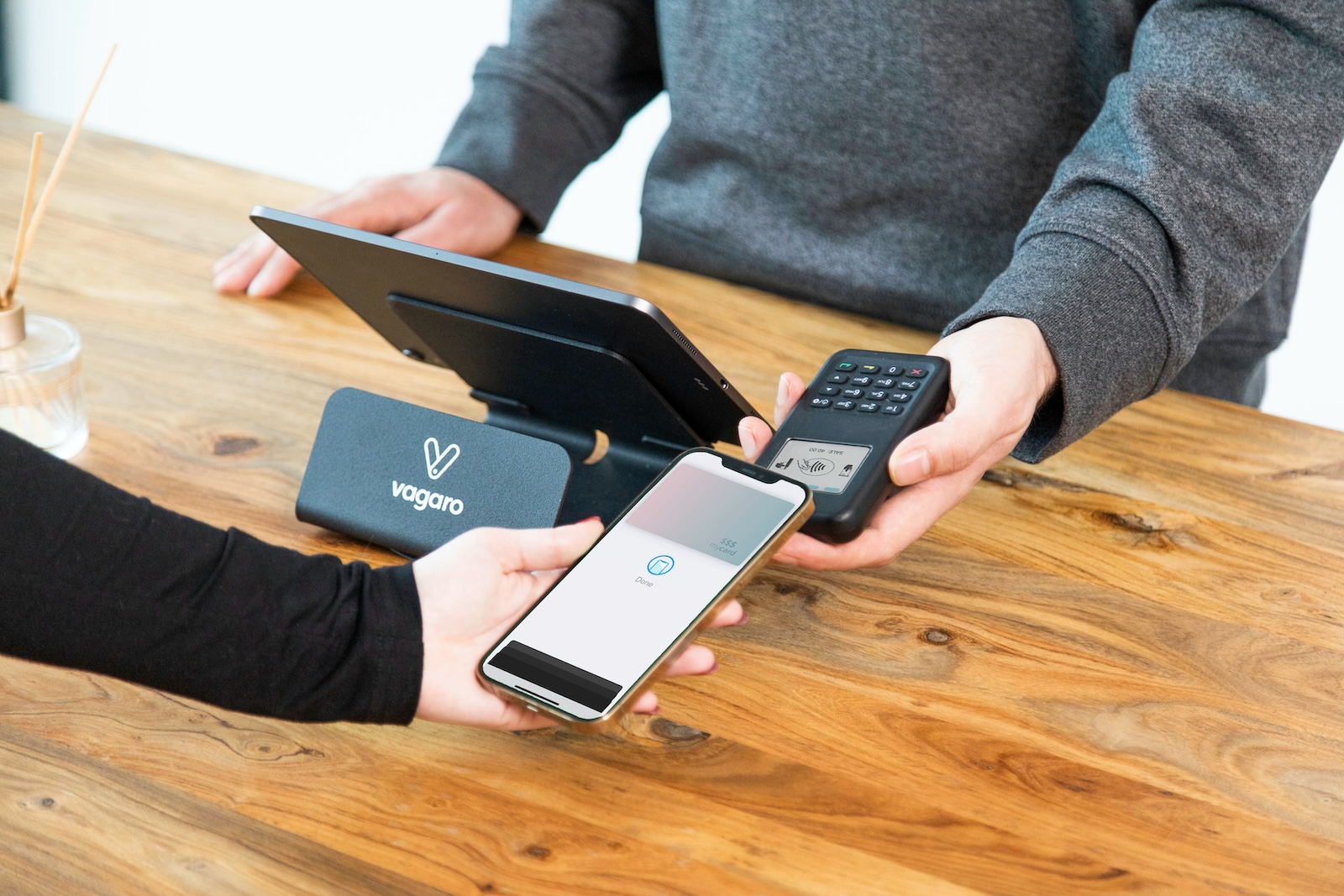
Apple Pay is one of the most popular methods for contactless payments with the iPhone. If you get a new iPhone, you'll probably want to be able to continue using Apple Pay seamlessly, without having to go through complicated new registrations or tedious processes. Below we'll show you how to easily transfer Apple Pay to your new iPhone and what you need to pay attention to. Whether you're an old hand at Apple Pay or just starting out, our tips will have you well prepared.
Switching to a new smartphone can be exciting, but sometimes it also brings challenges, especially when it comes to important apps like Apple Pay. Because Apple Pay is tied to a specific Apple device, the question is how to continue using the service on a new iPhone without losing security or convenience. Here's how to make the transition as smooth as possible and quickly set up Apple Pay again on your new iPhone.
Transferring Apple Pay to a new iPhone: Step by step
To continue using Apple Pay on your new iPhone, you need to follow a few simple steps. First of all, rest assured: your card details are stored securely in the cloud, so you don't have to enter them again. However, it is important that you reactivate these cards on the new device. Here's how it works:
- Setting up Apple Pay on your new iPhone: When you set up your new iPhone for the first time, you have the option to configure Apple Pay directly. If you skipped this step, you can do so at any time in the settings.
- Get cards from the cloud: Your previously saved credit or debit cards will appear automatically when you sign in with your Apple ID. This means you don't have to re-enter the card details, saving you time and effort.
- Card activation: To activate your cards for Apple Pay on the new device, you will need to reconfirm. You will receive an SMS code that you must enter to verify the card. This step ensures that only you have access to your cards.
- Test and get started: After confirmation, you can use Apple Pay as usual. It's best to test the setup with a small purchase to make sure everything works smoothly.
Using Apple Pay on an Android device – is that possible?
Unfortunately, there is no way to transfer Apple Pay to an Android device. Apple Pay is designed exclusively for iPhones and other Apple devices. If you switch to an Android smartphone, you will need to switch to Google Wallet instead, which offers similar functionality but is not compatible with Apple Pay.
Use Apple Pay on multiple devices at the same time
If you want to use Apple Pay on multiple devices at the same time, that's no problem. You can store the same credit card on different Apple IDs and use it on multiple devices. This means that you can use the same card on your iPhone and iPad, for example, without having to take any further steps.
Do I have to inform my bank about the device change?
A common concern is whether you need to notify your bank when you switch to a new iPhone. Fortunately, you don't need to. Your bank has no control over which devices you link to your cards, so you can easily use Apple Pay on your new iPhone without notifying your bank.
Transfer Apple Pay seamlessly to a new iPhone
Switching to a new iPhone doesn't have to be complicated—even when it comes to transferring Apple Pay. With the right steps, you can set up Apple Pay quickly and securely on your new device and continue using it seamlessly. Remember to verify your cards on your new iPhone to ensure the security of your transactions. If you ever consider switching to an Android device, keep in mind that you'll need to switch to Google Wallet. Looking for new accessories? Discover our Amazon Storefront now ! There you'll find a variety of products from top brands, ideal for HomeKit and more! (Photo by Unsplash / Vagaro)





