

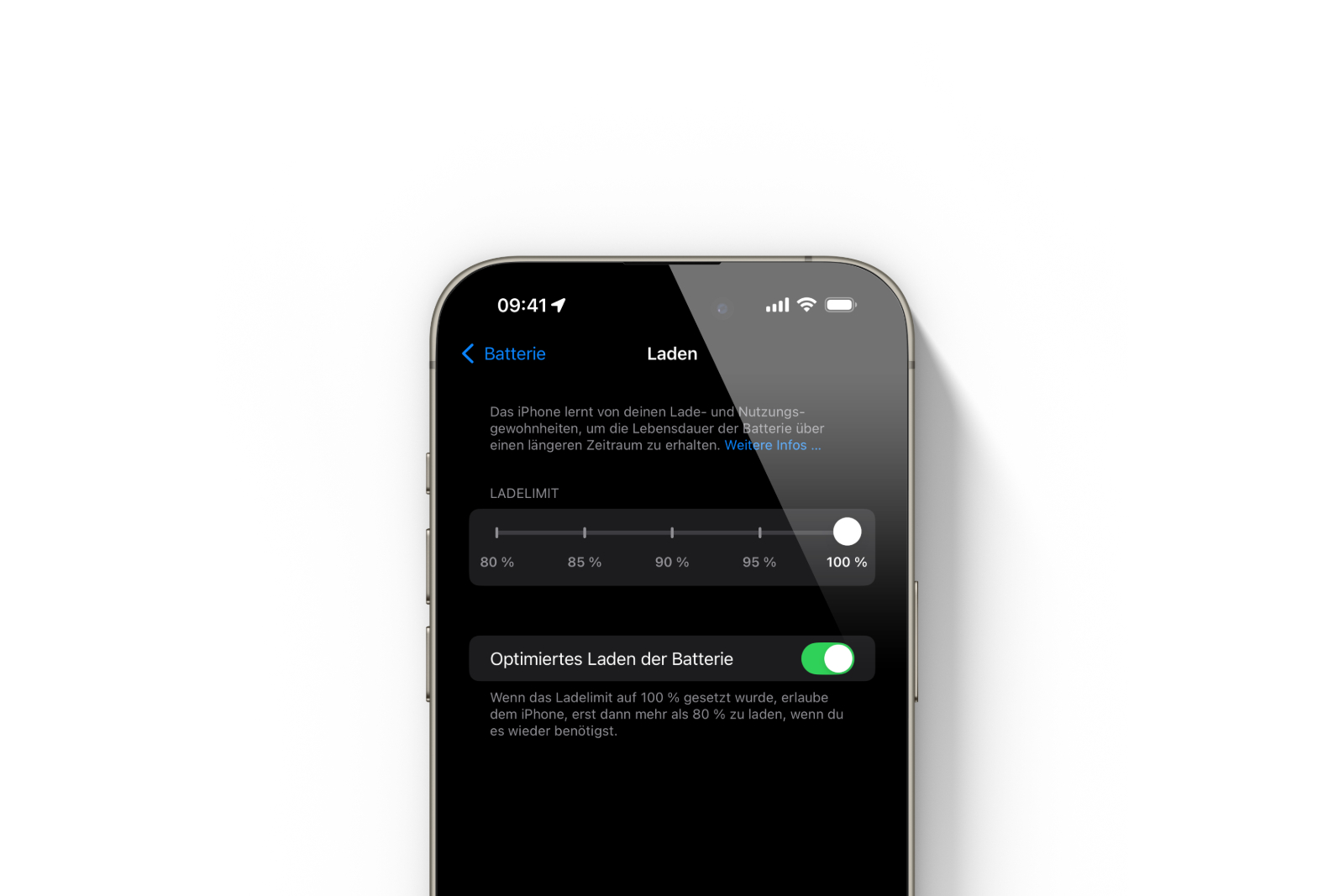
With the launch of iOS 18, Apple introduced new charging options for iPhone models 15 and 16 that aim to extend your device's battery life. These improved charging features give you more control over how and when your iPhone charges, helping to minimize wear and tear on your battery. Below, you'll learn all about the new charging options, how to get the most out of them, and why they're important for the longevity of your iPhone battery.
Batteries are one of the most sensitive components of your iPhone and their performance decreases over time. Repeatedly charging to 100% and holding that charge for long periods of time can significantly shorten the life of your battery. Apple has recognized this challenge and with iOS 18 offers intelligent charging solutions that are tailored to your personal usage habits. The new charging limits are a crucial improvement that allows you to charge your iPhone in a way that slows battery aging without sacrificing usability.
New charging options in iOS 18
With iOS 18, Apple introduced four charging limits: 80 %, 85 %, 90 % and 95 %. These limits give you flexibility to adjust your iPhone's charging habits to your needs. Here's how to use the new feature:
- Open the Settings app on your iPhone.
- Tap “Battery”.
- Select "Load".
- Choose a charging limit: 80 %, 85 %, 90 % or 95 %.
By choosing a charge limit, you can prevent your iPhone from staying at 100 mAh for an unnecessarily long time, which will extend battery life. This is especially useful if you often leave your iPhone on the charger overnight or for long periods of time.
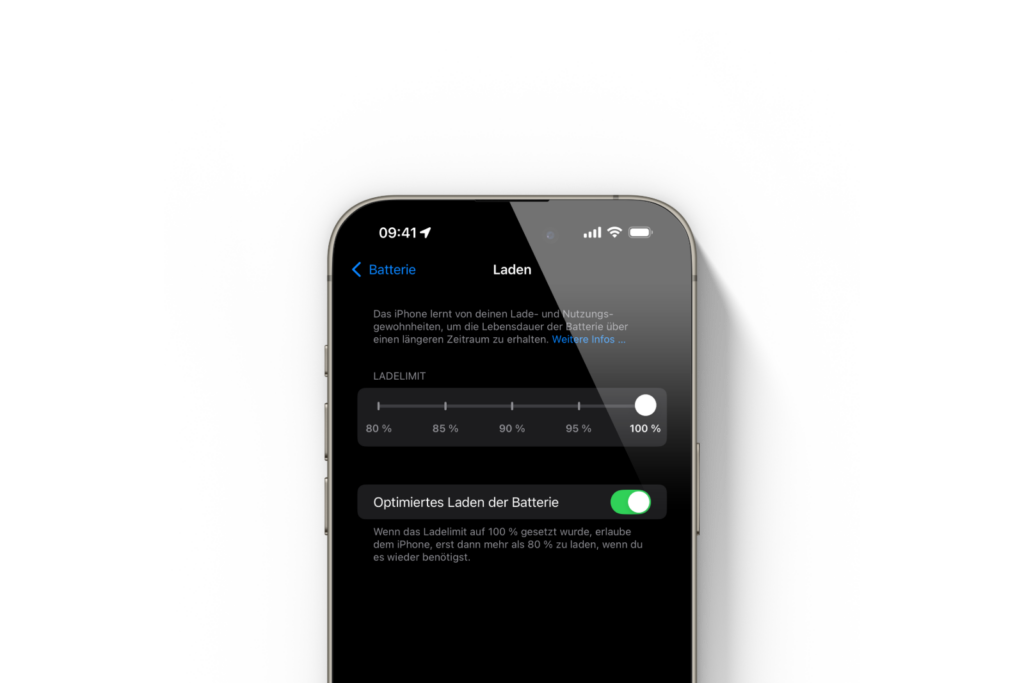
Optimal use of charging limits
Choosing the right charging limit depends largely on your daily habits:
- 80 % or 85 %: These limits are ideal if you have regular access to a power source during the day. They reduce the time your iPhone spends on a high charge and are particularly gentle on the battery.
- 90 % or 95 %: If you're on the go for longer periods of time and have fewer opportunities to charge your iPhone, these values may be more suitable. They offer longer battery life without putting excessive strain on the battery.
The best part is that you can change these settings at any time. For example, if you know you have a long day ahead of you, you can disable the limit and fully charge your iPhone.
charging recommendations from iOS 18
iOS 18 goes one step further by proactively giving you charging recommendations based on your daily usage habits. If you have an iPhone 15 or 16, iOS 18 will, after some time, suggest a charging limit that best fits your charging habits. This recommendation is displayed as a notification and can be reviewed at any time in Settings under "Battery → Charging".
Warnings about slow chargers
In addition to the new charging options, iOS 18 also warns you when your iPhone is charging with a slow charger. In the "Battery" overview, you'll now see an orange mark if a slow charger has been used in the last 24 hours. If the charging speed falls below a certain threshold, you'll be notified with an alert. Although Apple hasn't yet disclosed at what speed the alert will be triggered, this is a helpful feature, especially if you're using older chargers that may no longer be optimal for your iPhone. Many wireless chargers that are compatible with MagSafe often only offer Qi speeds or slower. This iOS 18 feature can help you understand why your iPhone isn't charging as quickly as it should.
Maximize your iPhone's battery life with the new iOS 18 charging options
With the new charging features in iOS 18, Apple has taken an important step to extend the life of iPhone batteries and increase convenience for users. By setting a charging limit and paying attention to iOS 18's charging recommendations, you can optimize your iPhone's battery performance while minimizing wear and tear. In addition, the slow charger warning helps you identify and fix potential charging problems. Use these new features to get the most out of your iPhone while maximizing battery life. Are you looking for new accessories? Visit our Amazon Storefront – there you will find a variety of products from leading providers, including for HomeKit and more! (Image: Apfelpatient)
- Control Center in iOS 18: Re-enable Bluetooth switch
- Rediscover Apple Music: Music Haptics in iOS 18 explained
- Apple Watch: New sleep apnea feature explained
- iOS 18: Some app icons remain bright in dark mode
- iOS 18, visionOS 2 & more released: The most exciting features





