

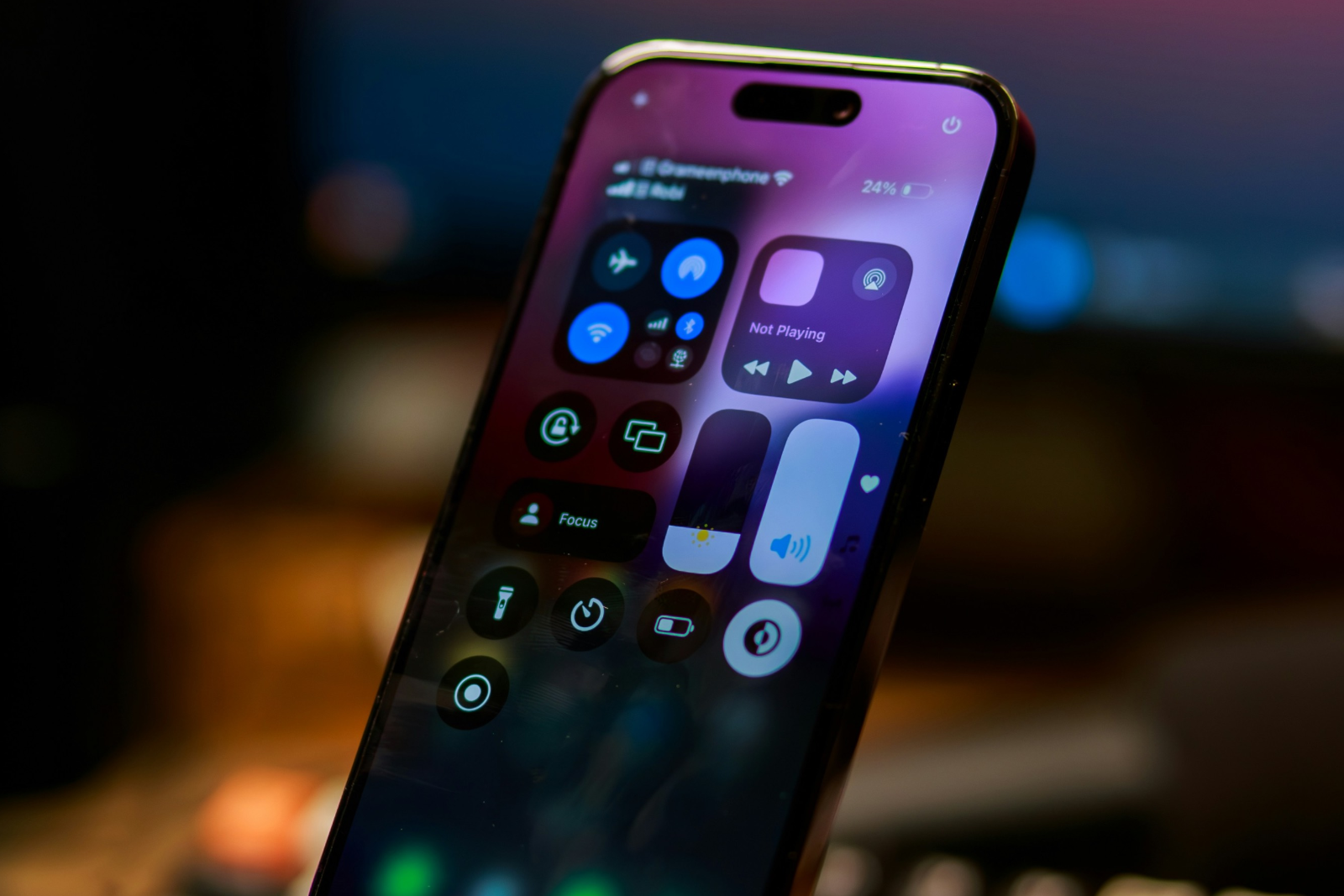
With iOS 18, Apple has completely redesigned your iPhone's control center. Not only has the design been adjusted, but new features have also been added that allow you to manage your settings even more easily. One of these changes concerns the Bluetooth toggle function. Below we'll show you how to easily add Bluetooth control back to the top level of your control center so that you can turn Bluetooth on and off with a tap, just like in iOS 17.
The new iOS 18 brings many exciting new features, especially in the Control Center. By default, there are now several pages that you can customize to your liking. However, some users miss the simple Bluetooth toggle function that was accessible directly in the Control Center in previous iOS versions. Here you will learn step by step how to get this function back and restore the behavior of iOS 17.
Why add a Bluetooth switching function?
If you often switch between Bluetooth connections, it can be inconvenient to first open the Connectivity widget to access the settings. With iOS 18, direct access to Bluetooth toggles has been integrated deeper into Control Center, requiring additional steps. The good news, however, is that you can easily bring this feature back to the top level, allowing you to enable or disable Bluetooth with a simple tap.
Step-by-step guide: Add Bluetooth switch
Here is a simple step-by-step guide on how to add a Bluetooth toggle to the Control Center of your iPhone with iOS 18:
- Open Control Center: Swipe down from the top-right corner of your iPhone screen to open Control Center.
- To enter edit mode: Long-press an empty spot in Control Center until edit mode activates.
- Add control: Tap Add control at the bottom of the screen.
- Browse the Connections section: Scroll down and find the Connections section.
- Select Bluetooth Control: Tap the Bluetooth Control icon to add it to your Control Center.
- Save Changes: Exit edit mode to save changes.
Now you have the Bluetooth switch available again at the top level of your Control Center. With a tap you can enable or disable Bluetooth connections. If you press and hold the control, the Bluetooth details menu opens, where you can manage your connected devices.
Customization options in the iOS 18 Control Center
In addition to the Bluetooth toggle function, iOS 18 offers you a variety of customization options for the Control Center:
- Add and remove pages: You can add additional pages for different categories such as media controls or HomeKit and even remove existing pages.
- Change the size of the controls: You can make the Bluetooth switch appear as a small round button or turn it into a larger rectangle, depending on your personal preference.
- Change position: If your Control Center is already full, the Bluetooth switch will automatically be placed on a new page. However, you can move it to another location by long-pressing and dragging it.
Additional tips for your control center
In addition to Bluetooth control, you can also add other connection switches, such as for airplane mode, mobile data or your personal hotspot. This way, you always have the most important functions at your fingertips. The iOS 18 Control Center gives you plenty of freedom to design it according to your preferences, so you can customize everything to access the most important functions of your iPhone quickly and efficiently.
With iOS 18: Customize and customize the Control Center
iOS 18 has added many useful features to your iPhone's Control Center, including the ability to add pages and customize controls. The Bluetooth toggle function is just one of many useful features that you can quickly reactivate to operate your device as usual. By following the steps described, you can easily restore the behavior of iOS 17 and ensure that Bluetooth can be switched with a tap at any time. Adapt your Control Center to your needs and experience how efficient and user-friendly iOS 18 is designed! Are you looking for accessories from top brands? In our Amazon Storefront you will find a wide range of products, perfect for HomeKit and much more! (Photo by Unsplash / Shuvro Mojumder)
- Rediscover Apple Music: Music Haptics in iOS 18 explained
- Apple Watch: New sleep apnea feature explained
- iOS 18: Some app icons remain bright in dark mode
- iOS 18, visionOS 2 & more released: The most exciting features





