

apple patient
  • Home
  • News
  • Rumors
  • Tips & Tricks
  • Reviews
  • Insights
No Result
View All Result
  • iPhone 18
  • iOS 27
  • iPadOS 27
  • macOS
  • MacBook Neo
  • iPhone 17e
  • AirTags
  • iOS 26
  • iPhone 17
  • MacBook Pro
  • iPadOS
  • iMac
  • Mac mini
  • HomePod
  • Apple TV
  • iPad Pro
  • iPhone Air
  • Apple Vision Pro
  • iPhone 16
  • AirPods 4
  • Apple Watch Ultra
  • HomePod Mini
  • MacBook Air
  • iPad
  • AirPods Max
  • AirPods Pro 3
  • Apple Watch Series 3
  • Mac Studio
  • Studio Display
  • iPad Air
  • iPad mini
  • watchOS 27
  • Apple CarPlay
  • Apple Pay
  • watchOS 26
  • Home
  • News
  • Rumors
  • Tips & Tricks
  • Reviews
  • Insights
No Result
View All Result
apple patient
No Result
View All Result

iOS 15: How to use the native iPhone 2FA code generator

Milan Jovicic by Milan Jovicic
8. January 2022 - 16:39 CET
in Apple Tips & Tricks
0
iOS 15: How to use the native iPhone 2FA code generator

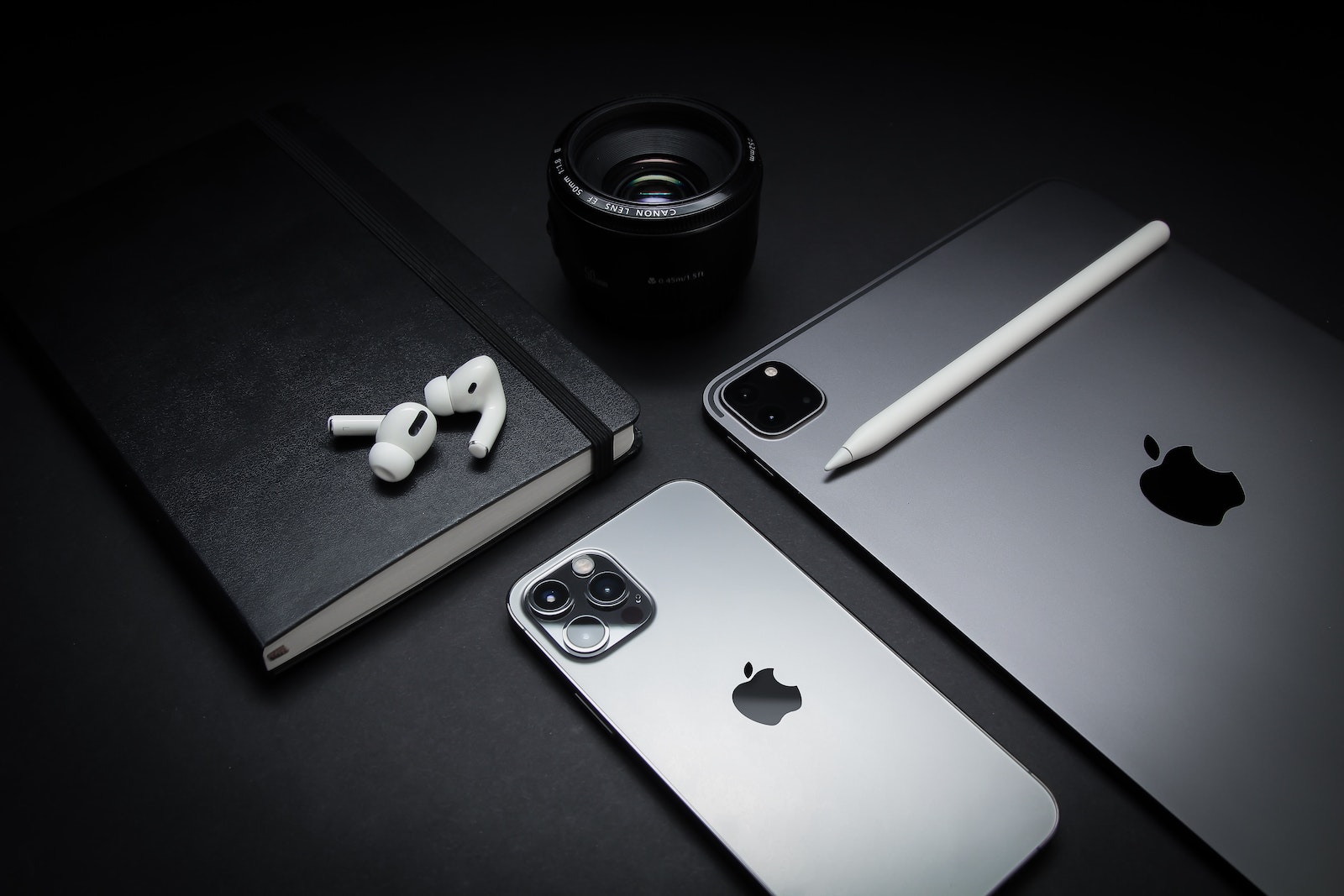
Photo by Brandon Romanchuk / Bigstockphoto

WhatsAppFacebookEmail
Threads

One of the practical but less discussed new features in iOS 15, iPadOS 15 and macOS Monterey is an integrated 2FA code generator that simplifies logging into accounts with increased security (2FA). Below we'll look at how to set it up and use it on iPhone and iPad.

Each of us now has accounts protected with two-factor authentication (2FA). This means that you probably use apps like Google Authenticator, Authy, 1Password or similar offerings to generate 2FA codes. Of course, there is also the slightly less secure 2FA option via SMS. Be that as it may. In iOS 15, iPadOS 15 and macOS Monterey, Apple offers its own native solution in the operating system to generate 2FA codes and fill them in automatically when you log in to corresponding accounts.

iOS 15: How to set up a 2FA code generator on your iPhone

  • On iOS 15 / iPadOS 15 or later, open the Settings app on your iPhone or iPad.
  • Swipe down and tap “Passwords”.
  • Create a new login or select an existing one.
  • Tap Configure Verification Code at the bottom.
  • Choose between entering a configuration key or scanning a QR code to complete setup.
  • To find the QR code for setting up 2FA for a specific account, check the settings of the respective service/website.
  • Now in iOS Settings -> Passwords you will see the 30 second 2FA codes that will auto-fill for each login when you need to use them.

Important note: For any accounts you have already set up 2FA for, you will need to disable the feature and then re-enable it to set them up with iOS 15's native 2FA and autofill integration. Once you've completed the setup, you can easily log in from your iPhone, iPad, or Mac. If you set up 2FA through a website or service in iOS 15, you can always view the constantly renewing 6-digit codes in the Settings app -> Passwords -> Choose Login. In most cases, however, the field will automatically fill in when you log in. Looking for new accessories? Then take a look in our Amazon Storefront - there you will find numerous products from leading suppliers, also for HomeKit and Co.! (Photo by Brandon Romanchuk / Bigstockphoto)


  • iOS 15: How to set up account recovery
Make Apfelpatient a preferred source One click – and you'll see us more often on Google
Was this article helpful?
YesNo
Tags: Apple ServicesiOSiPadOSmacOS
SendShareSend
Share

Our Amazon Storefront

A handpicked selection of products for iPhone, Mac and more – sorted by topic and updated regularly.

Shop Now

This post contains affiliate links (including Amazon). We earn a small commission on qualifying purchases – at no extra cost to you. Learn more on our Partner Program page.

Previous Post

Apple Fitness+: New content coming soon

Next Post

WhatsApp for iOS: Chat list to be revised

Milan Jovicic

Milan Jovicic

Milan founded Apfelpatient in 2016 and has been responsible for all editorial content since 2018 — news, rumors, guides, and product reviews. Apple devices here are not test units on loan for two weeks but everyday tools: from the iPhone through MacBook Pro, MacBook Air, and iMac to the Apple Vision Pro, at least one device from nearly every product category is in daily use, many of them replaced annually. Every menu path in a guide is verified on the device before it is published.

Customers crowding an Apple Store as the US smartphone market lost five percent in sales during the second quarter

US smartphone market shrinks, iPhone 18 expected to be more expensive

August 12, 2026 - 23:47 CEST
Ted Lasso standing beside a coach in the empty AFC Richmond stadium while Apple has yet to decide on Ted Lasso season 5

Ted Lasso Season 5: Apple still sees plenty of stories

August 12, 2026 - 10:11 PM CEST
Concept design of the iPhone Ultra in its unfolded state with a large inner display

iPhone Ultra (iPhone Fold): All rumors and facts at a glance

August 12, 2026 - 9:32 PM CEST

About APFELPATIENT

APFELPATIENT brings you the latest Apple news, product updates, guides, reviews and tips across the entire Apple ecosystem — from the iPhone to the Mac to the Apple Vision Pro. From the first rumors to confirmed news: researched responsibly.

Follow Apfelpatient

Facebook Instagram YouTube Threads Threads

Company

  • About Apfelpatient
  • Contact
  • Author Profiles

Community

  • Netiquette
  • Push Notifications
  • RSS feed

Legal

  • Legal Notice
  • Privacy Policy
  • Terms of Use
  • Cookie Settings
  • Affiliate Program

Resources

  • Sitemap

© 2026 Apfelpatient. All rights reserved.

No Result
View All Result
  • Home
  • News
  • Rumors
  • Tips & Tricks
  • Reviews
  • Insights

© 2026 Apfelpatient. All rights reserved. Page Directory

Change language to Deutsch


