

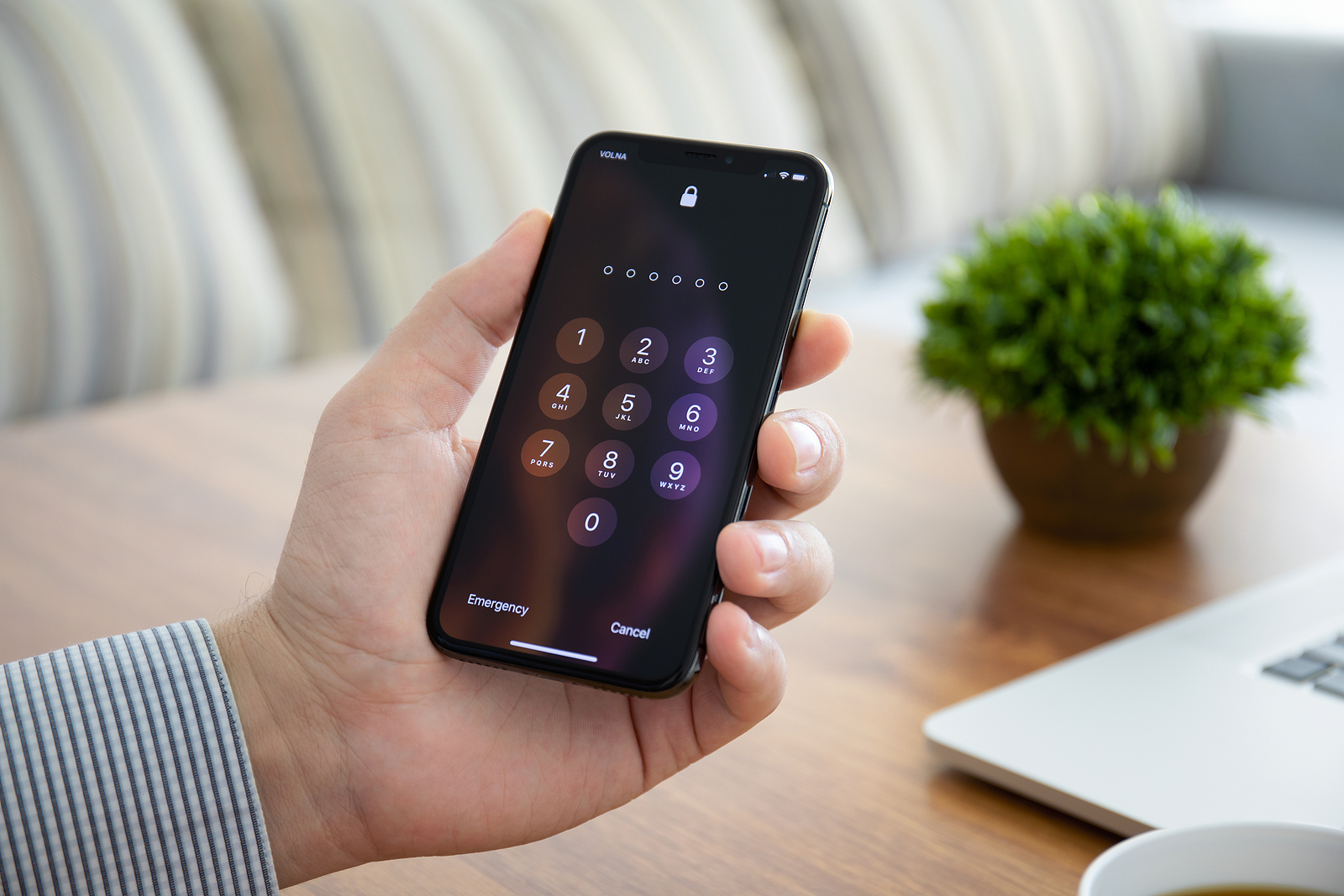
Losing your Apple ID password would certainly be a disaster. You would no longer be able to manage your Apple devices, view your iCloud data, and much more. This makes it all the more important to protect yourself against exactly such a scenario and this is where iOS 15 comes into play.
If you forget an Apple ID password, you can't hope for Apple's help, as Apple can't simply reset your password - especially if you have two-factor authentication enabled. Setting up recovery is an alternative solution. But in such cases, you can only change your password if you have a trusted second device and the recovery key. To make things easier, Apple allows you to add a recovery contact to your account in iOS 15 to help you regain access. This feature will also help you if you forget your device's passcode. Your recovery contact is someone who can verify your identity and help you regain access to your account and all your data if you ever get locked out.
Choose your recovery contact carefully
So, to protect yourself, you should first select a recovery contact. This person should be someone you trust. This could be your partner, a family member, or a really close friend. However, the person must meet a few requirements. This means that they must have their own iOS device with iOS 15 or iPadOS 15 or later and be at least 13 years old. In addition, the person must enable two-factor authentication for their own account and set up a code on their own device.
How to add a recovery contact under iOS 15 or iPadOS 15
If you have selected a person who also meets the requirements, please proceed as follows:
- Open the Settings app on your iOS device and tap your Apple ID banner at the top of the main menu.
- Tap Password & Security.
- Tap Account Recovery.
- Under Recovery Help, tap Add Recovery Contact.
- Read the information on the screen, then tap Add Recovery Contact.
- Select a recovery contact. If you're part of a Family Sharing group, eligible contacts will appear in the options. Alternatively, you can tap "Choose someone else" to browse your contacts.
- Tap "Next." On the next screen, you can send a message to your selected contact informing them that you've added them as a recovery contact. You can choose the default message or edit the content.
- When you're done, tap Send, then tap Done.
Note: Remember to keep the person's phone number separate so you can contact them in an emergency.
Are you the recovery contact? How you can help
Let's say you've been assigned as a recovery contact and now you need to help. That person will first need to verify some of their Apple ID account information and then contact you by phone or in person. Below I'll show you how to generate a recovery code and share it.
- Open the Settings app on your iOS device and tap your Apple ID banner at the top of the main menu.
- Tap Password & Security -> Account Recovery.
- Tap your contact's name, then tap Get recovery code.
- When the person is ready, read them their recovery code. Once they enter it on their device, they can reset their password and regain access to their Apple account.
I don't want to be a recovery contact anymore
If for any reason you no longer want to be a person's recovery contact, you can of course remove yourself. To do so, follow these steps:
- Open the Settings app on your iOS device and tap your Apple ID banner at the top of the main menu.
- Tap Password & Security -> Account Recovery.
- Under “Account recovery for,” tap the person’s name.
- Tap Remove Contact.
After you have completed these steps, the person will be notified automatically. Finally, a note: In order for the feature to work, all devices must be updated. Alternatively, you can remove devices with older software from your Apple ID. Only then can you access the feature. Do you already know the early Black Friday deals on Amazon? Stop by, there are dozens of bargains to be found. (Photo by Denys Prykhodov / Bigstockphoto)





