

apple patient
  • Home
  • News
  • Rumors
  • Tips & Tricks
  • Reviews
  • Insights
No Result
View All Result
  • iPhone 18
  • iOS 27
  • iPadOS 27
  • macOS
  • MacBook Neo
  • iPhone 17e
  • AirTags
  • iOS 26
  • iPhone 17
  • MacBook Pro
  • iPadOS
  • iMac
  • Mac mini
  • HomePod
  • Apple TV
  • iPad Pro
  • iPhone Air
  • Apple Vision Pro
  • iPhone 16
  • AirPods 4
  • Apple Watch Ultra
  • HomePod Mini
  • MacBook Air
  • iPad
  • AirPods Max
  • AirPods Pro 3
  • Apple Watch Series 3
  • Mac Studio
  • Studio Display
  • iPad Air
  • iPad mini
  • watchOS 27
  • Apple CarPlay
  • Apple Pay
  • watchOS 26
  • Home
  • News
  • Rumors
  • Tips & Tricks
  • Reviews
  • Insights
No Result
View All Result
apple patient
No Result
View All Result

iOS 13 – How to use new fonts on iPhone and iPad

Milan Jovicic by Milan Jovicic
November 3, 2019 - 3:40 PM CET
in Apple Tips & Tricks
0
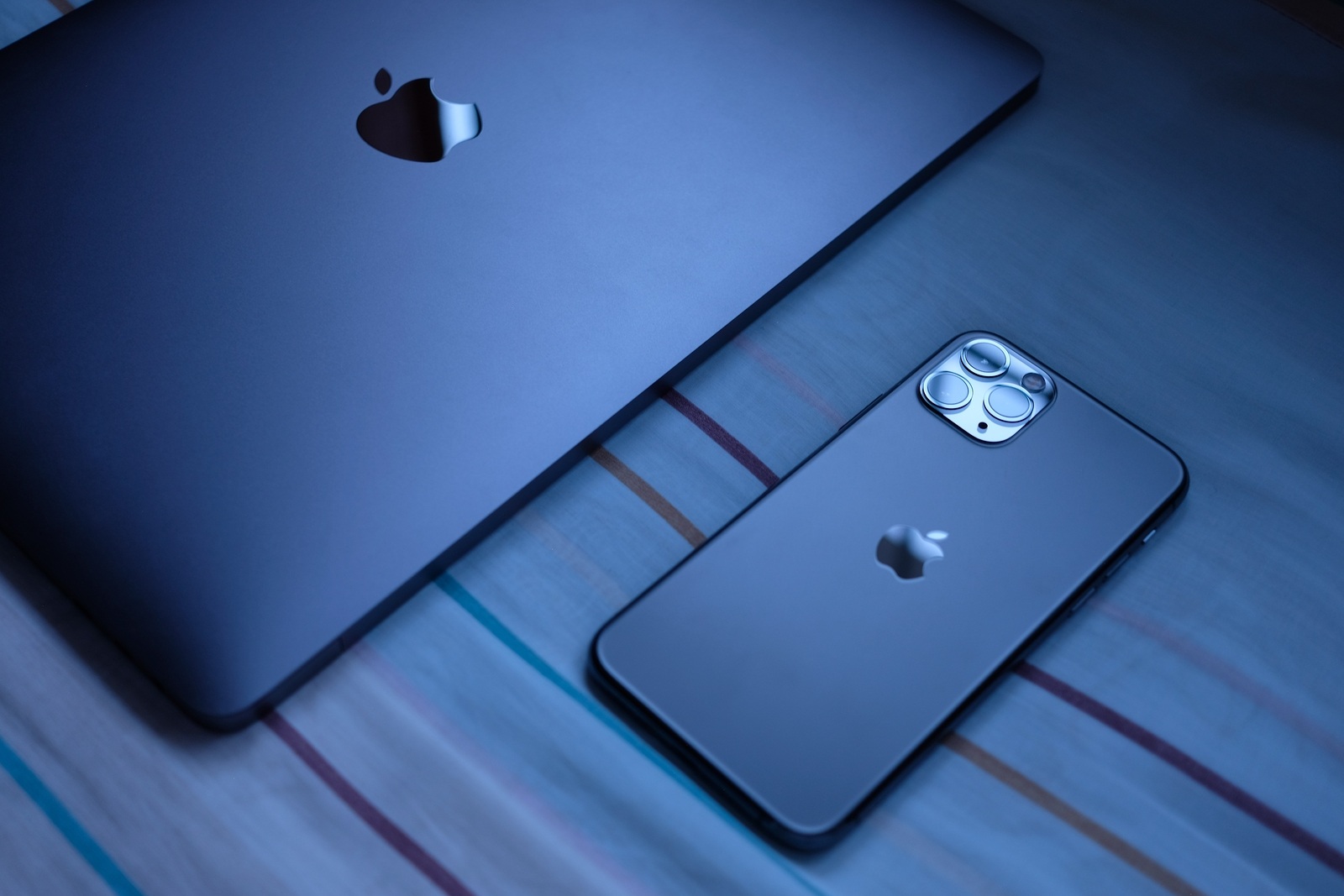
Trang, Thailand. October 24, 2019 : Customer lay down new macbook pro 2019 and iphone 11 pro are space gray colors on bed after receive from the apple store

Trang, Thailand. October 24, 2019 : Customer lay down new macbook pro 2019 and iphone 11 pro are space gray colors on bed after receive from the apple store

WhatsAppFacebookEmail
Threads

With iOS 13, iOS 13.1 and iOS 13.2, many long-awaited features have been added to iPhone and iPad. While some have been waiting for Dark Mode, others are excited about the new possibilities within the Photos app. But today we want to take a closer look at custom fonts.

The list of new features in iOS 13 is long - but some of these innovations are still not known to everyone. One example is the ability to use custom fonts. Today we would like to show you how to manage and use this remarkable feature. Applications that offer custom fonts are certainly not new - but using such solutions was too complicated for some users. They were also not possible to use everywhere. But since this autumn, thanks to iOS 13, that has been over. Apple officially supports the installation and management of custom fonts on iPhone and iPad. These can also be used system-wide - but be careful. At the moment, the use of such fonts is not yet supported in every app. Therefore, the feature must first be integrated by many app providers. Below we will show you how to add such fonts to your library and actually use them in the end.

How to add custom fonts on iOS 13

Adobe offers a really large selection of custom fonts. The Creative Cloud application for iPhone and iPad was recently updated. A total of 17,000 different fonts are offered, 1,300 of which are free to access - however, an account is required. If you want to access the entire collection, you need an active subscription. In our instructions, we have chosen Adobe - Creative Cloud App - for download. After you have downloaded the app and created an account, open the "Fonts" section. Now you can choose between hundreds of templates. Click on "Install fonts" to start the download. The first time you download, you have to confirm this - the message comes from iOS and only appears once.

How to manage custom fonts in iOS 13

Once you have made your selection, you can switch to the "Installed Fonts" tab. Adobe allows you to manage the selected fonts directly from the Creative Cloud app. But you can also manage them in the iOS settings. This is more practical if you have fonts installed from several of these font apps. So open the settings on your iPhone or iPad and navigate to the "General" section. Now scroll down a bit and tap on "Fonts". All of the fonts you have selected will be displayed here. If you want to see where a particular font comes from, all you have to do is tap on the respective area to find out more about it. From here you can of course also remove individual fonts from your library.

How to use custom fonts on iPhone and iPad

As mentioned above, the feature is not yet supported by every app. However, this is set to change. At the moment, you can use Apple's Mail app for this - here is our example. Open a new email and slide the bar above your keyboard from right to left. Several symbols should now appear. Press the "Aa" and navigate to the area labeled "Default font". Here you will now see all the custom fonts installed on your iPhone or iPad. Select one of them and return to the writing interface. You can now compose your email in a custom font. The "Aa" symbol can be used to make further adjustments such as the font color and more. In addition to Adobe, fonts from apps such as AnyFont or iFont can also be installed. But it will certainly be a while before the feature can actually be used system-wide. (Photo by ApisornJr / Bigstockphoto)

Make Apfelpatient a preferred source One click – and you'll see us more often on Google
Was this article helpful?
YesNo
Tags: iOSiOS 13iOS 13.1iOS 13.2iPadiPhone
SendShare115Send
Share

Our Amazon Storefront

A handpicked selection of products for iPhone, Mac and more – sorted by topic and updated regularly.

Shop Now

This post contains affiliate links (including Amazon). We earn a small commission on qualifying purchases – at no extra cost to you. Learn more on our Partner Program page.

Previous Post

Mario Kart Tour – Multiplayer mode available as beta soon

Next Post

iPhone 11 & iPhone 11 Pro – How to activate Deep Fusion

Milan Jovicic

Milan Jovicic

Milan founded Apfelpatient in 2016 and has been responsible for all editorial content since 2018 — news, rumors, guides, and product reviews. Apple devices here are not test units on loan for two weeks but everyday tools: from the iPhone through MacBook Pro, MacBook Air, and iMac to the Apple Vision Pro, at least one device from nearly every product category is in daily use, many of them replaced annually. Every menu path in a guide is verified on the device before it is published.

Key art for the Apple TV series Pluribus showing a screaming woman against a yellow background, with Pluribus season 2 about to begin filming

Pluribus: Gilligan plans at least three seasons

August 12, 2026 - 8:27 PM CEST
The iPhone 17 lineup in five colors seen from the back, whose successor is expected to adopt the smaller iPhone 18 Dynamic Island from the Pro models

iPhone 18: Smaller Dynamic Island already in the base model

August 12, 2026 - 8:13 PM CEST
Drawn outline of the folded iPhone Ultra with square corners on the hinge side and rounded corners opposite, matching the leaked iPhone Ultra screen protectors

iPhone Ultra: Screen protectors reveal the camera position

August 12, 2026 - 3:58 PM CEST

About APFELPATIENT

APFELPATIENT brings you the latest Apple news, product updates, guides, reviews and tips across the entire Apple ecosystem — from the iPhone to the Mac to the Apple Vision Pro. From the first rumors to confirmed news: researched responsibly.

Follow Apfelpatient

Facebook Instagram YouTube Threads Threads

Company

  • About Apfelpatient
  • Contact
  • Author Profiles

Community

  • Netiquette
  • Push Notifications
  • RSS feed

Legal

  • Legal Notice
  • Privacy Policy
  • Terms of Use
  • Cookie Settings
  • Affiliate Program

Resources

  • Sitemap

© 2026 Apfelpatient. All rights reserved.

No Result
View All Result
  • Home
  • News
  • Rumors
  • Tips & Tricks
  • Reviews
  • Insights

© 2026 Apfelpatient. All rights reserved. Page Directory

Change language to Deutsch



