

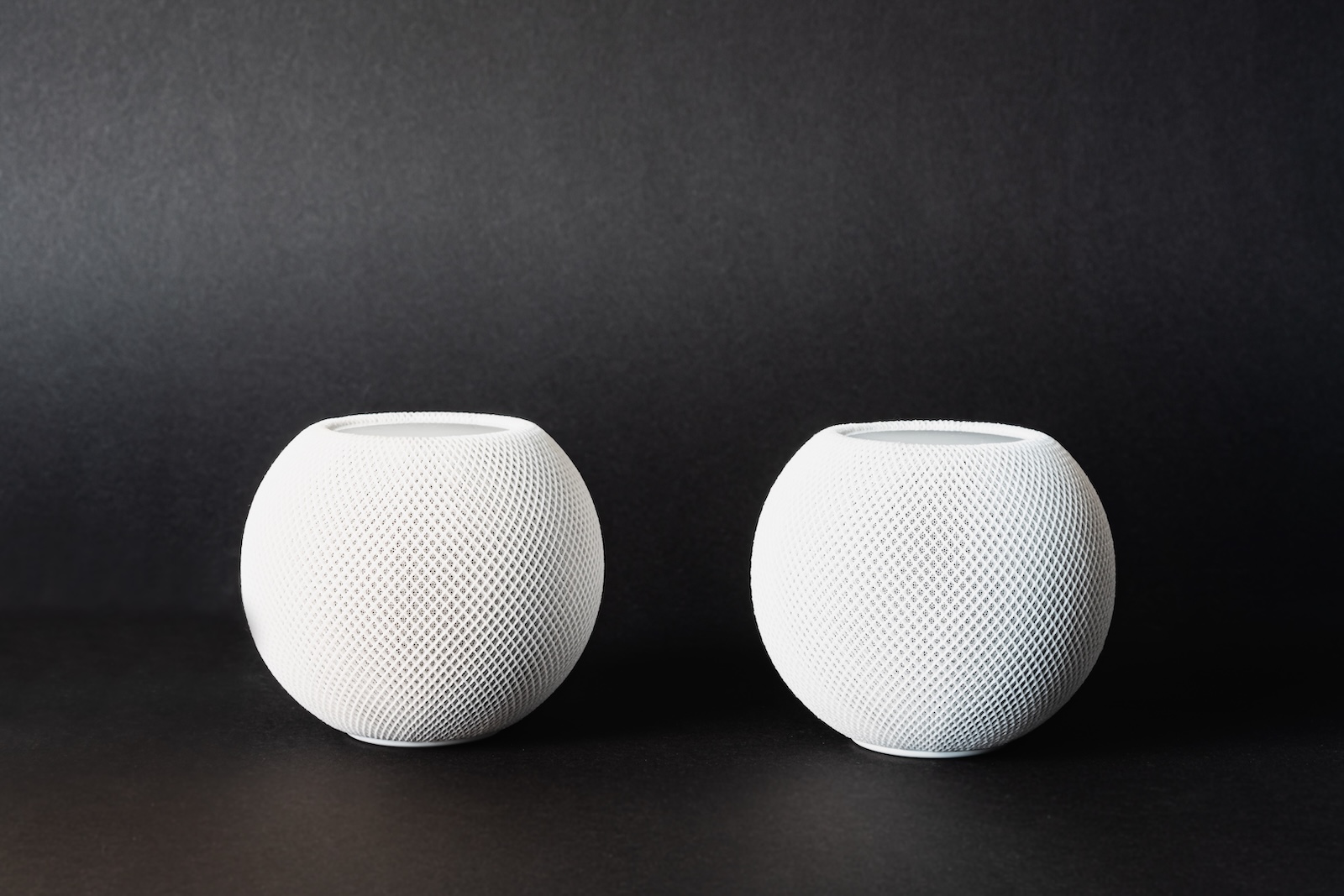
If you already own two HomePods or are planning to get a second one, you can create a stereo pair. This not only improves the sound quality but also creates a true stereo soundstage with separate left and right channels. Setup is straightforward and can be completed in just a few minutes directly from the Home app on your iPhone or iPad.
A single HomePod is sufficient for many purposes—for example, for background music or voice control via Siri. However, if you want to listen to music more intensively or fill a room with even sound, a mono setup reaches its limits. A stereo pair offers a simple solution. Combining two HomePods creates a wider soundstage with better depth, richer bass, and clearer separation of instruments and vocals. The effect is particularly noticeable in music, but also in films.
Add both HomePods to the Home app
Open the Home app on your iPhone or iPad. Tap the plus sign in the top right corner and select "Add Device." Hold your device near the HomePod or scan the setup code on the device or packaging. Alternatively, you can manually enter the setup ID. Repeat this process for the second HomePod. Both devices must be registered in the same room within the app so you can later pair them as a stereo pair.
Create and configure a stereo pair
Once both HomePods are set up and assigned to the same room, tap and hold one of the speakers in the Home app. Go to Settings and select "Create Stereo Pair." The second HomePod will then appear as a selectable option. Once selected, you can choose which speaker will be the left and which will be the right. You can change the assignment later if needed. Make sure the physical positioning of the speakers matches the selected setting.
Optimal placement of the speakers in the room
A stereo pair only works properly if both speakers are positioned sensibly in the room. Place them on a stable surface, preferably at the same height. Both HomePods should be approximately the same distance from your listening position. A distance of at least 20 centimeters from walls and each other is recommended. This avoids excessive bass and ensures a balanced sound. Ideally, the speakers should be at ear level and there should be no obstacles between them and you.
Room acoustics: Automatic adjustment by the HomePod
With the HomePod, you don't need to manually initiate room calibration. The devices automatically analyze their surroundings using built-in microphones and adjust the sound accordingly – without any input from you. This feature is especially active on the larger HomePod (1st or 2nd generation). If you reposition or move it, it detects this automatically and recalibrates itself in the background. There is no dedicated menu item for this in the Home app. The HomePod mini also has automatic adjustment, but to a somewhat lesser extent. Just make sure your HomePods aren't directly against a wall or are obscured for the measurement to work correctly.
Use multi-room audio and AirPlay groups
With AirPlay 2, you can also integrate your stereo pair into a multi-room group. This can also be done via the Home app. Create custom zones like "Living Room," "Kitchen," or "Office" and assign the speakers to the corresponding rooms. This allows you to play music on multiple devices simultaneously—either synchronously or individually for each room. Siri recognizes the room assignments and can send music to specific groups. You can also use your iPhone, iPad, or Mac as an audio source and stream content to the HomePod pair via AirPlay.
HomePod stereo pair: Quick setup, noticeably better sound
A stereo pair of HomePods is an easy way to significantly improve the sound in your home. Setup via the Home app is quick as long as both devices are assigned to the same room. You don't need manual calibration like with other speaker systems – HomePod automatically adjusts the sound to the room acoustics. It's important to position both speakers sensibly in the room and ensure they're sufficiently spaced from walls. For larger apartments or multiple rooms, it's also worth using AirPlay groups to control content synchronously or separately on multiple devices. With the right setup, you can get a room-filling, clear stereo experience without much effort. The best products for you: Our Amazon Storefront offers a wide selection of accessories, including those for HomeKit. (Image: Shutterstock / Ugis Riba)
- How to use the new FaceTime audio and video settings
- Using AirPods Pro 2 for hearing tests: How it works





