This article may contain affiliate links. Learn more on our Partner Program page.
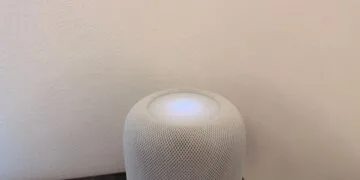
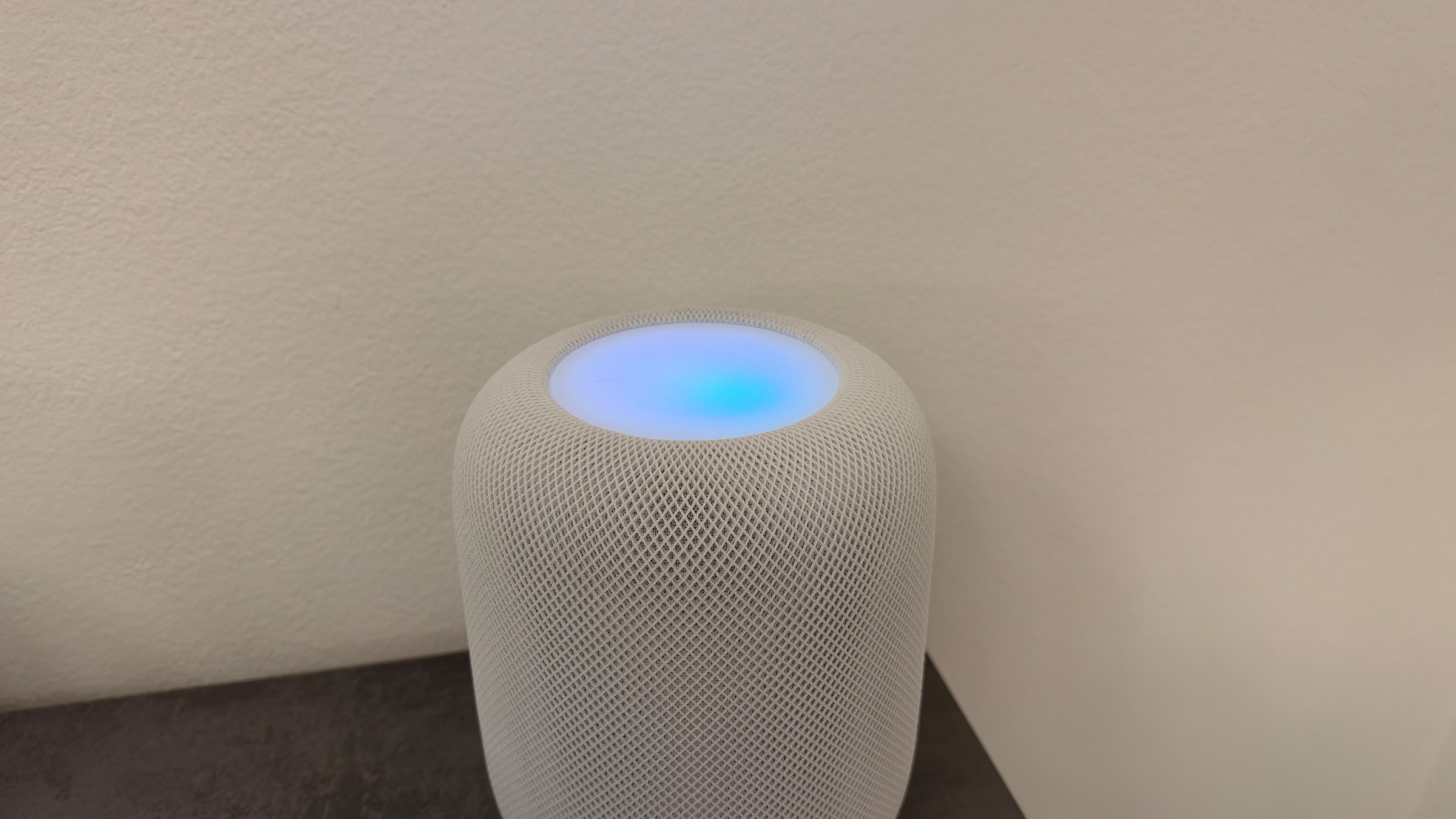
The top of HomePod can now glow in time with the music, in the colors of the current album artwork. It is turned on with a single switch in the Home app. Which models support it and where the switch is located for a home theater is covered here.
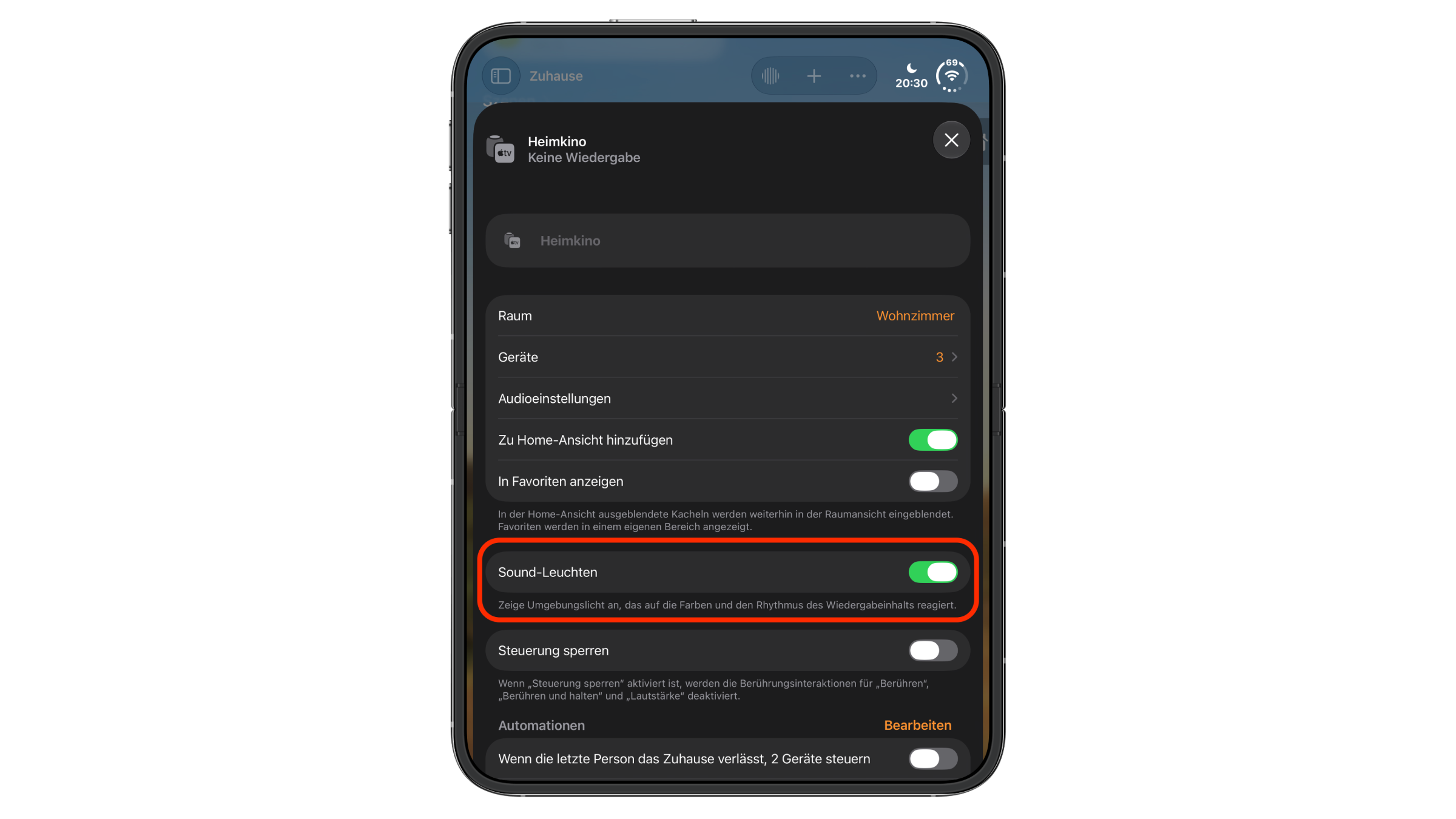
Apple introduced the feature with HomePod mini 2 and markets it under the name Sound Glow. With HomePod software 27.2, it also came to existing speakers. In the German Home app, the switch is called "Sound-Leuchten" and comes with a note explaining that it shows ambient light that reacts to the colors and rhythm of what is playing.
Apple lists the devices that get the feature in the release notes for HomePod software 27.2. The original full-size HomePod is not among them.
Key Facts at a Glance
- Sound Glow makes the top of HomePod glow in time with the music, in the colors of the current album artwork
- Supported models are HomePod mini, HomePod mini 2 and HomePod (2nd generation)
- HomePod software 27.2 is required
- The switch is in the HomePod settings in the Home app, or in the home theater's settings if the HomePod is part of one
- It can be turned off at any time with the same switch
Which HomePods support Sound Glow
| Model | Sound Glow |
|---|---|
| HomePod (1st generation) | no |
| HomePod (2nd generation) | Yes |
| HomePod mini | Yes |
| HomePod mini 2 | Yes |
According to Apple, the feature turns the top into a surface that glows and pulses in sync with the music and reacts to bass and treble in real time. HomePod derives the colors from the album artwork of the track in "Now Playing." Soundscapes such as rain get their own, calmer animations.
Updating HomePod to version 27.2
Without the right software, the switch does not appear. HomePod speakers install updates automatically by default; to update manually:
- Open the Home app on your iPhone, iPad or Mac.
- Tap the More button, then tap "Home Settings."
- Tap "Software Update" and, if an update is available, choose "Update."
During the installation, a white spinning light appears on top of HomePod, and the speaker must stay connected to power. "Software Update" also shows which HomePod software is already installed. Your iPhone should also be running iOS 27.2.
Turning on Sound Glow in the Home app
- Open the Home app on your iPhone or iPad.
- Touch and hold the HomePod until its settings open.
- Scroll to the "Sound Glow" switch and turn it on.
If the HomePod is part of a home theater with Apple TV, the switch is located in the settings of that home theater tile. In my Home app, it sits there directly below the options for the Home view and Favorites and right above "Lock Controls."
Turning it off works the same way. There are no further options such as brightness or color selection; the switch only knows on and off. According to Apple, voice control for Sound Glow requires an iPhone with Apple Intelligence.
Mood lighting with an off switch
I think Sound Glow is a nice addition, especially in the living room, because the colors from the artwork give every track its own light show. In the bedroom, I would rather leave the switch turned off – a speaker that pulses in color while you fall asleep is more distracting than soothing, even if the animations for soundscapes are calmer.
If you are already in the settings, you will also find the switch there that lets you stop phantom touches on HomePod. Both features arrived with the same software for HomePod.
Do you keep Sound Glow on all the time, or do you switch it depending on the room and the time of day? Tell us in the comments which room your HomePod is allowed to glow in.
Frequently asked questions: HomePod Sound Glow
HomePod mini, HomePod mini 2 and HomePod (2nd generation). The original full-size HomePod does not get the feature.
Usually the update is missing. HomePod needs HomePod software 27.2, and your iPhone should be running iOS 27.2. The first-generation HomePod does not have the switch at all.
In the settings of the home theater tile in the Home app, right above "Lock Controls."
The colors come from the album artwork of the track in "Now Playing," so every song gets its own light show.
No, the switch only knows on and off.
Yes. According to Apple, soundscapes such as rain get their own, calmer animations.
In the Home app, tap the More button, then "Home Settings" and "Software Update." By default, HomePod installs updates automatically.