

apple patient
  • Home
  • News
  • Rumors
  • Tips & Tricks
  • Reviews
  • Insights
No Result
View All Result
  • iPhone 18
  • iOS 27
  • iPadOS 27
  • macOS
  • MacBook Neo
  • iPhone 17e
  • AirTags
  • iOS 26
  • iPhone 17
  • MacBook Pro
  • iPadOS
  • iMac
  • Mac mini
  • HomePod
  • Apple TV
  • iPad Pro
  • iPhone Air
  • Apple Vision Pro
  • iPhone 16
  • AirPods 4
  • Apple Watch Ultra
  • HomePod Mini
  • MacBook Air
  • iPad
  • AirPods Max
  • AirPods Pro 3
  • Apple Watch Series 3
  • Mac Studio
  • Studio Display
  • iPad Air
  • iPad mini
  • watchOS 27
  • Apple CarPlay
  • Apple Pay
  • watchOS 26
  • Home
  • News
  • Rumors
  • Tips & Tricks
  • Reviews
  • Insights
No Result
View All Result
apple patient
No Result
View All Result

Restart iPhone: A Complete Guide

Milan Jovicic by Milan Jovicic
April 11, 2024 - 00:54 CEST
in Apple Tips & Tricks
0
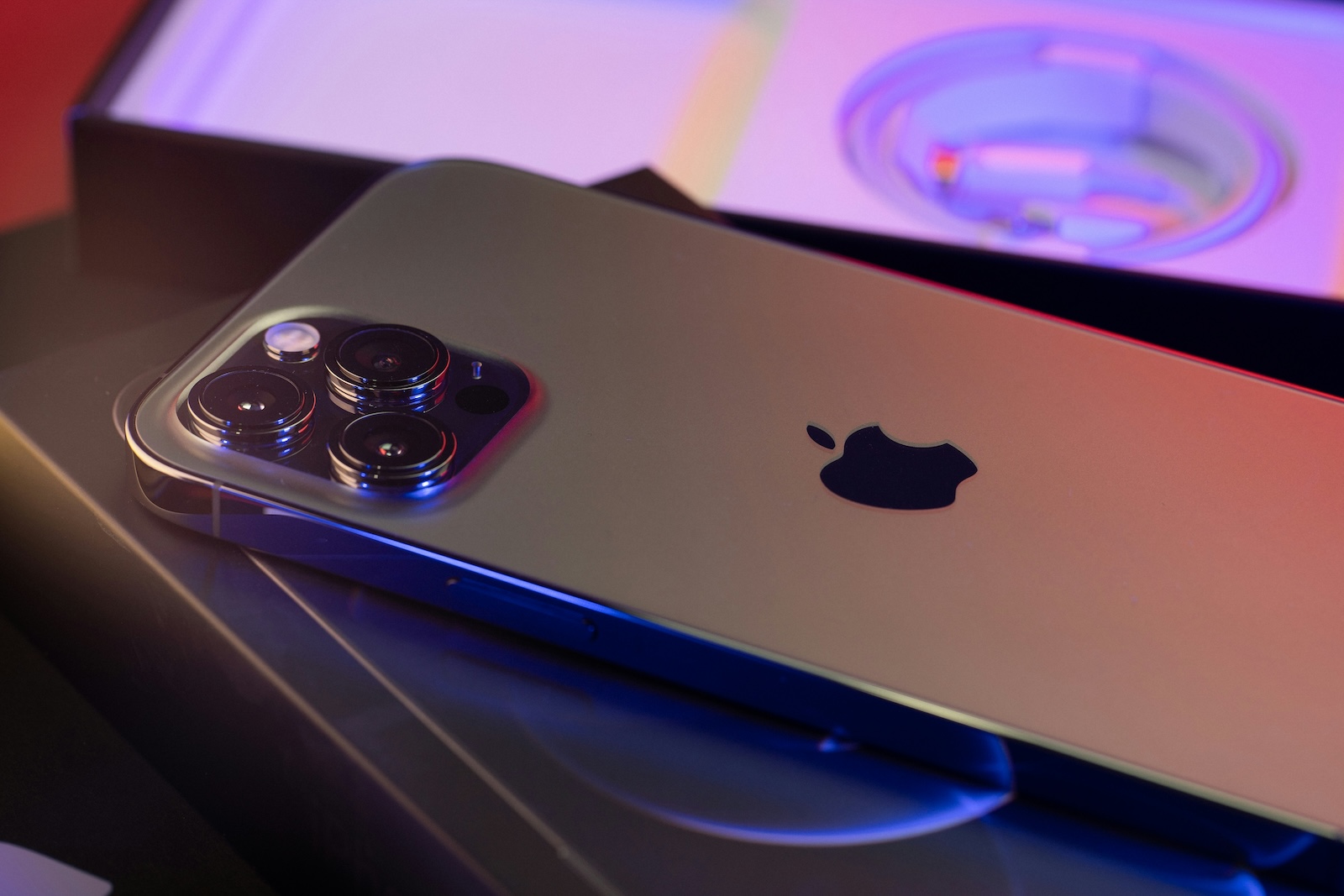
Restart iPhone Apple

Photo by Unsplash / TheRegisti

WhatsAppFacebookEmail
Threads

In a world where the iPhone has become an indispensable tool in everyday life, it can be especially frustrating when the device freezes or stops responding. Fortunately, Apple offers easy methods to restart your iPhone that can help resolve many common issues. In this article, we'll walk you through the different steps to restart your iPhone, regardless of the model.

Before we dive into the specific guides for each iPhone model, it's important to understand why a restart can often be the solution to many problems. A restart can freshen up the system and fix minor software bugs without losing any data. Whether your iPhone is running slow, apps are crashing, or the device is simply unresponsive, a restart could be just what's needed to get everything back in order.

Restart iPhone X, 11, 12, 13 or later

  • Power off: Press and hold either volume button and the side button at the same time until the power off slider appears. Move the slider to turn off the device and wait 30 seconds.
  • Turn on: Press and hold the side button (on the right side of the device) until the Apple logo appears.

Restart iPhone 6, 7, 8 or SE (2nd or 3rd generation)

  • Power off: Press and hold the side button until the power off slider appears. Move the slider and wait 30 seconds.
  • To turn on: Press the side button again until you see the Apple logo.

Restart iPhone SE (1st generation), 5 or older

  • Power off: Press and hold the top button until the power off slider appears. Move the slider and wait 30 seconds.
  • To turn on: Press and hold the top button until the Apple logo appears.

Force restart the iPhone

If your iPhone stops responding, you can perform a force restart. However, this requires iOS 16 or later:

  • Briefly press the volume up button.
  • Briefly press the volume down button.
  • Press and hold the side button until the Apple logo appears.

Restart: Your first step to solving the problem

Restarting your iPhone can be a quick and effective solution to many problems. This guide is designed to help you perform a restart or force restart, regardless of your device model. Regularly restarting your iPhone can also be a preventative measure to maintain performance and avoid software problems. Are you looking for new accessories? Then take a look in our Amazon Storefront - there you will find numerous products from leading providers, also for HomeKit and Co.! (Photo by Unsplash / TheRegisti)


  • Protect yourself from phishing attacks: everything you need to know
Make Apfelpatient a preferred source One click – and you'll see us more often on Google
Was this article helpful?
YesNo
Tags: iOSiPhone
SendShareSend
Share

Our Amazon Storefront

A handpicked selection of products for iPhone, Mac and more – sorted by topic and updated regularly.

Shop Now

This post contains affiliate links (including Amazon). We earn a small commission on qualifying purchases – at no extra cost to you. Learn more on our Partner Program page.

Previous Post

iOS 18 Rumors: Safari Browsing Reimagined with AI Assistant

Next Post

How to Fight System Data in iPhone Storage – A Guide

Milan Jovicic

Milan Jovicic

Milan founded Apfelpatient in 2016 and has been responsible for all editorial content since 2018 — news, rumors, guides, and product reviews. Apple devices here are not test units on loan for two weeks but everyday tools: from the iPhone through MacBook Pro, MacBook Air, and iMac to the Apple Vision Pro, at least one device from nearly every product category is in daily use, many of them replaced annually. Every menu path in a guide is verified on the device before it is published.

Customers crowding an Apple Store as the US smartphone market lost five percent in sales during the second quarter

US smartphone market shrinks, iPhone 18 expected to be more expensive

August 12, 2026 - 23:47 CEST
Ted Lasso standing beside a coach in the empty AFC Richmond stadium while Apple has yet to decide on Ted Lasso season 5

Ted Lasso Season 5: Apple still sees plenty of stories

August 12, 2026 - 10:11 PM CEST
Concept design of the iPhone Ultra in its unfolded state with a large inner display

iPhone Ultra (iPhone Fold): All rumors and facts at a glance

August 12, 2026 - 9:32 PM CEST

About APFELPATIENT

APFELPATIENT brings you the latest Apple news, product updates, guides, reviews and tips across the entire Apple ecosystem — from the iPhone to the Mac to the Apple Vision Pro. From the first rumors to confirmed news: researched responsibly.

Follow Apfelpatient

Facebook Instagram YouTube Threads Threads

Company

  • About Apfelpatient
  • Contact
  • Author Profiles

Community

  • Netiquette
  • Push Notifications
  • RSS feed

Legal

  • Legal Notice
  • Privacy Policy
  • Terms of Use
  • Cookie Settings
  • Affiliate Program

Resources

  • Sitemap

© 2026 Apfelpatient. All rights reserved.

No Result
View All Result
  • Home
  • News
  • Rumors
  • Tips & Tricks
  • Reviews
  • Insights

© 2026 Apfelpatient. All rights reserved. Page Directory

Change language to Deutsch


