

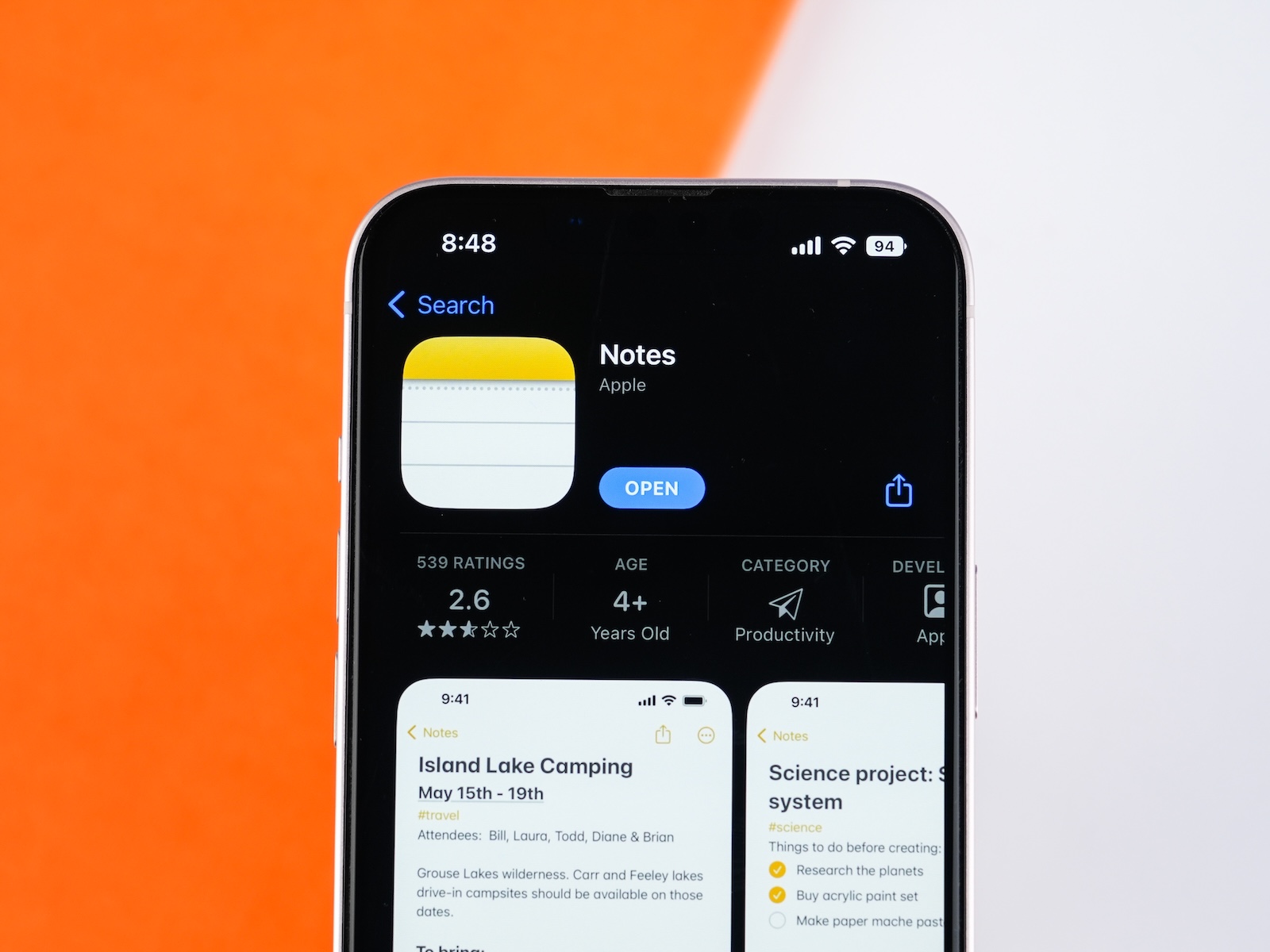
The Notes app on the iPhone is one of Apple's most used default apps. Yet, many users fail to fully utilize its potential. With iOS 18, Apple has significantly expanded the app. New features like live transcription, integrated calculations, and improved formatting options make the Notes app a versatile tool. This article shows you how to get the most out of the iPhone Notes app. Eight practical tips will help you stay organized, work more efficiently, and utilize all the new features effectively.
The iPhone Notes app has long been more than just a place for spontaneous ideas. Over time, Apple has continually expanded it – from the ability to create folders, to tags for categorization, to collaboration tools. iOS 18 saw a significant leap: The app now also uses AI-based features such as live transcription and automatic calculations. The goal is to make the Notes app a central tool for organization, documentation, and productivity. Those who use the app strategically save time, stay better organized, and can manage information on their iPhone much faster.
Create folder structure
A good system starts with structure. In the Notes app, you can create thematic folders, for example, for work, personal matters, or individual projects. To do this, tap the folder icon in the bottom left and create a new folder. You can create as many folders as you like and later file individual notes in them. This helps avoid long scrolling lists and allows you to quickly find what you need.
Use tags
In addition to folders, notes can also be organized with tags. To do this, hold down a note, select "Tags," and enter one or more keywords. Tags can be highlighted in color, which makes it easier to navigate. In the "Tags" tab, you can view all tagged notes. This is especially useful if a note fits into multiple subject areas or if you're working across projects.
To-do checklists
Checklists are useful for to-do lists, packing lists, shopping lists, or project tasks. In a note, simply tap the checklist icon above the keyboard. You can add, check off, and reorder items as needed. Checked items are visually crossed out but remain visible. This is helpful for tracking progress.
Scan documents
The integrated scanning function turns your iPhone into a portable scanner. Tap the "+" or camera icon in a note and select "Scan Documents." Hold the iPhone over the paper document; the frame is automatically detected. You can adjust the crop and save it. The scan is saved as a PDF or image directly in the note and is searchable if OCR is enabled.
Convert handwriting
If you prefer handwriting—with your finger or Apple Pencil—you can use Ink Mode on supported iPhones and iPads. After writing, tap "Convert to Text." The app recognizes your handwriting and automatically converts it into regular, digital text. This works especially well with clear writing and smooth lines. The converted content can be further edited like typed text.
Sharing and collaboration
You can share a note with others using the person icon in the top right corner. You can specify whether the other person can only read or also edit. Changes are visible in real time. This feature is especially useful in teams, with shared shopping lists, or when working on projects with multiple participants. Sharing works via iCloud; all participants require an Apple account.
iCloud sync and version history
Enable syncing under Settings > Apple Account > iCloud > Notes. This makes all notes available on all Apple devices where you're signed in with your Apple ID. When you make changes to a note or share it, you can use the "View Versions" option in the three-dot menu. There you can view previous versions of the note and restore them if needed.
Use new iOS 18 features
With iOS 18, the Notes app has received several new tools that significantly expand its functionality:
- Integrated calculations (Math Notes): You can enter a calculation formula directly into a note. The app automatically recognizes the formula and displays the result directly below.
- Audio recordings with live transcription: While you're recording audio—for example, during a meeting or lecture—the app automatically creates a text transcript. This is useful for quickly reviewing or searching content later— learn more here !
- Collapsible sections: Long notes can be structured by collapsing certain sections. This reduces visual clutter and makes reading easier.
- Colored highlights: Using the Format menu, you can highlight text in five different colors. This is useful for prioritizing or structuring long content.
- New file attachment icon: The redesigned paperclip icon lets you attach files, scans, or audio recordings to a note faster than before. The feature is more centrally accessible and supports multiple file types.
Use iPhone Notes correctly and achieve more
If you use the iPhone Notes app systematically, you can do much more than just capture spontaneous ideas. The combination of an organizational system, collaboration, scanning function, checklists, and AI-supported features like transcription and calculations makes the app a powerful tool. Especially with iOS 18, it's worth actively using the new features. With the eight tips in this article, you can increase your productivity, better structure content, and use your iPhone as a central organizational tool. Discover a whole range of useful tips and tricks related to Apple Intelligence! Here you'll find everything you need to make the most of the smart features of your Apple devices – have fun browsing and trying them out! The best products for you: Our Amazon Storefront offers a wide selection of accessories, including those for HomeKit. (Image: Shutterstock / sdx15)
- Apple iPhone caller too quiet – here's what you can do
- Use Safari efficiently: 7 tips for better reading
- Set Google Translate as the default app in iOS
- Extend iPhone battery life: These 7 tips help immediately
- Mac tip: Keep things organized and clear with Mission Control
- macOS tip: Automatically remove files from the Trash
Frequently asked questions about the Notes app on the iPhone – features, tips & tricks
Tap the folder icon in the bottom left, select "New Folder," and enter a name. You can create as many folders as you like and assign notes manually to them—this way you can keep track of everything.
In the note, tap the checkmark icon above the keyboard. You can add, check off, and reorder tasks. Ideal for to-do lists, shopping lists, or project plans.
Yes. Tap the "+" icon or the camera in a note, then tap "Scan Documents." Your iPhone will automatically detect the paper and save the scan directly to the note—including optical character recognition (OCR) if possible.
Yes, you can write by hand using Apple Pencil or your finger, then tap "Convert to Text." The app recognizes your writing and converts it into editable text—ideal for quick handwritten notes.
Tap the people icon in the top right corner of the note. You can choose whether others can only read or also edit. Changes are visible live. Everyone involved needs an Apple account and iCloud.
Enable syncing under Settings > [Your Name] > iCloud > Notes. Your notes will then be available on all Apple devices with your Apple ID. You can restore previous versions of your notes by selecting "View Versions" in the three-dot menu.





