

apple patient
  • Home
  • News
  • Rumors
  • Tips & Tricks
  • Reviews
  • Insights
No Result
View All Result
  • iPhone 18
  • iOS 27
  • iPadOS 27
  • macOS
  • MacBook Neo
  • iPhone 17e
  • AirTags
  • iOS 26
  • iPhone 17
  • MacBook Pro
  • iPadOS
  • iMac
  • Mac mini
  • HomePod
  • Apple TV
  • iPad Pro
  • iPhone Air
  • Apple Vision Pro
  • iPhone 16
  • AirPods 4
  • Apple Watch Ultra
  • HomePod Mini
  • MacBook Air
  • iPad
  • AirPods Max
  • AirPods Pro 3
  • Apple Watch Series 3
  • Mac Studio
  • Studio Display
  • iPad Air
  • iPad mini
  • watchOS 27
  • Apple CarPlay
  • Apple Pay
  • watchOS 26
  • Home
  • News
  • Rumors
  • Tips & Tricks
  • Reviews
  • Insights
No Result
View All Result
apple patient
No Result
View All Result

macOS Sequoia: How to use the new window layout

Milan Jovicic by Milan Jovicic
14. June 2024 - 18:41 CEST
in Apple Tips & Tricks
0
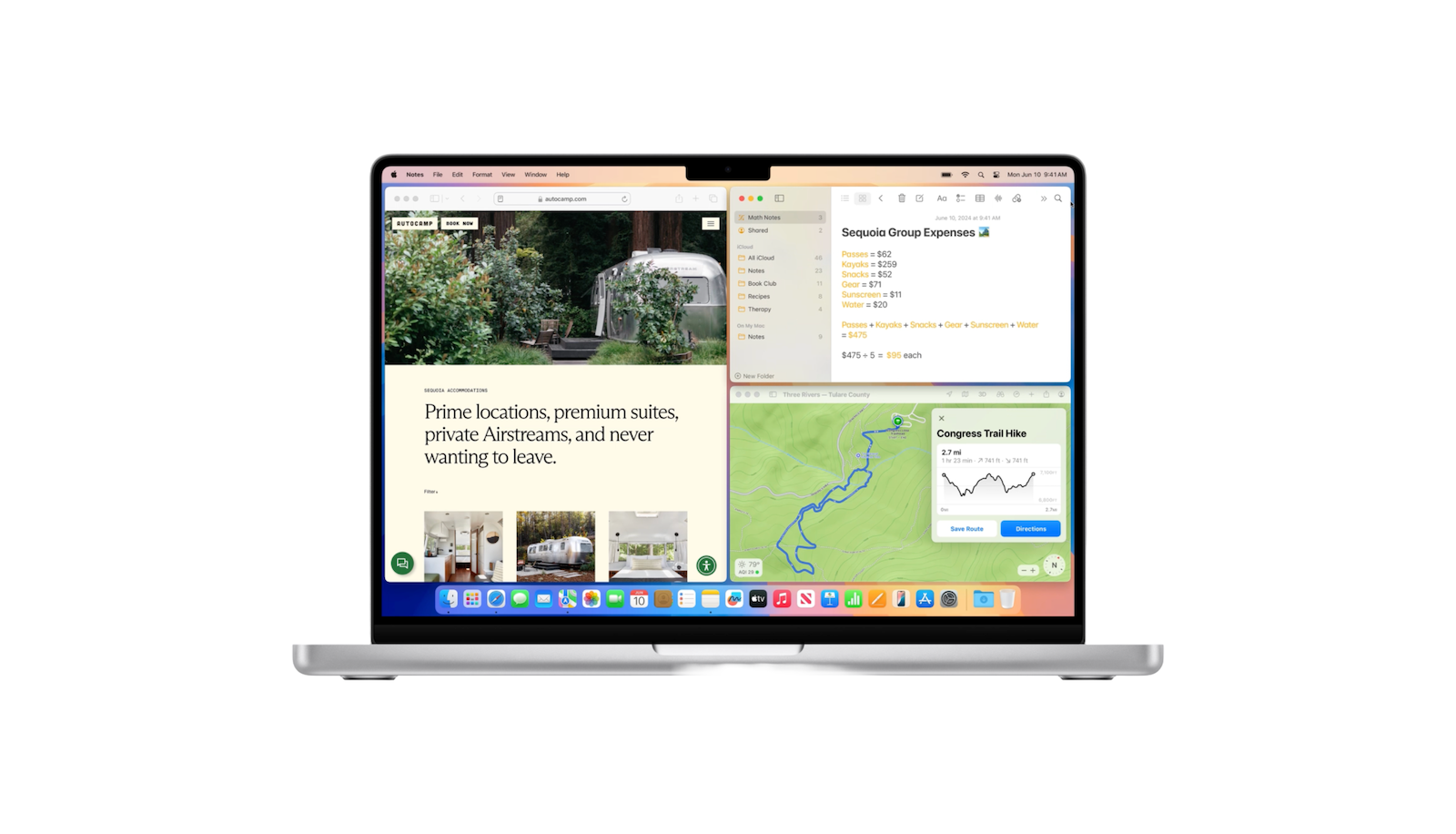
macOS Sequoia window layout

Image: Apple

WhatsAppFacebookEmail
Threads

With macOS Sequoia, Apple has finally introduced a long-awaited feature: automatic window arrangement. This new native feature makes it easier to manage windows on your Mac by simplifying screen layout and arrangement. Below, you'll learn how to use automatic window arrangement in macOS Sequoia, what keyboard shortcuts are available, and what benefits this feature offers. Let's get started right away!

Automatic window arrangement has been long overdue as a native macOS feature. For the past two decades, users have relied on third-party apps like Magnet and Rectangle to get automatic and custom window arrangement. Now, Apple has launched its version of automatic window arrangement with the macOS Sequoia beta release.

Arrange windows: drag and drop

  • Drag a window to an edge: Drag a window to a side, top, bottom, or corner of your Mac screen. You'll see a gray border that gives you a preview of the window. When you release the window, it will appear in its correct location.
  • Create half-screen window: Dragging the window to one edge creates a window that is half the screen size.
  • Create a quarter-screen window: Dragging the window to a corner will create a window that is a quarter of the screen size.

Keyboard shortcuts for automatic window arrangement

  • Half-screen window: Press the key combination “Function key” + “Control key” + left, right, up or down arrow to tile a window as a half-screen.
  • Rearrange windows: You can rearrange windows using the keyboard shortcut “Function key + Control key + Shift key + left, right, up or down arrow key”.
  • Reset window size: Press Function + Control + R to reset a window to its original size.

Additional access options

In addition to the keyboard shortcuts, there are two other options to access the window control:

  • Green Maximize Window button: The green button in the upper left corner of the window allows you to access the window controls by hovering over it.
  • Menu bar: From the menu bar, choose Window > Move & Resize.

Application of automatic window arrangement

At the top left of the screen you can see what the conversion to a half-size window looks like. If you drag the window to a corner to shrink it to a quarter of the screen, this will also be visualized. One thing to note: when using the native auto-tiling, there is a margin of about 8 pixels at the edge of the screen and between windows.

Manual moving

If you manually move a window after using auto-tiling, it will return to its original size.

Image: Apple

Effective Screen Usage with macOS Sequoia

Automatic window arrangement in macOS Sequoia offers a simple and effective way to maximize your screen space. With new keyboard shortcuts and the ability to position windows by dragging and dropping, Apple has created a powerful window management tool. While third-party apps like Magnet and Rectangle continue to offer more customization options, Apple's native solution is a welcome step in the right direction. Try out the new features and discover how they can improve your daily Mac experience. Looking for new accessories? Then check out our Amazon Storefront – there you'll find numerous products from leading manufacturers, including products for HomeKit and others! (Image: Apple)


  • macOS Sequoia: Install and test the developer beta
Make Apfelpatient a preferred source One click – and you'll see us more often on Google
Was this article helpful?
YesNo
Tags: macOSmacOS 15
SendShareSend
Share

Our Amazon Storefront

A handpicked selection of products for iPhone, Mac and more – sorted by topic and updated regularly.

Shop Now

This post contains affiliate links (including Amazon). We earn a small commission on qualifying purchases – at no extra cost to you. Learn more on our Partner Program page.

Previous Post

iOS 18: Use Apple Pay now in all desktop browsers

Next Post

Lock and hide apps with iOS 18: Here's how

Milan Jovicic

Milan Jovicic

Milan founded Apfelpatient in 2016 and has been responsible for all editorial content since 2018 — news, rumors, guides, and product reviews. Apple devices here are not test units on loan for two weeks but everyday tools: from the iPhone through MacBook Pro, MacBook Air, and iMac to the Apple Vision Pro, at least one device from nearly every product category is in daily use, many of them replaced annually. Every menu path in a guide is verified on the device before it is published.

Drawn outline of the folded iPhone Ultra with square corners on the hinge side and rounded corners opposite, matching the leaked iPhone Ultra screen protectors

iPhone Ultra: Screen protectors reveal the camera position

August 12, 2026 - 3:58 PM CEST
Glass panel set into the aluminium frame on the back of an iPhone 17 Pro Max in Cosmic Orange, whereas the iPhone 20 glass design is said to wrap the glass around the edges

iPhone 20: Glass design is not supposed to be scrapped after all

August 12, 2026 - 2:50 PM CEST
Jennifer Bailey on stage at an Apple event in front of a projected Apple Card, the Apple Pay chief is leaving the company in October

Apple Pay: Jennifer Bailey is leaving Apple in October

August 12, 2026 - 2:31 PM CEST

About APFELPATIENT

APFELPATIENT brings you the latest Apple news, product updates, guides, reviews and tips across the entire Apple ecosystem — from the iPhone to the Mac to the Apple Vision Pro. From the first rumors to confirmed news: researched responsibly.

Follow Apfelpatient

Facebook Instagram YouTube Threads Threads

Company

  • About Apfelpatient
  • Contact
  • Author Profiles

Community

  • Netiquette
  • Push Notifications
  • RSS feed

Legal

  • Legal Notice
  • Privacy Policy
  • Terms of Use
  • Cookie Settings
  • Affiliate Program

Resources

  • Sitemap

© 2026 Apfelpatient. All rights reserved.

No Result
View All Result
  • Home
  • News
  • Rumors
  • Tips & Tricks
  • Reviews
  • Insights

© 2026 Apfelpatient. All rights reserved. Page Directory

Change language to Deutsch


